
Disk Space Dashboard
Overview
Section titled “Overview”Monitor disk-space allocation and usage across managed hosting resources.
Disk Space Dashboard
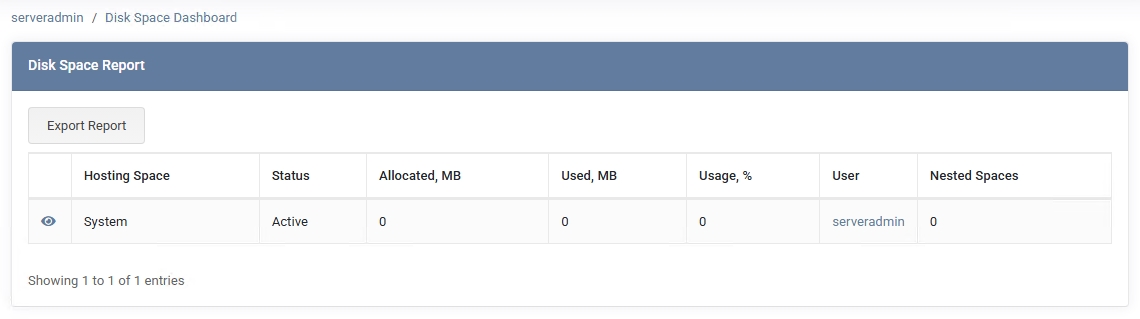
Section titled “Disk Space Dashboard”The Disk Space Dashboard provides a high-level view of total disk space usage across your MSPControl deployment. It displays a single System hosting space, representing all allocated and used resources in the environment.
Overview
Section titled “Overview”When you navigate to Dashboards > Disk Space Dashboard, you’ll see one row labeled System, with details such as:
- Status – Whether the system is Active or Suspended.
- Allocated, MB – The total disk space allocated to the System space.
- Used, MB – How much of that allocated space is actually in use.
- Usage, % – Percentage of allocated storage that is consumed.
- Nested Spaces – Typically 0 unless sub-spaces are configured.
At the top, there’s an Export Report button, which generates an .htm file containing the disk usage data. You can save or print this for recordkeeping, audits, or capacity planning.
Detailed View
Section titled “Detailed View”Next to the System entry, you’ll find an “eye” icon (View Details). Clicking it opens a window that breaks down disk usage by resource category, for example:
- Files
- Web Sites
- Hosted Exchange
- SQL Server
- MySQL
- MspCloudFolders
The specific list may vary depending on which services are enabled in your environment. This breakdown helps you see at a glance where disk usage is concentrated. For even more detail, clicking the System link in the table navigates to Account > Space Statistics, showing each resource in greater depth.
Best Practices
Section titled “Best Practices”- Monitor Usage Regularly – Keep an eye on the “System” space so you know when you’re nearing capacity.
- Export for Auditing – The
.htmexport lets you retain a snapshot of usage for audits, budgeting, or capacity planning. - Drill Down for Detailed Stats – Click the eye icon to see resource-by-resource usage. If needed, go to Account > Space Statistics for an even deeper analysis.
- Proactive Cleanup – If usage is higher than expected, investigate logs, backups, or other large files that might be archived or deleted.