
Databases
Overview
Section titled “Overview”Use the Databases area while administering a customer account in MSPControl.
The Databases management section in MSPControl provides a unified interface for provisioning and maintaining customer database services. The UI and workflows are consistent across supported database engines, so you can apply the same operational process whether you manage Microsoft SQL Server or MySQL.
Supported database services (as available in your environment):
- SQL Server 2012
- SQL Server 2014
- SQL Server 2016
- SQL Server 2019
- SQL Server 2022
- MySQL 5
- MySQL 8
This document describes the shared management experience for all supported database types.
Table of Contents
Section titled “Table of Contents”- Overview
- Databases
- Users
- Create Database User
- Create Database
- Maintenance & Housekeeping Tools
- Best Practices
Overview
Section titled “Overview”Database services in MSPControl are typically represented by two operational entities:
- Databases – actual database containers (schemas/data) hosted on a database server instance.
- Users – credentials used by applications, CMS platforms (for example WordPress), or internal tools to authenticate and access one or more databases.
The standard workflow is:
- Create a Database.
- Create a Database User.
- Assign the user access to one or more databases.
- Use built-in tools for backup/restore and basic housekeeping when needed.
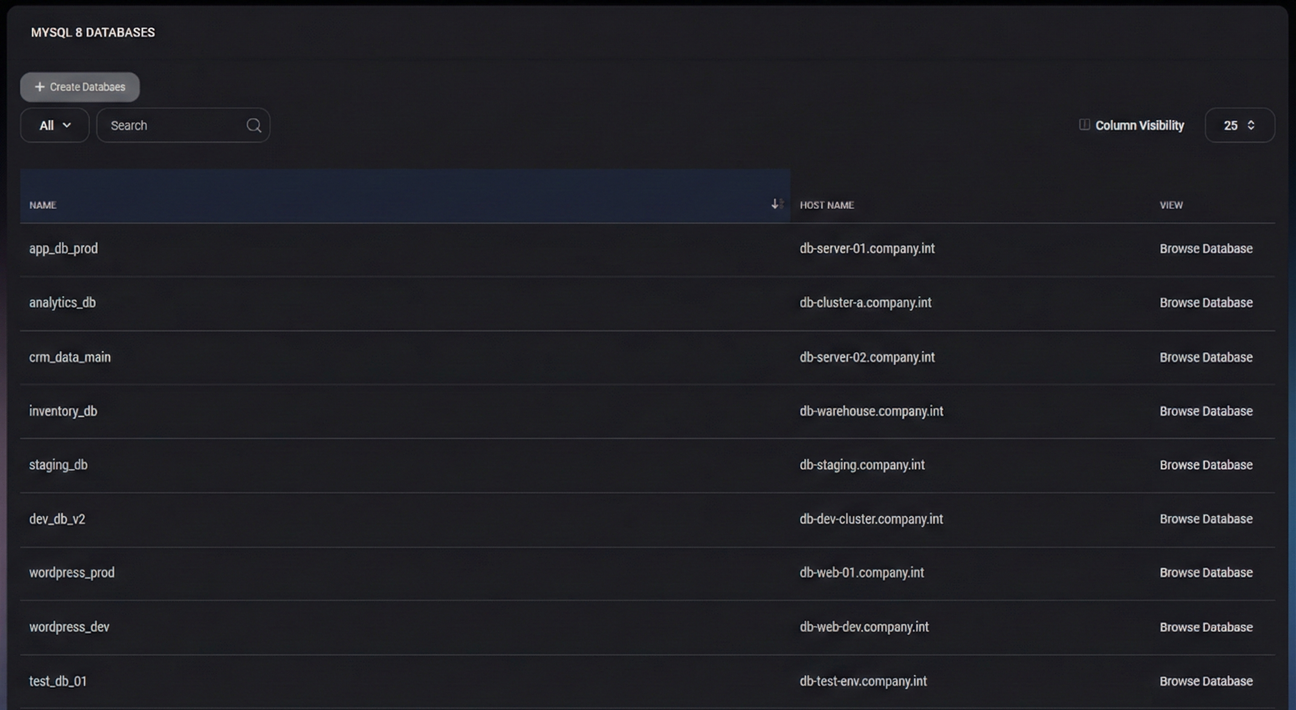
The Databases page lists all provisioned databases for the selected service (MySQL / SQL Server) and allows creating new databases.
Main Actions
Section titled “Main Actions”- Create Database – opens the database creation form.
- Browse Database – opens a database browser for viewing objects/content (availability depends on environment and permissions).
Displayed Columns
Section titled “Displayed Columns”- Name – database name.
- Host Name – database server host where the database is located.
- View – entry point for the database browser (for example, Browse Database).
Table Controls
Section titled “Table Controls”- View Filter (for example, All) – switches between available views if configured.
- Search – filters rows by database name.
- Column Visibility – shows or hides table columns.
- Page Size (for example, 25) – controls the number of rows per page.
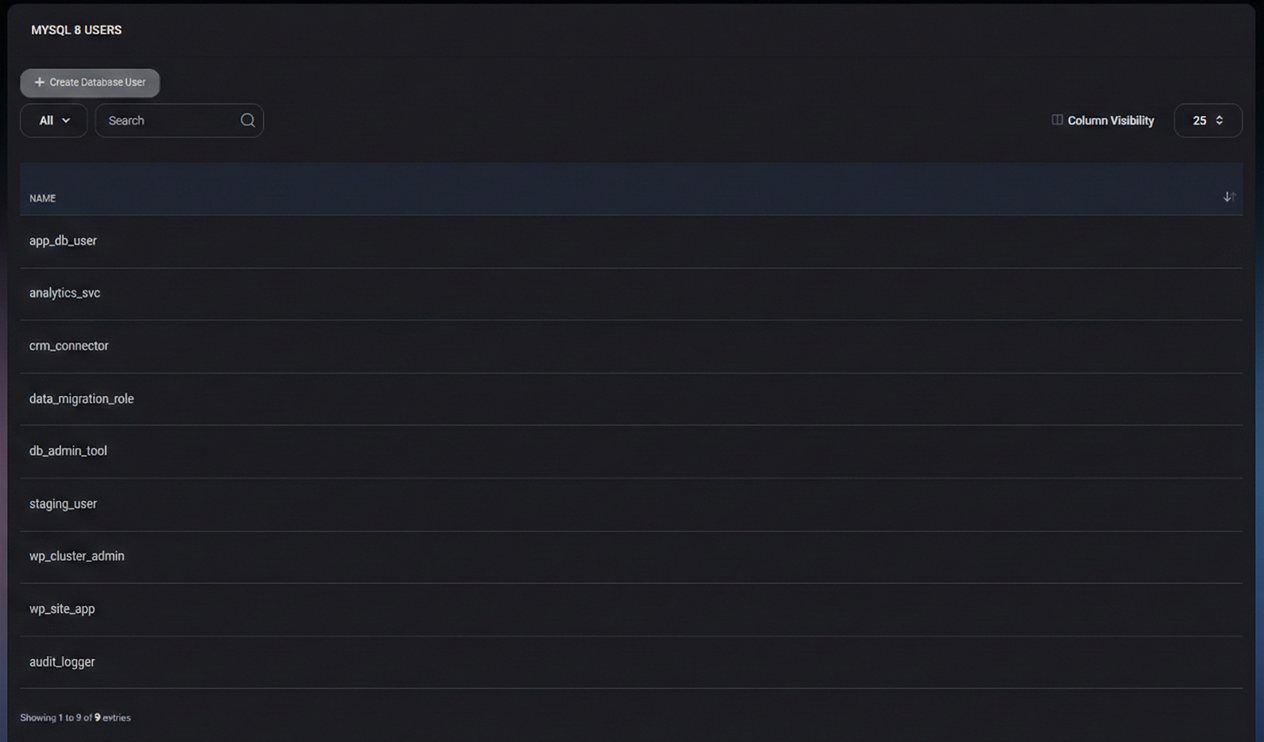
The Users page lists all database users and allows creating new credentials. This is where you manage application/service authentication identities and their access scope.
Main Actions
Section titled “Main Actions”- Create Database User – opens the user creation form.
Displayed Columns
Section titled “Displayed Columns”- Name – database username.
Capacity Indicator
Section titled “Capacity Indicator”The footer displays the current usage vs allowed limit (for example, Users: 9 of Unlimited). Use this as a quick validation when you suspect service limits are preventing provisioning.
Create Database User
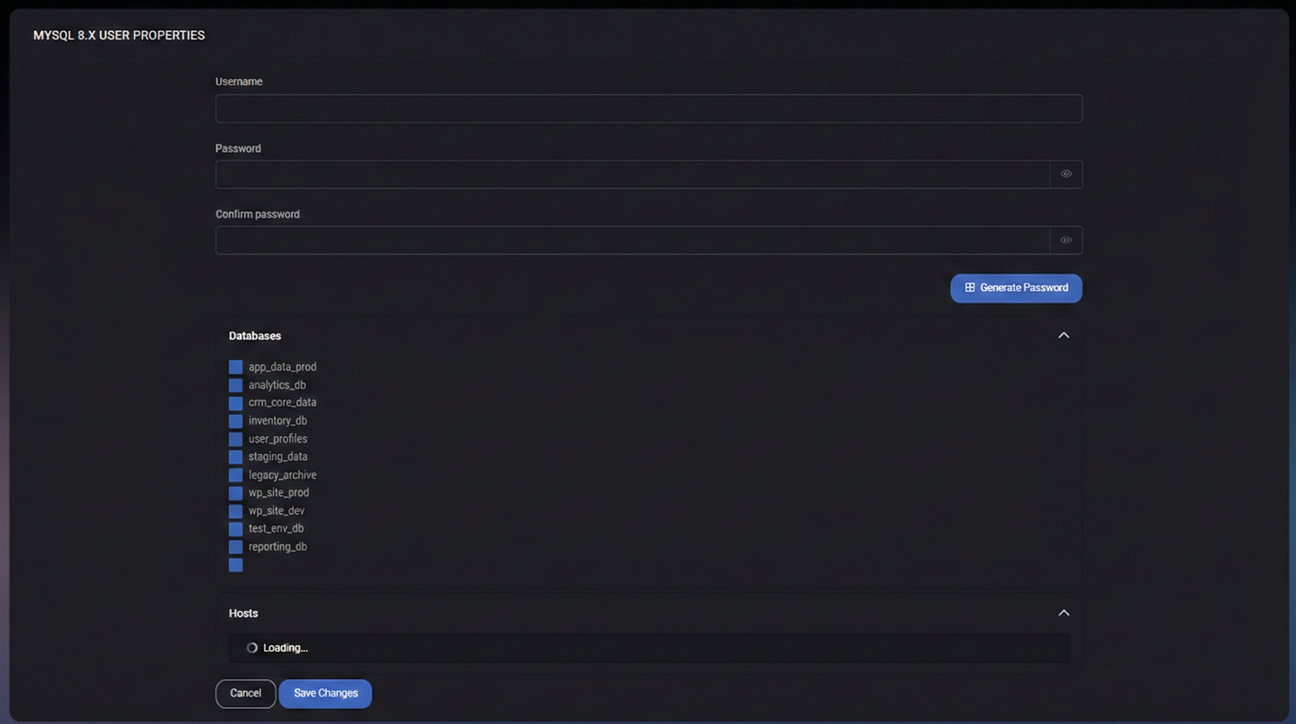
Section titled “Create Database User”Use Create Database User to generate credentials and grant access to selected databases and hosts.
Fields
Section titled “Fields”- Username – the login name that applications or administrators will use to connect.
- Password – the user’s password. Use the visibility toggle (eye icon) to verify the value when typing.
- Confirm Password – must match the password exactly to prevent mistakes.
- Generate Password – automatically generates a strong password for safer deployments.
Database Access Assignment
Section titled “Database Access Assignment”The Databases selector allows granting this user access to one or more databases. This is how you scope credentials to the applications that should use them (for example, a CMS user should only be granted access to its own database).
The Hosts selector controls where this user is allowed to connect from (host-based access rules). Restricting hosts reduces risk by preventing connections from unexpected origins.
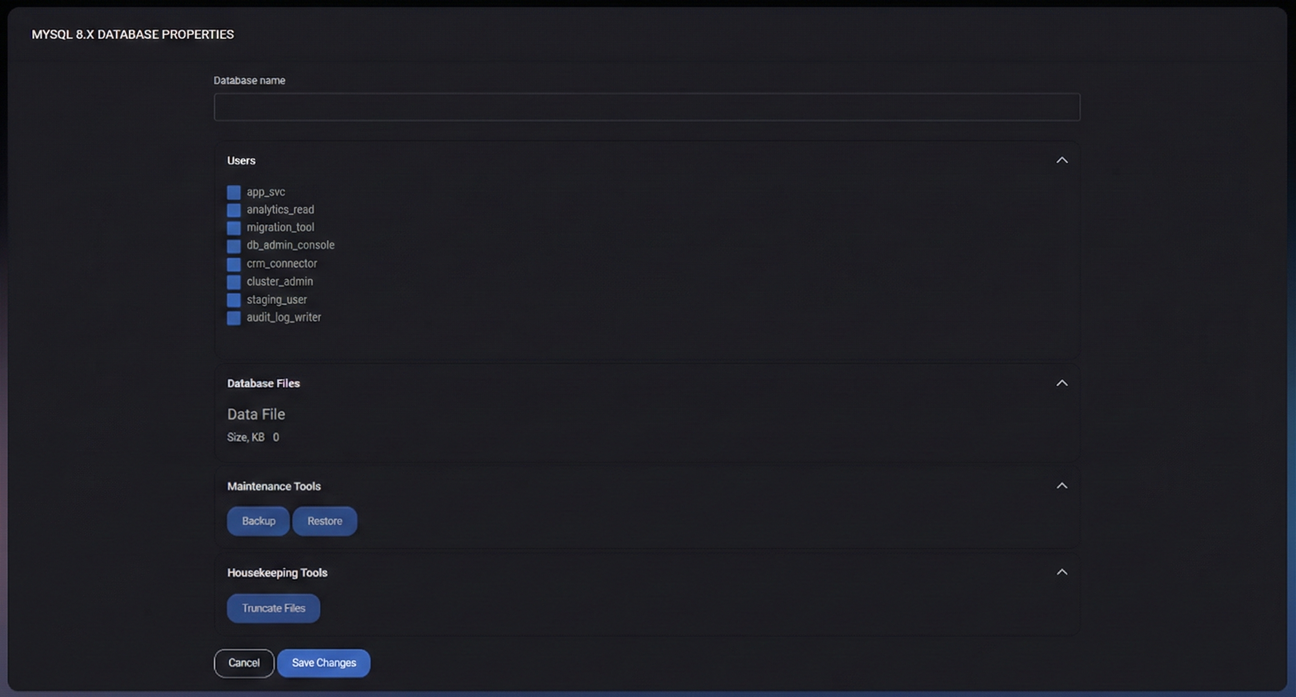
Create Database
Section titled “Create Database”Use Create Database to provision a new database container for an application or customer workload.
Fields
Section titled “Fields”- Database Name – the unique name of the database to create on the selected service instance.
User Assignment
Section titled “User Assignment”The Users selector allows assigning one or more existing users to the database. This is typically used when you already created the credential and now want to bind it to a newly created database.
Database Files
Section titled “Database Files”The Database Files area shows storage allocation details for the database (for example, data file size). This helps when diagnosing growth, storage constraints, or service limits.
Maintenance & Housekeeping Tools
Section titled “Maintenance & Housekeeping Tools”Database records include built-in tools for common operations. These tools are intended for routine maintenance and simple operational tasks, without requiring direct server access.
Maintenance Tools
Section titled “Maintenance Tools”- Backup – creates a backup of the selected database. Use before risky changes, migrations, or upgrades.
- Restore – restores a database from an available backup. Use to roll back failed changes or recover from data loss scenarios.
Housekeeping Tools
Section titled “Housekeeping Tools”- Truncate Files – performs cleanup operations intended to reduce or reset database file usage where applicable. Use cautiously and only when you understand the impact on stored data and recovery needs.
Best Practices
Section titled “Best Practices”- Create one database per application/workload to keep access boundaries clear and reduce blast radius.
- Use unique users per application instead of shared credentials across multiple systems.
- Grant access to only the required databases when creating a user (avoid broad access by default).
- Prefer Generate Password and store credentials securely in MSPControl (or a dedicated secrets manager) rather than keeping them in plain text notes.
- Run Backup before upgrades, migrations, large imports, or schema changes.
- Use Restore as part of a defined recovery process (confirm you know which backup is being restored and what will be overwritten).
- Treat Truncate Files as a controlled operation: validate business impact and confirm retention/recovery requirements first.