Security Improvements
Overview
Section titled “Overview”Understand Security Improvements in a self-hosted MSPControl deployment.
This section enhances the cryptographic protection of your MSPControl instance by enabling encryption management, backup and recovery procedures, and SQL-level encryption. These operations are critical for protecting sensitive data such as passwords, API keys, email credentials, and audit logs.
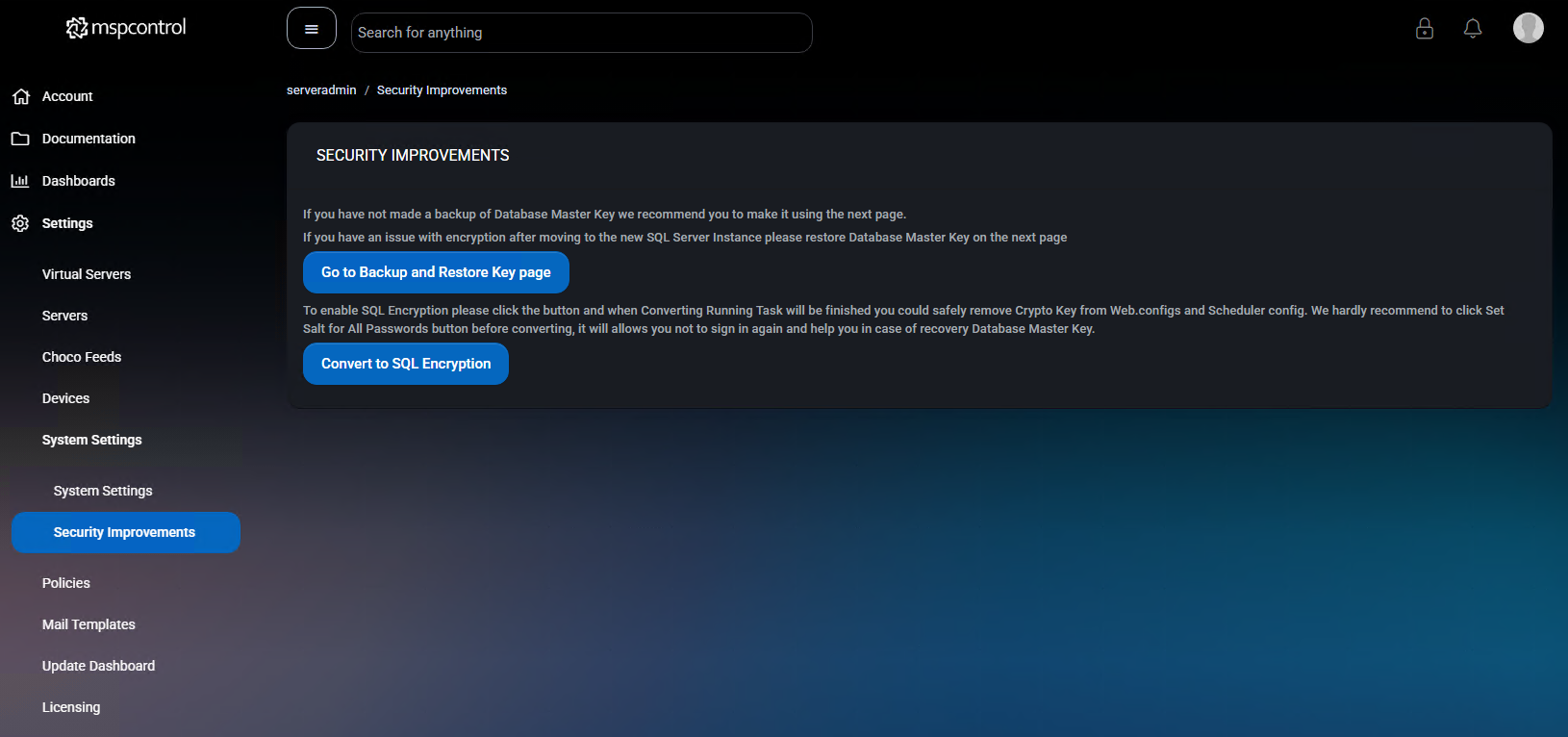
Go to backup and restore key page
Section titled “Go to backup and restore key page”This button opens a separate interface for managing the Database Master Key. You should perform this step before enabling encryption or migrating your SQL Server.
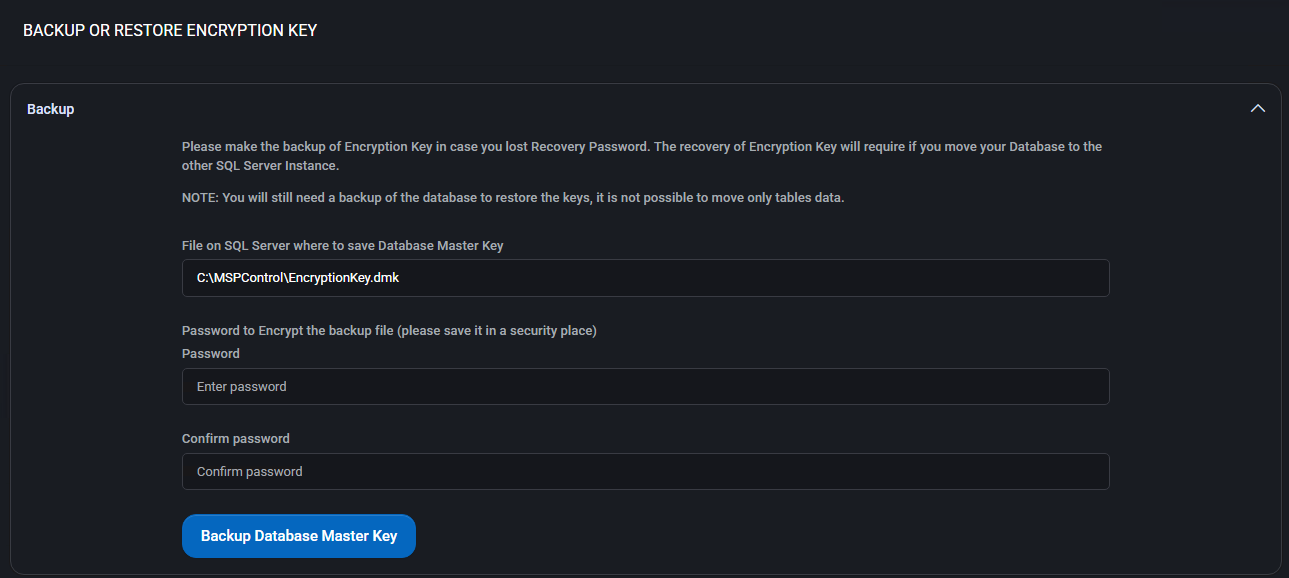
Backup
Section titled “Backup”-
File path: Enter the full file path where the encrypted key will be saved (e.g.,
C:\MSPControl\EncryptionKey.dmk). 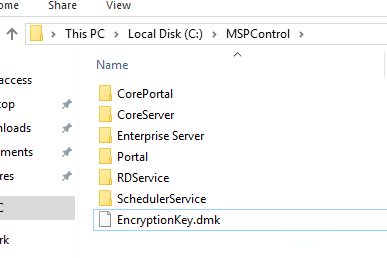
Backup -
Password: Set and confirm a password that will be used to protect the exported key file. Keep this password safe.
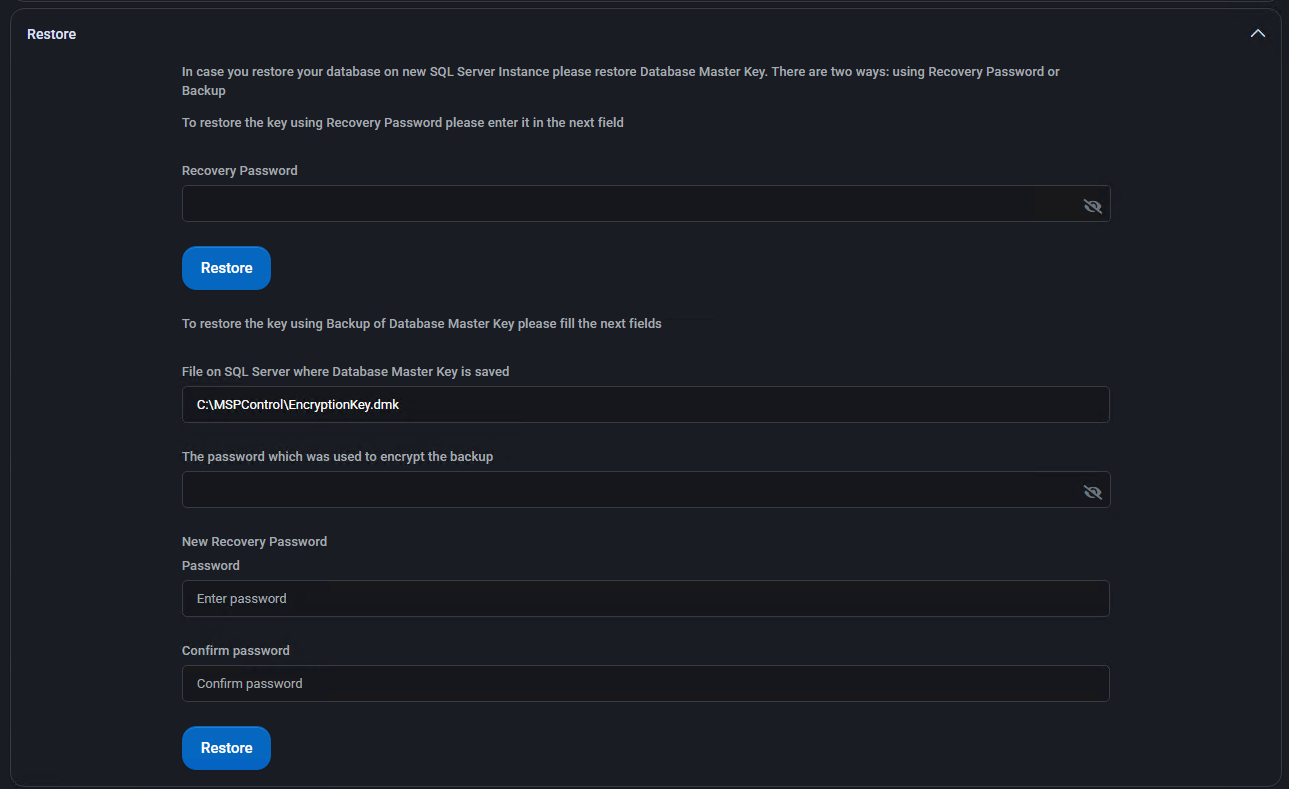
Restore
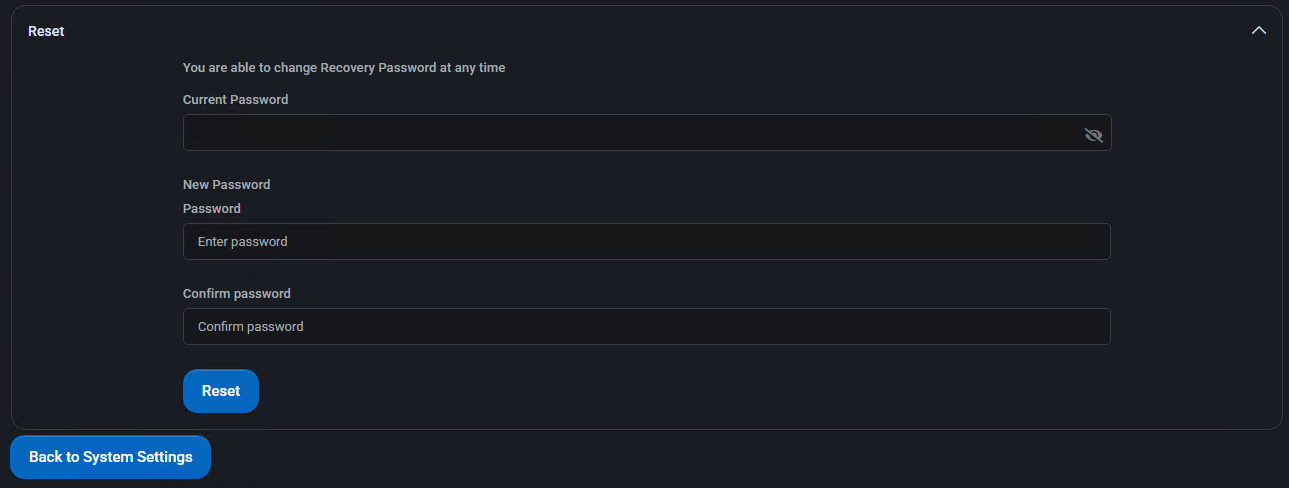
Section titled “Restore”- Recovery Password: Enter the current password if restoring from Recovery Password.
- Backup Restore: If restoring from backup, enter the file path of the saved key and the encryption password used during backup.
- New Recovery Password: Provide and confirm a new password for future recovery.
- Current Password: Enter your current recovery password.
- New Password: Set a new recovery password and confirm it.
Convert to SQL encryption
Section titled “Convert to SQL encryption”This feature migrates your current encryption from web.config-based CryptoKeys to SQL-level encryption using the Database Master Key.
- Clicking the button shows a confirmation dialog before proceeding.
- Once complete, all encryption operations (e.g., for passwords, OAuth secrets, etc.) will use the SQL Server encryption layer.

Important: After conversion, the interface will change. Crypto Key-based encryption is removed, and a new option appears — Encrypt Sensitive Data.
Encrypt sensitive data
Section titled “Encrypt sensitive data”This option encrypts additional fields in the MSPControl database, including:
- RecaptchaKey
- Office 365 Tenant ID
- Email account credentials
- Audit logs and other security-sensitive fields
Requirement: This action is only available in Maintenance Mode. You can enable it in Settings > Update Dashboard.
Best practices
Section titled “Best practices”- Always back up your encryption key before converting to SQL encryption or migrating your SQL Server instance.
- Use strong passwords for encryption key backup and recovery.
- Test restore functionality in a staging environment before production changes.
- Enable Maintenance Mode before encrypting sensitive data to avoid service interruptions.
- After migration, remove obsolete keys from web.config and scheduler configs to tighten security.
