Backup and Security Compliance
Veeam backup report policy
Section titled “Veeam backup report policy”This policy monitors the status and reliability of Veeam backups across managed endpoints. It is primarily used to generate compliance reports and detect backup issues before they become critical.
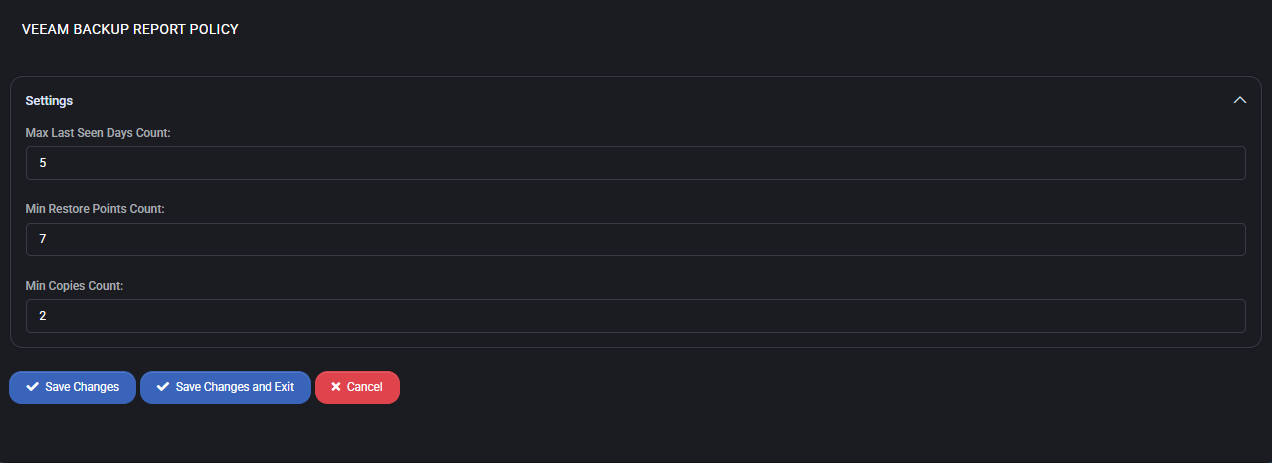
Settings
Section titled “Settings”- Max Last Seen Days Count Defines the maximum number of days a backup job can remain unseen in the system before it is flagged as inactive or missing. For example, if a backup job has not been detected within 5 days, it will be considered non-compliant.
- Min Restore Points Count Sets the minimum number of restore points required for each backup job to be considered valid. A value of 7 ensures that there is at least one restore point per day over the course of a typical week.
- Min Copies Count Indicates the minimum number of copies that must exist for a backup to meet redundancy and resilience standards. With a setting of 2, this enforces a backup replication or offsite copy policy.
Best practices
Section titled “Best practices”- Adjust Max Last Seen Days to reflect your organization’s expected backup frequency (e.g., daily or weekly).
- Ensure Min Restore Points aligns with your retention policy and recovery time objectives.
- Use Min Copies to enforce 3-2-1 backup strategies (3 total copies, 2 different media, 1 offsite).
- Pair this policy with alerting tools to notify administrators of non-compliant endpoints.
- Review backup compliance reports regularly to detect configuration drift or missed schedules.
Azure backup report policy
Section titled “Azure backup report policy”This policy is used to monitor the integrity, availability, and compliance of Azure-based backup jobs across endpoints. It is especially useful for ensuring that restore points, retention periods, and visibility of backups meet defined standards for both cloud and on-premise environments.
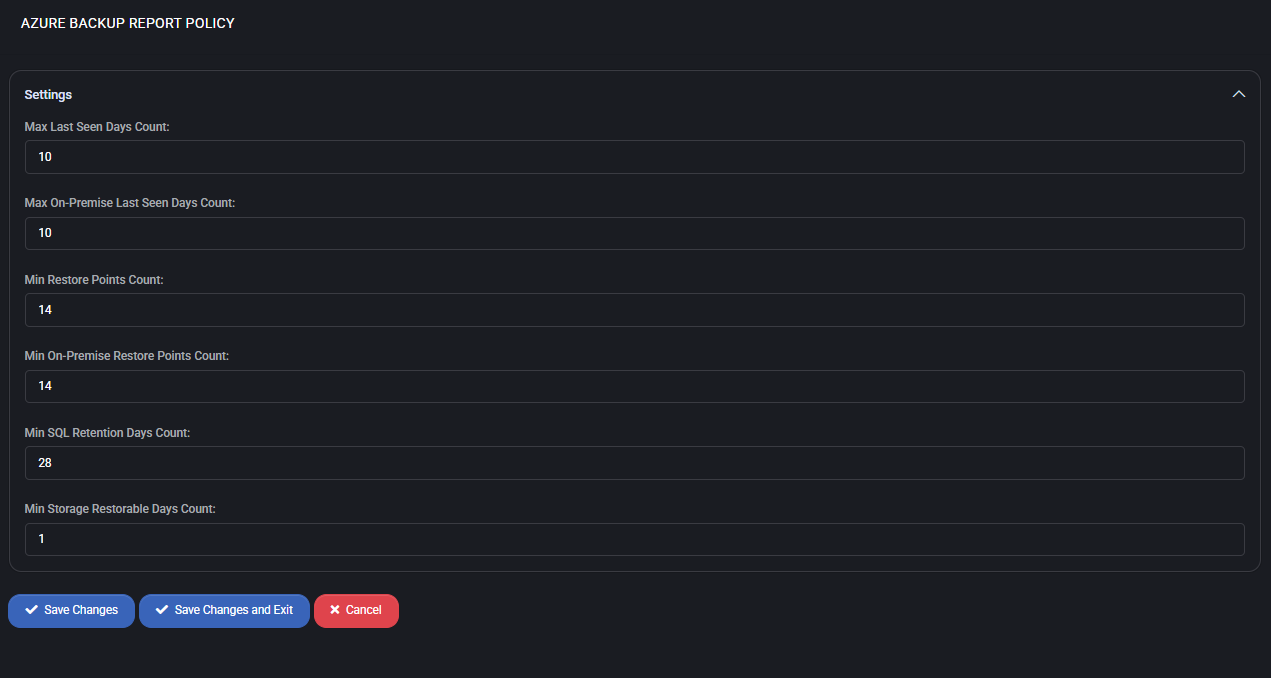
Settings
Section titled “Settings”-
Max Last Seen Days Count The maximum number of days since a backup job was last seen. If no backup is detected within 10 days, it is flagged as non-compliant.
-
Max On-Premise Last Seen Days Count Same as above but applied specifically to on-premise endpoints. Ensures hybrid environments are also monitored for backup visibility.
-
Min Restore Points Count Sets the minimum number of restore points required for cloud-based backups to be considered valid. A value of 14 means two weeks of daily restore points must exist.
-
Min On-Premise Restore Points Count Defines the minimum required restore points for on-premise backup systems. Like the cloud value, it is set to 14 to reflect two weeks of coverage.
-
Min SQL Retention Days Count Minimum retention duration (in days) for SQL Server backups. A setting of 28 ensures backup data is available for four weeks before expiration.
-
Min Storage Restorable Days Count Sets the minimum number of days that deleted storage items (like disks or snapshots) should remain recoverable. Value 1 ensures at least one day of storage-level recoverability.
Best practices
Section titled “Best practices”- Align Max Last Seen Days and Max On-Premise Last Seen Days with your monitoring intervals and SLA thresholds.
- Ensure that Min Restore Points reflect your recovery plan and legal compliance requirements (e.g., 7-day or 14-day recovery windows).
- Set Min SQL Retention conservatively for databases with longer retention needs or compliance mandates.
- Use Min Storage Restorable Days to prevent accidental permanent data loss when disks or volumes are deleted.
- Regularly audit this policy in combination with alerting systems to catch missed backups early.
Security compliance policy
Section titled “Security compliance policy”The Security Compliance Policy allows you to define thresholds and enforcement rules for detecting misconfigurations, legacy practices, and other non-compliant behaviors in customer environments. This policy is split into three functional areas:
- Security Compliance Settings
- Baseline Policy Settings
- Azure MFA Settings
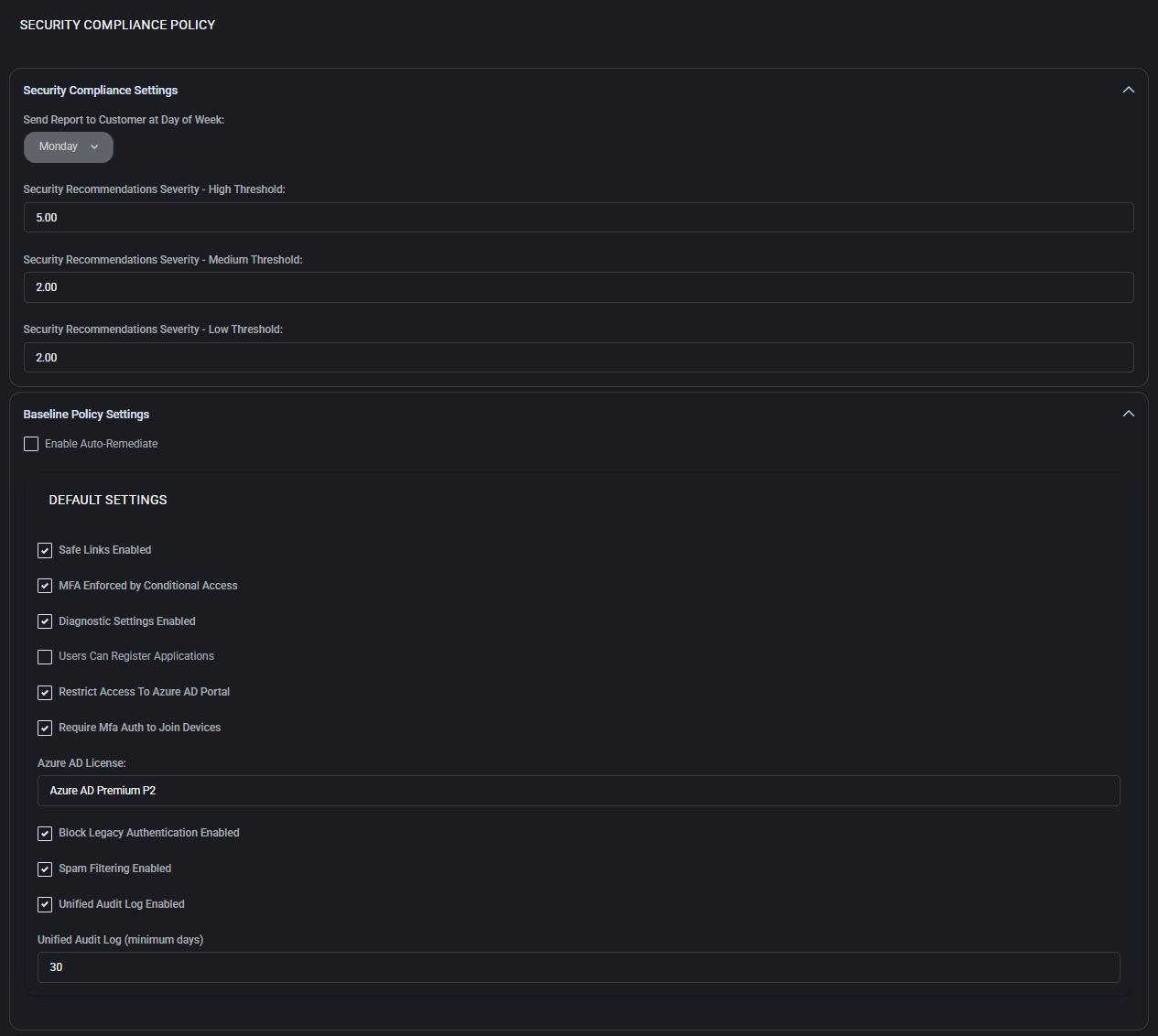

Security compliance settings
Section titled “Security compliance settings”This section defines how often reports are sent and sets severity thresholds for recommendations.
- Send Report to Customer at Day of Week Choose the day of the week when the security compliance report is sent to the customer. Example: Monday.
- Security Recommendations Severity – High Threshold Set the numeric threshold (e.g.,
5.00) for classifying security items as high severity. Anything above this value is considered critical. - Security Recommendations Severity – Medium Threshold Sets the score (e.g.,
2.00) above which issues are flagged as medium severity. - Security Recommendations Severity – Low Threshold Minimum score (e.g.,
2.00) to trigger a low severity warning or recommendation.
Baseline policy settings
Section titled “Baseline policy settings”This optional section compares a defined set of Microsoft 365 and Microsoft Entra settings with the expected baseline. Most controls record a match or mismatch for review. Automatic correction is limited to the supported settings identified below and runs only when Enable Auto-Remediate is selected.
Use the Microsoft 365 configuration drift workflow to review recurring baseline mismatches, the limited automatic-correction scope and configured ticket follow-up. Check collection freshness and the effective Microsoft state before relying on a stored match.
- Enable Auto-Remediate When enabled, MSPControl can attempt automatic correction for Users Can Register Applications, Restrict Access To Azure AD Portal, the Unified Audit Log enabled state, and User Consent Settings. The attempt can fail or be inapplicable because of permissions, licensing, tenant state, policy conflicts, or Microsoft service behavior. Verify the resulting tenant state after every attempted write.
The following security features can be toggled under the baseline:
- Safe Links Enabled – Protects users from malicious links by rewriting and scanning URLs in real-time.
- MFA Enforced by Conditional Access – Ensures that Multi-Factor Authentication is applied to users through conditional policies.
- Diagnostic Settings Enabled – Enables diagnostic logging for improved security event tracking.
- Users Can Register Applications – Allows or restricts user ability to register custom Azure apps.
- Restrict Access To Azure AD Portal – Prevents general access to the Azure Active Directory admin portal.
- Require MFA Auth to Join Devices – Requires MFA when users attempt to join new devices to Azure AD.
- Azure AD License – Defines the minimum required license level (e.g., Azure AD Premium P2) to enforce advanced security capabilities.
- Block Legacy Authentication Enabled – Disables insecure legacy authentication protocols.
- Spam Filtering Enabled – Enables anti-spam protection through Microsoft 365.
- Unified Audit Log Enabled – Enables a central log for auditing activity across services.
- Unified Audit Log (minimum days) – Defines the minimum retention period (e.g., 30 days) for audit logs.
The remaining baseline values are compared and recorded but are not automatically corrected by the current baseline workflow. Unified Audit Log automatic correction applies to the enabled state only; it does not raise the retention period.
Azure MFA settings
Section titled “Azure MFA settings”Controls the behavior of Multi-Factor Authentication enforcement specifically for “Entra ID Free” users.
- Enforce MFA for “Entra ID Free” users – When checked, these users must complete MFA for login.
- Include “Entra ID Free” Users in MFA Conditional Access – Ensures that conditional access rules apply to free-tier accounts.
Best practices
Section titled “Best practices”- Review severity thresholds regularly to ensure they’re aligned with your organization’s risk tolerance.
- Start with comparison and reporting. Enable supported automatic correction only after confirming customer approval, delegated permissions, Microsoft licensing, exclusions, expected impact, emergency access, and rollback.
- Use the Conditional Access across customer tenants guide to prepare customer scope, licensing, emergency access, exclusions, and Microsoft-side verification before changing MFA or legacy-authentication policy scope.
- Enforce MFA for all users, including “Entra ID Free,” to reduce identity-based attacks.
- Use “Azure AD Premium P2” licensing to unlock advanced conditional access and logging features.
- Schedule compliance reports on the same weekday as other maintenance activities to streamline reviews.
- Ensure “Unified Audit Log” is enabled and retained for a minimum of 30 days to support incident investigations.
Azure security policy
Section titled “Azure security policy”Settings > Policies > Hosted Organization > Azure Security sets the Log Analytics Workspace Default — the workspace organizations use for Azure security signals unless one is set for them individually.
Setting a sensible default here is what stops each new organization needing the workspace configured by hand, and what makes the security data land somewhere you are already watching. An organization with no workspace produces no signals, and nothing on the dashboards distinguishes that from an organization with nothing to report.
