Devices, Backup, and Security
Cloud folders tab
Section titled “Cloud folders tab”The Cloud Folders tab provides access to cloud-based file storage and synchronization tools available to your organization. It enables administrators and users to manage shared and personal folders, monitor synchronization status, and configure network drive mappings.
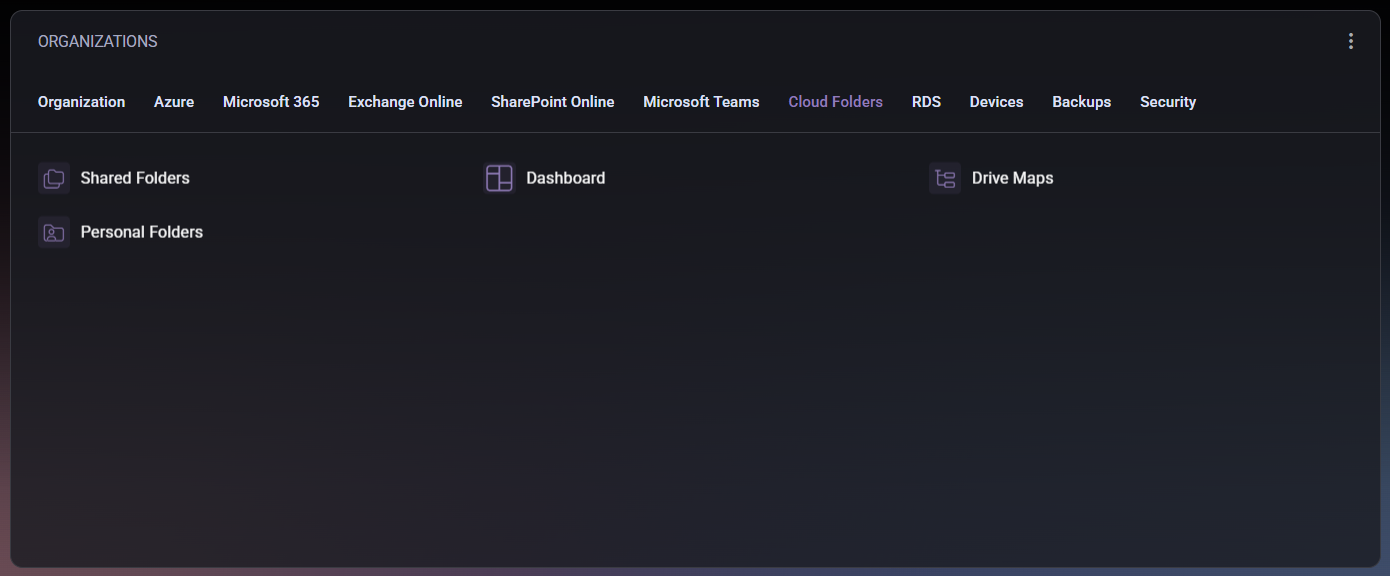
This tab includes the following sections:
- Shared Folders – displays shared cloud folders accessible by multiple users or departments. Administrators can review permissions, add or remove users, and verify synchronization status between on-premises and cloud storage.
- Personal Folders – shows personal storage locations for individual users. Each user’s private cloud folder can be managed here, ensuring secure access and correct quota allocation.
- Dashboard – provides an overview of all cloud folder activities, including usage metrics, synchronization health, and access statistics. This view helps administrators quickly identify issues or storage trends.
- Drive Maps – allows mapping of cloud storage locations to network drives for easier access from user devices. It provides centralized configuration of drive letters and connection parameters, helping standardize the user experience across the organization.
Through this tab, both administrators and users can maintain visibility and control over shared file resources while ensuring consistent integration between cloud storage and local infrastructure.
RDS tab
Section titled “RDS tab”The RDS (Remote Desktop Services) tab provides a centralized view for managing and monitoring remote desktop environments available within your organization. It allows administrators to view RDS collections, monitor resource allocation, and verify user access to virtualized desktops and applications.
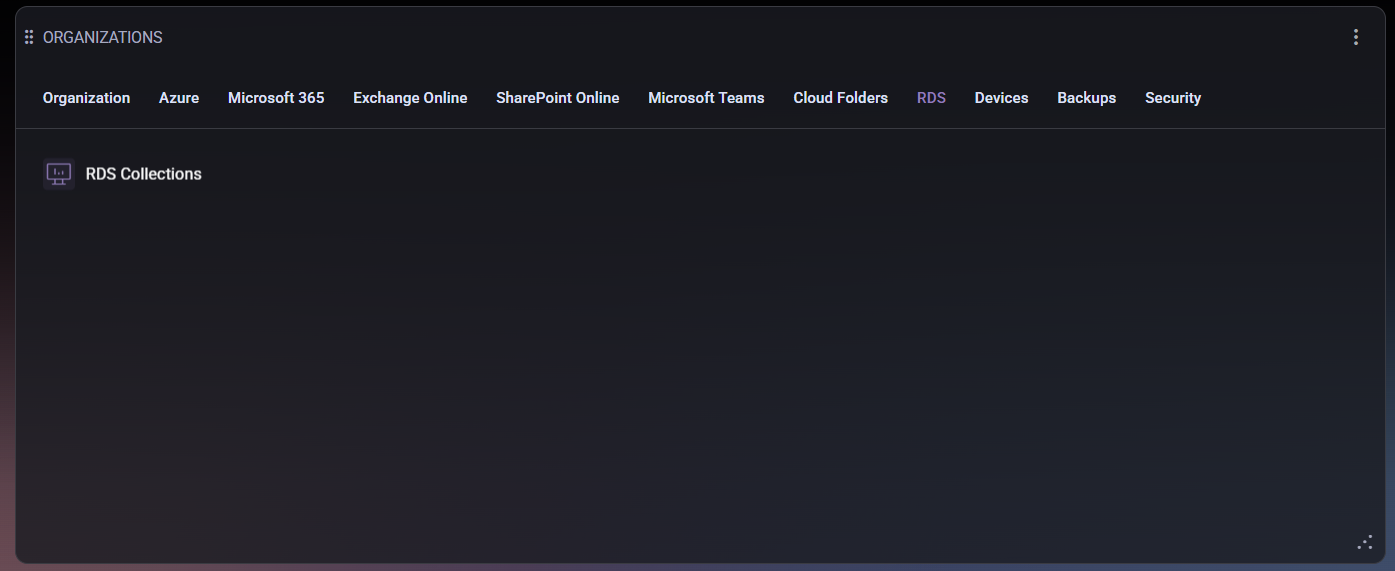
This tab includes the following section:
- RDS Collections – displays all active Remote Desktop collections configured in the environment. Each collection typically contains one or more session hosts and can be used to publish desktops or specific applications to users. Administrators can review the current configuration, check connection health, and ensure that the RDS deployment is properly synchronized with the hosting environment.
The RDS interface simplifies access management for virtual desktop infrastructure (VDI) environments, enabling administrators to maintain user productivity and securely deliver remote applications directly through the MSPControl portal.
Devices tab
Section titled “Devices tab”The Devices tab provides a complete overview of all managed devices within the organization. It helps administrators monitor workstation and server health, verify agent status, and ensure that all systems comply with defined update and security standards.
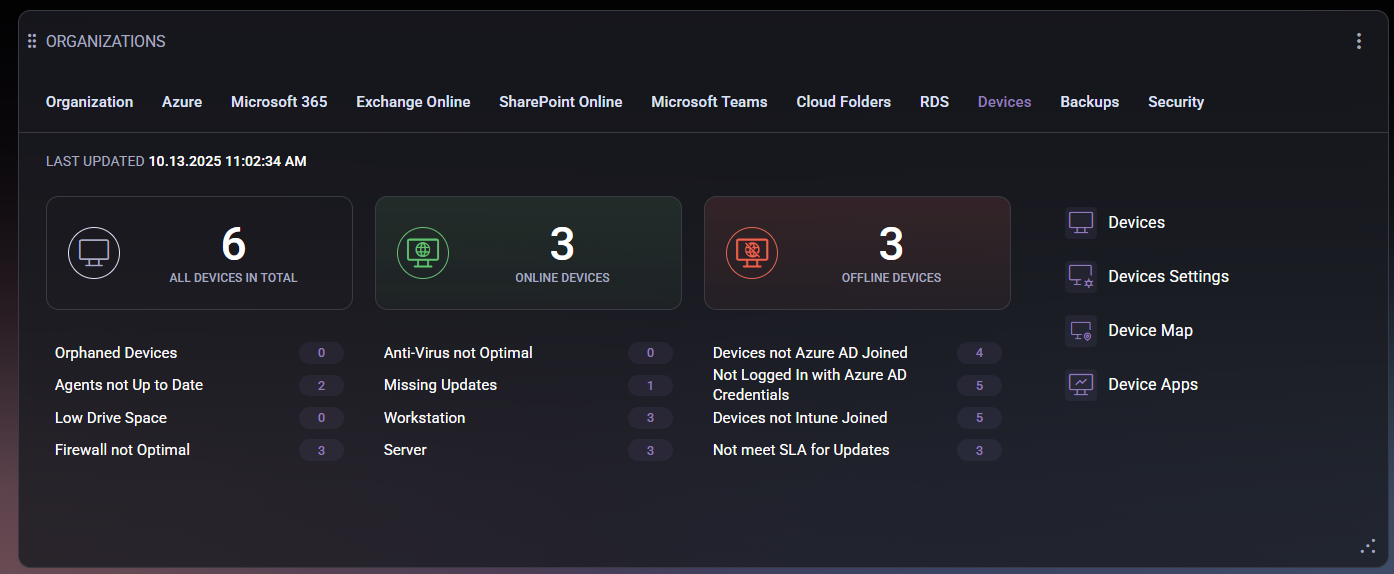
The top section of the tab displays real-time device statistics:
- All Devices in Total – the total number of devices managed by MSPControl.
- Online Devices – devices currently active and connected to the management platform.
- Offline Devices – devices that are currently unreachable or have been disconnected from the network.
Below these counters, MSPControl highlights system health indicators such as outdated agents, low disk space, missing antivirus, or firewall misconfigurations. These alerts allow administrators to quickly identify and prioritize systems requiring attention. Device category tags (e.g., Workstation, Server) also help distinguish between types of endpoints. The right-hand section provides access to management modules:
- Devices – displays the full inventory of managed endpoints, including device names, roles, and current connection status.
- Device Settings – contains configuration parameters for device monitoring, update frequency, and communication policies.
- Device Map – visualizes device distribution and network topology, helping identify connectivity and location-based issues.
- Device Apps – lists installed applications across managed devices, allowing administrators to track software deployment and compliance.
By combining device statistics, alert conditions, and management shortcuts, the Devices tab acts as a centralized control center for endpoint health and compliance monitoring.
Backups tab
Section titled “Backups tab”The Backups tab provides an overview of backup solutions integrated within your organization. It focuses primarily on cloud-based backups to ensure business continuity, data protection, and disaster recovery readiness.
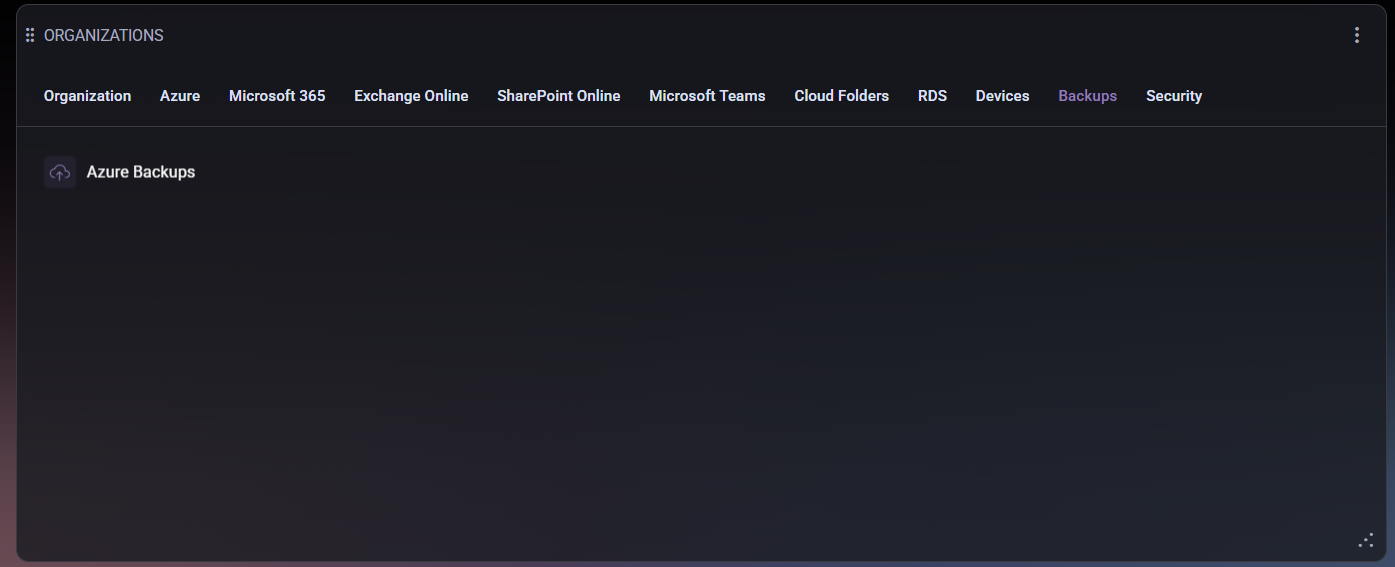
This tab includes the following section:
- Azure Backups – displays all configured backup jobs running in Microsoft Azure. Administrators can monitor backup status, retention policies, and recent activity logs to ensure that data recovery points are successfully created and maintained. This section helps confirm that all critical workloads — such as virtual machines, databases, or file shares — are properly protected and meet the organization’s recovery objectives.
Using the Backups tab, administrators can quickly verify the integrity of their backup infrastructure, track potential failures, and confirm that all scheduled backup processes are executed as planned. This ensures compliance with internal data protection standards and external regulatory requirements.
Security tab
Section titled “Security tab”The Security tab provides a unified overview of your organization’s current security posture, helping administrators monitor and improve identity protection, compliance, and incident management across Microsoft 365 and Azure environments.
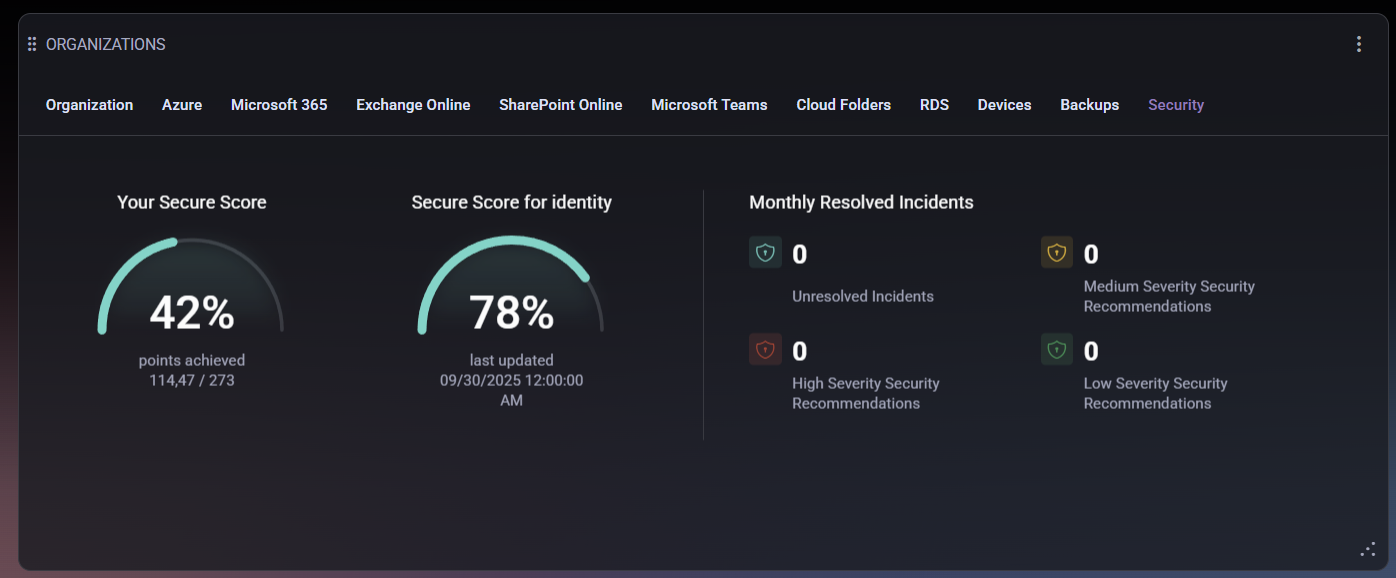
The tab displays several key metrics and insights:
- Your Secure Score – a global security rating based on implemented best practices and security configurations across all managed services. It reflects how well the organization’s settings align with Microsoft’s security recommendations.
- Secure Score for Identity – a dedicated rating that evaluates user identity protection, including multi-factor authentication (MFA) usage, conditional access policies, and account hygiene. The score helps administrators identify vulnerabilities related to user authentication and access control.
- Monthly Resolved Incidents – summarizes recent security-related events and categorizes them by severity:
- Unresolved Incidents – open security alerts requiring review or remediation.
- High Severity Security Recommendations – critical actions suggested to address significant vulnerabilities.
- Medium Severity Security Recommendations – issues of moderate importance that may impact compliance or protection levels if left unaddressed.
- Low Severity Security Recommendations – minor configuration improvements or non-critical recommendations to enhance overall security.
The Security tab is essential for maintaining proactive defense within your environment. It enables administrators to identify weak points, track security progress, and ensure the organization meets compliance and risk management standards.
