Scheduling and Ticketing Policies
Scheduling groups policy
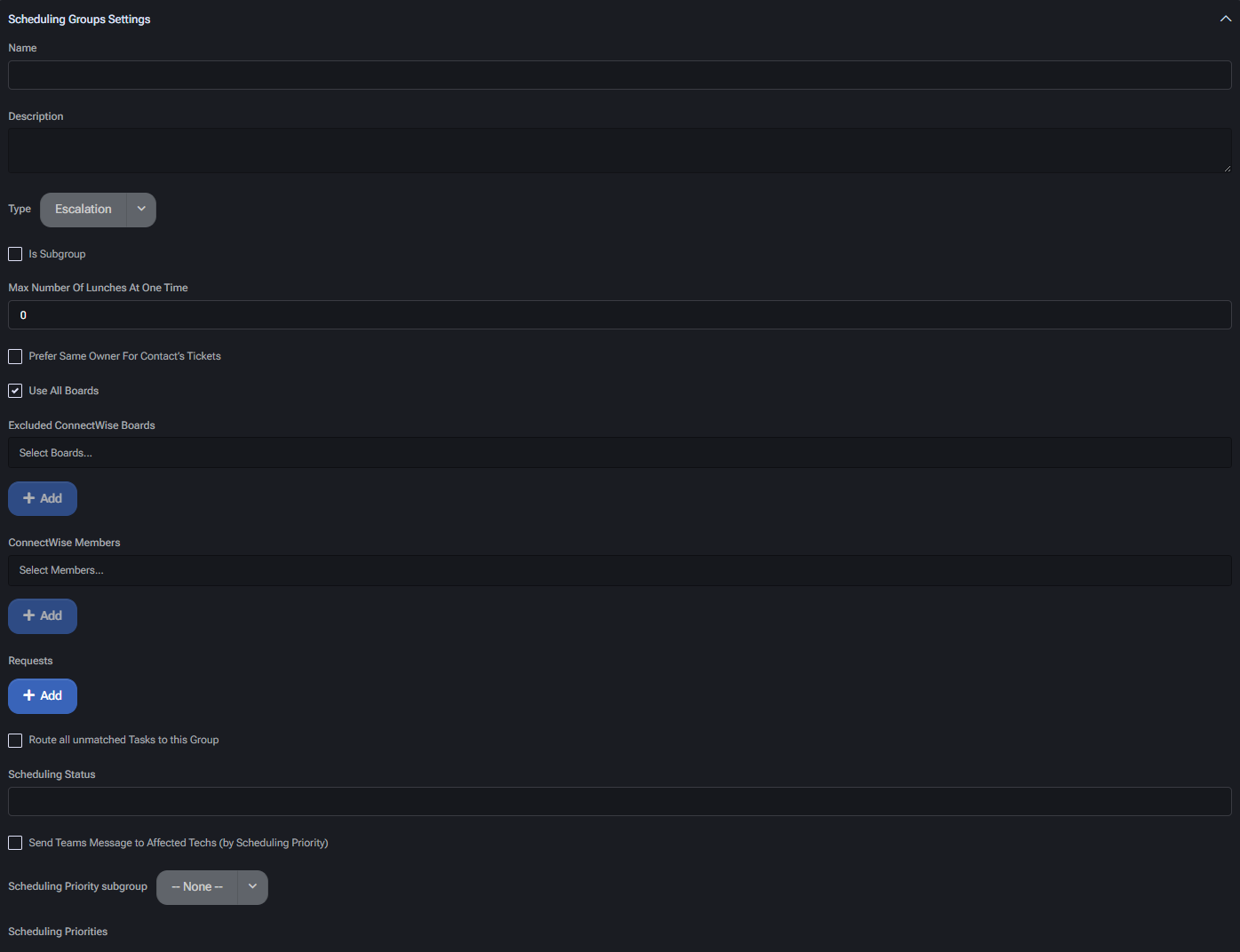
Section titled “Scheduling groups policy”This section allows administrators to manage scheduling groups used for ticket routing, escalation, triage, and task allocation. Scheduling groups define how tickets and tasks are assigned to ConnectWise members based on specific rules, status mappings, and availability preferences. Each group can be customized with triggers, ownership behaviors, and Microsoft Teams integration logic.
Group configuration
Section titled “Group configuration”- Name: Label for the scheduling group, shown throughout UI and rule mappings.
- Description: Internal note or purpose of the group, for documentation or filtering.
- Type: Logical classification. Used to differentiate functional purpose (e.g. Initial Triage, Escalation, Lunch).
- Is Subgroup: Marks this entry as part of a larger parent scheduling group.
- Max Number Of Lunches At One Time: Used for Lunch type groups to restrict simultaneous absences.
Board inclusion settings
Section titled “Board inclusion settings”- Prefer Same Owner For Contact’s Tickets: Attempts to assign the same technician to multiple tickets from the same contact for consistency.
- Use All Boards: Enables the group to apply across all available ConnectWise boards.
- Excluded ConnectWise Boards: Select specific boards where this group should be excluded from ticket handling.
Membership and assignment
Section titled “Membership and assignment”- ConnectWise Members: Assign specific ConnectWise users who will be responsible for handling tickets in this group.
- Requests: Define inbound request types or rules that should be processed by this group.
- Route all unmatched Tasks to this Group: Ensures fallback behavior when no other group matches a task’s conditions.
Scheduling prioritization
Section titled “Scheduling prioritization”- Scheduling Status: Optional override for status mapping behavior in ConnectWise.
- Send Teams Message to Affected Techs (by Scheduling Priority): Sends automatic Microsoft Teams notifications when priority triggers are met.
- Scheduling Priority Subgroup: Optional subgroup definition used for splitting scheduling logic based on internal escalation levels.
- Scheduling Priorities: Configuration space to define thresholds or rules for priority-based dispatching.
Immediate work automation
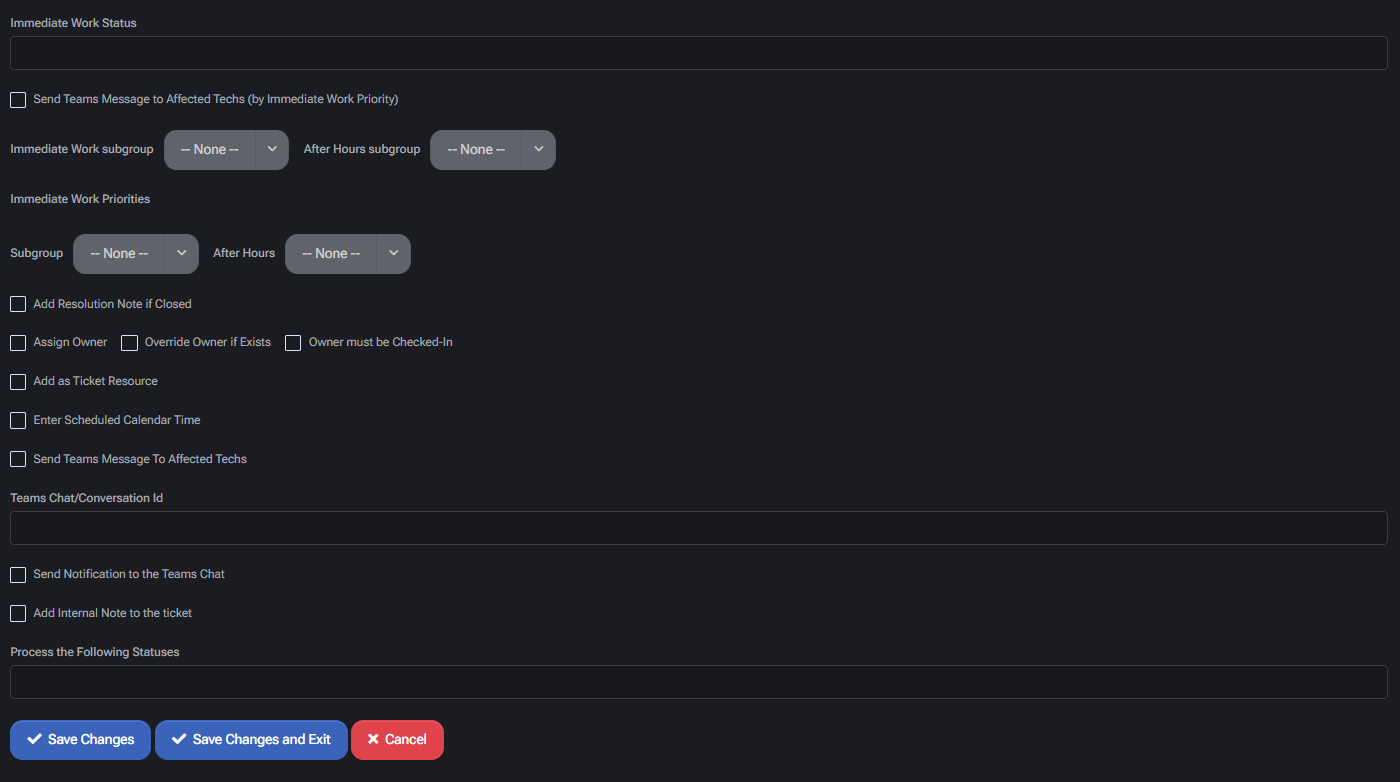
Section titled “Immediate work automation”- Immediate Work Status: Default status applied to immediate work tickets.
- Send Teams Message to Affected Techs (by Immediate Work Priority): Triggers alert based on immediate priority conditions.
- Immediate Work Subgroup / After Hours Subgroup: Define alternative technician pools or rule sets for regular and off-hours handling.
- Immediate Work Priorities: Optional logic mapping priorities to behavior or subgroup.
Task handling options
Section titled “Task handling options”- Add Resolution Note if Closed: Automatically inserts closure comments when ticket is closed by this group.
- Assign Owner: Sets a default technician if not already assigned.
- Override Owner if Exists: Reassigns owner if different from group default.
- Owner must be Checked-In: Prevents assignment to technicians not currently logged in or available.
- Add as Ticket Resource: Adds assigned technician as a formal resource to the ConnectWise ticket.
- Enter Scheduled Calendar Time: Inserts the event into calendar scheduling for traceability.
Microsoft Teams integration
Section titled “Microsoft Teams integration”- Send Teams Message To Affected Techs: Sends a Teams alert when tickets are assigned or reassigned.
- Teams Chat/Conversation Id: Defines which chat or conversation should be used for posting alerts.
- Send Notification to the Teams Chat: Enables direct messaging into a specified Teams thread.
- Add Internal Note to the ticket: Inserts a visible internal update for reference.
Status processing
Section titled “Status processing”- Process the Following Statuses: Define the ticket statuses which should trigger this group’s logic. Empty means apply to all incoming tickets.
Ticket board routing policy
Section titled “Ticket board routing policy”See ticket routing and automation for the surrounding intake, ownership and verification workflow. Configure the rule here, then review the separate service-board selector controls; saving a rule alone does not execute a board change.
This policy allows administrators to create custom rules that determine how incoming service requests are routed between ConnectWise boards based on request type, validation criteria, source boards, and company identifiers. These routing rules support granular automation of ticket management workflows.
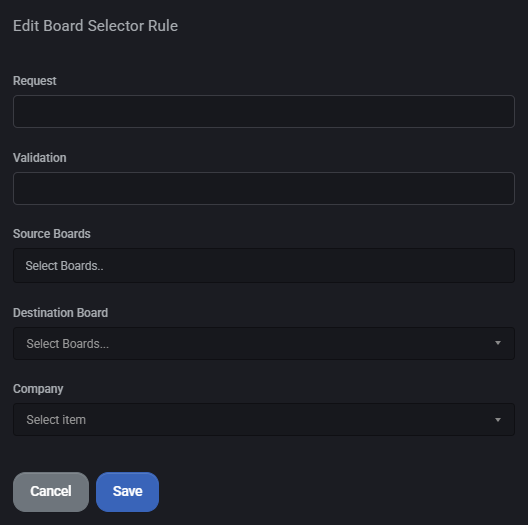
Edit board selector rule
Section titled “Edit board selector rule”Each rule can be configured by editing the following parameters:
- Request: A descriptive title or keyword that defines what kind of service request the rule applies to. Example:
Logon failures for admin users. - Validation: An optional expression or tag that may be used to confirm the rule’s applicability or to enhance automation logic.
- Source Boards: One or more ConnectWise boards where the incoming ticket originates. Only tickets created on these boards are subject to the routing rule.
- Destination Board: The target ConnectWise board to which qualifying tickets should be routed automatically.
- Company: Optional field for filtering the rule to only apply when the ticket is related to a specific company.
Policy list view
Section titled “Policy list view”The main view displays a list of all configured board routing policies, including:
- Request: Rule label or condition trigger.
- Validation: Condition expression (if used).
- Source Boards: Boards from which tickets are routed.
- Destination Board: Board where tickets will be routed to.
- Company: Applies the rule to tickets tied to a specific company (if set).
- Edit: Allows modification of existing rules via the Edit icon.
Rules can be added via the Add button, and existing entries can be selected and removed using the Delete button at the bottom of the list.
Skillset definitions policy
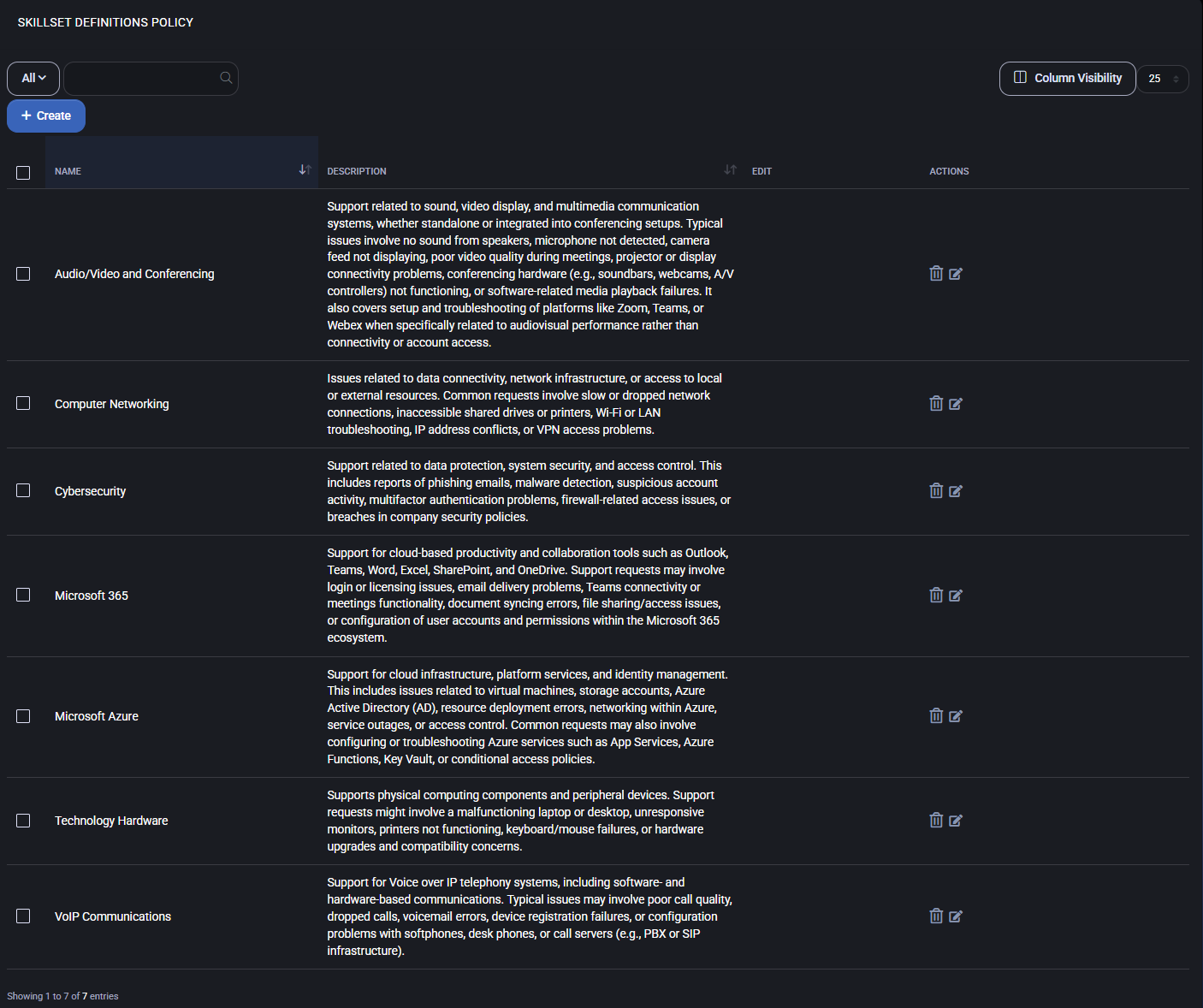
Section titled “Skillset definitions policy”The Skillset Definitions Policy page allows administrators to define and manage technical skill categories that can later be assigned to users. Each skillset supports tiered descriptions—ranging from Beginner to Expert—to reflect the expected proficiency level.
Skillset definitions
Section titled “Skillset definitions”This section lists all existing skillsets along with their descriptions and provides access to create, edit, or delete entries.
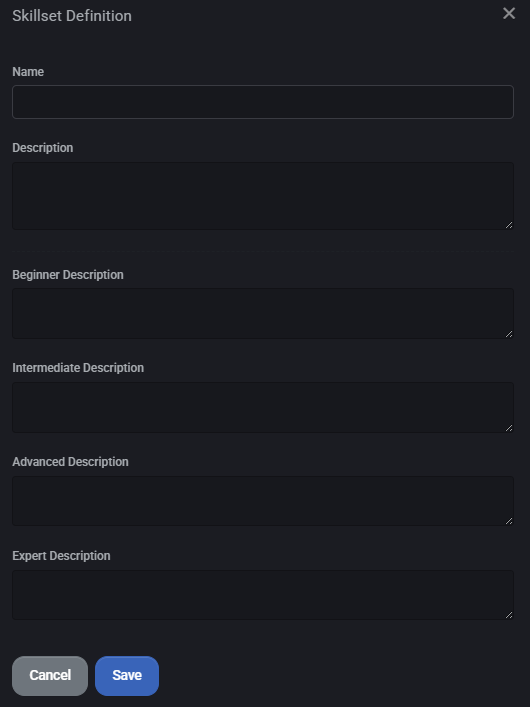
- Name: Title of the skillset category (e.g., Microsoft 365, Cybersecurity).
- Description: General explanation of what this skillset covers. Appears in the overview list and helps contextualize the skill.
- Beginner / Intermediate / Advanced / Expert Descriptions: Optional descriptions to define expectations and typical responsibilities for each skill level. These are used for internal reference during skill assignment and filtering.
To add a new skillset, click the Create button. This opens the skillset creation modal, where each level’s description can be optionally filled.
User skills management
Section titled “User skills management”This panel displays a list of users and their assigned skill levels for each category. Use this interface to manage technician capabilities and availability for routing, task matching, or scheduling logic.
- Members: Select a user from the system to assign skills.
- Assigned Skills: Lists selected skillsets and the corresponding proficiency level for each. Skills are selected via dropdown per user.
Location IP addresses sync policy
Section titled “Location IP addresses sync policy”This policy defines how IP address data from MSPControl is synchronized with IPBan, a third-party tool used to block or allow network access based on IP activity. Synchronization includes both allocated and unallocated IP addresses from the platform’s internal location database.
Sync ips whitelist with ipban
Section titled “Sync ips whitelist with ipban”- Enable IpBan: Master toggle to activate or disable synchronization between MSPControl and IPBan.
- IpBan Server Address: URL or IP of the IPBan server where IP lists will be transmitted.
- IpBan UserName / Password: Credentials used to authenticate the MSPControl system with IPBan. Password is masked for security.
- Sync Allocated IPs Whitelist with IPBan: When enabled, all IP addresses currently assigned to devices or services in MSPControl will be whitelisted in IPBan.
- Sync Unallocated IPs Whitelist with IPBan: Also syncs unused or reserved IPs to IPBan, allowing broader control over IP access lists.
- Send new Device IP Addresses to IPBan Realtime: If checked, newly added device IPs are immediately pushed to IPBan without delay.
IP address expiration
Section titled “IP address expiration”- IP Address Expiration Enabled: Activates automatic expiry of whitelisted IPs in IPBan after a defined time period.
- Days to Expire: Number of days after which an IP address will be removed from IPBan’s whitelist unless renewed.
Scheduled tasks parameters policy
Section titled “Scheduled tasks parameters policy”This section defines and configures synchronization behavior for scheduled tasks within MSPControl, especially for environments integrating Microsoft 365 or Azure AD. The settings govern task parallelism, synchronization scope, conflict resolution logic, and operational schedule.
Task execution parameters
Section titled “Task execution parameters”- Maximum number of simultaneously running tasks: Defines the concurrency limit to avoid overloading system resources. Useful in large tenant scenarios where multiple sync operations can overlap.
- Email addresses to notify: One or more recipients (comma-separated) who receive task completion, error, or status emails.
- Task name: Label identifying the synchronization job (e.g., “Office 365 User Account Synchronization”). This name is used in logs and dashboards.
Synchronization scope
Section titled “Synchronization scope”- Sync users / groups / licenses: Toggle synchronization of user identities, groups, and license assignments between on-premises AD and AAD.
- Sync users attributes and roles: Enables attribute-level sync for user records, including custom fields and group roles. Optionally use test mode before full deployment.
- Sync email addresses: Includes aliases, SMTP records, and proxy addresses.
- Sync unmatched primary emails: Ensures email alignment across systems for unique identifiers.
- Sync domains: Synchronizes tenant-registered domains used across accounts.
- Repair Subscriptions quantity: Optionally corrects mismatched or over-assigned subscription counts.
- Sync Azure budgets: Aligns Azure cost management budgets to synced entities.
- Sync administrative units: Includes role- and scope-based sync of admin units.
Conflict and cleanup logic
Section titled “Conflict and cleanup logic”- Solve Attributes sync Conflict per user: Determines which source wins in case of attribute mismatches:
- AD User Wins conflict: On-prem data has priority
- AAD User Wins conflict: Cloud version overrides on-prem
- Remove orphaned distribution lists: Cleans unused or unlinked distribution lists.
- Delete unmatched users / groups: Prunes records that no longer exist in source systems.
Schedule and execution
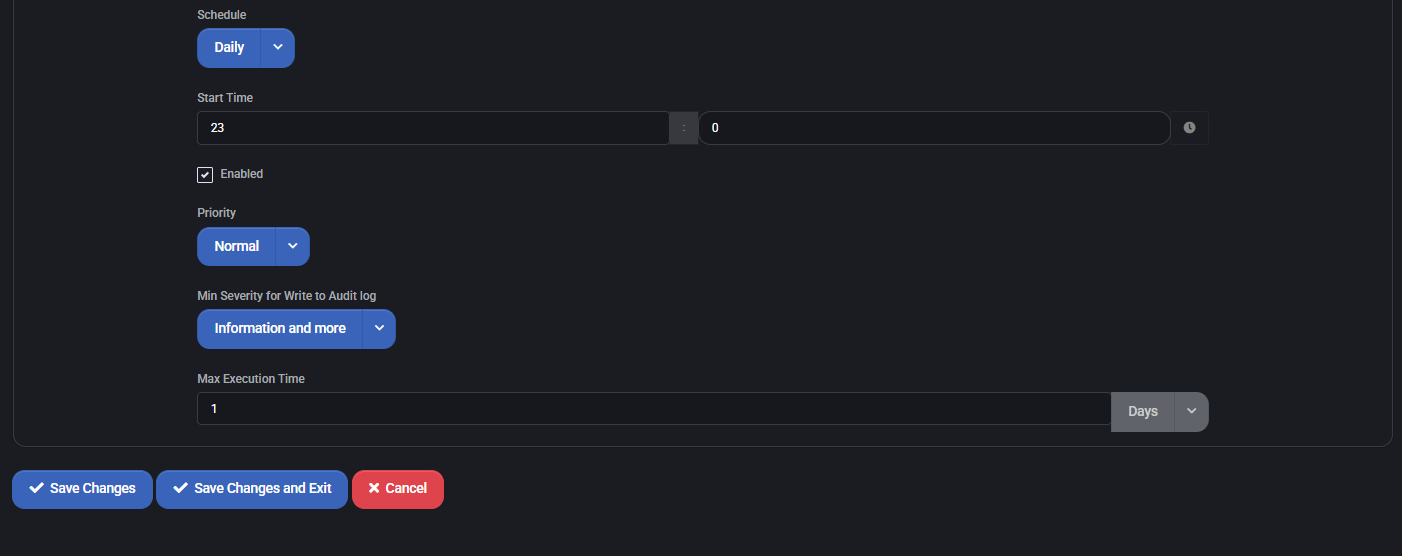
Section titled “Schedule and execution”- Schedule: Defines how often the task runs (e.g., Daily).
- Start Time: When the job starts (24-hour format).
- Enabled: Master switch to activate or pause task execution.
- Priority: Execution importance (Normal, High, etc.) — useful for queueing systems.
- Min Severity for Write to Audit log: Controls the log verbosity (e.g., Information and more).
- Max Execution Time: Timeout in units (e.g., 1 day). Prevents runaway tasks.
Best practices for general policies in MSPControl
Section titled “Best practices for general policies in MSPControl”When configuring MSPControl policies, consistency and accuracy are critical for long-term stability, auditability, and automation compatibility. Below are cross-policy best practices:
General configuration
Section titled “General configuration”- Ensure all name fields (Board, Type, SubType, etc.) strictly match values defined in external systems like ConnectWise or ManageEngine to avoid sync errors.
- Use clear, descriptive labels for task names, ticket types, or skillsets — they help identify rules in logs and dashboards.
- Favor unified naming conventions across policies (e.g., lowercase for board names, consistent time estimates for Budget Hours).
Automation and sync recommendations
Section titled “Automation and sync recommendations”- Always test synchronization jobs in isolated environments before deploying globally (e.g., use test mode in Azure sync or mock validation rules in board routing).
- Use auto-close statuses and expiration flags wherever available to reduce stale tickets or IP entries.
- Define conflict resolution logic explicitly to prevent data drifts (e.g., AD wins vs AAD wins).
Security and access control
Section titled “Security and access control”- Restrict API credentials and secure integration endpoints (ConnectWise, SmileBack, IPBan) with minimal scopes.
- Avoid leaving optional fields blank if they are used for filtering or routing (e.g., priority names in ticket settings).
Usability and maintenance
Section titled “Usability and maintenance”- Document skillsets and group policies clearly with level-based criteria (Beginner to Expert).
- Assign members to scheduling groups and skillsets in a consistent format for transparency and auditability.
- Review old task configurations, policies, and routing logic quarterly for accuracy and redundancy.
Integration-specific tips
Section titled “Integration-specific tips”- In ConnectWise, use explicit ticket status and board mapping for each policy. Don’t rely on defaults.
- In ManageEngine, verify both API and account server URLs are valid and reachable before enabling integration.
- In SmileBack, credentials should be rotated periodically and scoped to feedback-specific roles.
Following these best practices ensures that your MSPControl instance remains resilient, predictable, and optimized for growth across user, client, and system integrations.
Scheduling invitations policy
Section titled “Scheduling invitations policy”Settings > Policies > MSPControl > Scheduling Invitations issues booking invitations against a ticket, so a customer can pick their own slot with the right technician.
Schedule New Ticket takes a Ticket ID and starts the process. The Scheduling Invitations list then shows each live invitation with its Assigned Technician, Invitation URL (as a Link), Last Interaction and a Cancel action.
The two test controls
Section titled “The two test controls”Two options on the panel exist for trying the routing out, and both change what actually happens:
| Option | Effect |
|---|---|
| Use Skillset (override) | Forces skillset-based routing for this run, even when skillset routing is not enabled for the chosen request or group |
| Schedule (execute) | Unchecked, no calendar event is created — the processor still runs all the logic and posts results to Teams |
This is where skillsets are consumed: the override forces skillset-based routing, which is what the Skillset Definitions Policy and technician self-assessments feed.
Skillsets end to end
Section titled “Skillsets end to end”The three skillset screens are one feature, and they only make sense together.
-
Define the skills. Skillset Definitions Policy holds the Skills and Certifications that exist, each with tiered proficiency levels.
-
Technicians claim them. Skillset Self-Assessment, reached from My Account, lets a technician pick their skillsets and proficiency levels and submit them. The screen says plainly what happens next — “Your request will be reviewed by an authorizer.” Certifications can carry Certification Proof Documents.
-
An authorizer decides. Skillset Update Requests lists submissions filtered by Pending, Approved or Rejected. Review shows the requested skills, requested levels and any proof documents, and offers Approve or Reject — with a comment, which is mandatory either way.
-
Approved skills route tickets. That is what the whole thing is for — see scheduling invitations, whose Use Skillset (override) forces skillset-based routing.
An administrator can also set skills directly through Edit User Skills, which supports Skill From Certification and an Overridden state for a skill granted outside the normal certification path.
