List and Create Assets
Assets overview
Section titled “Assets overview”The Assets page provides a structured view of all assets registered for the customer organization. Each asset can be categorized, tagged, assigned, and tracked throughout its lifecycle using disposition statuses and notes. Assets help improve inventory management, accountability, and auditability by clearly associating equipment with users, locations, or devices.
Assets list
Section titled “Assets list”The main Assets table displays all registered assets and supports filtering, searching, and bulk actions. The list may differ between customers depending on the assets created in their organization.
Displayed columns
Section titled “Displayed columns”- Name – Asset name or identifier.
- Tags – User, location, or device tags assigned to the asset.
- Type – Asset classification (for example: Hardware > Computers > Workstation).
- Disposition Status – Current lifecycle state (for example: Unissued).
- Disposition Notes – Optional notes describing the asset state.
- Asset ID – Internal or external asset identifier.
- Requires Authorization – Indicates whether authorization is required for the asset.
- Device – Linked device, if applicable.
Standard table controls such as Search, Filters, Column Visibility, and Pagination are available to help navigate large inventories.
Asset actions
Section titled “Asset actions”Each asset row provides a set of action icons displayed to the right of the asset name. These actions allow basic asset management without opening the full edit form.
- Delete Asset (trash icon) – Permanently removes the asset from the inventory.
- Replace Asset (refresh icon) – Replaces the existing asset while preserving historical context where applicable.
- Logs (book icon) – Opens the asset activity log, displaying historical changes and events related to the asset.
Bulk actions are available through the Actions dropdown, allowing mass updates or deletions for selected assets.
Create asset
Section titled “Create asset”The Create Asset form is used to register a new asset within the customer organization. It allows defining identification details, classification, ownership context, lifecycle state, authorization requirements, and related attachments.
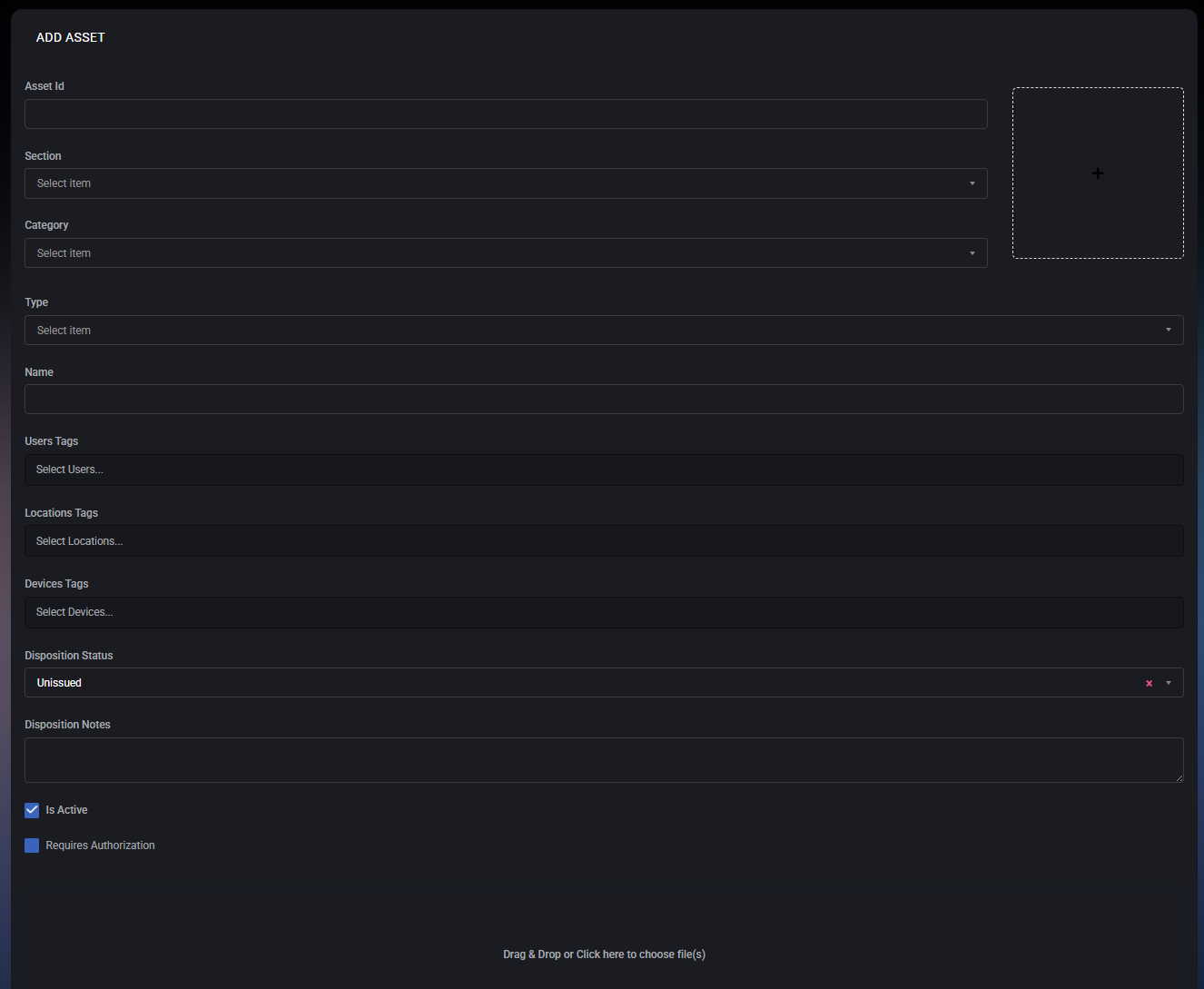
Asset identification
Section titled “Asset identification”- Asset ID – A unique identifier for the asset. This can be an internal inventory number, serial number, QR code value, or any custom identifier used by the organization.
- Name – A human-readable asset name. This is the primary label shown in the Assets list.
Classification
Section titled “Classification”- Section – High-level grouping of the asset (for example: Hardware, Software, Furniture). Sections help organize assets by major categories.
- Category – A sub-classification within the selected section (for example: Computers, Peripherals).
- Type – Specific asset type within the category (for example: Workstation, Monitor, Laptop).
The available Category and Type options depend on the selected Section.
Tag associations
Section titled “Tag associations”Assets can be linked to organizational context using tags. These associations improve visibility and allow filtering across different modules.
- User Tags – Links the asset to one or more users (for example, the employee assigned to the device).
- Location Tags – Associates the asset with a physical or logical location (office, site, department).
- Device Tags – Connects the asset to managed devices when applicable.
Disposition management
Section titled “Disposition management”- Disposition Status – Defines the current lifecycle state of the asset. Common statuses include Unissued, Issued, Returned, or Retired.
- Disposition Notes – Free-text field used to describe the asset condition, assignment context, or any lifecycle-related notes.
Authorization & activity
Section titled “Authorization & activity”- Is Active – Determines whether the asset is active and visible in the system. Inactive assets remain stored but are excluded from active workflows.
- Requires Authorization – When enabled, additional authorization may be required before the asset can be issued, modified, or used in related processes.
Attachments
Section titled “Attachments”Files can be attached to an asset by dragging and dropping or clicking the upload area.
- Purchase documents
- Warranty files
- Photos
- Invoices or contracts
Saving options
Section titled “Saving options”- Save Changes – Saves the asset and keeps the form open for further editing.
- Save Changes and Exit – Saves the asset and returns to the Assets list.
- Cancel – Discards all changes and exits the asset creation form.
IT documentation and asset workflow
Section titled “IT documentation and asset workflow”Use IT documentation and assets to connect maintained asset records, operational notes and access context into a technician handoff. Review the relevant storage prerequisites and permissions, and verify record freshness before acting.
