System Overview
General tab
Section titled “General tab”The General tab contains more than 20 sub-sections, each focused on a different aspect of the device.
- General Overview
- Operating System
- CPU
- Memory
- BIOS
- TPM
- Motherboard
- Monitor
- System Settings
- Network
- Disk Information
- Software
- Firewall
- Updates
- Settings
- Location
- Remote Access History
- Geolocation
- Local Users
- Local Groups
- Recommendations
- Active CVEs
General overview
Section titled “General overview”This top section provides a consolidated snapshot of device identity, agent status, security posture, installed software modules, and geolocation. It is divided into three main panels: current users & charts, device state & metrics, and a live map showing approximate location.
Current users
Section titled “Current users”Displays the primary user logged into the device. Clicking the name will show all devices used by this user.
User distribution chart
Section titled “User distribution chart”A donut chart showing how many users have logged into the device. The total number is in the center, with segments color-coded by user count. Hovering may reveal names or quantities.
Actions menu
Section titled “Actions menu”Use this dropdown to perform remote operations on the selected device:
- Repair Settings Reapplies key MSPControl configuration and communication settings on the device.
- Reboot Device Initiates an immediate restart of the machine.
- Delete Device Removes the device record from MSPControl. Does not uninstall the agent.
- Install Updates Pushes available Windows Updates to install on the device.
- Update Agent Installs the latest version of the Autopilot agent if an update is available.
- Unmap Cloud Folders Removes previously mapped cloud folders (e.g., OneDrive, SharePoint).
- Remap Cloud Folders Re-applies folder mapping for supported cloud storage providers.
- Reinstall ScreenConnect Client Reinstalls the remote access client used for on-demand connections via the Connect button.
- Send Logs Triggers the upload of diagnostic logs to the MSPControl server.
- Reset PIP Settings Resets internal telemetry or privacy improvement configurations.
- Set Template Assigns or reassigns the configuration template applied to this device (e.g., Workstation, Enterprise).
- Set Location Updates the logical location assigned to the device for reporting and filtering.
- Add Remote Access Users Grants remote access permissions to selected users.
- Remove Remote Access Users Revokes previously granted remote access rights.
- Run Windows Disk Cleanup Launches built-in Windows cleanup for temp files, caches, and logs.
- Run Winget Updates Initiates software updates via the Windows Package Manager (winget) on supported apps.
Device information
Section titled “Device information”- Location Logical or assigned location in the MSPControl hierarchy (e.g., Default, Office-A).
- Device Profile Indicates whether the system is configured as a Server or Workstation.
- Anti-virus status Health check for antivirus software (e.g., OK or outdated).
- Anti-virus name Specifies which AV product is running (e.g., Windows Defender).
- Firewall status Indicates if the Windows Firewall is enabled, disabled, or misconfigured.
- IP Address Shows both internal (LAN) and external (public) IP addresses of the device.
- Agent Version Version number of the installed MSPControl Autopilot agent.
- TS Print / TS Scan Indicates versions of remote print and scan components, if installed.
- MS Office Shows if Microsoft Office is installed (and version, if applicable).
- Chrome Current version of Google Chrome browser, if installed.
- Teams Presence of Microsoft Teams (installed or not).
- Adobe Acrobat Installed version of Adobe Acrobat, if available.
- Purview Info Protection Indicates if Microsoft Purview Information Protection is installed.
- Recommendations / Weaknesses / Exposure / Criticality Custom security assessments populated from policy or CVE scanners (may be empty).
Health and compliance
Section titled “Health and compliance”- Pending Reboot States whether a reboot is required (e.g., after updates).
- Connected to WSUS Server Confirms whether the device receives updates via Windows Server Update Services.
- ScreenConnect Shows whether remote access client is connected and operational.
- Updates Status Indicates if the SLA for updates is met or breached (e.g., “SLA Not Met”).
- Last Check-In Timestamp of the last contact with the MSPControl server.
- Uptime Time since last system reboot in HH:MM:SS format.
- Azure IoT Name If configured, this field shows the Azure-assigned IoT device name.
- Azure Monitor Indicates if Azure Monitor integration is active.
- Software Installation Status Verifies if recent installations completed without error.
- Unsigned Drivers Reports the presence of any non-digitally-signed drivers.
- Joined to Intune Whether the device is managed via Microsoft Intune.
- Exclude from Intune Compliance Checkbox to omit device from Intune policy checks.
- Azure AD Joined Status of Azure Active Directory registration.
- Intune Compliant Status Shows whether device meets Intune compliance rules.
- Autopilot Enrollment Status Indicates whether the device is enrolled in Windows Autopilot.
Geolocation map
Section titled “Geolocation map”Displays the physical location of the device based on external IP or assigned location settings. Uses TomTom Maps API. You can zoom in/out and change view layers. The marker shows the device’s approximate city-level presence.
Operating system
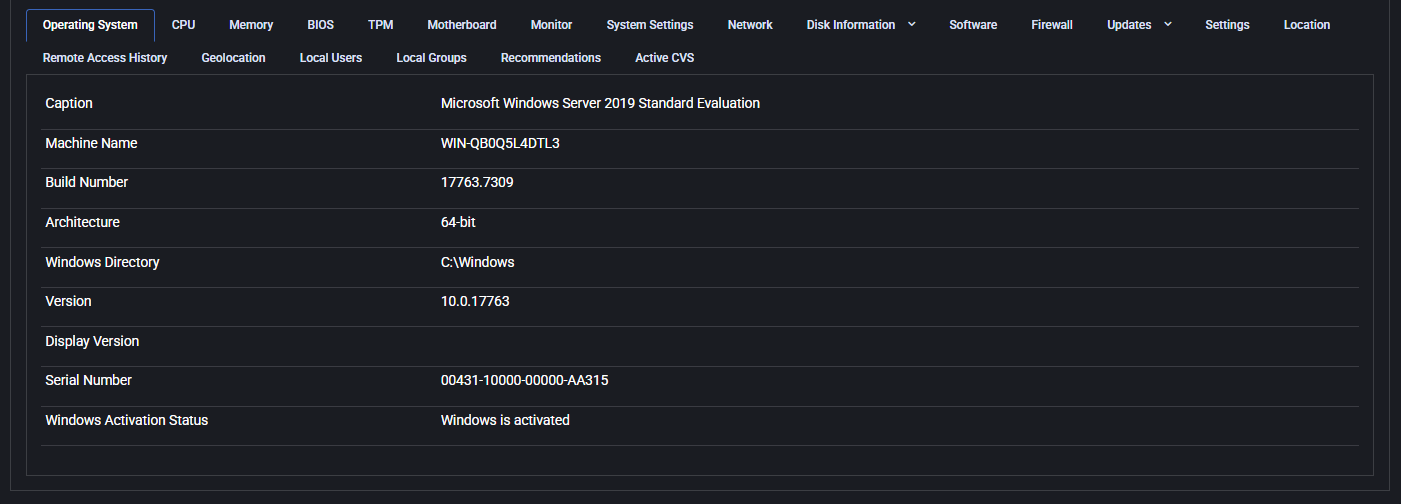
Section titled “Operating system”This tab displays the current operating system details for the selected device. It includes:
- Caption: Full OS name, such as “Microsoft Windows Server 2019 Standard Evaluation”
- Machine Name: Hostname of the device
- Build Number: Specific OS build version
- Architecture: Indicates 32-bit or 64-bit system
- Windows Directory: Default system path (typically C:\Windows)
- Version: Windows version number
- Display Version: Optional UI version, may be blank
- Serial Number: System serial identifier
- Windows Activation Status: Shows if Windows is activated
This tab is useful for confirming the OS setup and checking license compliance.
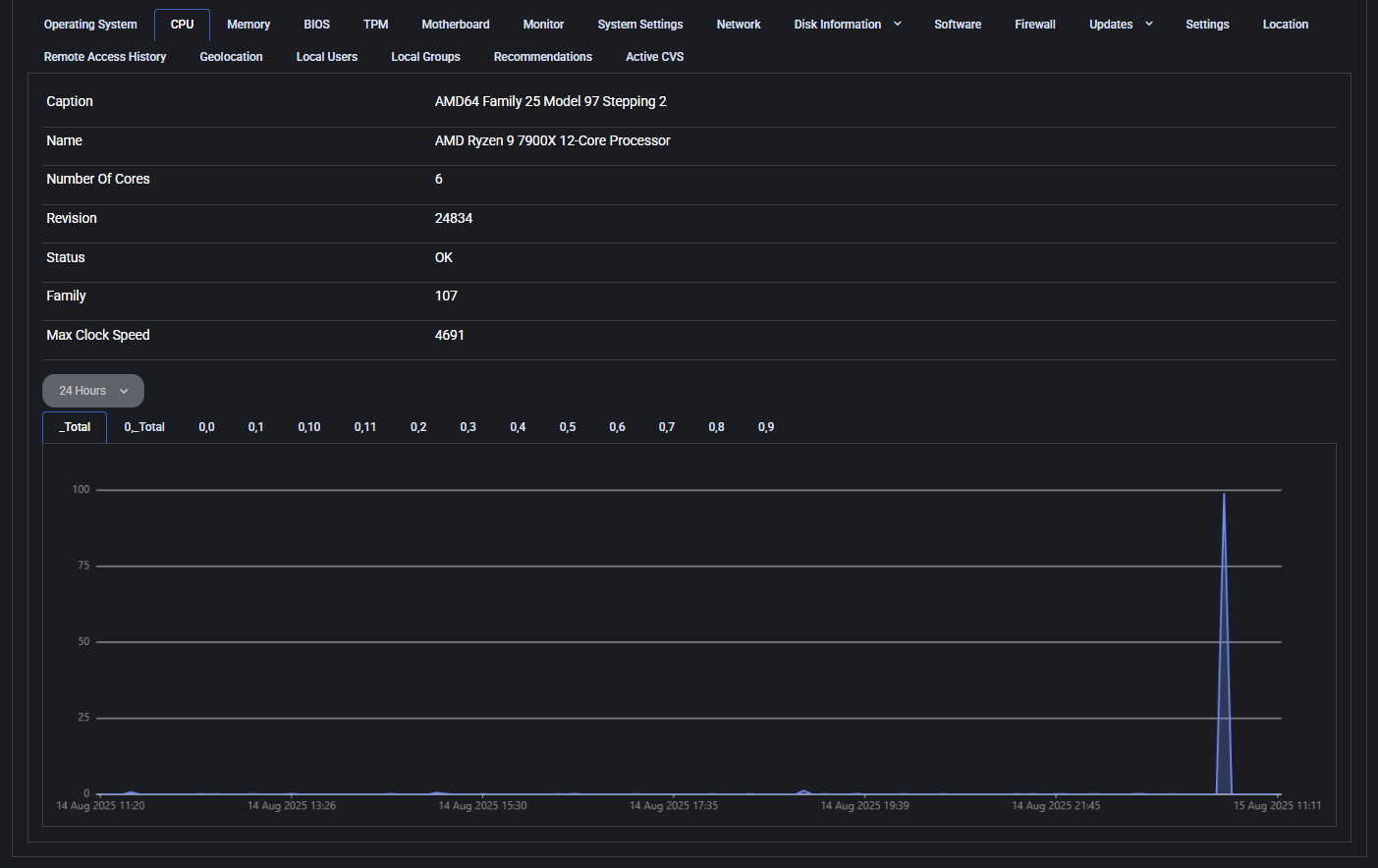
This section displays real-time and static data about the device’s processor. Key details include:
- Caption: Processor architecture family
- Name: Full processor model, such as “AMD Ryzen 9 7900X”
- Number of Cores: Logical cores available
- Revision: Hardware revision code
- Status: Health of the CPU (e.g., OK)
- Family: Internal architecture family number
- Max Clock Speed: Reported maximum CPU frequency
Below the static info, a live CPU usage graph tracks load over time. Data can be filtered by time range and specific core views using the dropdowns.
Memory
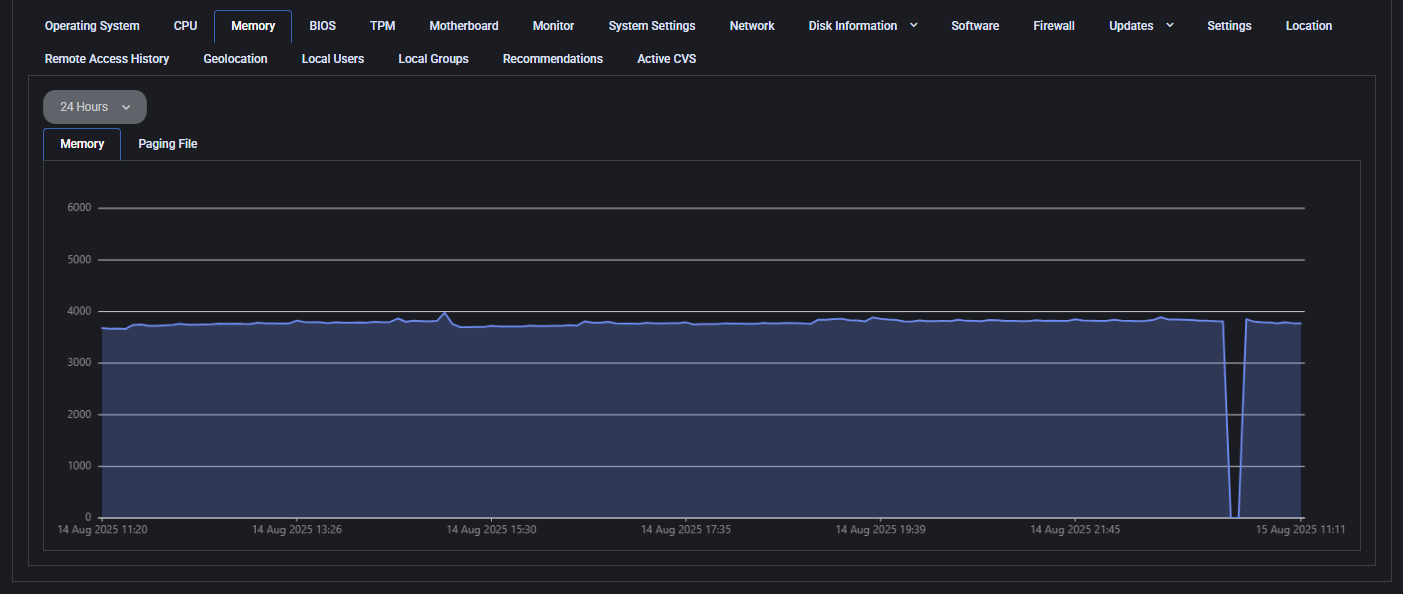
Section titled “Memory”The memory tab visualizes real-time RAM usage and page file allocation. It offers two views:
- Memory: Current RAM consumption with a graph that spans 24 hours by default
- Paging File: (When applicable) Graph of virtual memory usage on disk
This data helps administrators analyze system load, detect memory leaks, or confirm optimal memory provisioning. You can switch between tabs and adjust the graph period for deeper analysis.
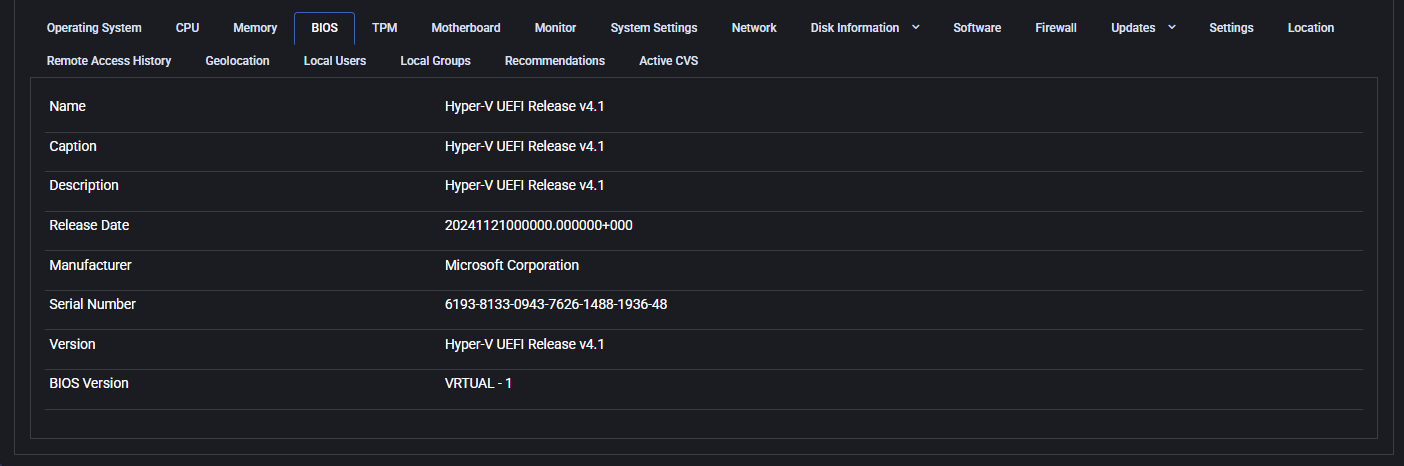
The BIOS tab shows firmware details that are essential for system initialization and hardware communication. This includes information like the BIOS name, release version, manufacturer, and serial number. These details are often required for asset tracking, security audits, and ensuring compatibility with newer software or firmware updates. In the example shown, the system is using a Hyper-V UEFI release from Microsoft Corporation, indicating the device is likely a virtual machine.
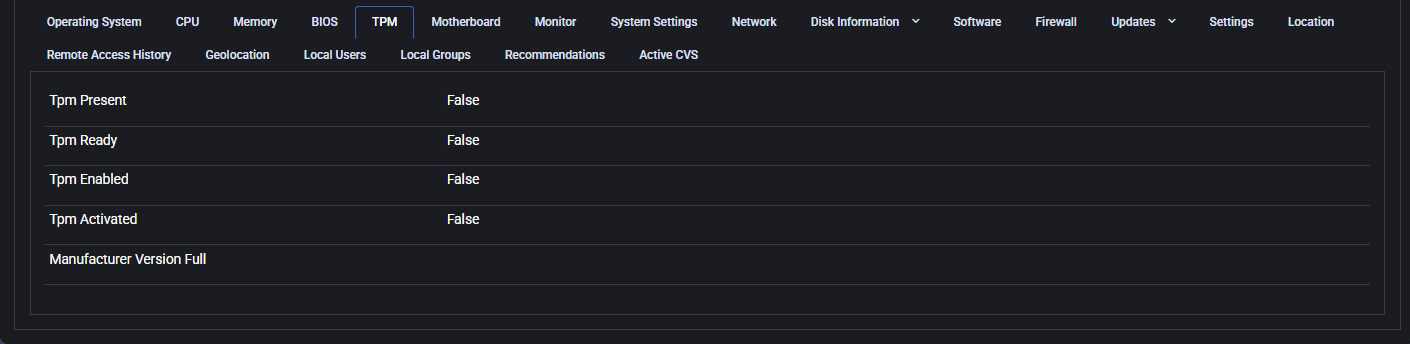
The TPM (Trusted Platform Module) tab reveals whether the hardware security module is available and enabled on the device. TPM is commonly used to enhance security by enabling encryption and secure boot functionality. In this case, all TPM-related values are set to False, meaning TPM is not present or not activated on the device. This can be relevant when evaluating security posture or ensuring compliance with modern OS requirements (e.g., Windows 11).
Motherboard
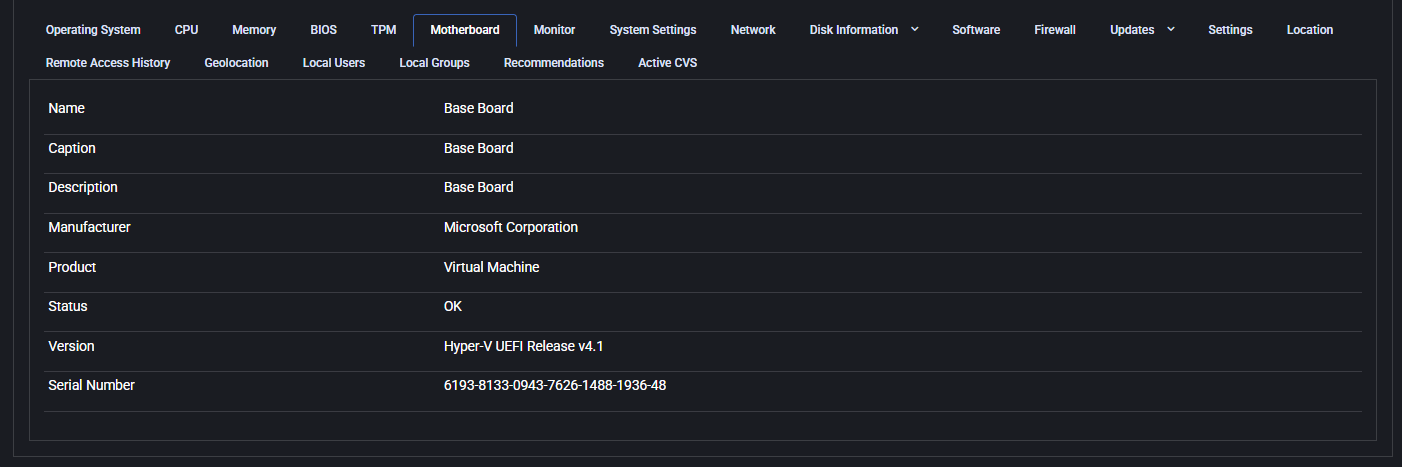
Section titled “Motherboard”The Motherboard tab displays key specifications of the device’s baseboard, including manufacturer, product ID, status, version, and serial number. This information is critical for identifying hardware components, managing inventory, and verifying system configurations. In virtualized environments, these values typically show generic descriptors (e.g., “Base Board”, “Virtual Machine”, or Hyper-V identifiers), which can help administrators differentiate virtual machines from physical devices.
Monitor
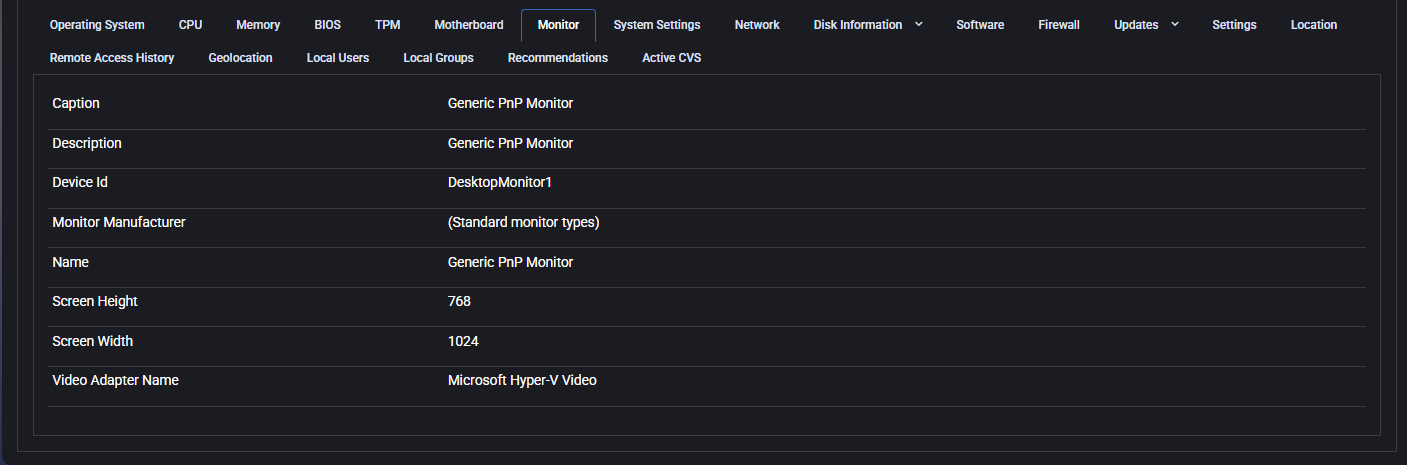
Section titled “Monitor”This section provides detailed information about the display hardware connected to the device. It includes key parameters that help identify the display type, resolution, and associated video adapter.
- Caption / Description / Name: Typically displays the monitor type (e.g., Generic PnP Monitor).
- Device Id: Internal identifier for the monitor (e.g., DesktopMonitor1).
- Monitor Manufacturer: Vendor of the monitor, if detected.
- Screen Width / Height: The display resolution in pixels.
- Video Adapter Name: The graphics hardware or virtual adapter used to render display output.
System settings
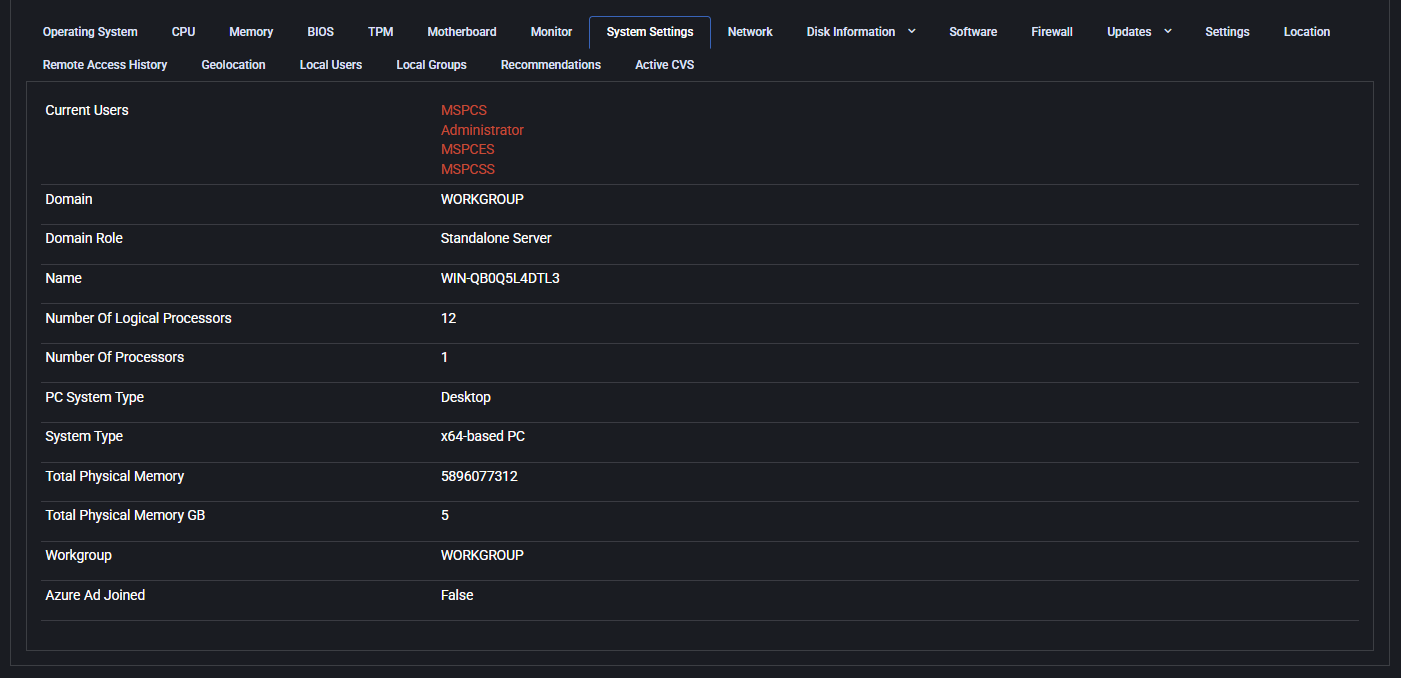
Section titled “System settings”This tab outlines core configuration of the device’s logical and physical architecture, including current user sessions, domain configuration, and processor/memory setup.
- Current Users: Displays currently logged-in accounts.
- Domain / Domain Role: Shows whether the device is part of a domain and its role (e.g., Standalone Server).
- Name: Device hostname.
- Number Of Logical Processors / Number Of Processors: Indicates the CPU topology.
- PC System Type / System Type: Indicates whether the system is desktop/laptop and its architecture (x64, x86).
- Total Physical Memory (bytes and GB): Memory capacity in two formats.
- Workgroup / Azure AD Joined: Shows workgroup name and whether the device is joined to Azure AD.
Device health and inventory workflow
Section titled “Device health and inventory workflow”Use device health and software inventory to connect reported device state, application versions and affected devices into a customer review. Check collection freshness and source coverage before interpreting missing records or choosing a remediation.
