Maintenance and Security
Windows disk cleanup
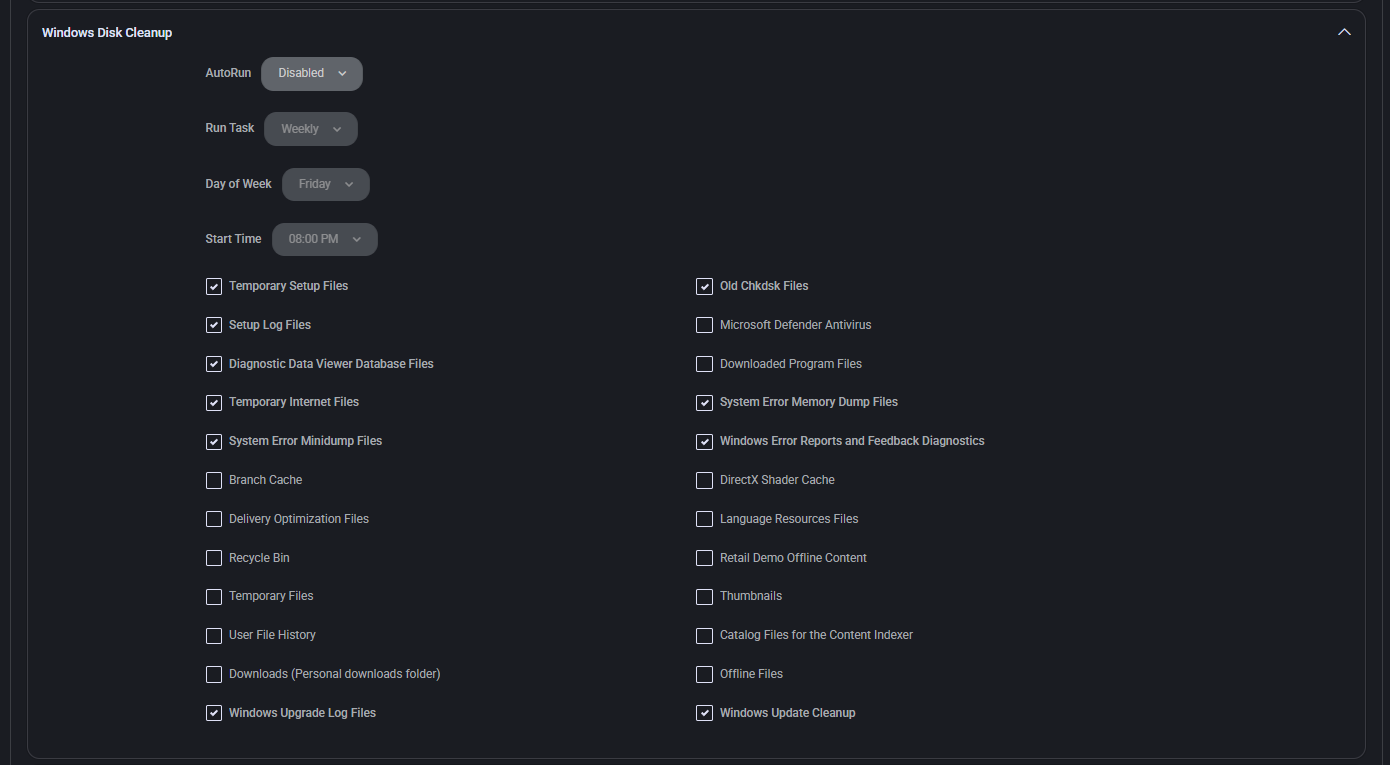
Section titled “Windows disk cleanup”This section defines the automated cleanup behavior for Windows system files. It allows scheduling regular cleanups and selecting specific file categories to delete, helping free up disk space and maintain system performance.
- AutoRun Specifies whether the cleanup task is automatically executed. Options include Disabled, Enabled.
- Run Task Determines task frequency, such as Weekly or Daily.
- Day of Week Select the day when cleanup should be performed.
- Start Time Specifies the time of day when the cleanup task should begin.
Cleanup File Types:
- Temporary Setup Files
- Setup Log Files
- Diagnostic Data Viewer Database Files
- Temporary Internet Files
- System Error Minidump Files
- Branch Cache
- Delivery Optimization Files
- Recycle Bin
- Temporary Files
- User File History
- Downloads (Personal downloads folder)
- Windows Upgrade Log Files
- Old Chkdsk Files
- Microsoft Defender Antivirus
- Downloaded Program Files
- System Error Memory Dump Files
- Windows Error Reports and Feedback Diagnostics
- DirectX Shader Cache
- Language Resources Files
- Retail Demo Offline Content
- Thumbnails
- Catalog Files for the Content Indexer
- Offline Files
- Windows Update Cleanup
Device local admin
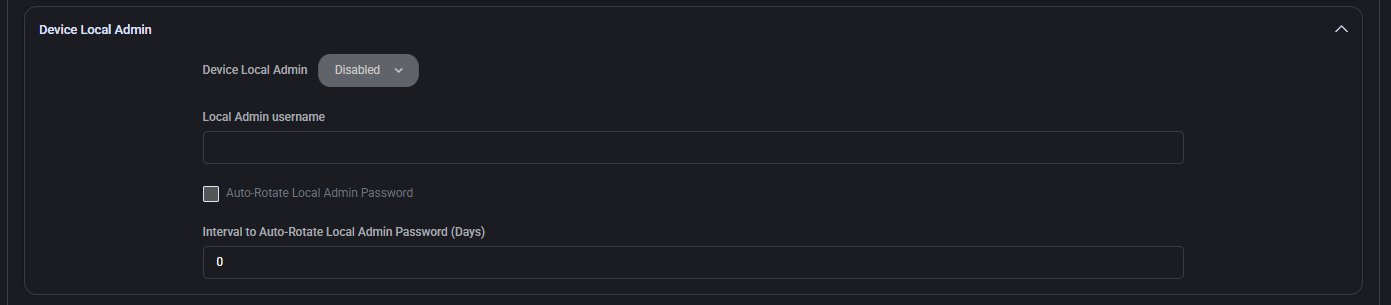
Section titled “Device local admin”This section allows you to define local administrator settings for devices, including credential rotation for enhanced security. You can create a static or rotating local admin account as part of the deployment policy.
- Device Local Admin Enables or disables the creation and management of a local administrator account on the device.
- Local Admin Username Defines the username for the local admin account that will be provisioned.
- Auto-Rotate Local Admin Password If enabled, the local admin password will be automatically rotated at a defined interval.
- Interval to Auto-Rotate Local Admin Password (Days) Specifies how often (in days) the local admin password should be changed if auto-rotation is enabled.
Security hardening
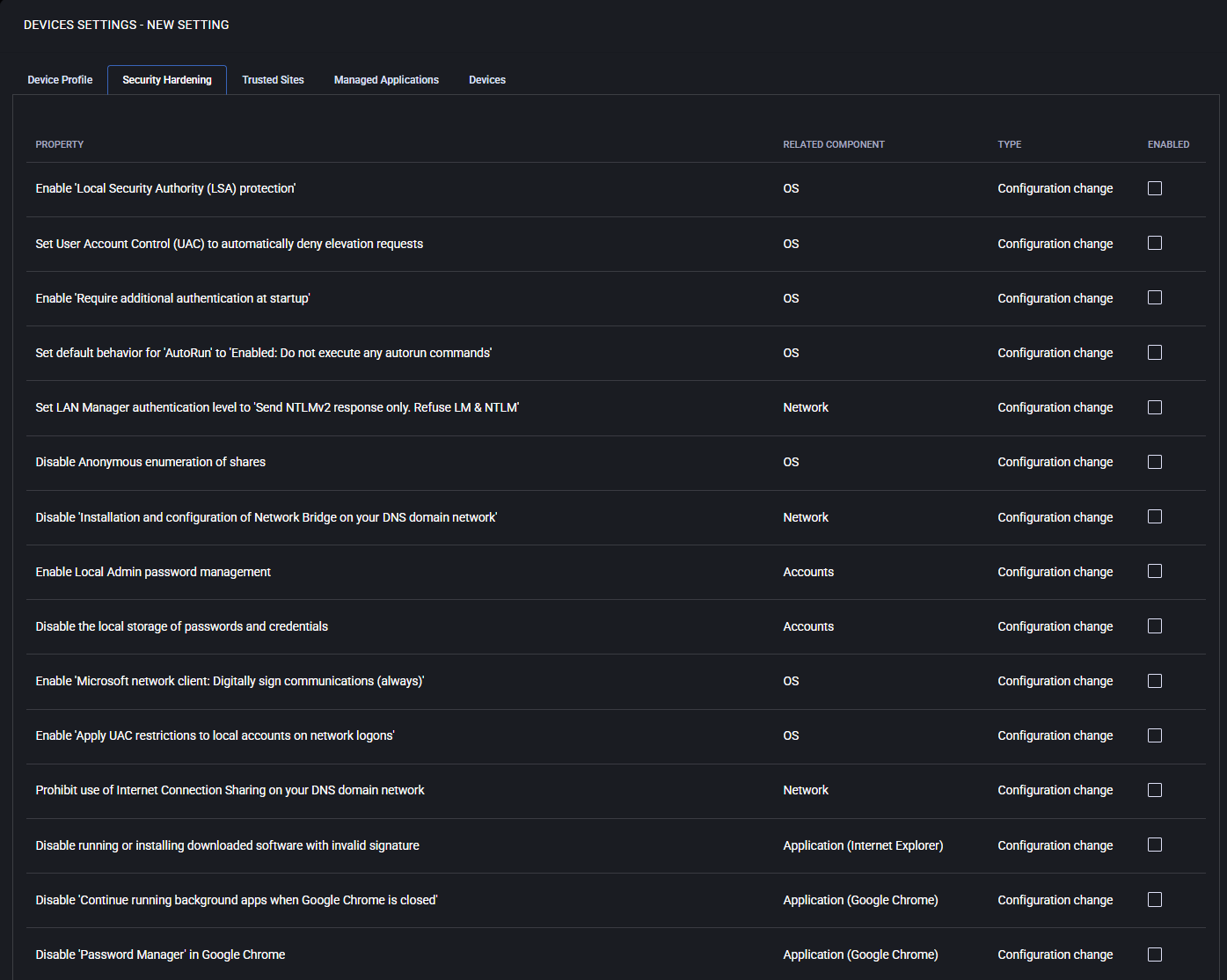
Section titled “Security hardening”This section includes predefined system-level hardening policies designed to enhance device security by disabling legacy protocols, enforcing secure authentication, and restricting potentially insecure behaviors. Each setting can be selectively enabled based on your organization’s compliance requirements.
- Enable ‘Local Security Authority (LSA) protection’: Protects the LSASS process from unauthorized code injection, reducing credential theft risks.
- Set User Account Control (UAC) to automatically deny elevation requests: Prevents automatic privilege elevation, adding an extra layer of defense.
- Enable ‘Require additional authentication at startup’: Requires authentication (e.g., BitLocker PIN) before boot, protecting data at rest.
- Set default behavior for ‘AutoRun’ to ‘Enabled: Do not execute any autorun commands’: Disables AutoRun commands to block potential malware execution from USB or network drives.
- Set LAN Manager authentication level to ‘Send NTLMv2 response only. Refuse LM & NTLM’: Enforces stronger authentication standards, rejecting older, insecure protocols.
- Disable Anonymous enumeration of shares: Prevents unauthenticated users from discovering shared folders.
- Disable ‘Installation and configuration of Network Bridge on your DNS domain network’: Blocks users from bridging network adapters, reducing lateral attack risks.
- Enable Local Admin password management: Allows secure, automatic rotation of local administrator passwords.
- Disable the local storage of passwords and credentials: Prevents Windows from caching login data, lowering offline attack surface.
- Enable ‘Microsoft network client: Digitally sign communications (always)’: Ensures SMB communications are signed to prevent tampering.
- Enable ‘Apply UAC restrictions to local accounts on network logons’: Limits local admin privileges when logging in over the network.
- Prohibit use of Internet Connection Sharing on your DNS domain network: Prevents users from creating unauthorized shared connections.
- Disable running or installing downloaded software with invalid signature: Blocks execution of software that fails digital signature validation, improving endpoint security.
- Disable ‘Continue running background apps when Google Chrome is closed’: Prevents Chrome from continuing to run after closure, saving resources and reducing attack vectors.
- Disable ‘Password Manager’ in Google Chrome: Prevents Chrome from saving and autofilling passwords, enforcing use of enterprise-grade solutions.
- Disable ‘Always install with elevated privileges’: Prevents software installations from running with administrative rights unless explicitly allowed, reducing privilege escalation risks.
- Disable JavaScript on Adobe DC: Disables scripting capabilities in Adobe Acrobat, mitigating risk from malicious PDFs.
- Enable ‘Require domain users to elevate when setting a network’s location’: Ensures users need elevated rights to define whether a network is public, private, or domain — helping prevent exposure.
- Enable ‘Block third party cookies’ in Google Chrome: Prevents unauthorized tracking across sites, improving browser privacy and security.
- Set controlled folder access to enabled or audit mode: Protects key system folders from ransomware and unauthorized changes by enabling Controlled Folder Access via Microsoft Defender Exploit Guard.
- Disable Flash on Adobe Reader DC: Prevents use of deprecated Flash components in Adobe, reducing exposure to vulnerabilities.
- Disable JavaScript on Adobe Reader DC: Similar to Acrobat DC, disables scripting in Reader to reduce attack surface.
- Set ‘Remote Desktop security level’ to ‘TLS’: Forces TLS encryption for RDP sessions, replacing weaker security methods.
- Enable ‘Limit local account use of blank passwords to console logon only’: Prevents remote or network logins with accounts that have blank passwords.
- Disable ‘Device Install Software Request Error Report’ option: Stops Windows from sending error data when device installations fail — minimizing information leaks.
- Prevent Internet Control Message Protocol (ICMP) redirects from overriding: Hardens routing table protection by blocking ICMP-based route changes.
- Block outdated ActiveX controls for Internet Explorer: Prevents use of legacy ActiveX components that are often targeted in exploits.
- Disable ‘Allow Basic authentication’ for WinRM Client: Blocks basic (plaintext) authentication for remote management via WinRM client.
- Disable ‘Allow Basic authentication’ for WinRM Service: Prevents WinRM services from accepting Basic auth, enforcing more secure mechanisms like Kerberos or certificate-based authentication.
- Disable ‘Autoplay’ for non-volume devices: Disables automatic content execution from removable media like USB sticks, reducing malware risks.
- Disable ‘Autoplay’ for all drives: Enforces a system-wide block on automatic execution from any drive type.
- Disable ‘Enumerate administrator accounts on elevation’: Prevents listing of admin accounts when a non-admin user triggers a UAC prompt, hiding internal usernames.
- Disable IP source routing: Blocks use of source routing, which can be abused for spoofing and routing-based attacks.
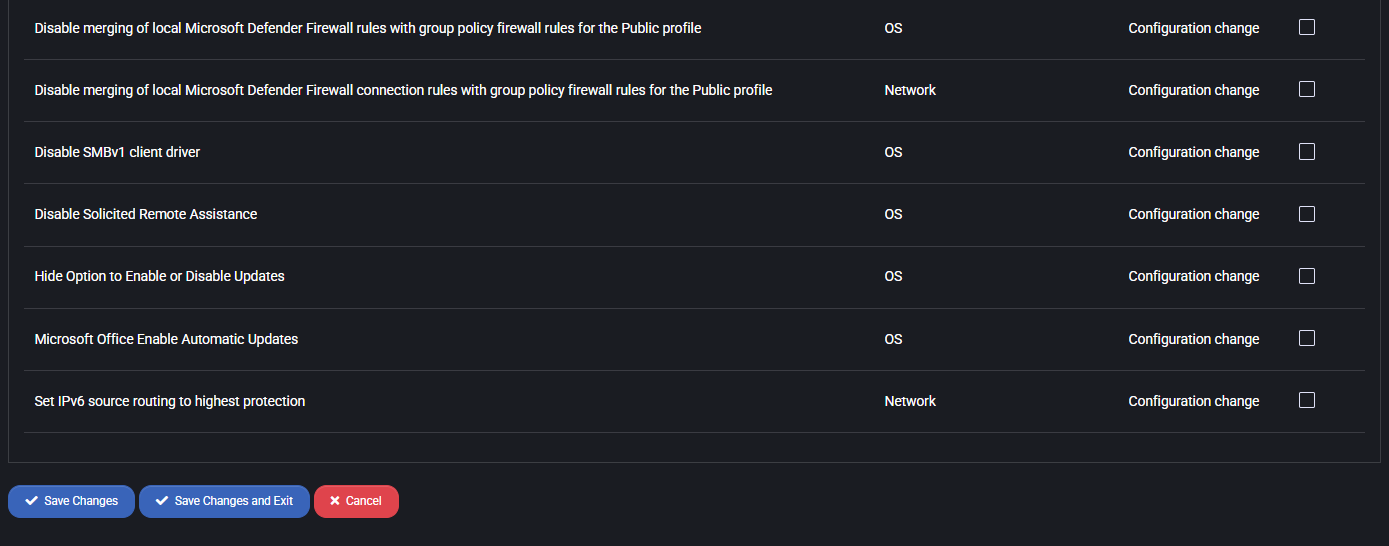
- Disable merging of local Microsoft Defender Firewall rules with group policy firewall rules for the Public profile: Prevents local firewall exceptions from overriding stricter group policy rules, increasing policy enforcement.
- Disable merging of local Microsoft Defender Firewall connection rules with group policy firewall rules for the Public profile: Similar to above, but applies to connection rules specifically. Helps ensure consistency in policy-controlled environments.
- Disable SMBv1 client driver: Disables legacy SMBv1 protocol which is outdated and insecure, mitigating risks like WannaCry attacks.
- Disable Solicited Remote Assistance: Prevents users from requesting remote assistance sessions, which may be exploited if misconfigured.
- Hide Option to Enable or Disable Updates: Removes access to toggle update preferences, enforcing update policy compliance.
- Microsoft Office Enable Automatic Updates: Ensures that Office apps receive critical updates automatically for security and stability.
- Set IPv6 source routing to highest protection: Prevents IPv6 source routing, which can be exploited to bypass normal routing and security rules.