Passwords and Certificates
Passwords
Section titled “Passwords”On the Passwords tab, you can securely store and manage sensitive credential information linked to the selected device. This includes traditional passwords as well as optional MFA secrets. Each password entry can be associated with specific users, locations, assets, and devices using tag-based categorization, ensuring secure and granular access control.
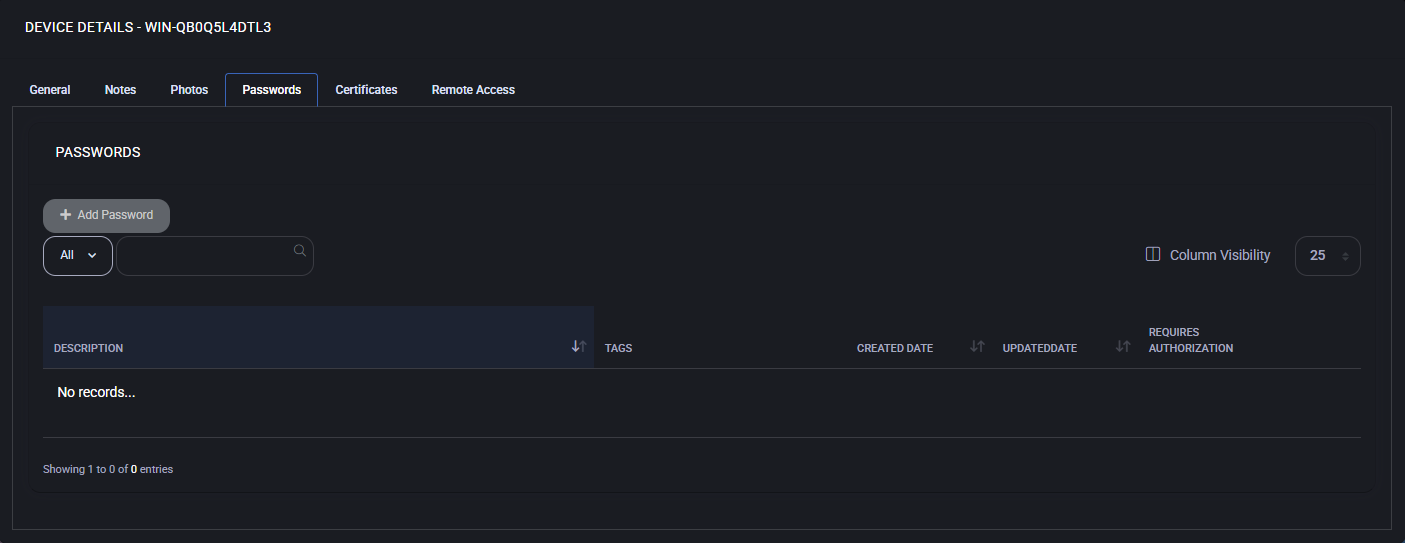
Add password
Section titled “Add password”To add a new password entry:
- Click Add Password.
- Enter a Description to label the credential.
- Manually enter a password or click Generate Password to create a strong, random one.
- Optionally provide an MFA Secret for two-factor authentication setups.
- Assign User Tags, Location Tags, Device Tags, or Asset Tags as necessary.
- If required, check Requires Authorization to restrict access or Notify on Access to track password usage events.
- Click OK to save.
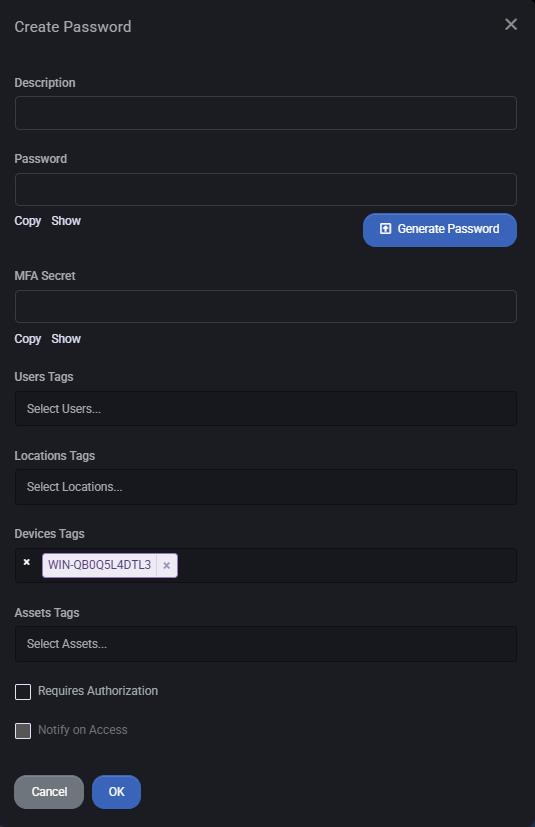
Password list and management
Section titled “Password list and management”The password list displays existing credentials (if any) with sortable columns including:
- Description
- Tags
- Created Date
- Updated Date
- Requires Authorization
Use filters to quickly locate specific records. Visibility of columns can be customized via the Column Visibility control. If no records exist, the table will indicate this.
Best practices
Section titled “Best practices”- Use the built-in password generator to avoid weak or reused credentials.
- Always assign descriptive names to passwords for clarity and future reference.
- Enable Requires Authorization for all high-privilege or sensitive credentials to limit exposure.
- Use tag associations (Users, Locations, Assets) to control visibility and streamline password management across distributed environments.
- Regularly review and rotate stored credentials, especially those with critical access.
- Enable Notify on Access for audit tracking when dealing with shared or critical credentials.
Certificates
Section titled “Certificates”The Certificates tab allows you to securely store and manage SSL/TLS certificates associated with the selected device. Each certificate can be tagged and optionally protected by authorization.
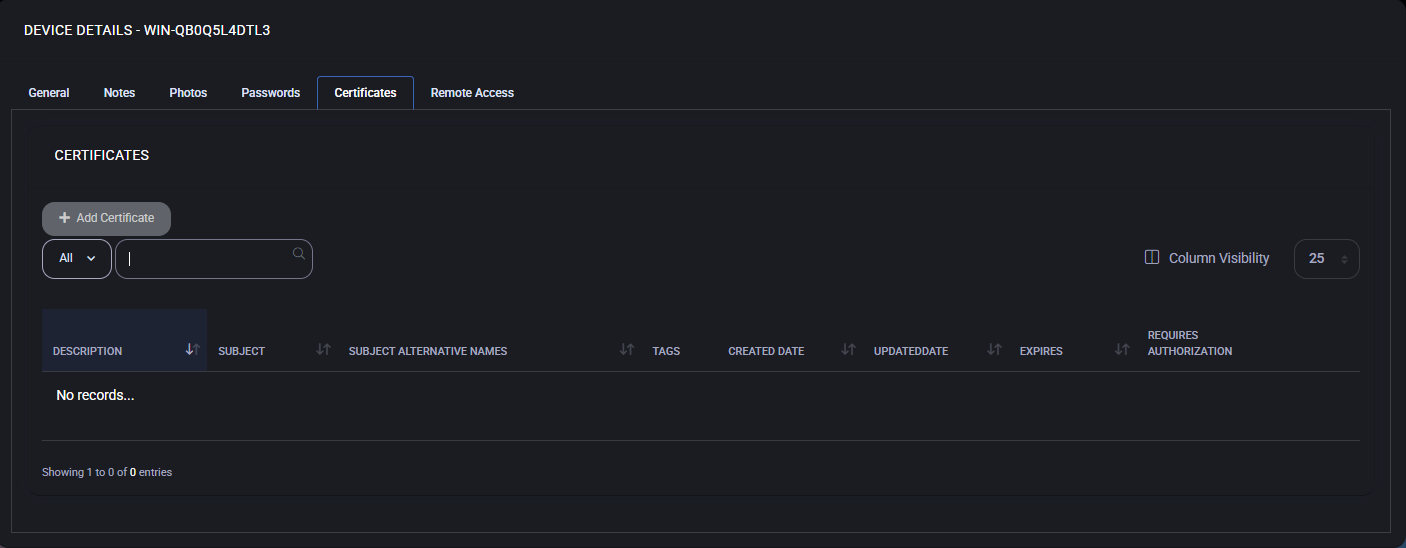
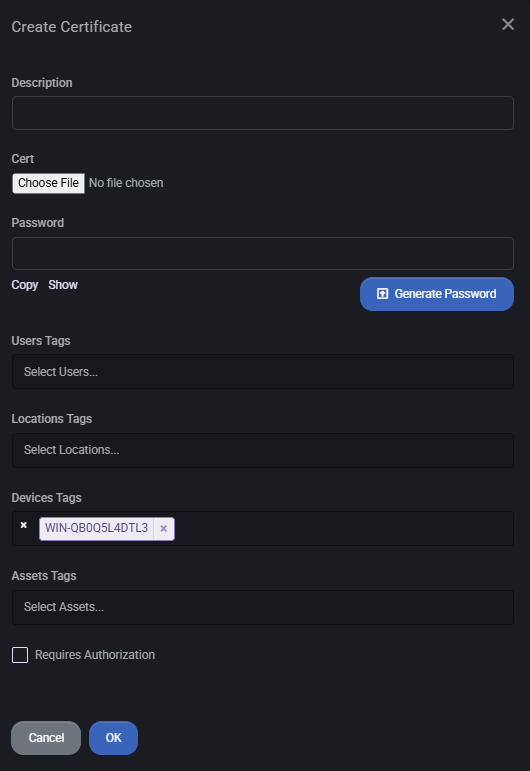
Add certificate
Section titled “Add certificate”- Click the Add Certificate button.
- Enter a Description to identify the certificate (e.g., “Exchange TLS Cert”).
- Upload the certificate file using the Cert field.
- If the certificate is password-protected (e.g., .pfx), enter the password in the Password field.
- Use the tag fields to associate the certificate with specific users, devices, locations, or assets.
- Enable Requires Authorization if approval is needed before accessing the certificate.
- Click OK to save the certificate.
Certificate table columns
Section titled “Certificate table columns”The table includes the following columns:
- Description – Display name of the certificate.
- Subject – Common Name (CN) listed in the certificate.
- Subject Alternative Names – Additional domains or IPs the certificate is valid for.
- Tags – Labels used to control access or filter assets.
- Created Date – When the record was created in the system.
- Updated Date – When it was last modified.
- Expires – Certificate expiration date.
- Requires Authorization – Whether user approval is required for viewing/downloading.
Best practices
Section titled “Best practices”- Use clear and descriptive names for all certificates.
- Always fill in the Password field for .pfx or similar certificate formats.
- Tag certificates with relevant device, location, and user tags to simplify access control.
- Enable Requires Authorization for any certificate used in production or external-facing systems.
- Regularly check expiration dates and renew certificates in advance to avoid service disruption.
- Limit certificate visibility only to users who require it – avoid global access where not needed.
