Core Ticket Policies
VirtuBot policy
Section titled “VirtuBot policy”The VirtuBot Policy defines how VirtuBot integrates with Microsoft Teams, Azure services, and ticketing systems to provide intelligent automation and conversational support. It manages the configuration of the VirtuBot service, search indexes, service bus integration, history tracking, and ticket modifications.
Main features
Section titled “Main features”- VirtuBot Service Enable or disable VirtuBot as the automation and chatbot service within MSPControl.
- Teams App Integration Configure the Application Manifest ID, Manifest Version, and upload the Teams
manifest.zipfile for chatbot deployment in Microsoft Teams. - Azure Search Index Define Endpoint, API Key, and Ticket Index Name for ticket searches and knowledge retrieval.
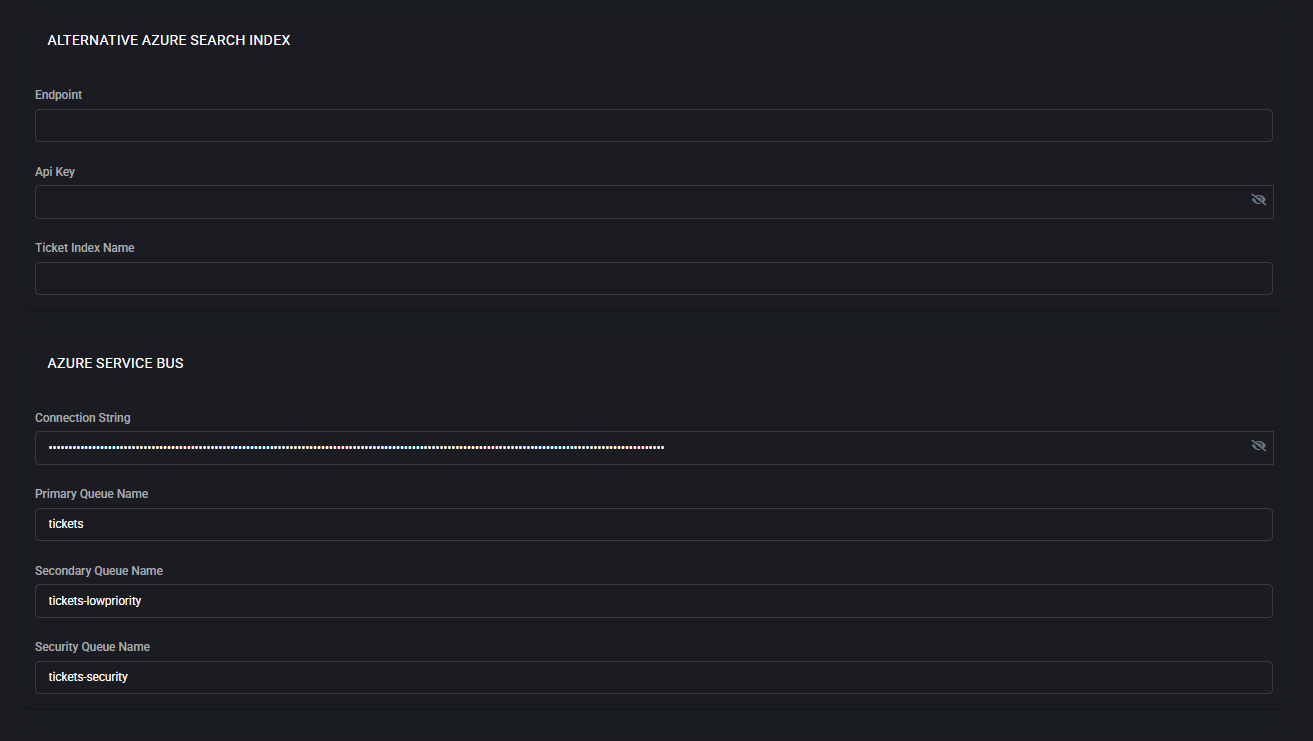
- Alternative Azure Search Index Provides a backup index configuration for redundancy.
- Azure Service Bus Configure Connection String, Primary Queue, Secondary Queue, and Security Queue for handling support ticket messages.
- Function Call Select the Agent Model (e.g., OpenAI GPT-5 Medium Reasoning) for natural language and decision-making tasks.
- Bot History Store conversation history with API Endpoint and API Key for audit and learning purposes.
- Ticket Creation/Modification Enable audit trail notes to automatically append internal comments to tickets processed through VirtuBot.
Best practices
Section titled “Best practices”- Always configure a backup Azure Search Index to ensure service continuity.
- Use Azure Service Bus queues to separate normal, low-priority, and security-sensitive tickets for streamlined routing.
- Enable Bot History logging to capture interactions for compliance and training purposes.
- Select AI models that balance reasoning quality with performance for your environment.
- Leverage audit trails to maintain transparency and accountability in ticket processing.
Service tickets policy
Section titled “Service tickets policy”The Service Tickets Policy in MSPControl defines how helpdesk tickets are classified, prioritized, escalated, and managed throughout their lifecycle. By automating ticket handling, Virtubot ensures faster resolution, consistent service quality, and compliance with SLA requirements. This policy includes rules for ticket classification, prioritization, after-hours responses, security ticket handling, planning, sentiment analysis, quality assurance, and more.
Table of contents
Section titled “Table of contents”- Ticket Classification
- Ticket Prioritizing
- After Hours Response
- After Hours Escalation
- Security Tickets
- Ticket Planner
- Ticket Quality Assurance
- Ticket Sales
- Scheduling Group Processor
- Ticket Sentiment
- Ticket Summary Rewrite
- Ticket Duplicate Detection
- Ticket Service Board Selector
- Section_StaleTicket
- Ticket Auto Messages
- Ticket Auto Responders
- Catch All
- Errors
Ticket classification
Section titled “Ticket classification”See the AI service-desk automation workflow for a scoped rollout of classification, priority, subject rewriting and routing. Review generated output against the original request; enabled policies do not guarantee correct classification or SLA outcomes.
The Ticket Classification section defines how Virtubot classifies new or existing service tickets into a consistent Type → SubType → Item structure. It can also post the outcome to Microsoft Teams and leave an internal audit note.
How it works
Section titled “How it works”Virtubot analyzes the ticket subject, body, and context and tries to map it to your service taxonomy. If a clear match is found, it can overwrite or fill missing fields. If no match is found, the fallback “Unclassified” values below are applied so tickets never remain uncategorized.
Fields & options
Section titled “Fields & options”- Boards (comma-separated, empty for all boards) Limits classification to the listed boards. Leave empty to apply to every board.
- Teams Chat/Conversation Id Microsoft Teams conversation ID (format like
19:...@thread.tacv2) where classification results can be posted. - Unclassified Type Fallback ticket Type used when Virtubot can’t determine a specific category.
- Unclassified SubType Fallback SubType assigned with the Unclassified Type.
- Unclassified Item Fallback Item (the most granular category) used with the Unclassified Type/SubType.
- Change Ticket Type/SubType and Item When enabled, Virtubot is allowed to overwrite existing values. Turn this off to only fill empty fields.
- Add Internal Note to the ticket Writes an audit note with the detected categories and whether a change was made.
- Send Notification to the Teams Chat Posts a short message to the configured Teams conversation with the classification result.
Classification logic (at a glance)
Section titled “Classification logic (at a glance)”- Check board scope. If the ticket’s board is in scope, continue.
- Attempt to map to a known Type → SubType → Item using the ticket title/description.
- If a confident match is found, write (or fill) the fields according to the “Change…” option.
- If no match is found, apply the Unclassified Type/SubType/Item.
- Optionally add an internal note and/or send a Teams notification.
Examples
Section titled “Examples”- “Can’t sign in to Office 365, password expired” Type = User Account, SubType = Password, Item = Reset O365/Entra password. If no rule matches, the ticket is set to your Unclassified values.
- “New printer install on 3rd floor” Type = Hardware, SubType = Printer, Item = Install. Teams message is posted if enabled.
Best practices
Section titled “Best practices”- Keep “Unclassified” values meaningful (e.g., Type: Intake, SubType: Needs Review, Item: Triage) so nothing slips through.
- Enable “Change Ticket Type/SubType and Item” during rollout, then disable it later if you prefer Virtubot to only fill blanks.
- Use board scoping to pilot classification with a subset of teams/clients before expanding platform-wide.
- Provide a valid Teams conversation ID to surface misclassifications quickly and fine-tune rules.
- Periodically review tickets tagged with your Unclassified Type to add new mapping rules and reduce manual triage.
Ticket prioritizing
Section titled “Ticket prioritizing”The Ticket Prioritizing section defines how Virtubot automatically adjusts and enforces ticket priority based on business rules, urgency, and context. It ensures that high-impact or time-sensitive requests receive faster attention while routine work is managed efficiently.
How it works
Section titled “How it works”Virtubot reviews each incoming or updated ticket, evaluates urgency, SLA terms, and detected signals, then sets or raises the priority. Notifications and audit notes can be generated for transparency. This reduces human error in prioritization and ensures SLA compliance.
Fields & options
Section titled “Fields & options”- Agent Model Defines which AI engine Virtubot uses for analyzing ticket context (e.g., OpenAI GPT-5 Medium Reasoning).
- Boards (comma-separated, empty for all boards) Restricts prioritization rules to the listed boards. Leave empty to apply system-wide.
- Ignored Statuses Ticket statuses (e.g., In Progress) that Virtubot should skip. Prevents reprioritization of already active work.
- Teams Chat/Conversation Id Microsoft Teams conversation ID where priority changes are posted for awareness.
- Raise Priority String A text tag (e.g.,
[EBOX]) Virtubot appends to tickets or notes when priority is escalated. Useful for filtering and reporting. - Change the Ticket Priority Allows Virtubot to directly overwrite the Priority field in the PSA/ticketing system.
- Add Internal Note to the Ticket Writes an audit trail indicating why and how the ticket priority was changed.
- Send Notification to the Teams Chat Sends a short message to the linked Teams channel whenever a priority change is applied.
Prioritization logic (at a glance)
Section titled “Prioritization logic (at a glance)”- Check board scope and confirm ticket status is not in the ignored list.
- Analyze ticket metadata (SLA, subject, keywords, sentiment, client tier).
- Determine if escalation is required (e.g., SLA breach risk, emergency keywords).
- If escalation needed, update the priority field, append Raise Priority String, and log an internal note.
- Optionally send notification to Teams for visibility.
Examples
Section titled “Examples”- “Server offline in datacenter” Raised from Priority 3 (Medium) to Priority 1 (Emergency). Note logged, Teams alert sent with
[EBOX]. - “Request for software installation next week” Remains Priority 4 (Low). No escalation applied, ignored if status is already In Progress.
Best practices
Section titled “Best practices”- Define clear escalation triggers (e.g., downtime, data loss, VIP clients) to ensure consistent handling.
- Use the Ignored Statuses field to avoid unnecessary churn in tickets already being worked.
- Enable internal notes for every priority change to maintain a full audit trail.
- Leverage Raise Priority String consistently for easy reporting and filtering.
- Integrate with Teams to provide real-time visibility of escalations for NOC and service managers.
After hours response
Section titled “After hours response”The After Hours Response section defines how Virtubot processes tickets submitted outside of normal business hours. It ensures that urgent or high-priority issues receive immediate attention, while less critical tasks are deferred until the next working day.
How it works
Section titled “How it works”Virtubot monitors ticket queues continuously, regardless of business hours. When a new ticket arrives outside the configured schedule, the system checks its priority level. Based on predefined rules, it either escalates the ticket for immediate handling or queues it for the next business window.
Fields & options
Section titled “Fields & options”- Boards (comma-separated, empty for all boards) Restricts after-hours processing to specified boards. Leave empty to apply globally.
- Teams Chat/Conversation Id Microsoft Teams channel ID where after-hours activity is reported.
- Immediate Work Status The ticket status applied when after-hours work is triggered (e.g., Work Immediately).
- Priorities to Proceed Checkboxes to select which ticket priorities should be processed outside of hours. For example: – Priority 1 (Emergency) – Priority 2 (High) – Priority 3 (Medium) – Priority 4 (Low) – Priority 5 (No SLA)
- Business Hours Defines working hours per day of the week. Tickets falling outside these hours are subject to after-hours rules. Hours can be customized per weekday.
- Change the Ticket Status Option to automatically update the status when processing after-hours tickets.
- Add Internal Note to the Ticket Adds an audit trail entry that records why the ticket was processed after hours.
- Send Notification to the Teams Chat Sends alerts to the configured Teams channel for visibility of after-hours activities.
Operational flow
Section titled “Operational flow”- A ticket is submitted outside of configured business hours.
- Virtubot checks the ticket’s priority level against the Priorities to Proceed list.
- If the ticket qualifies, Virtubot sets the Immediate Work Status and alerts the Teams channel.
- An internal note is logged to maintain a full audit trail.
- If the ticket does not meet priority thresholds, it is deferred until the next business window.
Examples
Section titled “Examples”- Critical outage reported at 2 AM Ticket marked as Priority 1 → escalated to Work Immediately, Teams alert sent, on-call technician engaged.
- Low-priority software request at 10 PM Ticket deferred until business hours resume the following day. No after-hours intervention required.
Best practices
Section titled “Best practices”- Enable after-hours processing only for Priority 1–2 to balance service continuity and workload.
- Clearly define business hours to avoid false escalations around shift changes.
- Use Teams notifications to ensure on-call staff are alerted in real time.
- Maintain internal notes for compliance and post-incident reviews.
- Regularly review after-hours activity to optimize escalation rules and staffing levels.
After hours escalation
Section titled “After hours escalation”The After Hours Escalation section sends an alert to a designated Microsoft Teams channel if a ticket created outside business hours remains unattended for a defined number of minutes.
Fields & options
Section titled “Fields & options”- Enable After Hours Escalation Turns the escalation workflow on. When enabled, tickets opened outside your business hours (as defined in After Hours Response) are monitored and escalated after the set delay.
- After Hours Escalation Teams link to the channel Paste a Teams channel deep link (Teams ▸ Channel ▸ … ▸ Get link to channel). Virtubot posts escalation alerts to this channel with a link to the ticket and context for on-call personnel.
- After Hours Minutes Before Escalation How long to wait (in minutes) after the ticket is created before sending the escalation alert. Example:
45means alert the channel 45 minutes after creation if the ticket is still unattended.
Behavior
Section titled “Behavior”- A ticket is created outside defined business hours.
- Virtubot starts a timer using After Hours Minutes Before Escalation.
- If the ticket is still not acknowledged or actioned when the timer expires, Virtubot posts an escalation message to the configured Teams channel.
Best practices
Section titled “Best practices”- Use a dedicated channel (e.g., #ticket-escalations) and enable mobile notifications for on-call staff.
- Start with 30–60 minutes to balance responsiveness and noise.
- Verify the link points to a channel (not a personal chat) and is accessible to on-call members.
- Test by temporarily setting the delay to a low value (e.g., 5 minutes) and creating a test ticket after hours.
