General Details and Passwords
Asset: edit asset
Section titled “Asset: edit asset”The Edit Asset page provides full lifecycle management for an individual asset. It is organized into multiple tabs, allowing administrators and authorized customer users to manage identification data, security-related information, attachments, relationships, and audit history in a structured way.
Asset: edit tabs
Section titled “Asset: edit tabs”General
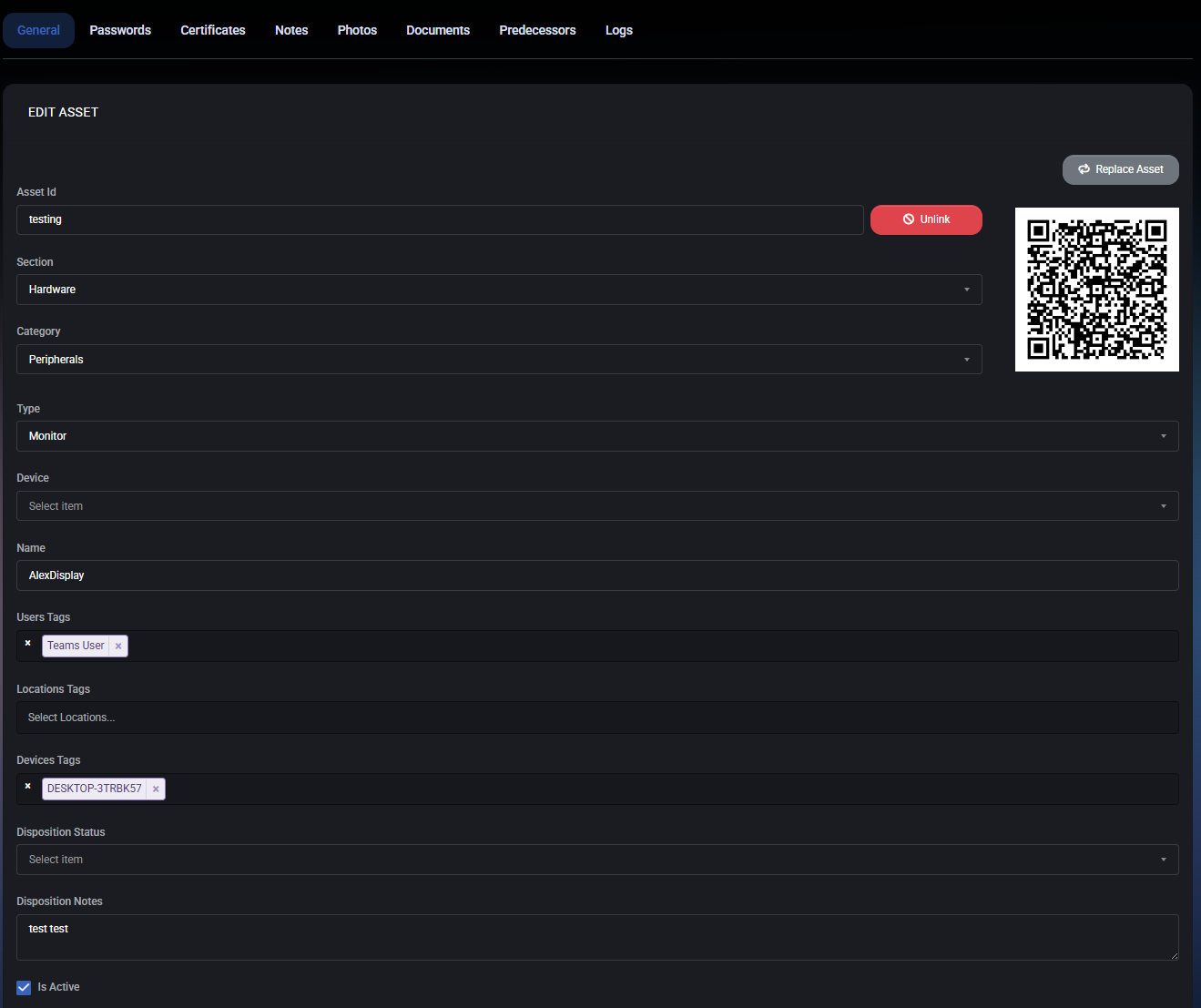
Section titled “General”The General tab is the primary configuration area for an asset. It defines the asset’s identity, classification, ownership context, operational state, and key technical attributes. Most core asset metadata is managed from this tab.
Asset identification
Section titled “Asset identification”- Asset ID – A unique identifier for the asset. This value is used for internal referencing, QR code generation, and direct asset access links.
- QR Code – A dynamically generated QR code linked to the asset. It can be scanned to quickly identify or retrieve asset information.
- Replace Asset – Allows replacing the physical asset while preserving its logical identity and history.
- Unlink – Detaches the asset from its current association (for example, device or ownership binding) without deleting it.
Classification
Section titled “Classification”- Section – Defines the high-level asset category (for example: Hardware, Software, or Other).
- Category – Narrows the asset classification within the selected section (for example: Peripherals, Computers, Network).
- Type – Specifies the exact asset type (for example: Monitor, Workstation, Laptop). The selected type determines which additional properties are shown below.
Assignment & context
Section titled “Assignment & context”- Device – Optionally links the asset to a specific managed device, enabling contextual tracking and correlation.
- Name – A human-readable name for the asset, typically used in lists and reports.
- User Tags – Tags associated with users (for example, assigned employee or role). These tags help group and filter assets.
- Location Tags – Identifies where the asset is physically located (office, site, department).
- Device Tags – Links the asset to device-related tags for automation, reporting, or policy-based actions.
Operational state
Section titled “Operational state”- Disposition Status – Indicates the current lifecycle state of the asset (for example: Unissued, Issued, In Repair, Retired).
- Disposition Notes – Free-text notes describing the asset’s condition, usage context, or lifecycle decisions.
- Is Active – Determines whether the asset is active and included in operational workflows.
- Requires Authorization – If enabled, actions involving this asset require explicit authorization.
Technical properties (type-specific)
Section titled “Technical properties (type-specific)”Depending on the selected asset type, additional mandatory or optional fields appear. For example, a Monitor asset may include:
- Manufacturer
- Model Name
- Manufacturer Serial
- Display Size
- Resolution
- Display Technology
- Hardware Interfaces (HDMI, DisplayPort, USB-C, VGA)
- Refresh Rate
- Asset Value
- Warranty End Date
Best practices
Section titled “Best practices”- Always define Section, Category, and Type accurately to ensure correct property visibility.
- Use Tags consistently to enable powerful filtering and reporting.
- Keep Disposition Status up to date to reflect the real lifecycle stage of the asset.
- Attach assets to Devices where applicable to improve traceability.
- Use QR codes for fast physical asset identification during audits.
Passwords
Section titled “Passwords”The Passwords tab within an asset is used to securely store and manage credentials related to the selected asset. This may include local device passwords, service credentials, application logins, or MFA secrets associated with the asset. All passwords are stored securely and can be protected with additional authorization controls.
Passwords list
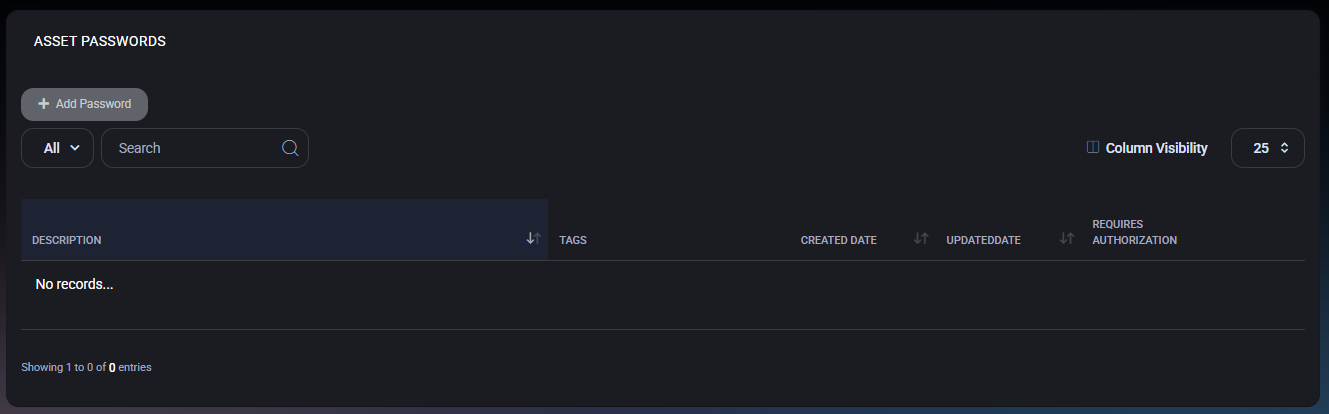
Section titled “Passwords list”The main view displays a table of all passwords linked to the asset. If no passwords exist, the list will be empty.
- Description – A human-readable description of what the password is used for (for example: Local Admin Password or Printer Web Interface).
- Tags – Tags applied to the password for filtering and access scoping (users, locations, devices, or assets).
- Created Date – Date when the password entry was created.
- Updated Date – Date of the last modification.
- Requires Authorization – Indicates whether additional authorization is required to view this password.
The toolbar provides filtering, search, and column visibility options to quickly locate specific password entries.
Create password
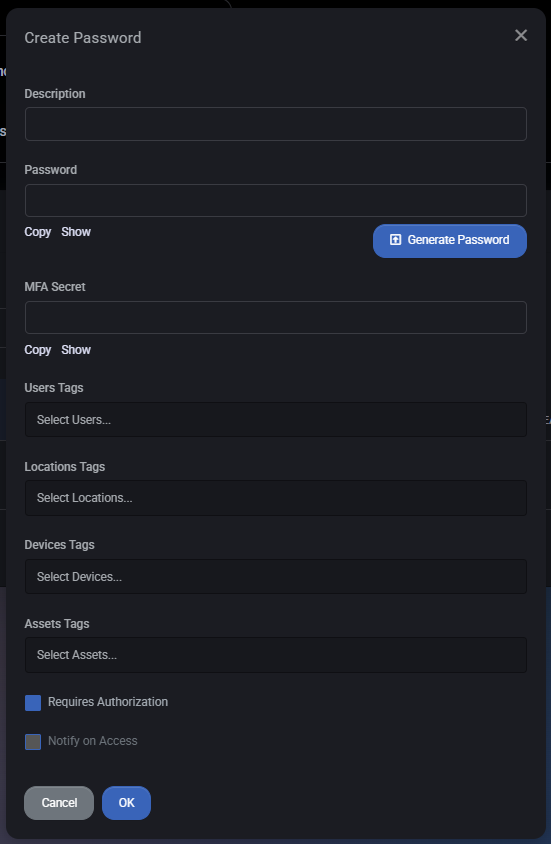
Section titled “Create password”Click Add Password to open the password creation dialog. This dialog allows you to securely define and scope a new password entry.
Fields
Section titled “Fields”- Description – Short explanation of what the password is used for. This helps distinguish between multiple credentials.
- Password – The actual secret value. You can manually enter a password or use the Generate Password button to create a strong password automatically. Copy and Show options allow controlled access to the value.
- MFA Secret – Optional field for storing an MFA or TOTP secret associated with this credential. Includes Copy and Show actions similar to the password field.
- User Tags – Assign the password to specific users. Only tagged users will be able to discover or request access.
- Location Tags – Limit visibility based on physical or logical locations.
- Device Tags – Associate the password with specific devices.
- Asset Tags – Link the password to other related assets if needed.
- Requires Authorization – When enabled, users must go through an authorization workflow before the password can be revealed.
- Notify on Access – Sends a notification whenever this password is accessed, providing an audit trail and security visibility.
Actions
Section titled “Actions”- OK – Saves the password entry.
- Cancel – Closes the dialog without saving.
Security notes
Section titled “Security notes”- Use Requires Authorization for all sensitive credentials.
- Apply tags consistently to avoid over-exposing passwords.
- Enable Notify on Access for high-risk or privileged credentials.
- Store MFA secrets only when absolutely necessary and restrict access tightly.
