Organization and Cloud Services
Domains widget
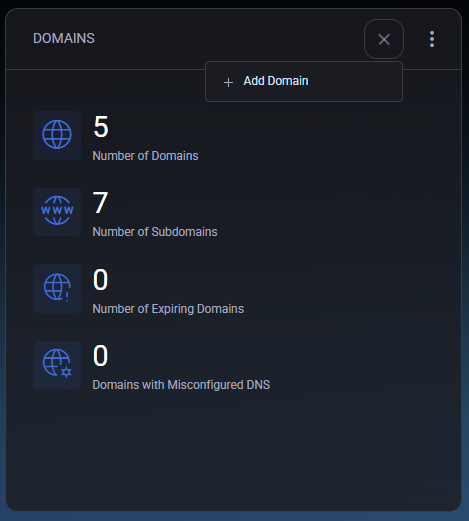
Section titled “Domains widget”The Domains widget summarizes all domains linked to your account. It provides key statistics for domain and subdomain management:
- Number of Domains – total registered domains under your hosting spaces.
- Number of Subdomains – total subdomains created.
- Number of Expiring Domains – shows domains nearing expiration (if supported by your hosting provider).
- Domains with Misconfigured DNS – lists domains that may require DNS configuration corrections.
You can use the Add Domain button to register a new domain directly from this widget. Similar to the Account widget, the Domains widget includes a filter menu that lets you show or hide specific domain statistics or remove the widget entirely from the dashboard.
Organizations widget
Section titled “Organizations widget”The Organizations widget provides a centralized overview of all hosted organizations and related services within your account. This widget is divided into multiple tabs, allowing users to navigate between sections such as Organization, Azure, Microsoft 365, Exchange Online, SharePoint Online, Microsoft Teams, Cloud Folders, RDS, Devices, Backups, and Security. The widget cannot be filtered, but it can be removed from or re-added to the dashboard using the main widget menu.
Organizations Widget — Table of Contents
- Organization Tab
- Azure Tab
- Microsoft 365 Tab
- Exchange Online Tab
- SharePoint Online Tab
- Microsoft Teams Tab
- Cloud Folders Tab
- RDS Tab
- Devices Tab
- Backups Tab
- Security Tab
Organization tab
Section titled “Organization tab”The Organization tab is the default view displayed when you open the Organizations widget. It gives a quick summary of user statistics and provides shortcuts to essential organization management tools.
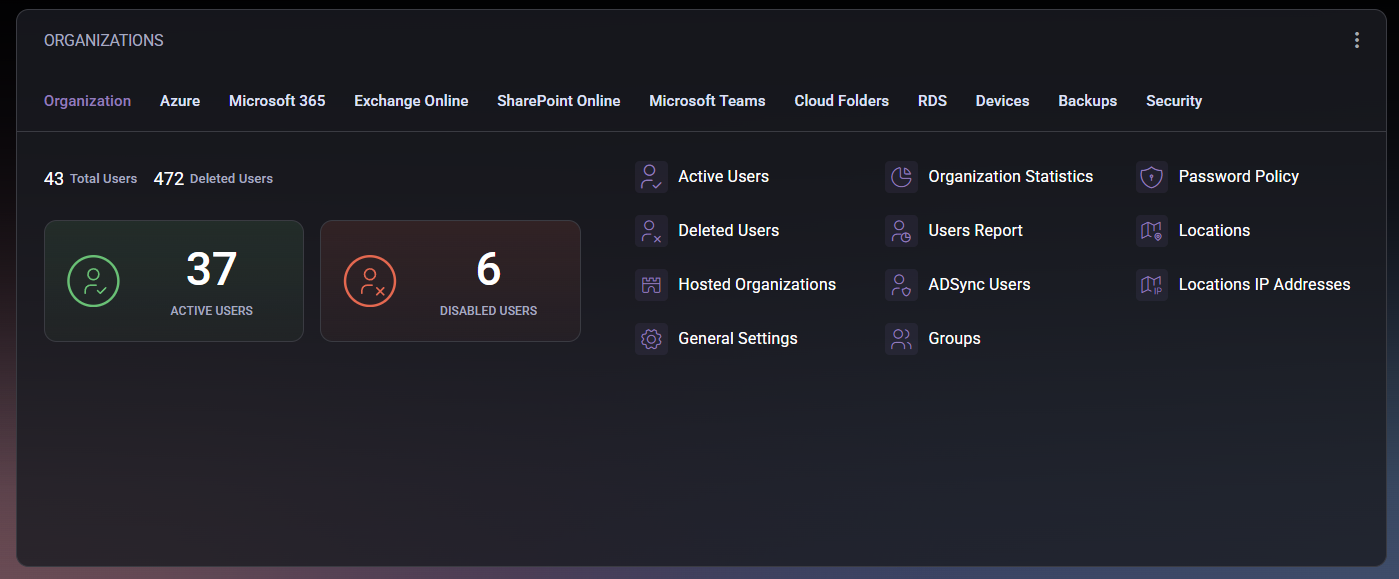
The top of the tab displays total user counts:
- Total Users – shows the total number of accounts registered in your organization.
- Deleted Users – shows how many accounts have been removed but remain recorded in system history.
Below, you can view active and disabled users represented as two large counters:
- Active Users – currently enabled and functioning user accounts.
- Disabled Users – accounts temporarily deactivated or suspended.
On the right side of the tab, additional management options are available:
- Active Users – open the list of all active accounts within your organization.
- Deleted Users – access accounts that have been deleted or archived.
- Hosted Organizations – view organizations hosted under your account, useful for MSPs managing multiple tenants.
- General Settings – access configuration options for your organization, such as display name or internal identifiers.
- Organization Statistics – view analytical data about organization usage and resource distribution.
- Users Report – generate a full report of user activity, status, and assigned roles.
- ADSync Users – displays users synchronized with Azure Active Directory.
- Groups – manage user groups and assign permissions or roles within the organization.
- Password Policy – open security settings that define password complexity and expiration rules.
- Locations – view and manage organization sites or offices registered in MSPControl.
- Locations IP Addresses – manage IP allocations assigned to each physical or logical location.
This tab is designed to help you quickly assess the overall health of your organization, view key statistics, and navigate directly to related user or policy management areas.
Azure tab
Section titled “Azure tab”The Azure tab provides an overview of your Microsoft Azure consumption, billing forecast, and configuration tools directly integrated with MSPControl. It is primarily used to monitor costs, manage Azure subscriptions, and configure Entra ID and security-related settings.
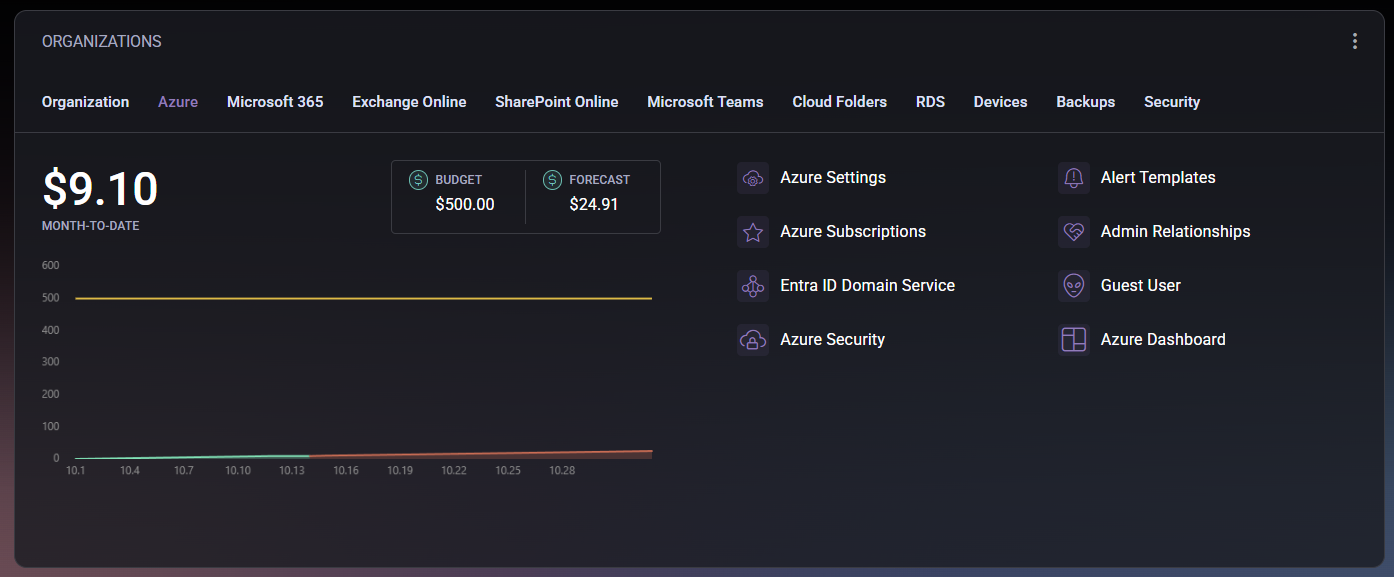
At the top of the tab, you will find key financial indicators:
- Month-to-Date – shows your current Azure spending for the ongoing month.
- Budget – displays the total budget limit defined for your Azure usage. Staying within this limit helps prevent unexpected charges.
- Forecast – provides an estimated cost projection based on your current consumption trend.
A cost chart below these values visualizes your Azure spending over time. It allows administrators to identify patterns or anomalies in resource usage. On the right side, the tab provides shortcuts to Azure management tools available through MSPControl:
- Azure Settings – access configuration options related to Azure integration, API connections, and authentication settings.
- Azure Subscriptions – view and manage linked Azure subscriptions, including their current state, limits, and resource assignments.
- Entra ID Domain Service – manage Entra ID (formerly Azure Active Directory) domain synchronization and directory-based services.
- Azure Security – monitor and configure security compliance settings for Azure tenants.
- Alert Templates – customize notification templates related to Azure usage, thresholds, and incidents.
- Admin Relationships – review and manage delegated admin permissions between your MSP account and client tenants.
- Guest User – view or add guest users who have temporary or external access to Azure resources.
- Azure Dashboard – open a detailed Azure usage dashboard for in-depth monitoring and reporting.
This tab helps MSPs and IT administrators monitor cloud costs, maintain compliance, and ensure all Azure integrations are correctly configured for ongoing operations.
Microsoft 365 tab
Section titled “Microsoft 365 tab”The Microsoft 365 tab provides visibility into your Microsoft 365 environment, including service subscriptions, storage utilization, group management, and overall service health. It helps administrators oversee licensing and monitor the operational status of Microsoft cloud services directly within MSPControl.
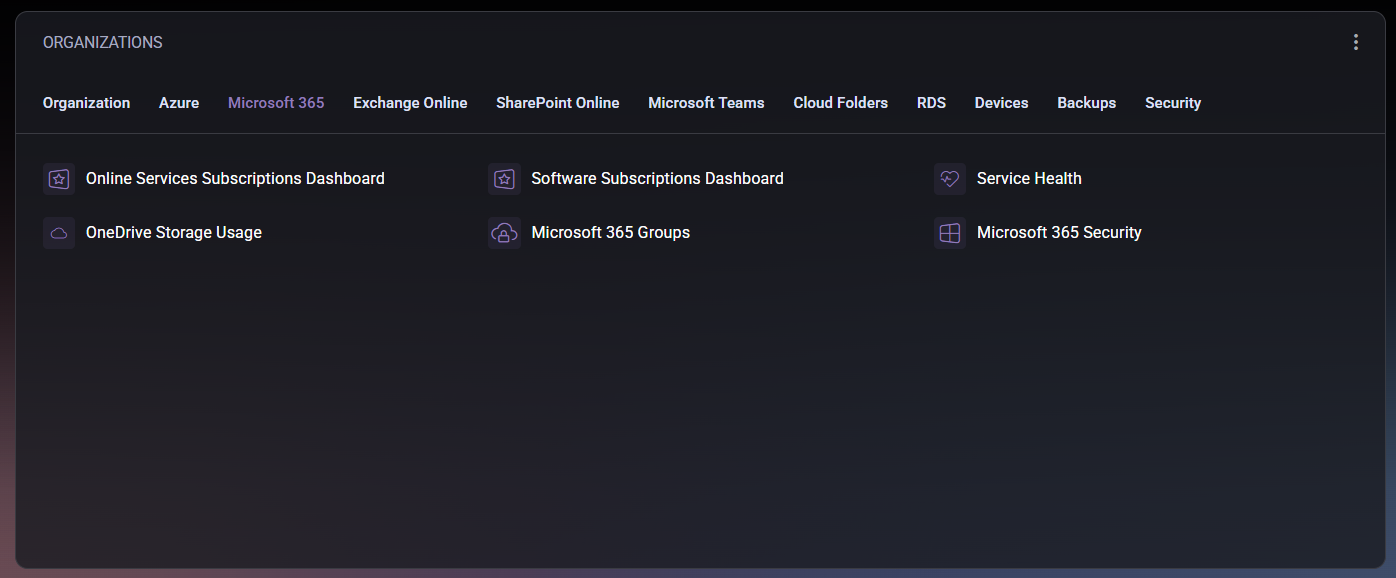
This tab contains several key shortcuts and dashboards:
- Online Services Subscriptions Dashboard – displays all active Microsoft 365 online service subscriptions, including assigned plans and their current usage. This dashboard allows administrators to monitor licensing allocation and identify unused or over-licensed accounts.
- Software Subscriptions Dashboard – provides an overview of software-based subscription licenses (such as Microsoft 365 Apps for Business or Enterprise). It helps track license availability and renewal status.
- Service Health – opens a status view showing the current operational state of Microsoft 365 services (Exchange Online, SharePoint, Teams, etc.). Administrators can use this section to verify whether service interruptions or maintenance events are affecting their tenants.
- OneDrive Storage Usage – presents detailed information about OneDrive usage across your users, including allocated versus used storage per account. This helps ensure that users remain within defined storage limits.
- Microsoft 365 Groups – allows management of Microsoft 365 Groups, including creation, membership adjustments, and synchronization with Azure Active Directory. Groups can be used to assign permissions and simplify collaboration structures.
- Microsoft 365 Security – provides a gateway to review and configure security recommendations, compliance alerts, and configuration baselines related to Microsoft 365 services.
Together, these dashboards offer a complete operational picture of your Microsoft 365 environment, helping ensure optimal license usage, data compliance, and service reliability.
Exchange online tab
Section titled “Exchange online tab”The Exchange Online tab provides access to all email-related management areas for your Microsoft 365 tenant integrated through MSPControl. This section allows administrators to configure mailboxes, distribution groups, policies, and compliance settings without directly accessing the Microsoft 365 admin center.
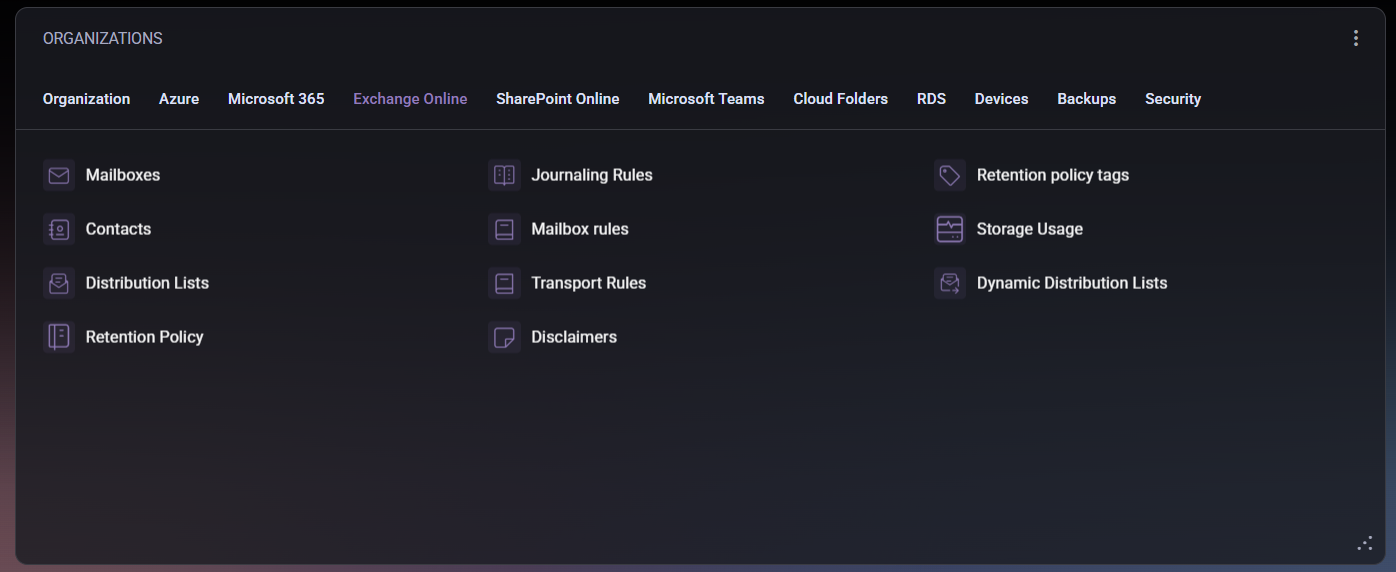
The tab is divided into several functional shortcuts:
- Mailboxes – displays a list of user and shared mailboxes available within your organization. From here, you can manage mailbox permissions, aliases, forwarding, and quotas.
- Contacts – manage external contacts stored within Exchange Online. These can be used for address book visibility or inclusion in distribution lists.
- Distribution Lists – configure traditional email distribution lists used to send messages to multiple recipients at once. You can create new lists, modify members, and set delivery restrictions.
- Retention Policy – defines how long emails and items are retained before being automatically archived or deleted. This section helps maintain compliance with organizational or regulatory requirements.
- Journaling Rules – set up journaling policies to record and archive copies of messages sent or received. Commonly used for compliance and auditing purposes.
- Mailbox Rules – manage server-side mailbox rules that apply to incoming and outgoing mail. Useful for automatically sorting or redirecting messages based on conditions.
- Transport Rules – configure organization-wide message flow rules to enforce policies, apply disclaimers, block certain content, or reroute messages.
- Disclaimers – create and manage email disclaimers or signatures applied to all outgoing messages from your organization.
- Retention Policy Tags – define specific retention periods or actions (delete, archive, move) applied to individual folders or message types.
- Storage Usage – provides an overview of mailbox storage utilization across all users, helping identify accounts nearing quota limits.
- Dynamic Distribution Lists – manage distribution groups that automatically include members based on predefined filters (e.g., department, location, or title) instead of manual assignment.
Through this tab, administrators can efficiently manage their Exchange Online environment, implement compliance standards, and maintain optimal mailbox performance without leaving the MSPControl interface.
SharePoint online tab
Section titled “SharePoint online tab”The SharePoint Online tab provides access to your organization’s SharePoint Online sites and storage management tools. It helps administrators monitor site collections, manage allocated storage, and quickly access connected OneDrive resources.
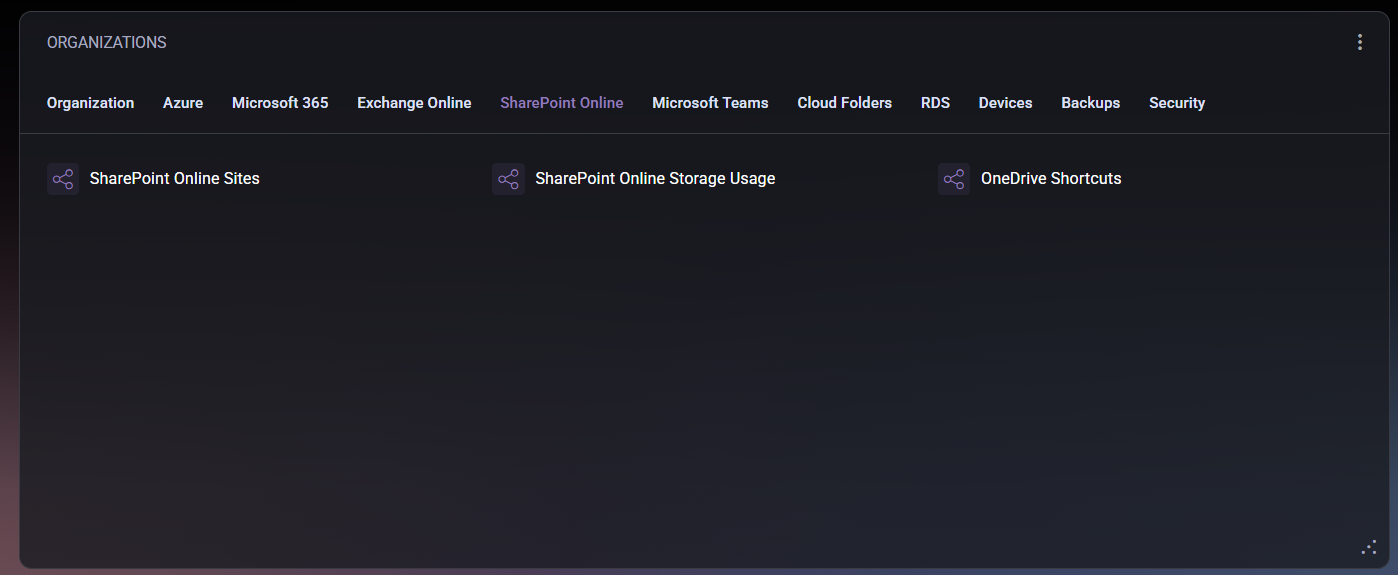
This tab includes the following options:
- SharePoint Online Sites – displays a list of all active SharePoint sites within your Microsoft 365 tenant. Administrators can use this section to view site details, access permissions, and verify connectivity. Each site can be opened directly from the panel for further management within the Microsoft 365 admin center.
- SharePoint Online Storage Usage – shows detailed information about storage utilization across all SharePoint sites. It includes total allocated space, used capacity, and remaining available storage. This helps prevent overuse and supports effective capacity planning.
- OneDrive Shortcuts – provides quick access to linked OneDrive locations for end users or administrators. This option enables efficient navigation between personal storage and organizational SharePoint resources.
This tab centralizes all SharePoint and OneDrive storage insights, ensuring that administrators can easily maintain performance, optimize storage distribution, and guarantee reliable access to shared content.
Microsoft Teams tab
Section titled “Microsoft Teams tab”The Microsoft Teams tab provides an overview of user assignments and licensing plans associated with Microsoft Teams. It is designed to help administrators quickly verify who has access to Teams services and under which license type.
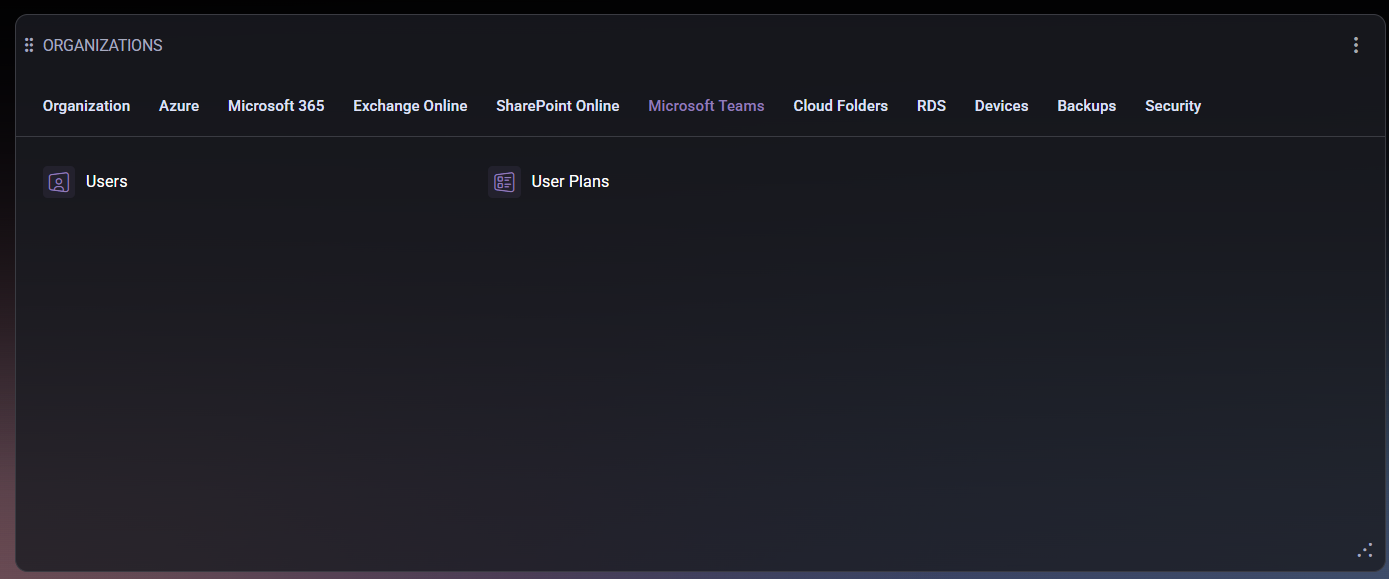
This tab includes two primary options:
- Users – displays a list of users who are currently enabled for Microsoft Teams within your organization. From this section, administrators can view user-specific details such as display name, assigned licenses, and activity status. This view helps confirm which users have active Teams permissions and ensures that all required users are provisioned correctly.
- User Plans – shows which service plans are assigned to each user, including Teams, Exchange, SharePoint, and other Microsoft 365 workloads. This allows administrators to identify users with partial or missing service plans, ensuring that collaboration features like chat, meetings, and file sharing are properly licensed.
Using this tab, administrators can maintain visibility into Teams licensing compliance, detect potential gaps in access rights, and manage service enablement across the organization without leaving the MSPControl interface.
