Account Home
Overview
Section titled “Overview”Review account-level usage, service, resource, and operational information from the Account Home dashboard.
The Account Home page in MSPControl is the central dashboard for both administrators and customers, providing a high-level summary of account information, scheduled tasks, hosting space usage, and quick access to management areas. The content displayed adapts based on the user’s role — serveradmin, peer, or customer.
Administrator view (serveradmin or peer)
Section titled “Administrator view (serveradmin or peer)”For users with Administrator access — including serveradmin and designated peers — the page provides a full-system operational overview.
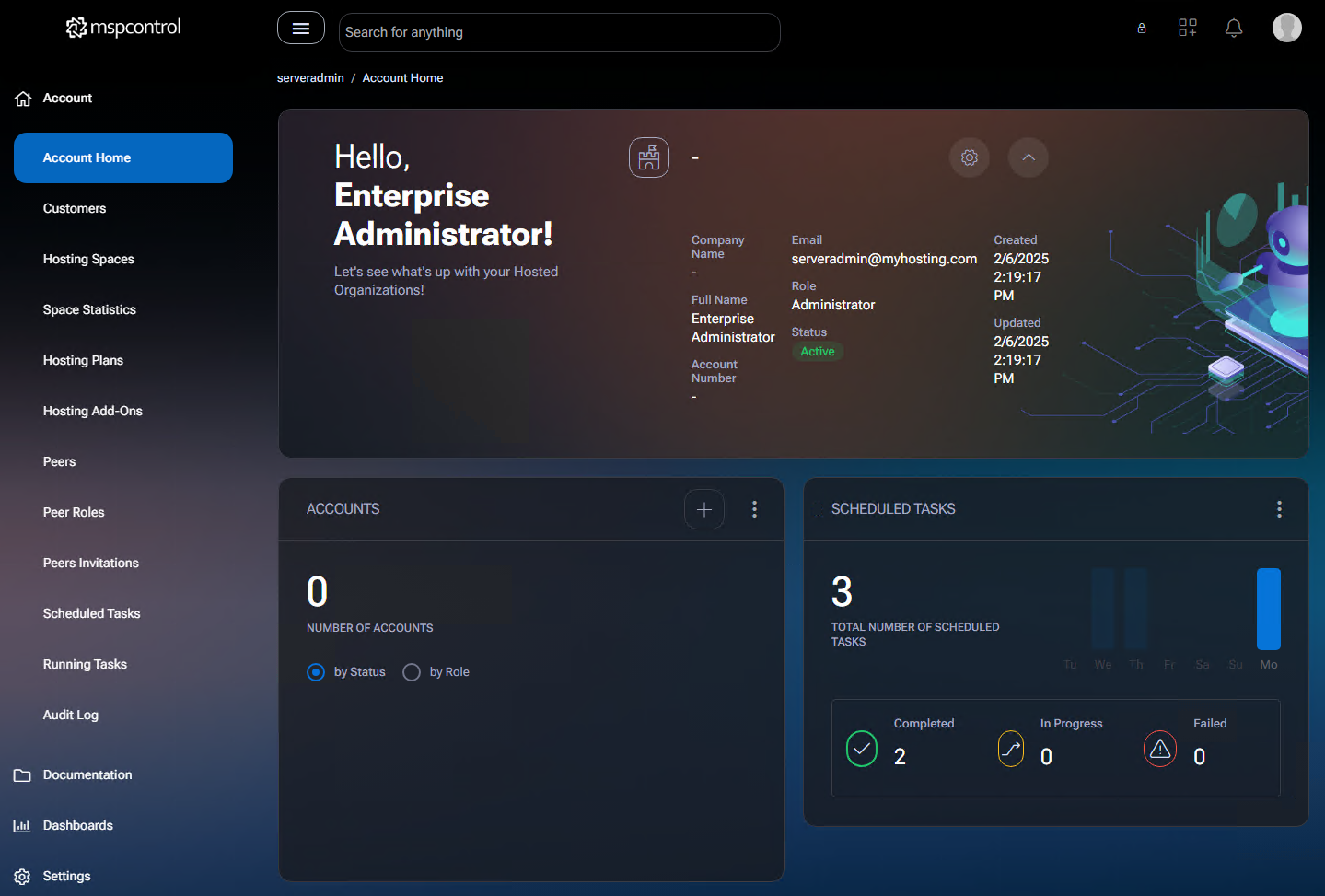
Header section
Section titled “Header section”- Displays full name, role, email address, status, account number, and timestamps for creation and last update.
- Includes profile icon and gear/settings icon (for account editing and password change).
Accounts widget
Section titled “Accounts widget”- Shows the total number of customer accounts managed by the admin.
- Includes visual filters by Status or Role.
- The menu in the top right corner of the widget includes a “+ Create New Account” action.
Scheduled tasks widget
Section titled “Scheduled tasks widget”- Displays total number of scheduled tasks and a weekly graph of task activity.
- Breaks down tasks by status: Completed, In Progress, and Failed.
- Options menu includes granular filtering (Total, Failed, Running, Completed, Diagram) and a “Remove Widget” action.
Hosting spaces widget
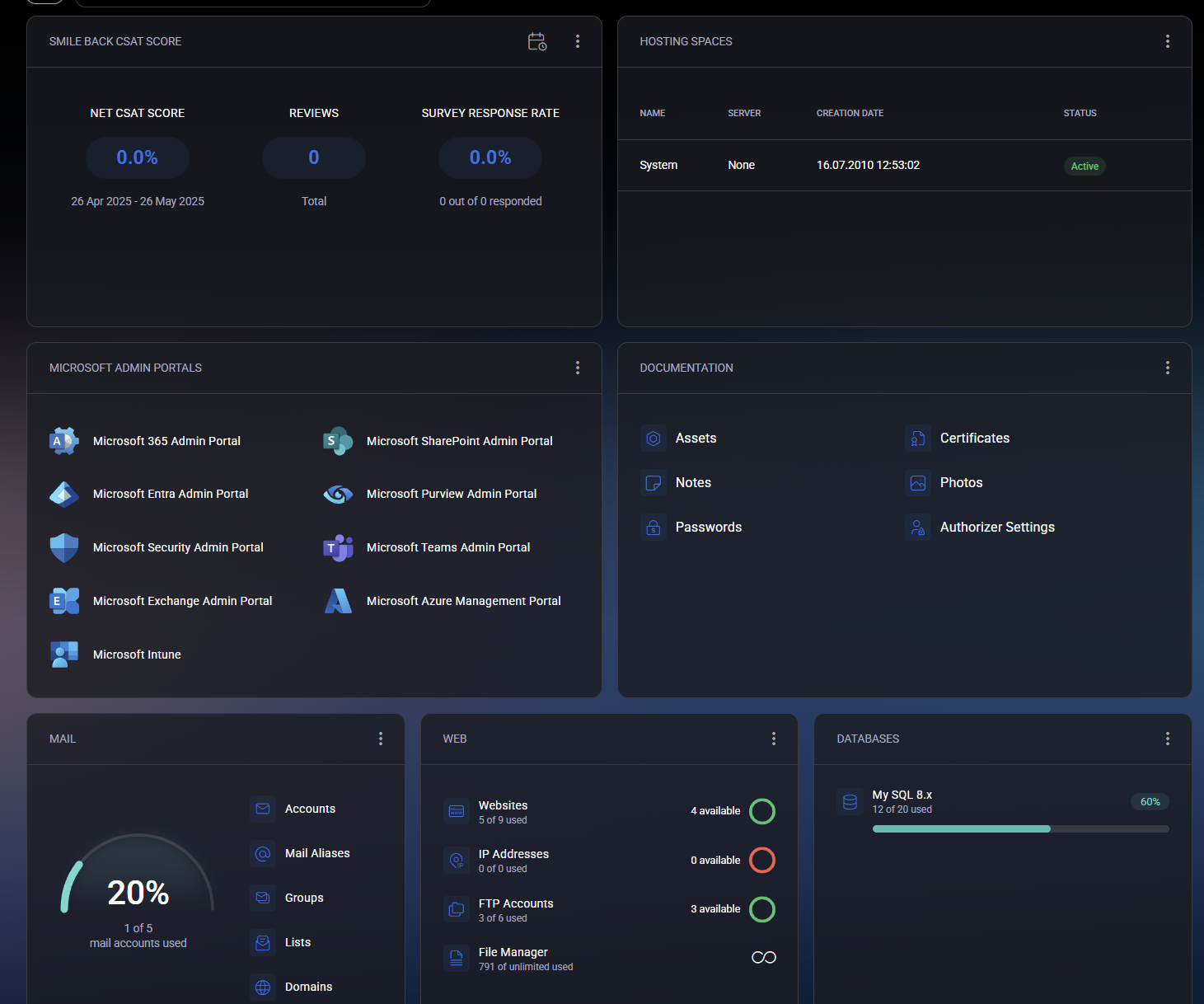
Section titled “Hosting spaces widget”- Displays a list of all hosting spaces associated with the account.
- Columns include Name, Server, Creation Date, and Status.
- The default system-level space named
Systemappears here for serveradmin accounts.
Customer-level view
Section titled “Customer-level view”When accessed by a user with a Customer role, the Account Home page changes to provide tenant-specific details and self-service options.
Header section
Section titled “Header section”- Displays customer’s company name, email, role, status, and timestamps.
- Includes Suspend and Disable buttons for internal administrative use.
Scheduled tasks
Section titled “Scheduled tasks”- Shows weekly task count and task statuses — Completed, In Progress, Failed.
Hosting spaces
Section titled “Hosting spaces”- Customers see only the hosting spaces associated with their account.
- Includes name, assigned server, creation date, and status of the space.
Account widgets grid
Section titled “Account widgets grid”- Provides direct access to modules including:
- Domains, Subscriptions, Space Statistics
- Peers, Peer Roles, Peer Invitations
- Running Tasks, Audit Log, Email Routes
- Scheduled Tasks, Space Add-ons, Hosting Spaces
Organizations block
Section titled “Organizations block”- Accessible for multi-user environments. Shows tabs for Azure, Exchange, Microsoft 365, and more.
- Summarizes key stats like:
- Active/Disabled/Deleted Users
- Hosted Organizations, Groups, ADSync Users
- Password Policy, Locations, IP Assignments
Best practices
Section titled “Best practices”- Use the widget filter menu to customize the dashboard to your role’s needs (e.g., show only failed tasks).
- Remove unused widgets to keep your workspace focused and efficient.
- Administrators should regularly monitor failed or stuck scheduled tasks for proactive maintenance.
- System administrators can use the Account Home page as the central control panel for tracking quota usage, account performance, and quick access to submodules.
- For tenant accounts, use this view to get a fast snapshot of health, usage, and access to hosted services.
Your own account
Section titled “Your own account”Screens reached from the profile menu rather than from the navigation:
| Screen | What it is |
|---|---|
| My Account / User Account Details | Your own details — contact information, credentials, and the integration settings held against the account |
| User Account Summary | A summary letter for the account |
| Two Factor Authentication | Multi-factor settings for the account |
| Locations Access | Which locations a peer may work with. Appears at both administrator and customer level |
| Get License | Licensing for the installation |
| Skillset Self-Assessment | Claim your skills — see skillsets |
