Authentication and App Deployments
Entra ID authentication methods tab
Section titled “Entra ID authentication methods tab”The Entra ID Authentication Methods tab is used to review and manage the authentication methods registered for the user in Microsoft Entra ID. This is commonly used during MFA onboarding, recovery, device cleanup, and security troubleshooting.
Primary actions
Section titled “Primary actions”- Add Authentication Method – Starts the flow to add a new authentication method for the user.
- Re-Register MFA – Forces the user to re-register MFA methods. Use this when MFA enrollment must be reset, for example after device replacement or security remediation.
- Revoke MFA Sessions – Revokes active MFA sessions for the user, forcing fresh MFA verification on next sign-in.
For suspected account compromise, use these controls within the ordered Microsoft 365 compromised-account response guide, which separates evidence preservation, containment, persistence checks, and safe recovery.
Filters and controls
Section titled “Filters and controls”- All – View selector used to filter the methods list.
- Search – Filters authentication methods by method type or visible details.
- Column Visibility – Controls which columns are displayed in the table.
- Page size – Controls how many rows are shown per page (example shown: 25).
Authentication methods table
Section titled “Authentication methods table”The table lists all currently registered Entra ID authentication methods for the user.
Columns
Section titled “Columns”- Authentication Method – The registered method type (for example, Phone or Windows Hello for Business).
- Details – Method-specific details shown inline in the table.
- Delete (trash icon) – Removes the selected authentication method registration from the user.
Method details
Section titled “Method details”The Details column changes depending on the authentication method type.
- Phone – Displays details such as:
- Phone number – The registered phone number.
- Phone type – The phone category (for example, Mobile).
- SMS Sign-In State – Status of SMS sign-in availability/policy (example shown: NotAllowedByPolicy).
- Windows Hello for Business – Displays device-related details such as:
- Display name – Device display name (for example, VW-STUDIO-DELL, VW-WK-PC11A).
- Model – Device model (if populated in Entra ID).
Delete method
Section titled “Delete method”Use the Delete icon on a row to remove that specific authentication method from the user. This is commonly used when:
- a phone number is outdated,
- a Windows Hello device is no longer used,
- a stale or incorrect MFA method must be removed before re-registration.
App deployments tab
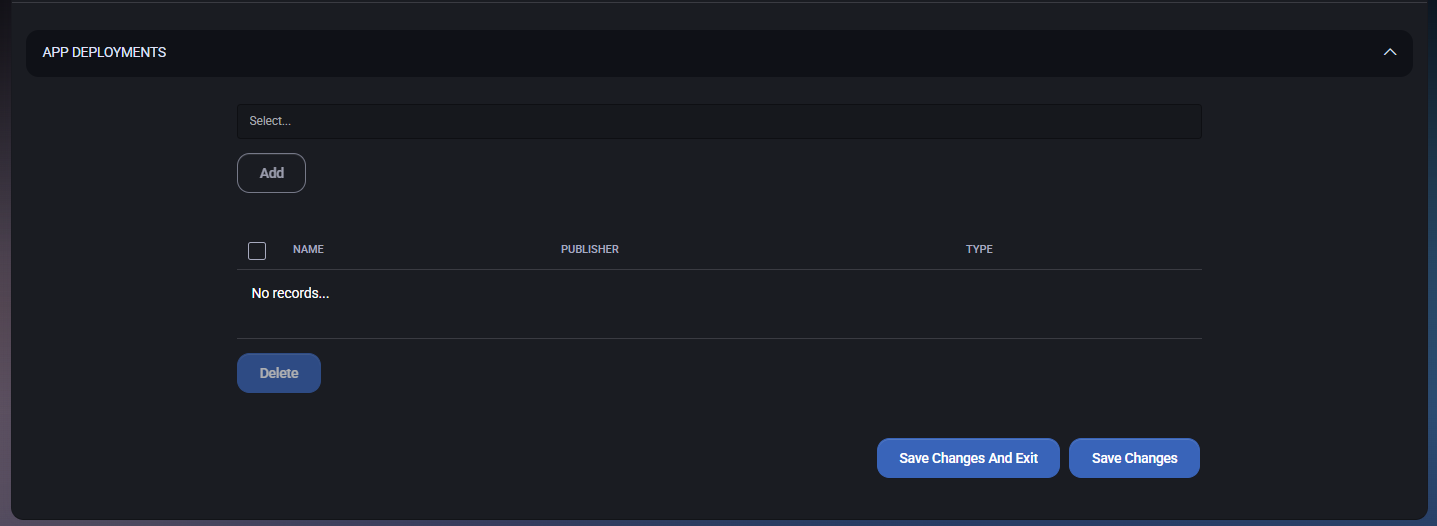
Section titled “App deployments tab”The App Deployments tab is used to assign deployable applications/packages to the user. This is typically used when the Hosted Organization delivers applications through the Agent and the user must be explicitly targeted for a package.
Add deployment
Section titled “Add deployment”Use the selector at the top of the section to choose an application/package and assign it to the user.
- Select… – Dropdown used to choose the application/package to deploy to the user.
- Add – Adds the selected application/package to the deployment list for this user.
Deployment list
Section titled “Deployment list”The table shows all applications currently assigned to the user through this deployment mechanism. If no applications are assigned, the table shows an empty state (for example, No records…).
Columns
Section titled “Columns”- Select checkbox – Select one or more assigned application rows for removal.
- Name – Application/package name.
- Publisher – Vendor or publisher of the application.
- Type – Application/package type or category.
Delete
Section titled “Delete”The Delete button removes selected application assignments from the user.
- Delete – Deletes all selected deployment assignments from the list.
Save actions
Section titled “Save actions”After making changes to the deployment assignments, use one of the save buttons in the bottom-right corner:
- Save Changes – Saves updates and keeps you on the App Deployments tab.
- Save Changes And Exit – Saves updates and exits the current user view.
Best practices
Section titled “Best practices”- Keep identity data consistent – Make sure Login Name, Display Name, Primary Email, and company/contact fields follow a consistent naming standard across the Hosted Organization.
- Use service levels intentionally – Service level values affect quotas, reporting, and operational grouping. Assign them deliberately and review them periodically.
- Prefer least privilege – Add users only to the groups, RDS collections, applications, and Entra ID roles they actually need.
- Treat elevated access as temporary – For Entra ID roles, prefer time-bound and justified assignments where possible instead of broad permanent access.
- Use dedicated secrets and enforce authorization – In the Passwords tab, store credentials with clear descriptions, tag them properly, and enable Requires Authorization for sensitive entries.
- Protect traceability – Use Notes, Documents, and the Audit Log to preserve context around important changes, exceptions, and security events.
- Review Microsoft 365 licensing regularly – Remove unused licenses, verify enabled service plans, and watch for duplicate or inconsistent plan presentation in the UI.
- Use MFA and authentication cleanup proactively – Re-register MFA, revoke sessions, and remove stale authentication methods when users change devices or after suspected compromise.
- Validate onboarding and offboarding end to end – When creating or changing users, check related tabs such as Microsoft 365, Cloud Folders, RDS Collections, Setup, and Member Of so no dependency is missed.
