Platform Access and Branding
MSPControl policy
Section titled “MSPControl policy”The MSPControl Policy page provides system-wide configuration parameters that influence session behavior, password rotation, peer access expiration, and breach protection mechanisms.
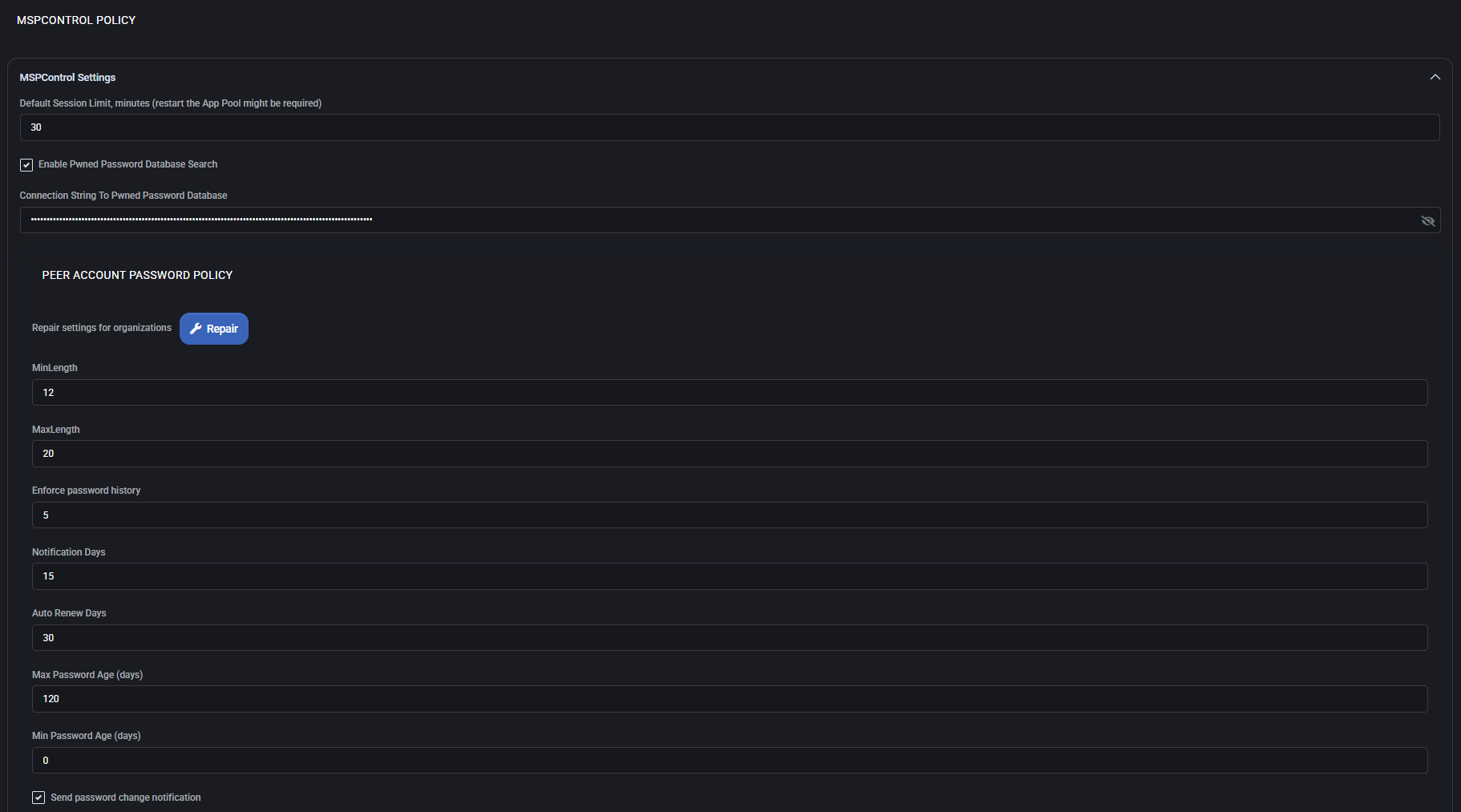
MSPControl settings
Section titled “MSPControl settings”Configure system-wide parameters related to session management and password breach validation.
- Default Session Limit (minutes): Specifies how long user sessions can remain active. Restart of App Pool might be required to apply.
- Enable Pwned Password Database Search: When enabled, passwords are checked against a known breach database to ensure security.
- Connection String To Pwned Password Database: Defines how the system connects to the breach-checking service. This field is encrypted and hidden from view.
Peer account password policy
Section titled “Peer account password policy”Establishes rules for peer password complexity and lifecycle management.
- Repair Settings for Organizations: Restores peer password rules to default for linked orgs.
- Min/Max Length: Defines acceptable password length range.
- Enforce Password History: Prevents reuse of recent passwords (by number).
- Notification Days: Days before expiry when users receive a change notification.
- Auto Renew Days: Passwords will auto-renew after this many days.
- Max/Min Password Age: Forces periodic renewal and sets how soon a new password can be changed again.
- Send Password Change Notification: Sends system alerts after successful change.
Account lockout & complexity settings
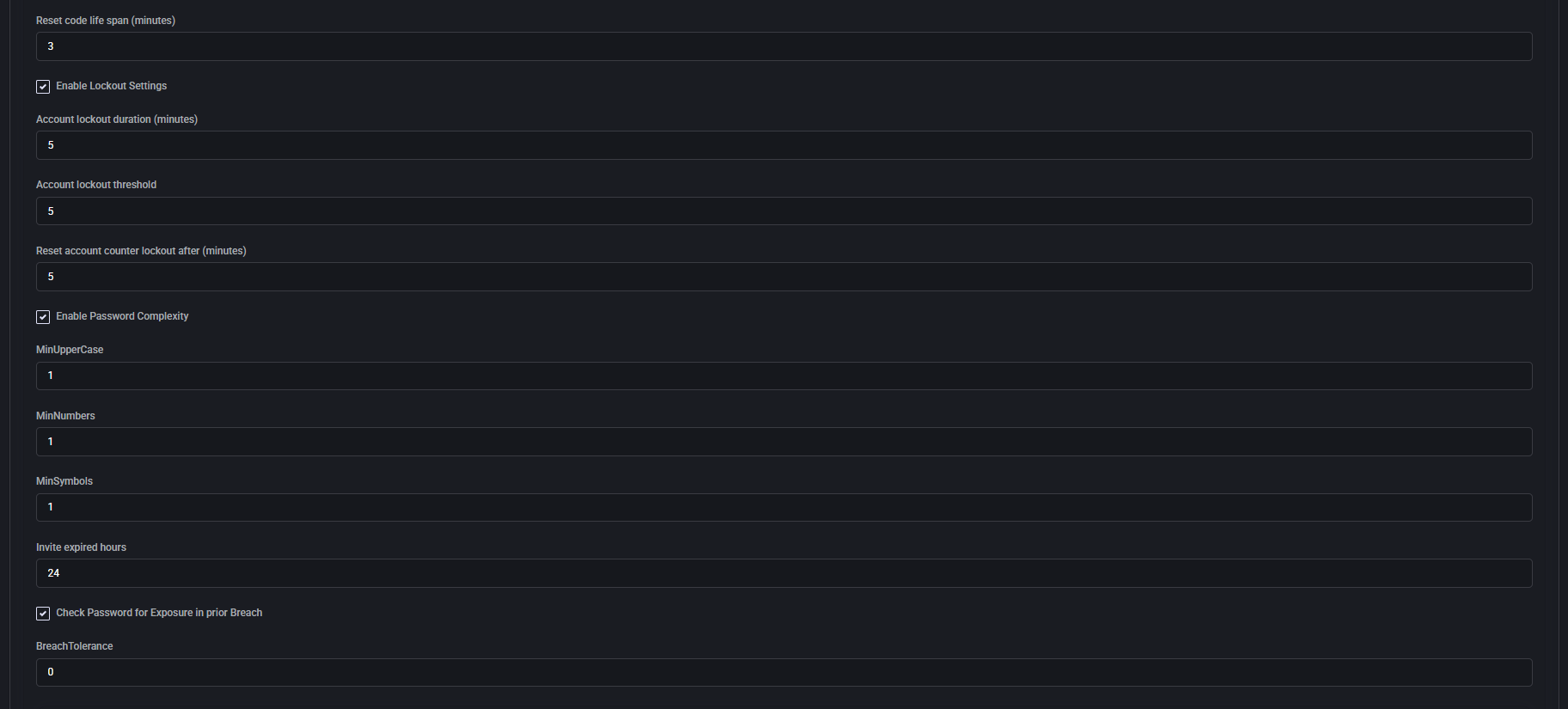
Section titled “Account lockout & complexity settings”Configure limits for reset codes, lockout behavior, and required password strength.
- Reset Code Life Span: Minutes a reset code remains valid.
- Enable Lockout Settings: Activates the threshold and duration settings below:
- Account Lockout Duration: Time (in minutes) that a user is locked out.
- Account Lockout Threshold: Number of failed attempts before lockout.
- Reset Account Counter Lockout After: Period to clear failed attempts counter.
- Enable Password Complexity: When checked, minimum complexity values apply:
- MinUpperCase: At least this number of uppercase letters required.
- MinNumbers: Minimum numeric digits.
- MinSymbols: Minimum required special characters.
- Invite Expired Hours: Number of hours until peer invitation becomes invalid.
- Check Password for Exposure in Prior Breach: Rejects passwords exposed in previous breaches.
- Breach Tolerance: Minimum accepted score from breach database (0 = fail on any exposure).
End user portal
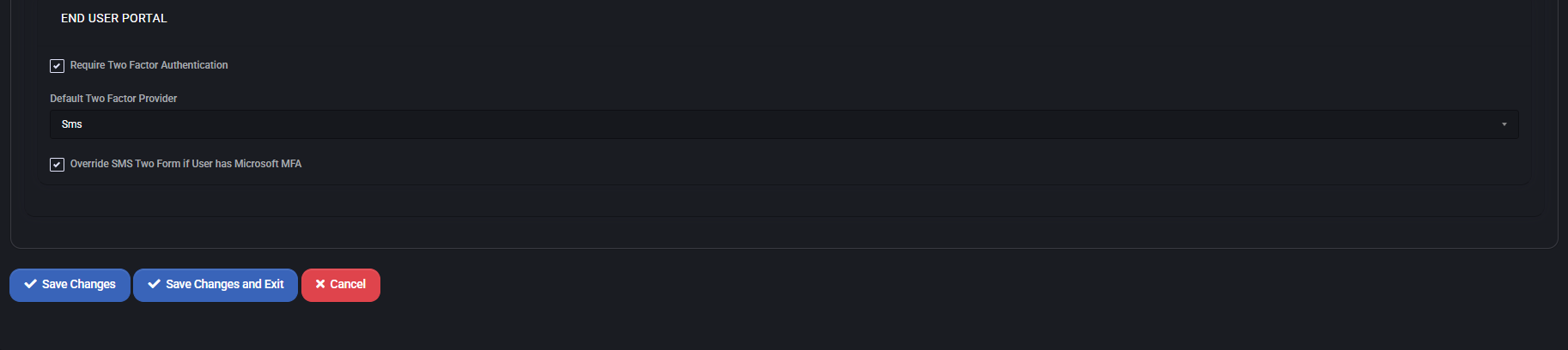
Section titled “End user portal”Controls two-factor authentication enforcement and preferences for user logins.
- Require Two Factor Authentication: Forces end users to complete 2FA on login.
- Default Two Factor Provider: Set default method (e.g., SMS).
- Override SMS Two Form if User Has Microsoft MFA: Prioritizes MS MFA if user is already enrolled, skipping SMS fallback.
Best practices
Section titled “Best practices”- Use pwned password checks and enforce complexity to reduce breach risks.
- Apply lockout thresholds to prevent brute-force attacks.
- Configure reasonable password aging and history rules for compliance.
- Enable 2FA with a secure provider for all end users and peers.
- Set session timeouts to limit risks of unattended sessions.
External login settings
Section titled “External login settings”The External Login Settings page allows administrators to configure Azure App Registrations for three key components of MSPControl: Portal, Core Portal, and WebDav Portal. These settings enable secure authentication flows using Azure AD, supporting OAuth-based sign-ins for staff and users.

Azure app registrations – portal
Section titled “Azure app registrations – portal”- Login Enabled: Enables external login functionality for the main user portal.
- Application (Client ID): Azure app registration ID used to identify the app.
- Redirect URL: The callback URL used by Azure AD after successful authentication.
- Client Secret: Secret key used to authorize the app — this is stored securely and masked.
- Auth Context ID: The authorization context used to scope user access.
Azure app registrations – core portal
Section titled “Azure app registrations – core portal”- Login Enabled: Toggles Azure login for the system Core Portal interface.
- Application (Client ID): App identifier specific to the Core Portal instance.
- Redirect URL: Endpoint that receives the login response for core portal users.
- Client Secret: OAuth client secret for authenticating Core Portal sessions.
- Auth Context ID: Used to define the authentication context, same as the main portal or different per configuration.
Azure app registrations – WebDav
Section titled “Azure app registrations – WebDav”- Login Enabled: Activates login flow via Azure AD for WebDav access.
- Application (Client ID): Identifier for the WebDav application in Azure.
- Redirect URL: Return URL specific to WebDav users after login approval.
- Client Secret: Security credential used in WebDav authentication handshake.
- Auth Context ID: Context ID used for validating and grouping WebDav login access.
Best practices
Section titled “Best practices”- Use separate Azure App Registrations for each portal to maintain clear access control.
- Keep client secrets secure and rotate them periodically.
- Match Redirect URLs exactly with what is defined in your Azure AD App registration.
- Use consistent Auth Context IDs if shared logic is used across portals.
- Verify that login flows are tested after saving changes to avoid service disruption.
Branding policy
Section titled “Branding policy”The Branding Policy section allows administrators to customize the visual identity of the MSPControl environment across portals, emails, and system pages. It defines logos, themes, error pages, and address details that appear throughout the interface.

Branding policy images
Section titled “Branding policy images”- Logo: Main platform logo used in MSPControl UI.
- Logo (User Portal): Specific logo used in the end-user portal interface.
- Favicon: Icon displayed in the browser tab for all MSPControl pages.
- Background Image: Customizable background shown in selected pages (optional).
- Background Color: Fallback color if background image is not used.
Brand footer and error page
Section titled “Brand footer and error page”- Powered By Text: Label shown in the portal footer (e.g., company name).
- Company Link: URL the footer text links to.
- Error File HTML Text: Custom HTML shown when system error pages are triggered (fully editable).
Default view mode
Section titled “Default view mode”- Virtuworks Mode: Toggles whether Virtuworks defaults apply to the layout.
- Font Size: Selectable font scale for the UI (e.g., MD).
- Theme: Theme color scheme selector (e.g., Blue).
- Skin: UI skin styling (e.g., Dark).
Branding policy address fields
Section titled “Branding policy address fields”- Company Name: Displayed as sender name in system notifications.
- Address Line 1 / 2: Physical address displayed on system-generated communication.
- City / State / Zipcode / Country: Legal location of the service provider.
- Phone / Fax: Contact numbers shown where applicable (e.g., on email signatures).
Guest users policy
Section titled “Guest users policy”- Guests Redirect Page: Rich-text area for setting up an HTML-based redirect notice shown to unauthenticated or guest users.
Best practices
Section titled “Best practices”- Use consistent logo branding between admin and user portals.
- Customize the error HTML with helpful recovery links or branding details.
- Ensure address and contact info matches your organization’s public records.
- Preview view mode changes on multiple devices before rollout.
- Leverage guest redirect logic to guide external users to proper login or info pages.
JWT authentication policy
Section titled “JWT authentication policy”Settings > Policies > MSPControl > JWT Authentication configures token-based authentication for programmatic access to the portal.
| Setting | Meaning |
|---|---|
| Enable JWT Authentication | Turns token authentication on |
| Secret Key | The signing key. Must be at least 32 characters — the form rejects anything shorter |
| Issuer | The iss claim tokens are issued with |
| Audience | The aud claim tokens are accepted for |
| Access Token Expiration (Minutes) | Lifetime of an access token |
| Refresh Token Expiration (Days) | Lifetime of a refresh token |
Portal Let’s Encrypt policy
Section titled “Portal Let’s Encrypt policy”Issues and renews the HTTPS certificate for the MSPControl portal itself, using Let’s Encrypt. It covers two sites separately — the MSPControl Portal (Core) and the MSPControl WebDAV Portal.
| Setting | Applies to |
|---|---|
| Let’s Encrypt Email Address | Both — the address Let’s Encrypt uses for expiry and problem notices |
| Enable for Portal, Portal HTTPS Port, Portal IIS Site Name Override | The core portal |
| Enable for WebDAV Portal, WebDAV Portal HTTPS Port | The WebDAV portal |
Renewal notices are sent through the Let’s Encrypt Renewal Notification mail templates, at both Account and Serveradmin level.
