Routing and Ticket Automation
Ticket service board selector
Section titled “Ticket service board selector”The Ticket Service Board Selector automates routing of tickets to the appropriate service board based on ticket status or origin. This ensures tickets created via email connectors or other inputs are automatically reassigned to the correct board without manual intervention. It helps reduce misrouted tickets, accelerates response times, and improves workflow consistency.
Fields & options
Section titled “Fields & options”- Enable Ticket Service Board Selector Activates the automated reassignment of tickets to the correct service board.
- Process the Following Statuses List of statuses that trigger the reassignment process. Example: New, New (email connector).
- Enable Board Update Allows the system to update the board assignment of a ticket once matching criteria are found.
- Teams Chat/Conversation Id Microsoft Teams conversation ID where notifications about board reassignments are posted.
- Add Internal Note to the Ticket Appends an internal note describing the reassignment action for audit visibility.
- Send Notification to the Teams Chat Sends a notification to the configured Teams channel whenever a ticket is reassigned.
Behavior
Section titled “Behavior”When enabled, the module monitors tickets with the defined statuses. If a ticket matches (e.g., created via email connector with “New” status), it is automatically moved to the designated service board. The system records the change in an internal note and posts a summary to the specified Teams channel if configured. This ensures tickets quickly reach the correct operational team for handling.
Best practices
Section titled “Best practices”- Define statuses carefully to avoid reassigning tickets prematurely or unnecessarily.
- Enable Add Internal Note for full visibility of reassignment history.
- Use Teams notifications for support leads to monitor automated board changes.
- Test with one or two statuses (e.g., “New”) before rolling out across multiple categories.
- Review board assignments periodically to confirm rules still align with evolving workflows.
Section_StaleTicket
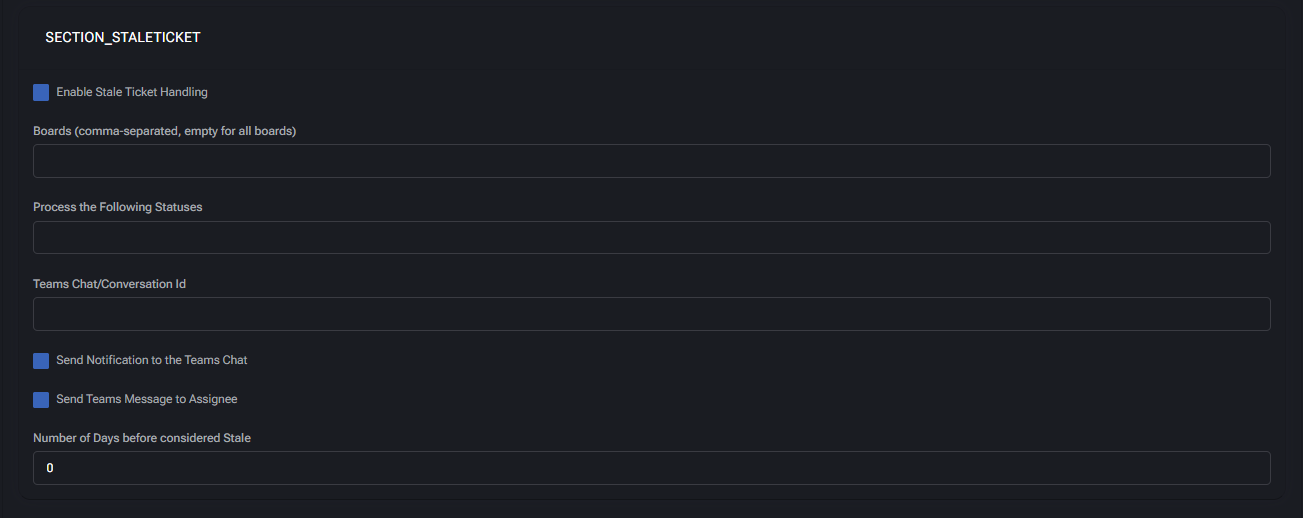
Section titled “Section_StaleTicket”The Stale Ticket Handling feature monitors tickets that have not been updated for a defined period of time. It helps prevent tickets from being forgotten in the workflow by automatically identifying and escalating items considered “stale.” Notifications can be sent both to Microsoft Teams channels and directly to assignees, ensuring accountability and faster resolution.
Fields & options
Section titled “Fields & options”- Enable Stale Ticket Handling Activates stale ticket monitoring for the specified boards and statuses.
- Boards (comma-separated, empty for all boards) Defines the boards where stale detection is applied. If left empty, all boards are included.
- Process the Following Statuses Limits stale detection to tickets with these statuses (e.g., “In Progress”, “Waiting for Client”).
- Teams Chat/Conversation Id Microsoft Teams channel ID where stale ticket alerts will be posted.
- Send Notification to the Teams Chat Sends an alert into the configured Teams channel when a ticket becomes stale.
- Send Teams Message to Assignee Directly notifies the assigned technician in Teams to prompt follow-up action.
- Number of Days before considered Stale Defines the threshold (in days) for when a ticket is flagged as stale. Example:
7.
Behavior
Section titled “Behavior”When enabled, the system reviews tickets daily and checks the last update timestamp against the defined threshold. Tickets meeting the stale criteria are flagged and logged. If configured, notifications are sent to Teams channels for visibility and directly to assignees for action. This reduces the risk of client dissatisfaction caused by tickets left unresolved or without communication.
Best practices
Section titled “Best practices”- Set thresholds according to SLA policies (e.g., 3–5 days for normal tickets, 1 day for urgent tickets).
- Use Teams notifications for team-wide visibility and direct messages for stronger accountability.
- Apply stale detection selectively to avoid false positives on long-term project tickets.
- Combine with escalation workflows to automatically reassign or increase ticket priority if left stale.
- Regularly review stale ticket logs to refine thresholds and improve customer satisfaction metrics.
Ticket auto messages
Section titled “Ticket auto messages”The Ticket Auto Messages module automatically handles tickets generated by system notifications, auto-replies, or other automated sources. It prevents clutter in service boards by detecting these tickets, documenting them with internal notes, and optionally closing them without manual effort. Notifications in Microsoft Teams provide visibility of auto-closed or auto-processed items.
Fields & options
Section titled “Fields & options”- Enable Auto Messages Handling Activates detection and processing of automated or system-generated tickets.
- Boards (comma-separated, empty for all boards) Limits processing to specified boards. Leave empty to apply across all boards.
- Process the Following Statuses Specifies which ticket statuses are eligible for auto-message handling. Example: New, New (email connector).
- Teams Chat/Conversation Id Microsoft Teams channel ID where notifications about handled auto-messages are sent.
- Closed Status Status to apply when an auto-message ticket is closed automatically (e.g., “Closed”).
- Enable Close Ticket Automatically closes tickets identified as auto-messages instead of leaving them in queues.
- Send Notification to the Teams Chat Posts a summary notification to Teams whenever an auto-message ticket is processed.
- Add Internal Note to the Ticket Appends an internal note documenting that the ticket was flagged and processed as an auto-message.
Behavior
Section titled “Behavior”When enabled, the system reviews incoming tickets and identifies those generated by automated sources (e.g., email connectors, system auto-replies). If a match is found, the ticket is documented with an internal note, optionally closed using the defined Closed Status, and a notification is sent to Microsoft Teams. This prevents unnecessary manual triage of non-actionable items.
Best practices
Section titled “Best practices”- Enable this feature on boards with heavy email connector traffic to reduce noise.
- Always configure a clear Closed Status to distinguish auto-closed messages from manually resolved tickets.
- Keep internal notes enabled for auditing and compliance tracking.
- Use Teams notifications to give visibility to service leads without overwhelming frontline engineers.
- Review processed auto-messages periodically to refine detection rules and avoid false positives.
Ticket auto responders
Section titled “Ticket auto responders”The Ticket Auto Responders module handles automated email replies such as “Out of Office” or system-generated acknowledgements. It detects these responses, documents them within the ticket, and prevents them from cluttering service boards. This ensures that only actionable tickets remain visible for technicians while maintaining an audit trail of automated replies.
Fields & options
Section titled “Fields & options”- Enable Ticket Auto Responders Activates the detection and handling of automated email responses.
- Boards (comma-separated, empty for all boards) Restricts detection to specified boards. Leave empty to apply across all boards.
- Process the Following Statuses Defines which statuses are eligible for auto-responder detection. Example: New, New (email connector).
- Teams Chat/Conversation Id Microsoft Teams channel ID where notifications about auto-responder handling are sent.
- Closed Status Specifies the ticket status to apply if an auto-responder ticket is automatically closed (e.g., “Closed”).
- Send Notification to the Teams Chat Posts notifications in Teams whenever a ticket is flagged or closed due to auto-responder detection.
- Add Internal Note to the Ticket Appends an internal note documenting that the ticket was processed as an auto-responder.
Behavior
Section titled “Behavior”When enabled, the system scans new tickets for patterns that match automated replies (e.g., “Out of Office,” “Delivery Failure,” “Autoresponder”). Tickets identified as such are either closed immediately with the configured Closed Status or documented with notes for audit purposes. Notifications can be sent to Teams for visibility, ensuring service leads understand why certain tickets were closed without technician intervention.
Best practices
Section titled “Best practices”- Enable this feature on boards with high email traffic to prevent noise from automated replies.
- Keep internal notes enabled to maintain compliance and traceability of automatically closed tickets.
- Use Teams notifications for transparency, but avoid over-alerting by limiting to board leads or SOC channels.
- Regularly review detected auto-responder tickets to refine detection accuracy and minimize false positives.
- Ensure Closed Status is configured distinctly from technician-closed tickets for accurate reporting.
Catch all
Section titled “Catch all”The Catch All module handles tickets created through a general catch-all mailbox or connector. It ensures that these tickets are automatically matched to the appropriate customer domain whenever possible, while excluding specific companies from processing. This prevents generic or misdirected tickets from being lost and provides full visibility through Teams notifications and internal notes.
Fields & options
Section titled “Fields & options”- Matching CatchAll Tickets to Customer Domain Enabled Activates domain-matching for tickets created via the catch-all connector.
- Boards (comma-separated, empty for all boards) Defines which boards process catch-all tickets. Leave empty to apply to all boards. Example: Professional Services, HelpDesk, SOC.
- Teams Chat/Conversation Id Microsoft Teams channel ID where catch-all ticket notifications are posted.
- CatchAll Company Identifier Label applied to tickets created from the catch-all source (e.g., CatchAll).
- Exclude Company Identifier Company identifiers that should be excluded from catch-all processing (e.g., Virtuworks).
- Add Internal Note to the Ticket Appends a system note documenting that the ticket was identified as catch-all.
- Send Notification to the Teams Chat Posts a Teams message whenever a ticket is processed through the catch-all connector.
Behavior
Section titled “Behavior”When a ticket is created via the catch-all connector, the system attempts to match it to a known customer domain. If matched, the ticket is reassigned to the appropriate customer; if unmatched, it retains the CatchAll Company Identifier. Excluded companies are ignored by this process. Notifications are sent to Teams, and internal notes are added for traceability.
Best practices
Section titled “Best practices”- Enable this feature to ensure tickets from generic mailboxes are not overlooked.
- Use CatchAll Company Identifier consistently for auditing and filtering.
- Configure Exclude Company Identifier for internal or system-level accounts to reduce noise.
- Keep Teams notifications enabled for visibility into unclassified ticket sources.
- Maintain internal notes to provide an audit trail of all catch-all processing actions.
