Network, Software, and Updates
Network
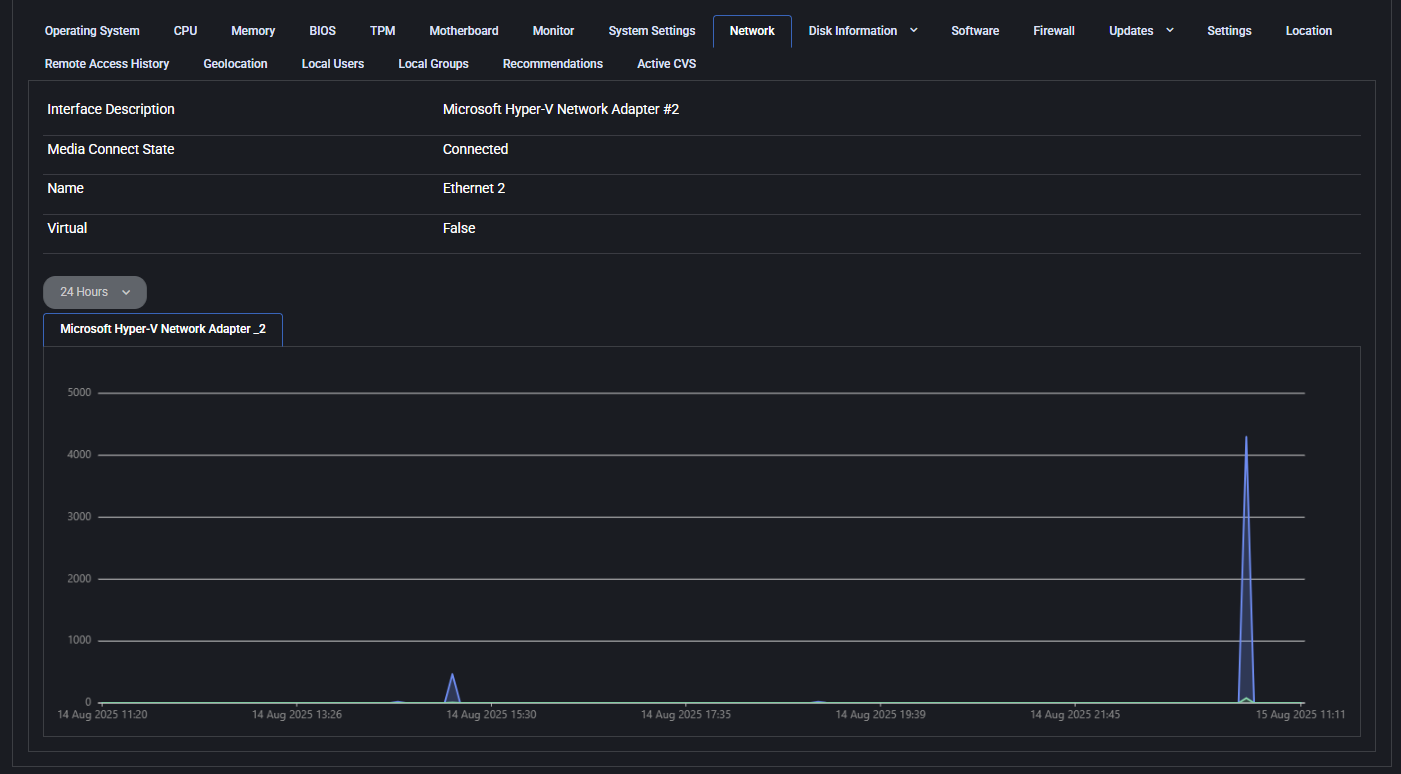
Section titled “Network”This tab provides real-time and static data about the device’s network interface and traffic. Useful for diagnosing connectivity and interface status.
- Interface Description: Name of the network adapter (e.g., Microsoft Hyper-V Network Adapter).
- Media Connect State: Connection status (e.g., Connected).
- Name: Adapter alias (e.g., Ethernet 2).
- Virtual: Indicates if the adapter is virtual or physical.
Below the interface info, a dynamic graph shows inbound/outbound network activity over time. The dropdown lets you switch between different adapters or time ranges (e.g., 24 Hours).
Disk information
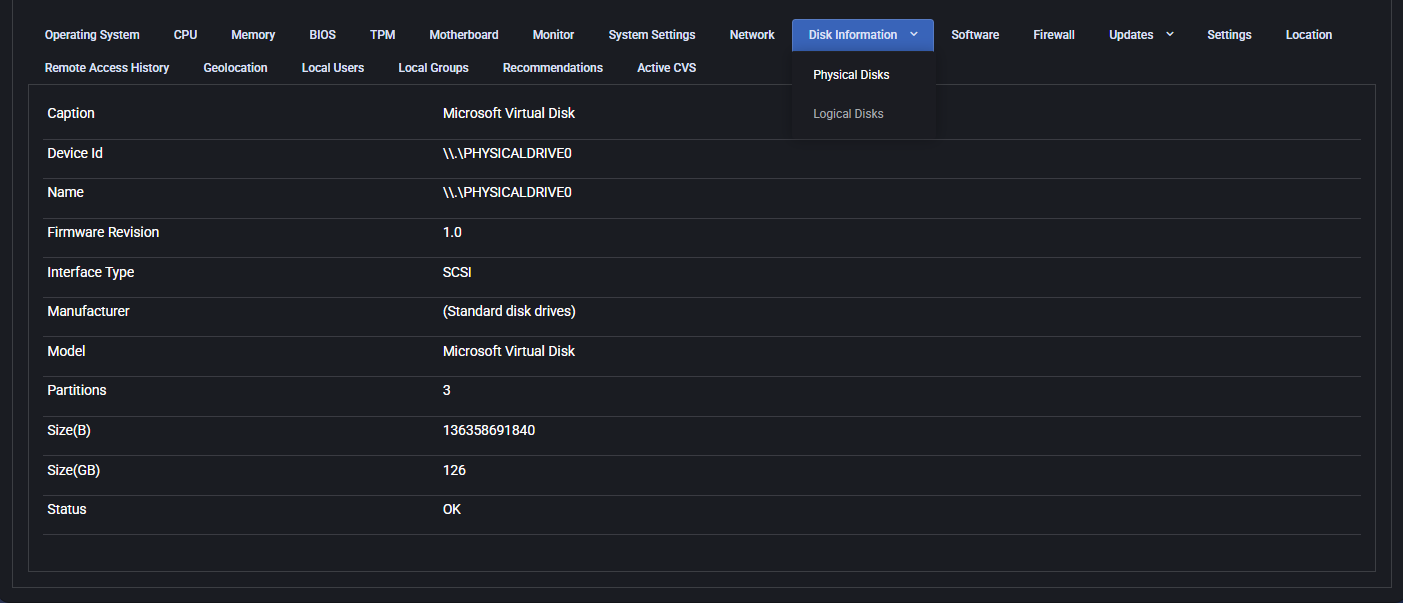
Section titled “Disk information”This tab provides detailed information about both physical and logical disks present on the device. Useful for assessing storage capacity, health, and configuration.
Physical disks
Section titled “Physical disks”- Caption: Descriptive label of the physical disk (e.g., Microsoft Virtual Disk).
- Device Id: Physical device identifier (e.g., \\.\PHYSICALDRIVE0).
- Name: Name assigned to the device by the system.
- Firmware Revision: Firmware version of the disk.
- Interface Type: Interface used (e.g., SCSI, SATA).
- Manufacturer: Disk manufacturer information, if available.
- Model: Model name of the disk.
- Partitions: Number of partitions on the disk.
- Size (B / GB): Total size in bytes and gigabytes.
- Status: Operational status (e.g., OK).
Logical disks
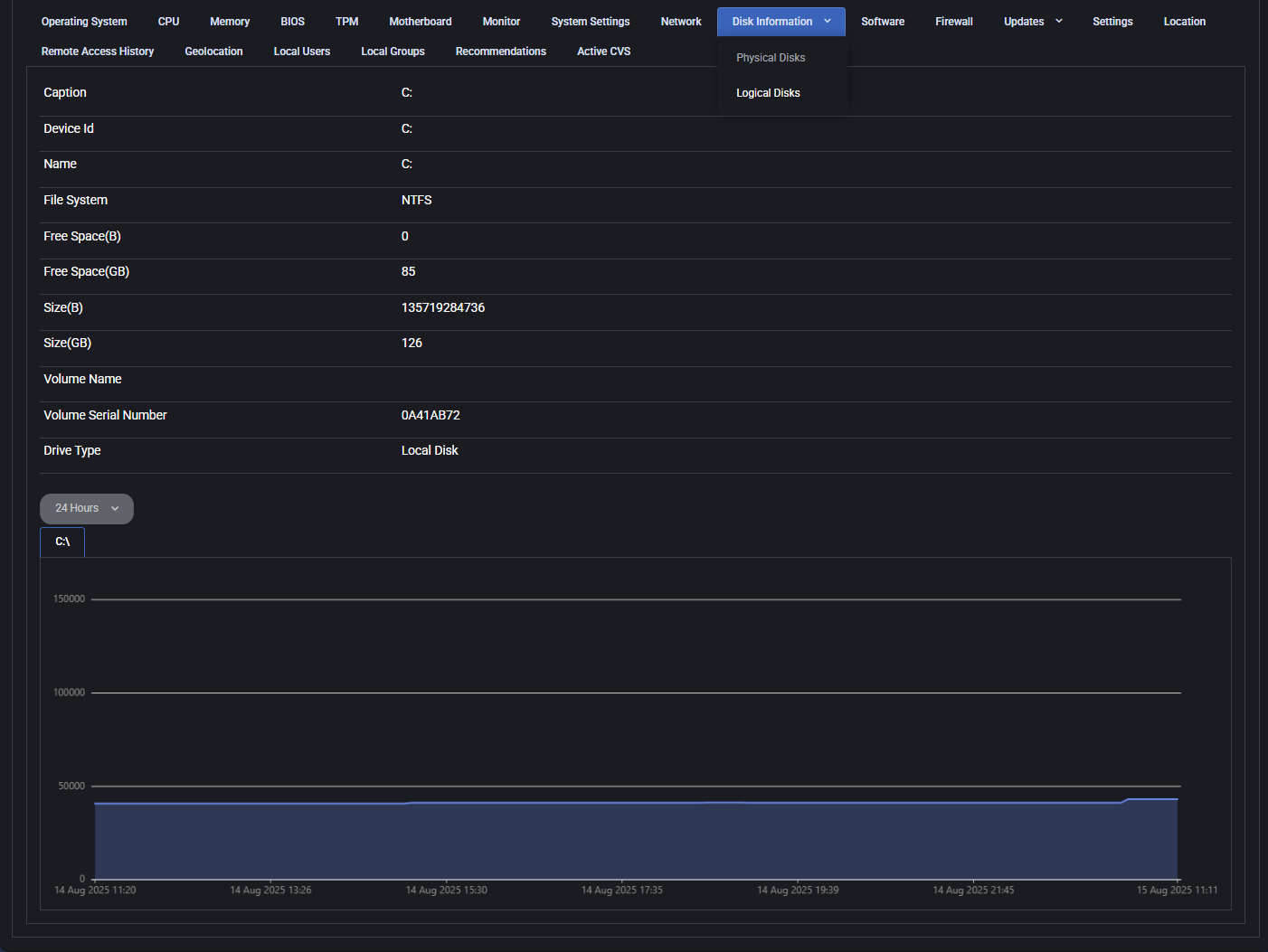
Section titled “Logical disks”- Caption: Volume letter (e.g., C:).
- Device Id / Name: System identifier and volume name.
- File System: File system type (e.g., NTFS).
- Free Space (B / GB): Available space in bytes and gigabytes.
- Size (B / GB): Total volume size in bytes and gigabytes.
- Volume Name: Optional name of the volume, if defined.
- Volume Serial Number: Unique identifier of the volume.
- Drive Type: Type of disk (e.g., Local Disk).
- Graph: Historical chart of free space usage over time.
Software
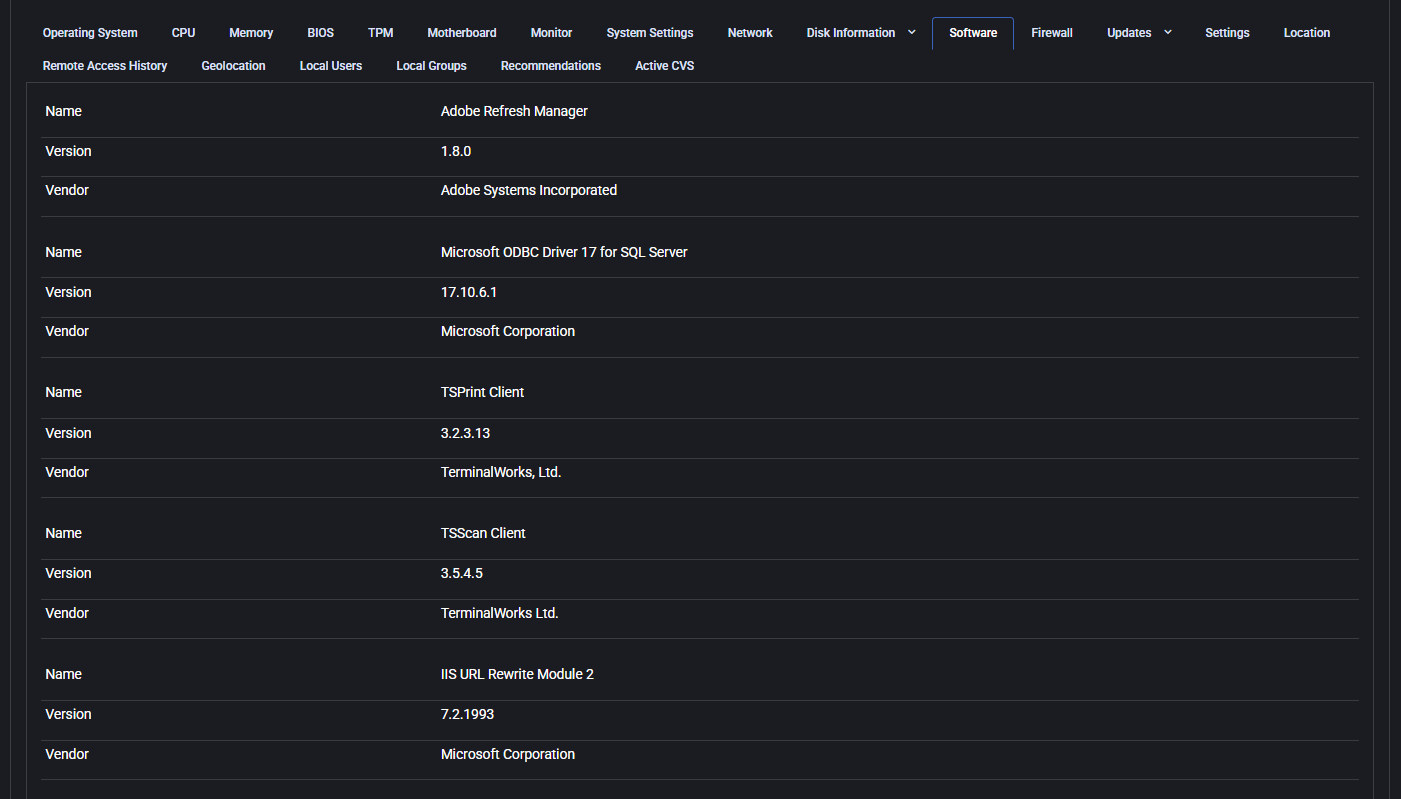
Section titled “Software”This tab lists the applications and system components reported for the device. Use it as evidence for software and security reviews; it does not establish complete collection coverage or software-license entitlement. Check data freshness before treating a missing entry as an absent application.
- Name: Name of the installed software.
- Version: Exact version number.
- Vendor: Software publisher or manufacturer.
Firewall
Section titled “Firewall”This tab displays the current firewall status across different network profiles: Domain, Private, and Public. It’s useful for determining whether the device is protected under each network context.
- Domain Networks: Indicates if the domain firewall profile is active (e.g., when joined to an AD domain).
- Private Networks: Displays firewall status for trusted networks like home or work environments.
- Public Networks: Shows firewall status for untrusted networks such as public Wi-Fi.

Updates
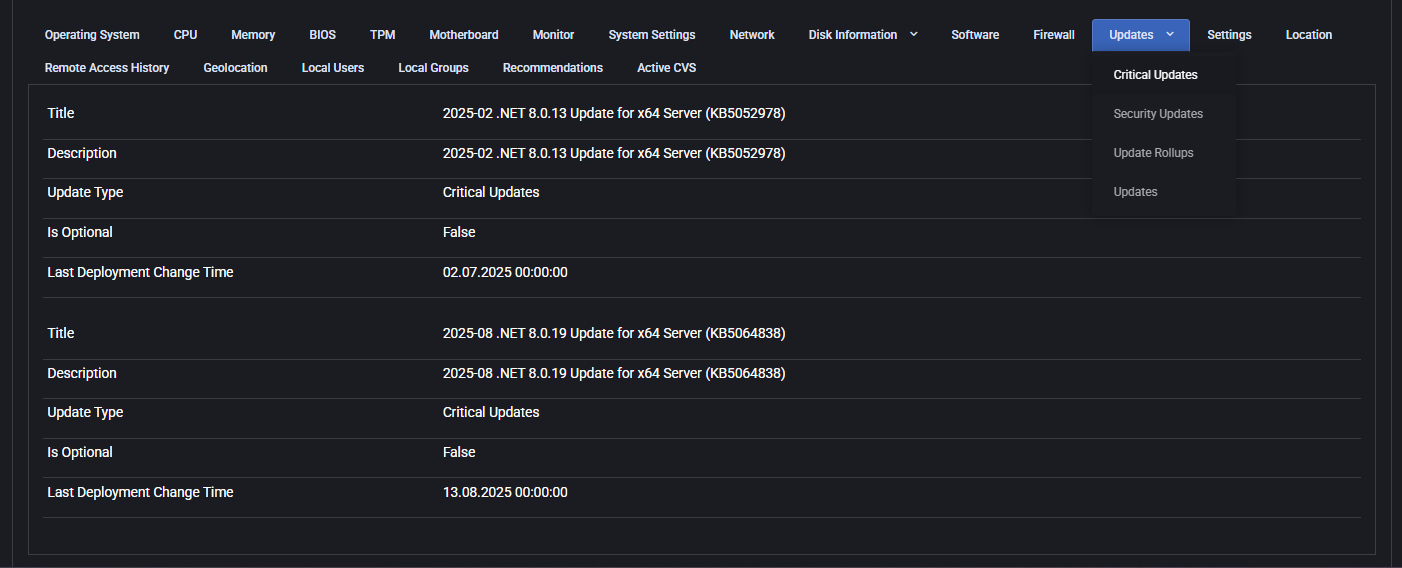
Section titled “Updates”This tab provides a detailed breakdown of all updates installed or pending on the device. It is grouped by update types available in the dropdown menu: Critical Updates, Security Updates, Update Rollups, and General Updates. Each section displays detailed metadata for each installed update, helping system administrators monitor patch compliance and deployment timelines. The following fields are shown for each update entry:
- Title: Official name of the update, including the release date and Knowledge Base (KB) reference (e.g., “2025-02 .NET 8.0.13 Update for x64 Server (KB5052978)”).
- Description: Full summary of the update purpose. It may include resolution details, security improvements, or bug fixes. For security patches, the description often refers to Microsoft’s online knowledge base articles for further details.
- Update Type: One of the following categories:
- Critical Updates: High-priority patches for system stability, usually issued in response to major bugs or performance regressions.
- Security Updates: Fixes for known vulnerabilities. These are crucial for maintaining secure infrastructure and preventing exploits.
- Update Rollups: Bundled packages that combine multiple updates into one deployment. Useful for applying cumulative improvements.
- Updates: General-purpose updates, including feature improvements and compatibility enhancements.
- Is Optional: Boolean value (“True” or “False”) indicating whether the update was optional during installation.
- Last Deployment Change Time: Date and time when the update was applied or modified on the system (e.g., “13.08.2025 00:00:00”).
Updates are displayed in reverse chronological order, allowing administrators to quickly identify the latest patch activity and verify deployment across multiple update types. The tab supports filtering by update category through the top menu selector, helping narrow focus during investigations or audit reviews.
Settings
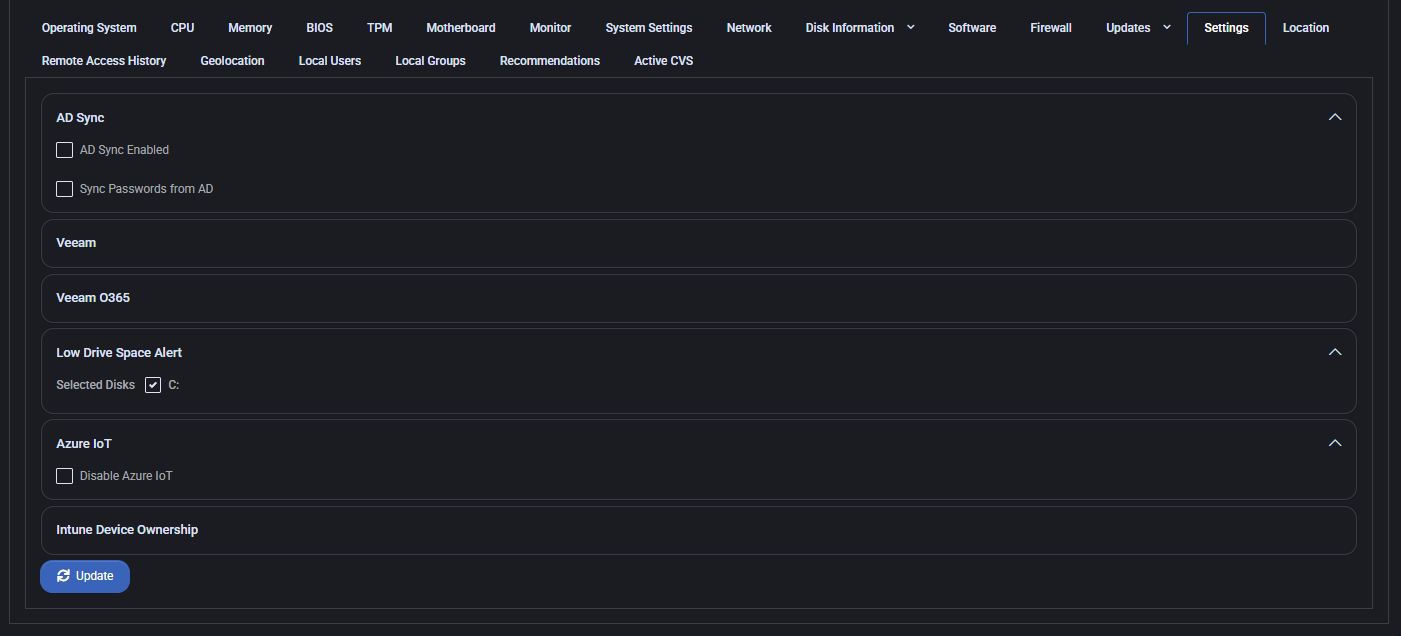
Section titled “Settings”This tab shows various policy and integration flags configured for the device.
- AD Sync: Toggle options for enabling AD synchronization and password sync from Active Directory.
- Veeam: Displays whether Veeam integration is configured.
- Veeam O365: Displays whether Veeam for Office 365 integration is configured.
- Low Drive Space Alert: Shows selected drives (e.g., C:) for low-space monitoring.
- Azure IoT: Option to disable Azure IoT integration.
- Intune Device Ownership: Indicates if the device is marked as owned in Intune.
Changes made in this tab require confirmation via the Update button.
Device health and inventory workflow
Section titled “Device health and inventory workflow”Use device health and software inventory to connect reported device state, application versions and affected devices into a customer review. Check collection freshness and source coverage before interpreting missing records or choosing a remediation.
