Service Integration Policies
ConnectWise integration policy
Section titled “ConnectWise integration policy”The ticket routing and automation solution explains how event-to-ticket mappings fit alongside board selection, ownership and exception handling. Enable and verify each event path separately; duplicate matching and closure behavior are not universal across sources.
The ConnectWise Integration Policy section allows MSPControl administrators to configure how service tickets are automatically generated and managed using ConnectWise APIs. This includes ticket mapping for specific operational events, dashboard linking, status control, and sync behavior. All configured values must match existing structures within your ConnectWise deployment.
ConnectWise integration settings
Section titled “ConnectWise integration settings”- Integration Enabled: Enables all MSPControl-to-ConnectWise automation. Must be toggled on to activate any downstream functionality.
- API Url: The base URL for your ConnectWise API environment. Typically includes versioned path (e.g.
/v4_6_release/apis/3.0). - Client Id: A ConnectWise-issued application ID used for authentication.
- Company Id: The ConnectWise company account name associated with your API keys and data scope.
- Private Key / Public Key: Secure authentication credentials generated in ConnectWise. These must be kept secret and are not shown in the interface.
Dashboard widget settings
Section titled “Dashboard widget settings”- Base Tickets Url: A URL template pointing to ConnectWise ticket pages. Must include
[TICKET_NUMBER]placeholder for runtime substitution (e.g....request.rails?service_recid=[TICKET_NUMBER]). - Default Date Range: Sets the timeframe (e.g. Last 30 Days) used when displaying dashboard metrics about recent ConnectWise tickets.
Incident ticket settings
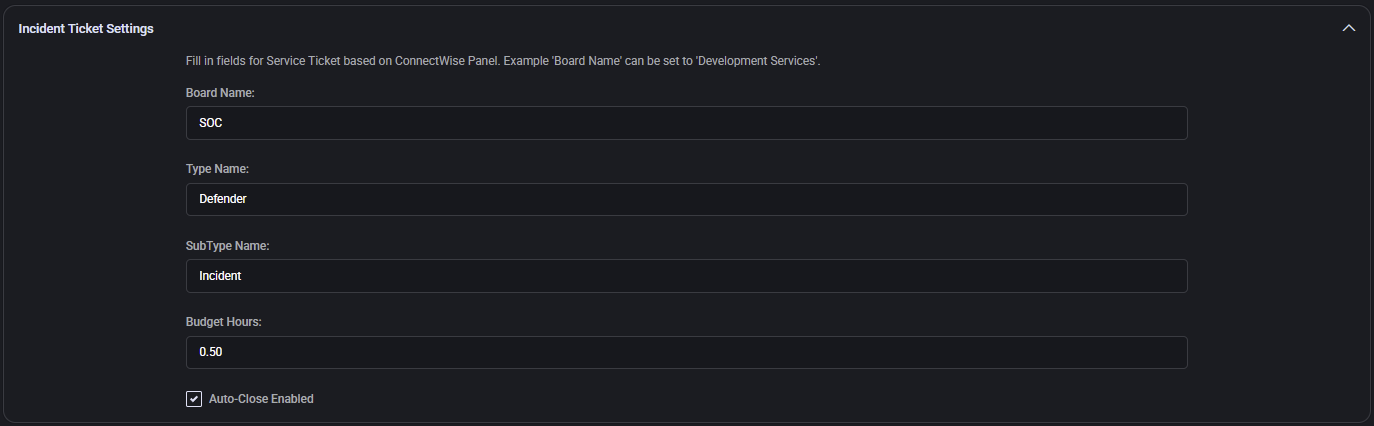
Section titled “Incident ticket settings”Defines the behavior for generating incident tickets from alert data.
For the broader customer workflow and the distinction between ticket status and actual remediation, see Microsoft Defender multi-tenant operations. Verify the configured synchronization behavior, test mode and Microsoft write permissions before relying on incident auto-close.
- Board Name: ConnectWise service board used for security or monitoring incidents (e.g. SOC).
- Type Name: High-level classification (e.g. Defender), must match a ConnectWise ticket type.
- SubType Name: Further categorization (e.g. Incident), supporting downstream sorting/reporting.
- Budget Hours: Time estimate for resolving the ticket (e.g.
0.50hours). - Auto-Close Enabled: If selected, the ticket will be auto-closed after MSPControl receives a resolution trigger.
Mailboxes space report settings
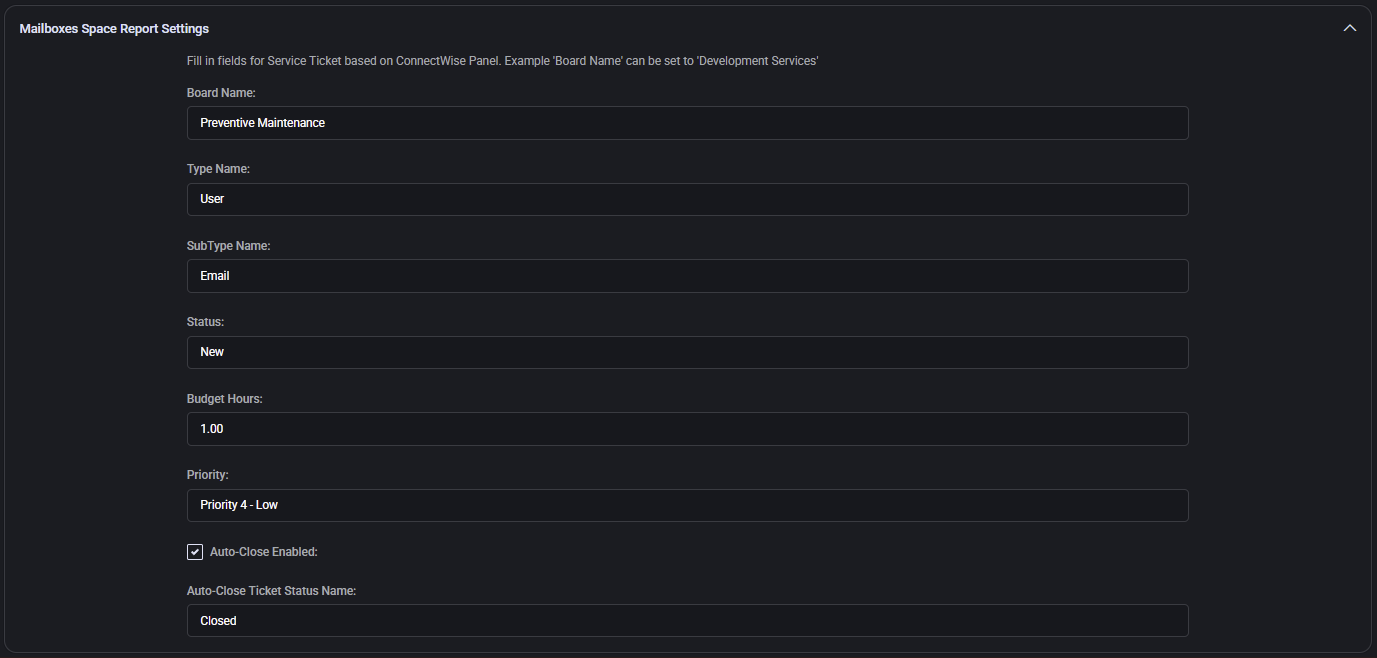
Section titled “Mailboxes space report settings”- Board Name: Service board where mailbox quota-related tasks are created (e.g. Preventive Maintenance).
- Type / SubType Name: Ticket classification. These values (e.g. User and Email) must reflect your ConnectWise structure.
- Status: Initial ticket state (e.g. New), controls visibility and flow assignment.
- Budget Hours: SLA-based time estimate for task completion (e.g.
1.00). - Priority: ConnectWise priority name (e.g. Priority 4 - Low).
- Auto-Close Enabled: Enables auto-resolution when flagged by automation.
- Auto-Close Ticket Status Name: Status to apply upon auto-resolution (e.g. Closed).
Priority matrix
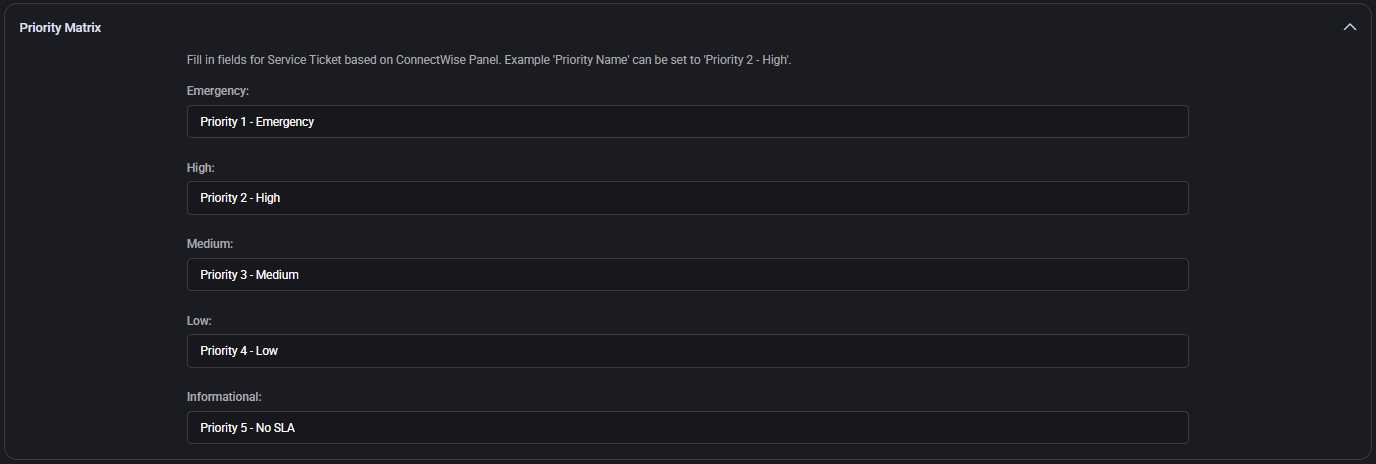
Section titled “Priority matrix”Maps ConnectWise priority names to standard urgency levels. You must ensure these values exist in ConnectWise. Example:
- Emergency:
Priority 1 - Emergency - High:
Priority 2 - High - Medium:
Priority 3 - Medium - Low:
Priority 4 - Low - Informational:
Priority 5 - No SLA
Recommendation ticket settings
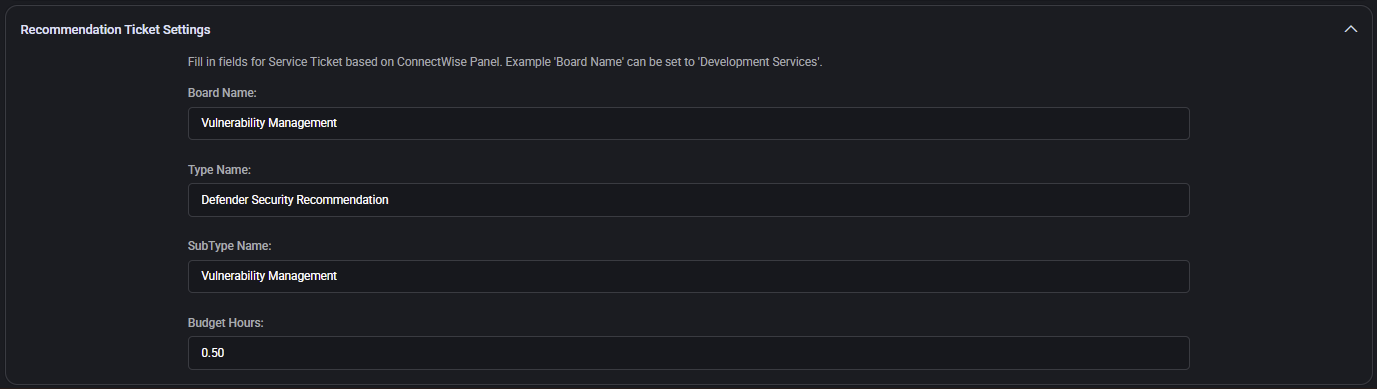
Section titled “Recommendation ticket settings”Used to create service tickets based on system-generated improvement suggestions or policy recommendations.
- Board Name: Logical ConnectWise board for this type of ticket (e.g. Vulnerability Management).
- Type Name: Task category used in ConnectWise (e.g. Defender Security Recommendation).
- SubType Name: Further identifier (e.g. Vulnerability Management).
- Budget Hours: Time budget (e.g.
0.50) for work planning and SLA reporting.
Contacts settings
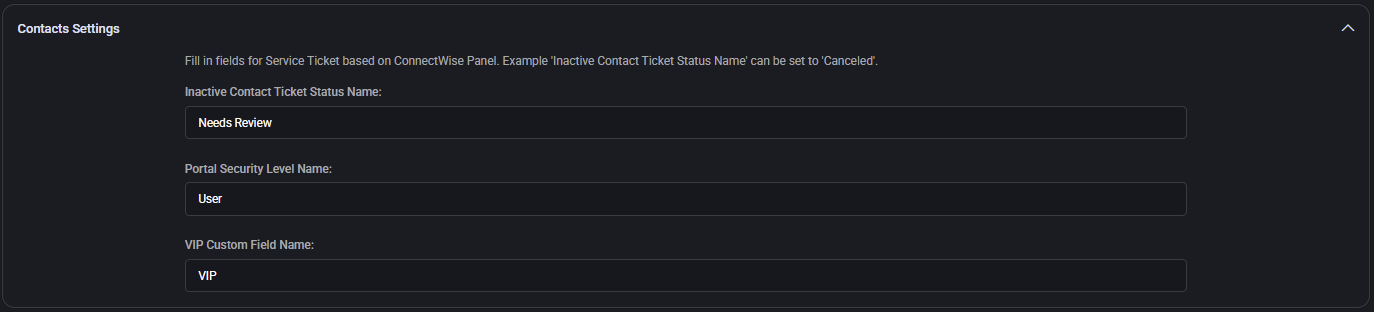
Section titled “Contacts settings”- Inactive Contact Ticket Status Name: The status assigned to tickets when a contact becomes inactive (e.g. Needs Review). Used for auditing or deprovisioning flows.
- Portal Security Level Name: Security role applied to new portal contacts synced from MSPControl (e.g. User).
- VIP Custom Field Name: The ConnectWise custom field name that flags a contact as VIP.
Risky user detection ticket settings
Section titled “Risky user detection ticket settings”These settings control the creation of security alert tickets related to high-risk user behavior.
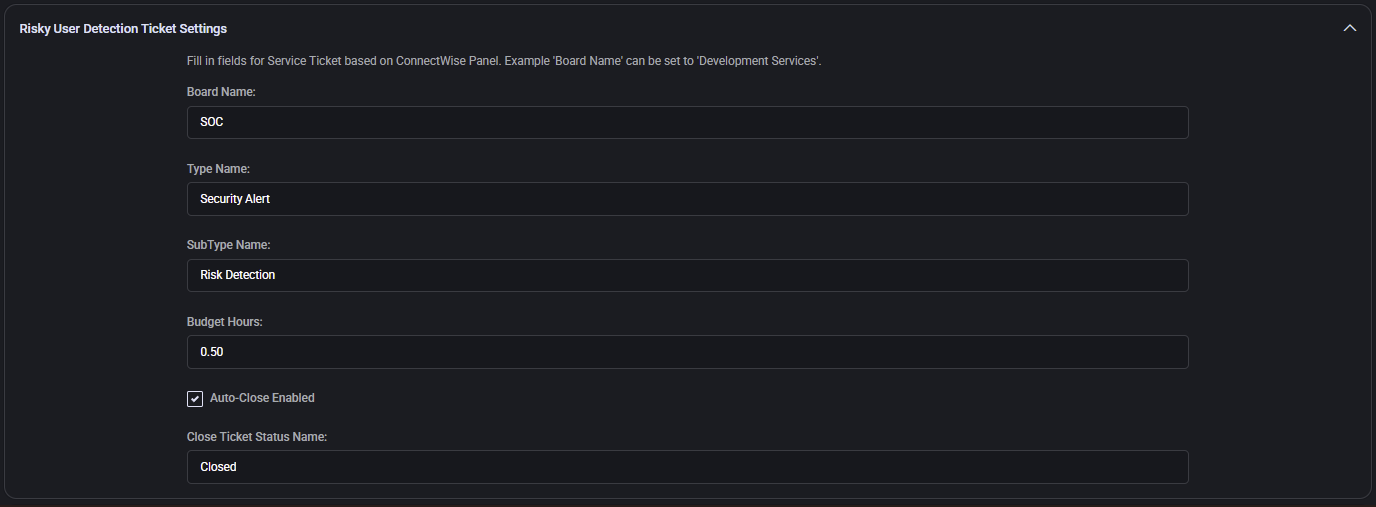
- Board / Type / SubType: Must reflect ConnectWise ticketing structure (e.g. SOC, Security Alert, Risk Detection).
- Budget Hours: Time estimate (e.g.
0.50). - Auto-Close Enabled: Whether to automatically resolve the ticket.
- Close Ticket Status Name: Final status to apply (e.g. Closed).
Expiring apple MDM push certificate ticket settings
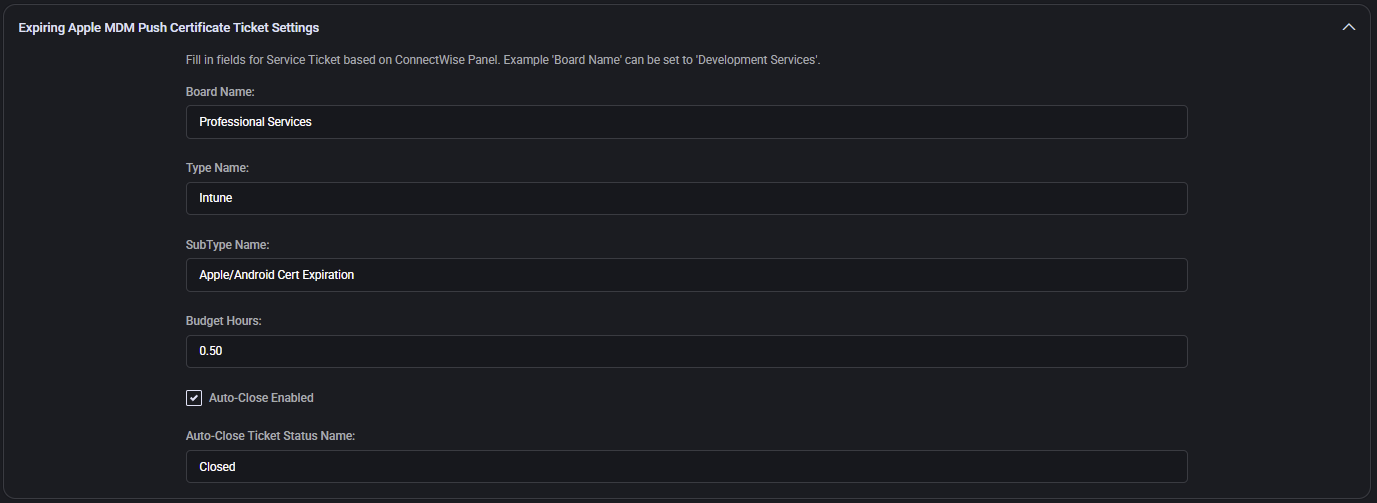
Section titled “Expiring apple MDM push certificate ticket settings”- Board Name / Type / SubType: Identifiers used for expiring mobile device certs (e.g. Professional Services, Intune, Apple/Android Cert Expiration).
- Budget Hours: Time estimate for resolving the ticket (e.g.
0.50hours). - Auto-Close Enabled: Toggles automatic ticket resolution.
- Auto-Close Ticket Status Name: Resolution status (e.g. Closed).
Windows update ticket settings
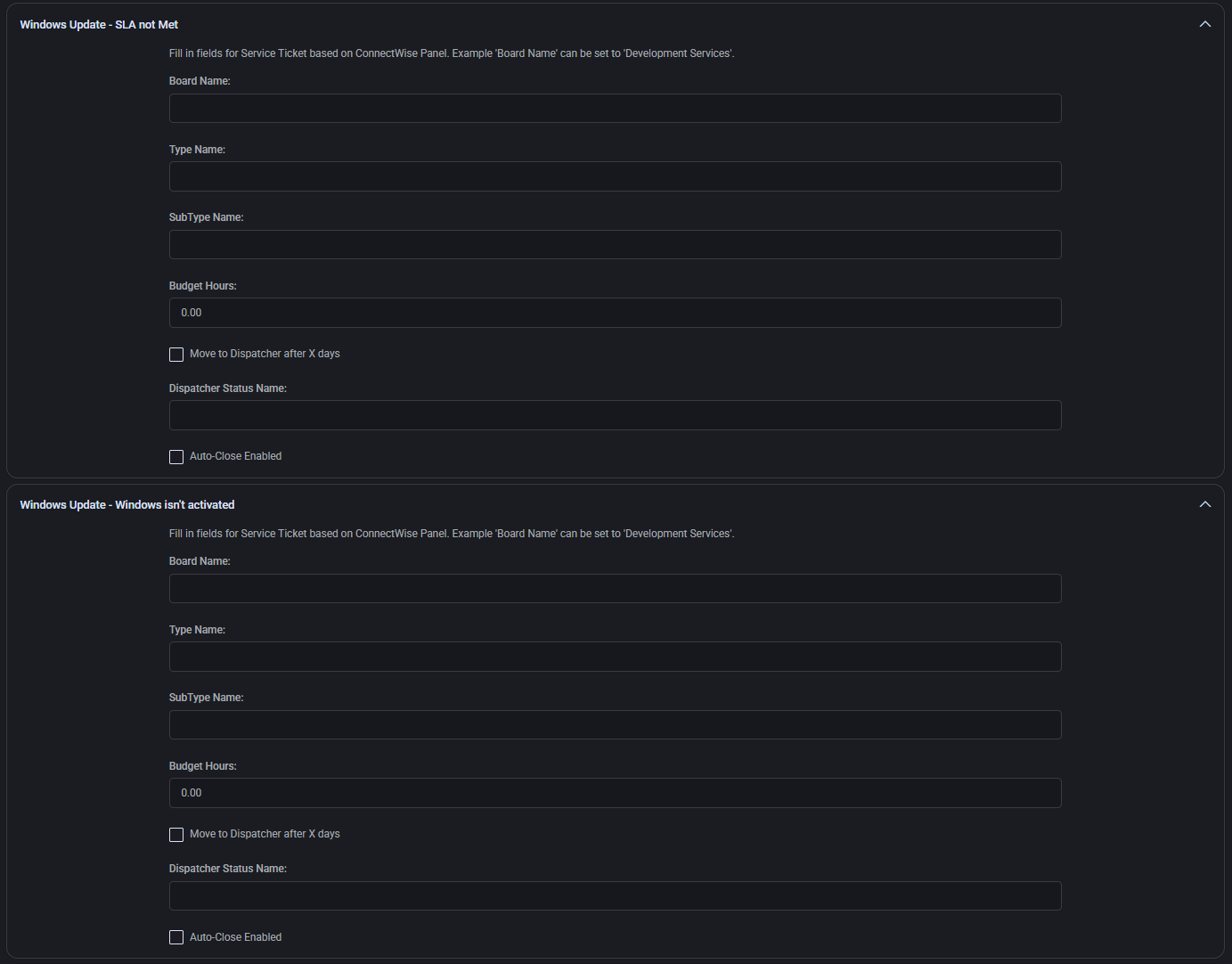
Section titled “Windows update ticket settings”Three separate configurations control ticketing for Windows update-related issues:
End of servicing, SLA not met and Windows isn’t activated
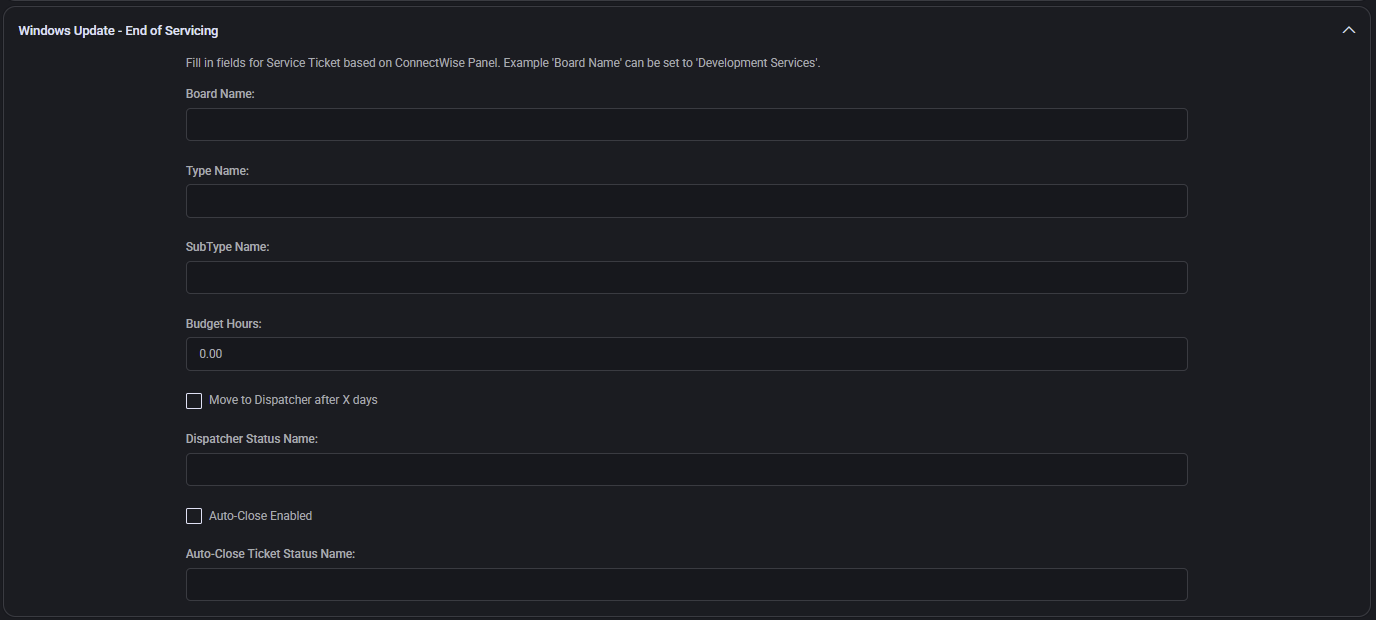
Section titled “End of servicing, SLA not met and Windows isn’t activated”- Board / Type / SubType: Optional custom values for Windows lifecycle notices.
- Budget Hours: Time estimate for resolving the ticket (e.g.
0.50hours). - Move to Dispatcher after X Days: Sends to dispatcher if unresolved after X days.
- Dispatcher Status Name: ConnectWise status name used for escalations.
- Auto-Close Enabled / Status: Optional automatic resolution control.
Expiring Azure applications ticket settings
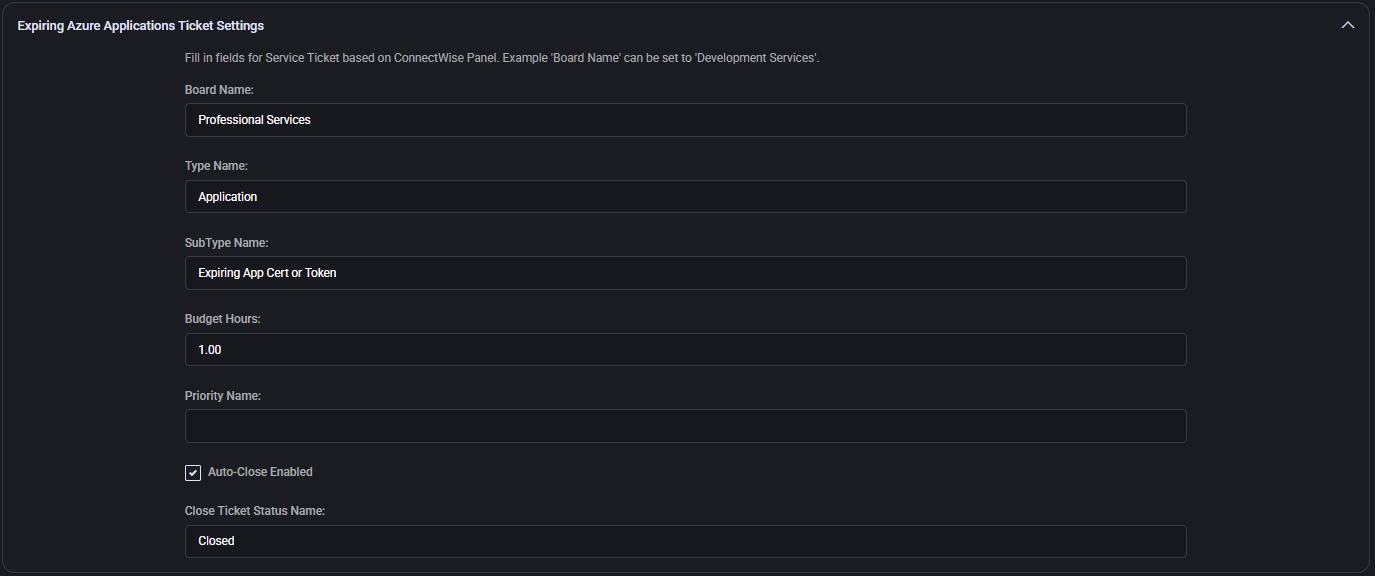
Section titled “Expiring Azure applications ticket settings”This section defines how MSPControl generates ConnectWise tickets when an Azure application’s certificate or token is about to expire. All fields must match ConnectWise configurations to ensure successful automation.
- Board Name / Type / SubType: Determines where and how tickets are categorized (e.g. Professional Services, Application, Expiring App Cert or Token).
- Budget Hours: Estimated resolution time (e.g.
1.00). - Priority Name: Optional priority level.
- Auto-Close Enabled / Close Ticket Status Name: Controls whether ticket is closed automatically and the status to apply (e.g. Closed).
Note: All values (boards, types, subtypes, statuses) must exist in your ConnectWise instance. Inaccurate values will result in failed or missing tickets.
UKG Terminated/Leave of absence ticket settings
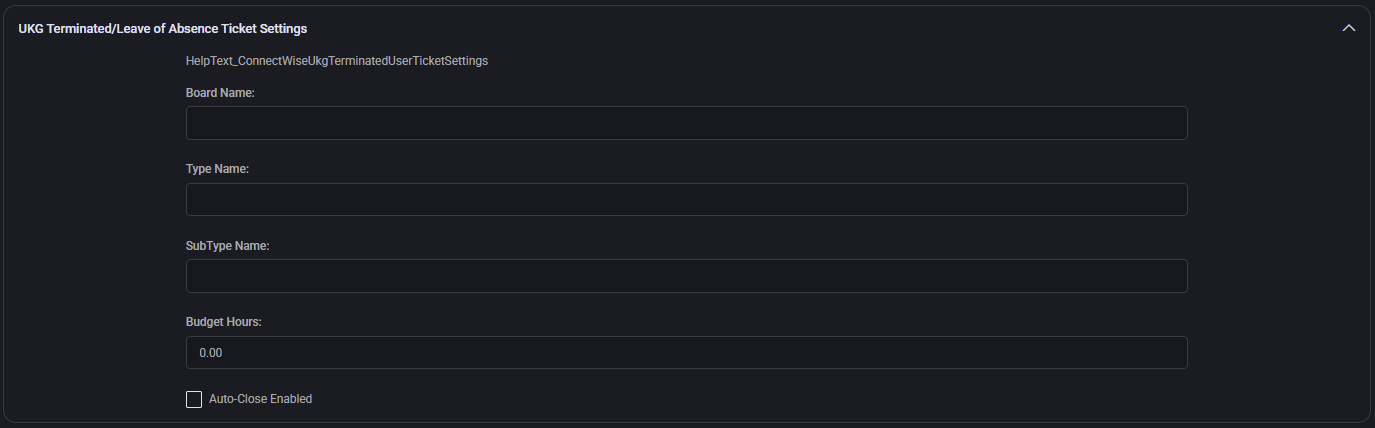
Section titled “UKG Terminated/Leave of absence ticket settings”This section configures tickets related to employee termination or leave of absence events from UKG systems. When such a status is detected, MSPControl generates a service ticket in ConnectWise for manual or automated offboarding workflows.
- Board Name: Target ConnectWise board where the termination or leave ticket should be logged (e.g. HR Operations, Service Desk). Must match your board configuration.
- Type Name: Optional category for the task (e.g. Termination, Leave) based on your ConnectWise setup.
- SubType Name: Optional additional classification, often used to indicate context or urgency.
- Budget Hours: Estimated time required for the ticket. Typically
0.00if used only for auditing or notification. - Auto-Close Enabled: If checked, the ticket will automatically close once all termination logic completes (e.g. user deactivation, access removal).
Expiring GDAP admin relationships ticket settings
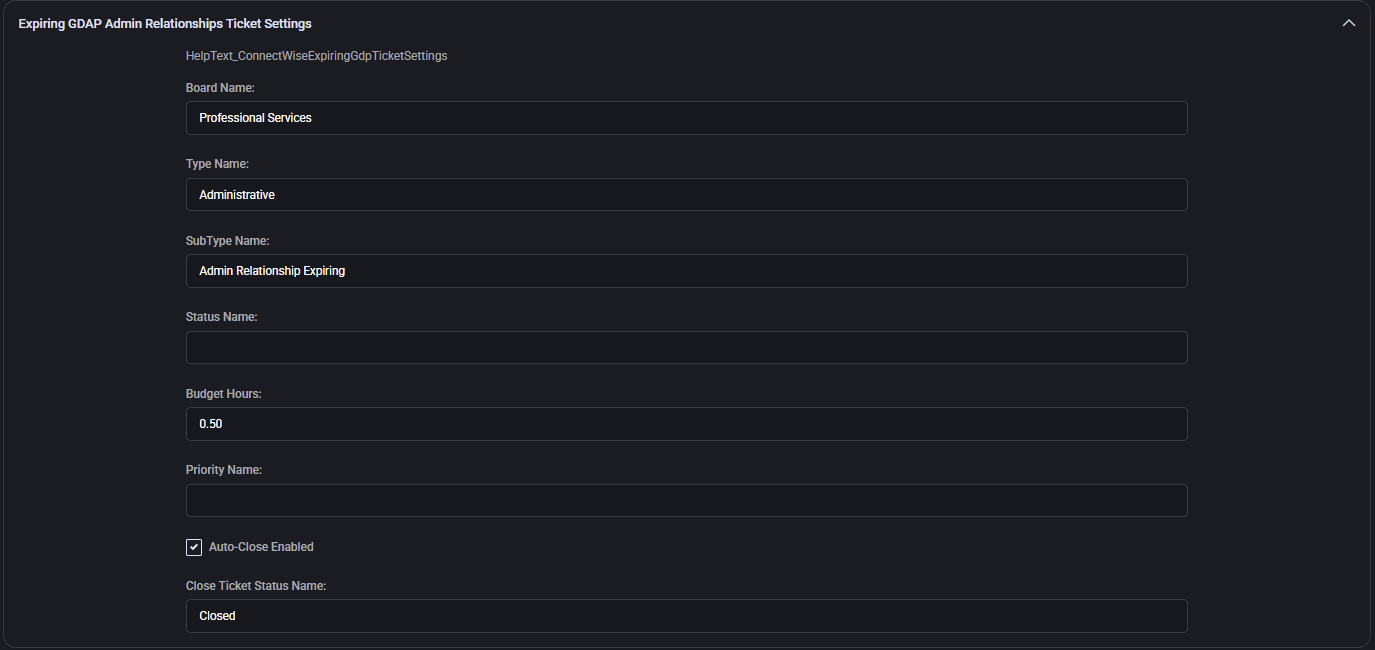
Section titled “Expiring GDAP admin relationships ticket settings”Configures automation for tickets created when GDAP (Granular Delegated Admin Privileges) relationships in Microsoft cloud environments are nearing expiration. Ensures MSPs take timely action to re-establish access or notify clients.
- Board Name: The service board where GDAP expiration tickets will be placed (e.g. Professional Services or Cloud Admin).
- Type Name: Broad task category, typically Administrative for GDAP roles.
- SubType Name: Further breakdown (e.g. Admin Relationship Expiring), helps identify and route expiration-specific tickets.
- Status Name: Optional initial status if your workflow requires a stage-based review (e.g. Queued, Pending Renewal).
- Budget Hours: Estimated time to resolve (e.g.
0.50hours). - Priority Name: Optional ConnectWise priority (e.g. Priority 3 - Medium). Leave blank to use board defaults.
- Auto-Close Enabled: Enables automatic ticket resolution if your integration logic completes renewal successfully.
- Close Ticket Status Name: The final status used to mark the ticket complete (e.g. Closed).
O365 subscriptions opportunity settings
Section titled “O365 subscriptions opportunity settings”Defines default handling of sales opportunities related to Microsoft 365 licensing.
- Sales Rep Default Identity: ConnectWise identity name of the default rep assigned to O365 sales opportunities.
- Opportunity WON / LOST Status Value: Status name to assign based on opportunity outcome.
Default sync settings
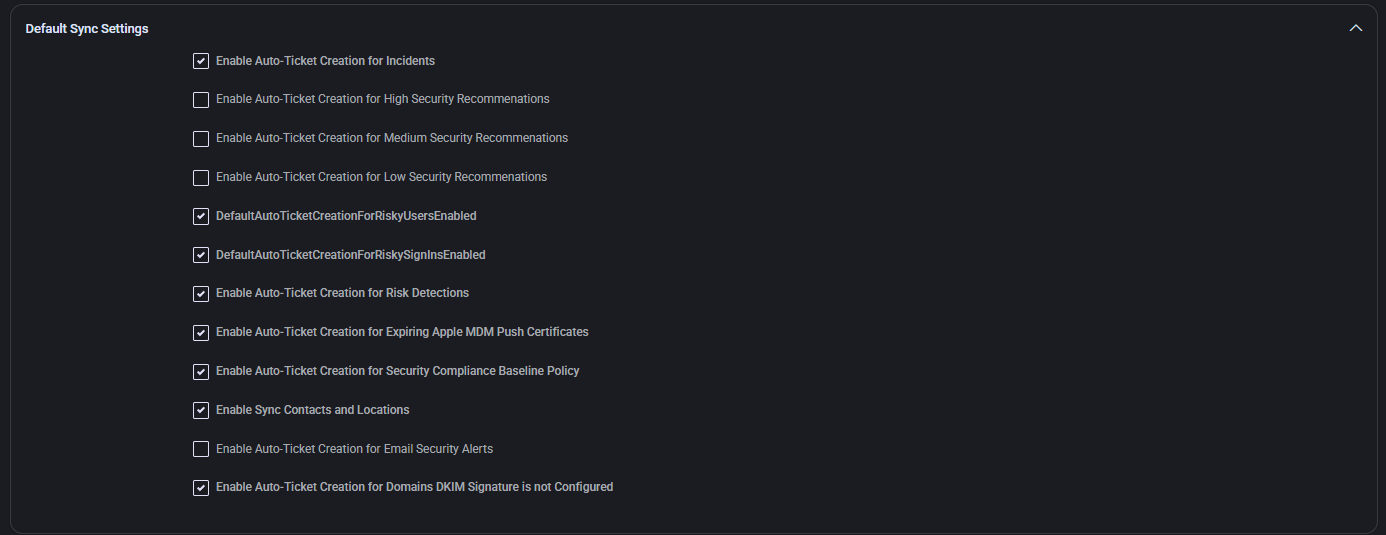
Section titled “Default sync settings”Enables or disables automatic creation of ConnectWise tickets and synchronization of user/contact data for a range of security and monitoring events.
- Enable Auto-Ticket Creation for Incidents
- Enable Auto-Ticket Creation for High/Medium/Low Security Recommendations
- DefaultAutoTicketCreationForRiskyUsersEnabled
- DefaultAutoTicketCreationForRiskySignInsEnabled
- Enable Auto-Ticket Creation for Risk Detections
- Enable Auto-Ticket Creation for Expiring Apple MDM Push Certificates
- Enable Auto-Ticket Creation for Security Compliance Baseline Policy
- Enable Sync Contacts and Locations
- Enable Auto-Ticket Creation for Email Security Alerts
- Enable Auto-Ticket Creation for Domains DKIM Signature is not Configured
Security compliance baseline policy ticket settings
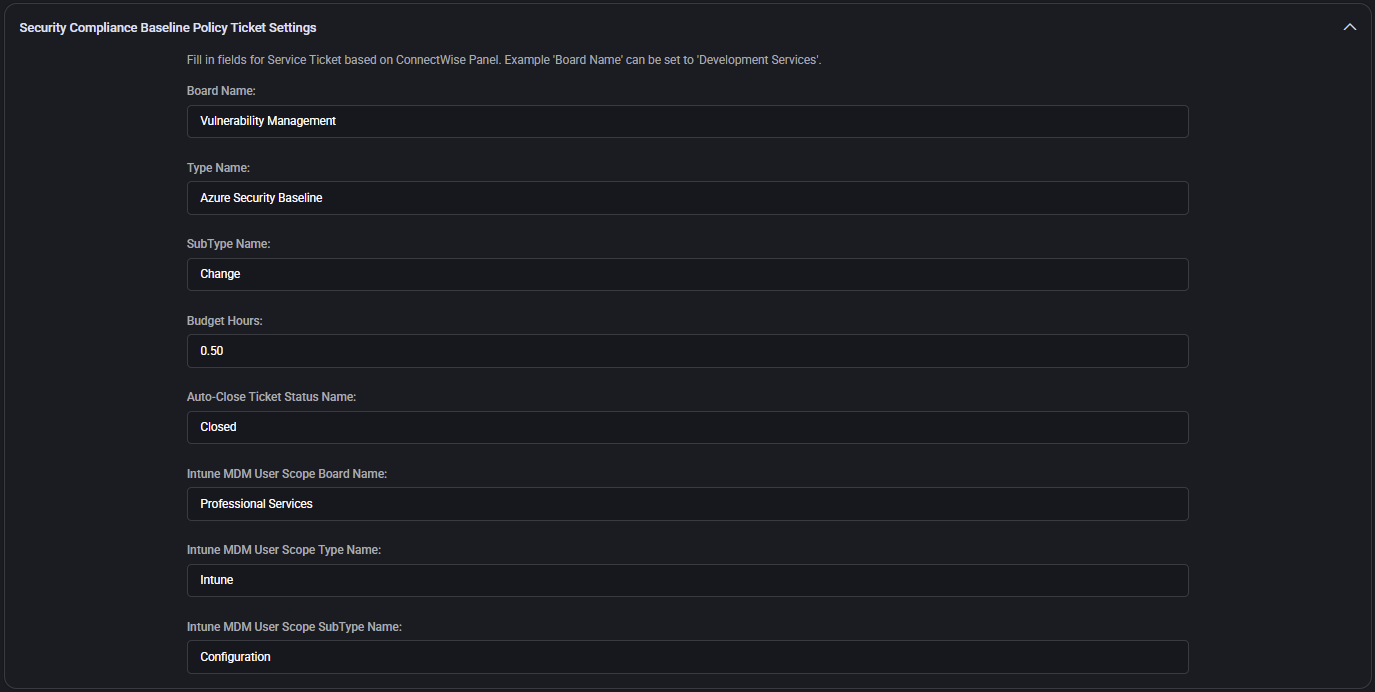
Section titled “Security compliance baseline policy ticket settings”When baseline ticket synchronization and the required integration settings are enabled, this workflow uses the stored MSPControl security-compliance baseline match state. A nonmatching setting can create a ConnectWise ticket when no open ticket for that setting exists. Matching state enters the configured closure workflow. It does not report every Microsoft Defender policy change; check comparison freshness, routing, closure status and task errors.
For the end-to-end operating review, use the Microsoft 365 configuration drift workflow. Confirm baseline synchronization, ticket enablement, routing, closure status and task results; this is not a universal configuration-change alert.
- Board Name: Service board to handle compliance-related tickets (e.g. Vulnerability Management).
- Type Name: Task classification (e.g. Azure Security Baseline) indicating the scope or category of the issue.
- SubType Name: Further breakdown of the task type, usually used for routing or automation (e.g. Change).
- Budget Hours: Estimated resolution time (e.g.
0.50). - Auto-Close Ticket Status Name: Status assigned when the ticket is auto-closed (e.g. Closed).
Additional Scope Settings: These fields allow defining a separate board and classification set specifically for MDM (Mobile Device Management) policies:
- Intune MDM User Scope Board Name: ConnectWise board used to track Intune-specific security enforcement (e.g. Professional Services).
- Intune MDM User Scope Type Name: Task type related to Intune policy (e.g. Intune).
- Intune MDM User Scope SubType Name: Sub-classification for this scope (e.g. Configuration).
Email security alert ticket settings
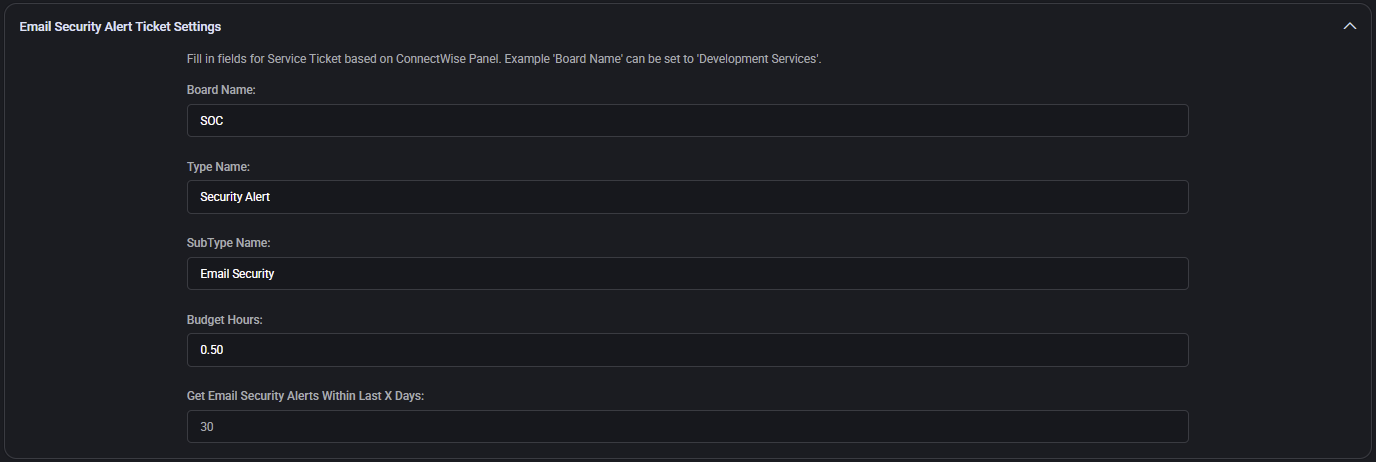
Section titled “Email security alert ticket settings”This section handles automatic ticket creation for detected email security issues (e.g. spoofing attempts, phishing detections). It enables MSPs to proactively respond to mail-related threats.
- Board Name: Service board responsible for monitoring and handling email security alerts (e.g. SOC).
- Type Name: Classification of the task (e.g. Security Alert).
- SubType Name: Additional specification for ticket routing (e.g. Email Security).
- Budget Hours: Estimated time to review and resolve the issue (e.g.
0.50). - Get Email Security Alerts Within Last X Days: The ticket creation logic will filter events based on this threshold (e.g.
30days).
Database connection
Section titled “Database connection”This section stores the database connection string used by MSPControl to retrieve or sync ticket and opportunity data. The string is masked for security reasons and should be entered in a format supported by your underlying ConnectWise integration logic.

Tickets
Section titled “Tickets”Specifies how MSPControl should interpret and process ConnectWise ticket data.
- Boards: Comma-separated list of ConnectWise boards where tickets should be tracked. If left empty, tickets from all available boards may be included. Example:
Professional Services,SOC,HelpDesk. - Closed Ticket Statuses: Determines which ticket statuses should be treated as closed in dashboards, SLA calculations, or syncs. If left blank, only
ClosedFlagstatus will be considered closed.
SLA compliance
Section titled “SLA compliance”Defines the minimum SLA (Service Level Agreement) compliance percentage required across tracked ConnectWise tickets.
- Target SLA Compliance Rate %: Threshold used to measure ticket response performance, commonly set at
90%or higher.

Import opportunities
Section titled “Import opportunities”This section enables manual import of sales opportunities into ConnectWise from an external source.
- Download Opportunities Template: Downloads a CSV file template with the required column structure.
- Choose File: Uploads a filled-out template containing opportunities to import.
- Import Opportunities: Triggers the import process and creates opportunities in ConnectWise using the uploaded data.

Domain incorrect DNS servers ticket settings
Section titled “Domain incorrect DNS servers ticket settings”Used to automatically create tickets when a domain is detected with incorrect DNS server configurations.
- Board Name: ConnectWise board where such tickets are submitted (e.g.
Help Desk). - Type Name: Ticket category used to classify the alert (e.g.
Unclassified Type). - SubType Name: Additional classification to support automation, filtering, or routing (e.g.
Unclassified Subtype). - Budget Hours: Estimated work time to resolve or investigate (e.g.
1.00). - Priority Name: Optional setting to assign predefined priority (must match values in ConnectWise).
- Auto-Close Enabled: If checked, the ticket will be closed automatically after resolution logic is applied.
Schedule settings
Section titled “Schedule settings”These parameters control the frequency and delay logic for background sync or scan operations related to ConnectWise integration.
- Buffer Minutes: Time to wait before processing begins after a sync-triggering event. Helps avoid race conditions or ensure data availability (e.g.
5). - Interval Minutes: Defines how often the system should perform background sync or scan operations (e.g.
15).

Domain DKIM/SPF/DMARC configuration ticket settings
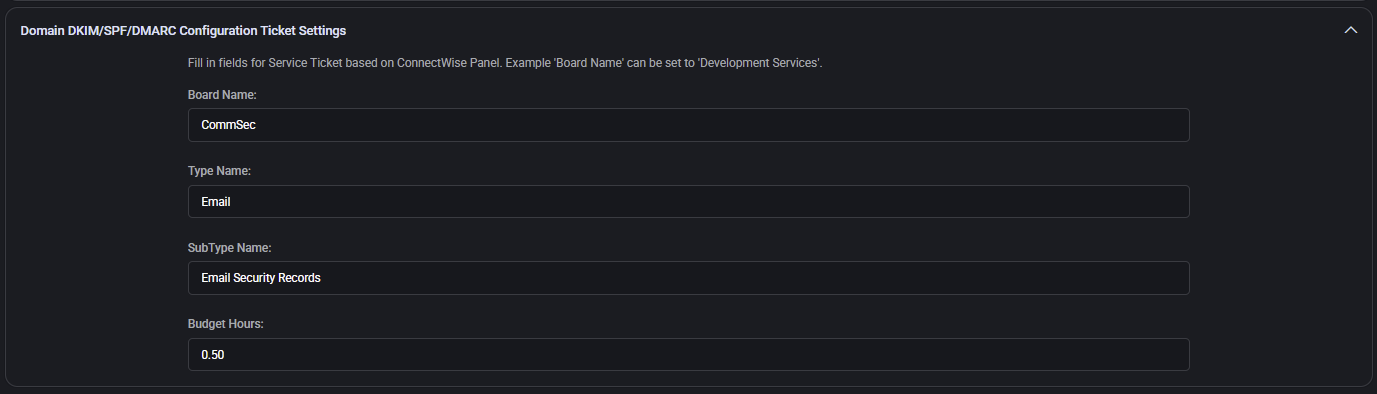
Section titled “Domain DKIM/SPF/DMARC configuration ticket settings”Creates ConnectWise tickets when DKIM, SPF, or DMARC records are misconfigured or missing for a domain. Helps enforce email authentication best practices.
- Board Name: ConnectWise service board where such security configuration issues are logged (e.g.
Help Desk). - Type Name: Ticket type category, typically aligned with the area of responsibility like
Email. - SubType Name: Subcategory for filtering or reporting, such as
Email Security Records. - Budget Hours: Time allocated for reviewing and fixing issues (e.g.
0.50).
Best practices
Section titled “Best practices”- All board names, type names, subtypes, statuses, and priorities must exactly match your ConnectWise configuration to avoid sync failures.
- Use distinct boards and subtypes to categorize alerts and automation events separately from human-created tickets.
- Enable auto-close cautiously, ensuring you have validation logic or automation in place to guarantee completion before resolution.
- Set appropriate budget hours per ticket type to help with reporting, SLA metrics, and labor forecasting in ConnectWise.
- Use custom fields such as VIP or portal security roles to prioritize and segment ticket workflows.
- For all sync triggers (email security, DKIM, app expiration, etc.), enable auto-ticketing only if the integration logic supports safe repeat handling or deduplication.
- Regularly review and test ticket creation across scenarios (manual import, auto-detection, etc.) to ensure alignment with your evolving ConnectWise structure.
ManageEngine ServiceDesk plus integration policy
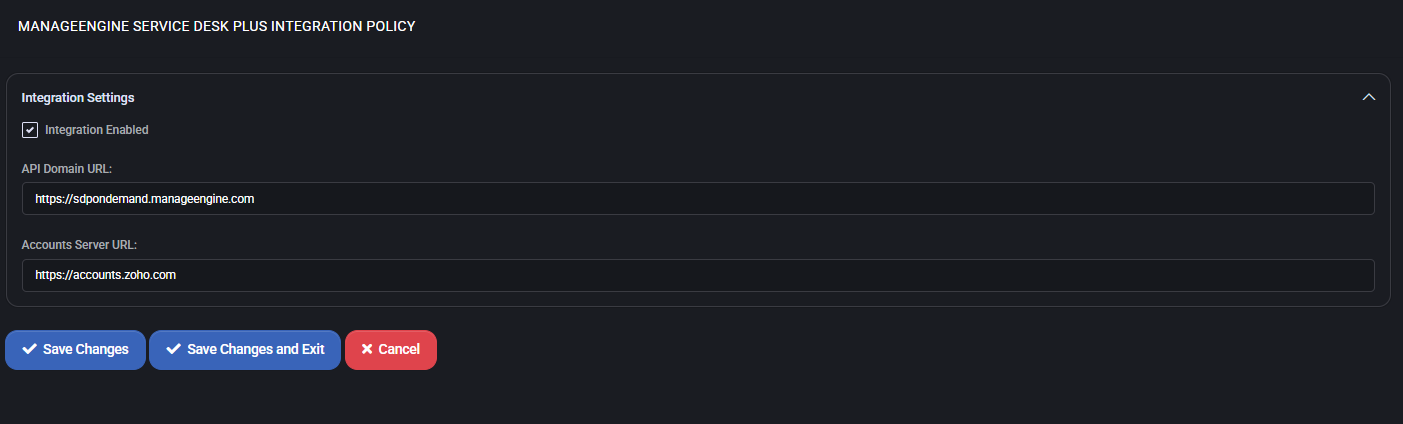
Section titled “ManageEngine ServiceDesk plus integration policy”This section allows administrators to configure integration between MSPControl and ManageEngine ServiceDesk Plus (SDP). When enabled, MSPControl can communicate with the ServiceDesk Plus API to support automation, ticket management, and synchronization workflows.
Integration settings
Section titled “Integration settings”- Integration Enabled: Activates the integration with ServiceDesk Plus. Must be checked for any API communication to occur.
- API Domain URL: The base domain of the ServiceDesk Plus API endpoint. Typically follows the format
https://sdpdomain.manageengine.comand is required for all ticketing or asset sync requests. - Accounts Server URL: The identity provider domain for authentication. By default, this is
https://accounts.zoho.com, as SDP often leverages Zoho authentication services.
SmileBack integration policy
Section titled “SmileBack integration policy”This section allows you to configure integration with SmileBack, a customer feedback system. When enabled, MSPControl can send ticket or service completion data to SmileBack, allowing clients to provide feedback and ratings.
Integration settings
Section titled “Integration settings”- Integration Enabled: Enables or disables the SmileBack integration platform-wide.
- User Name: The email address used to authenticate with SmileBack’s API.
- Password: Password associated with the SmileBack user account. Used only for token retrieval.
- Client ID: OAuth client identifier provided by SmileBack to authenticate API requests.
- Client Secret: OAuth client secret used in conjunction with the Client ID to authorize access securely.
Domain registrar policy
Section titled “Domain registrar policy”Settings > Policies > MSPControl > Domain Registrar connects MSPControl to a domain registrar so domains can be registered and renewed from the panel.
It holds two credential sets — API Settings. Production and API Settings. Sandbox — and a Top Level Domains table mapping each TLD you sell to the registrar Product that provides it.
A TLD with no product mapping cannot be registered. If a domain a customer asked for is not offered, check this table before assuming the registrar does not carry it.
Automation integration policy
Section titled “Automation integration policy”For a new-hire checklist that separates request approval from successful provisioning, see Microsoft 365 user onboarding automation.
For the wider request-to-result workflow and its boundaries, see Microsoft 365 administration automation. Use this section to configure the integration controls; an accepted external request does not by itself confirm that the user action completed.
Settings > Policies > MSPControl > Automation Integration governs inbound automation from external platforms — Microsoft Power Automate and Zapier are named on the panel.
| Setting | Purpose |
|---|---|
| Redirect URI / Add URI | The allowed OAuth redirect targets |
| Automation Integration Authorizers / Select Authorizers | Who approves an automation request |
| Auto Approval Rules | Requests that may proceed without a person |
| Create User Required Fields | Fields an automation must supply to create a user |
The request and decision flow is carried by the Automation Request mail templates.
