Updates, Patching, and Intune
Windows update settings
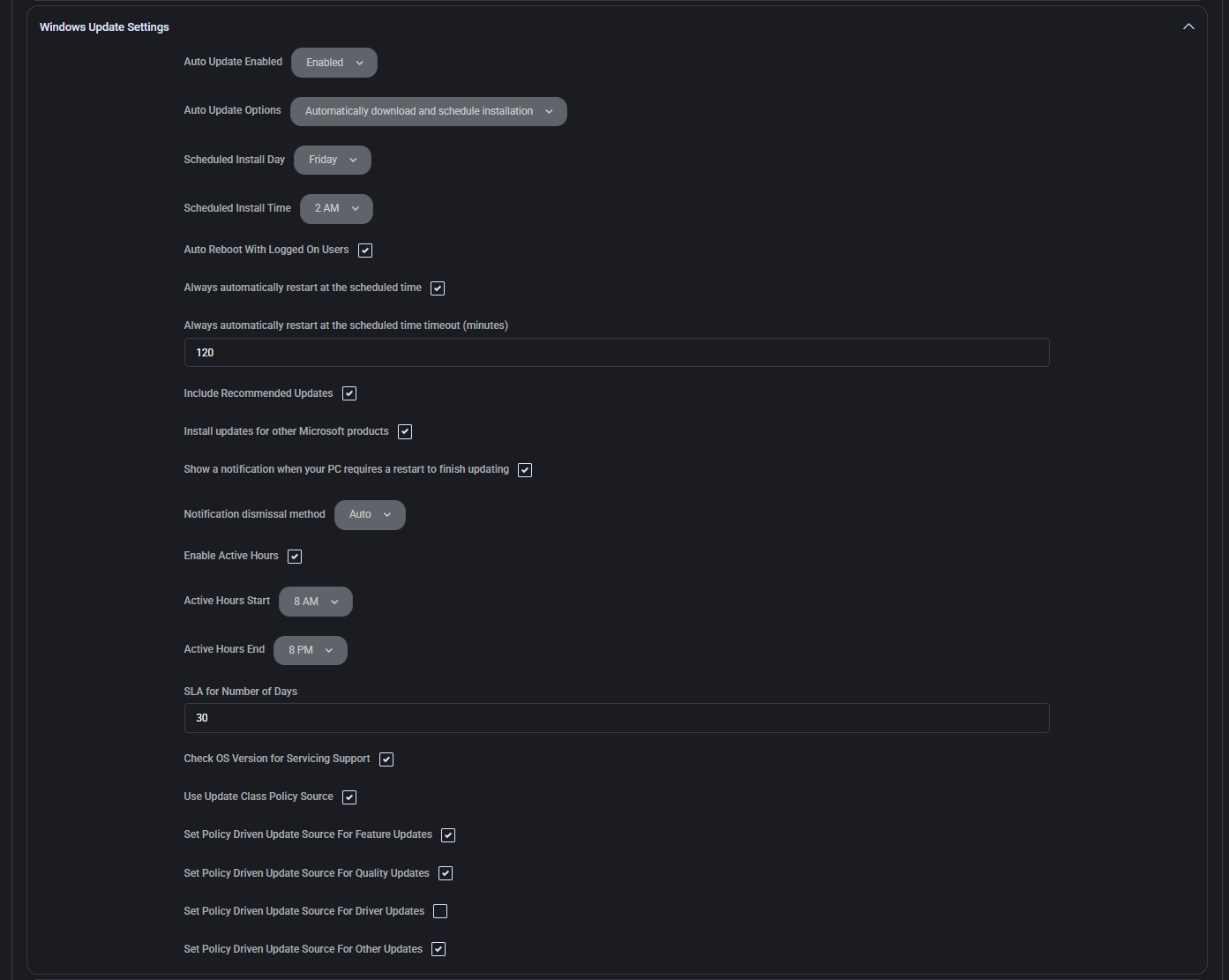
Section titled “Windows update settings”This section allows administrators to define how Windows Updates are handled on managed devices, including scheduling, reboot behavior, source policies, and notification options. Confirm the effective policy, Windows support and execution result; saving settings does not establish compliance or guarantee a disruption-free update.
- Auto Update Enabled Controls the automatic-update setting. Do not infer that disabling automatic updates prevents every manual check or every update path.
- Auto Update Options Specifies how updates are handled. Options may include automatic download and installation, notify only, or schedule-based control.
- Scheduled Install Day Defines the specific day of the week when scheduled updates should be installed. Helps enforce a consistent maintenance window.
- Scheduled Install Time Sets the exact time (e.g. 2 AM) at which scheduled installations will begin. Devices will attempt to apply updates during this window.
- Auto Reboot With Logged On Users When enabled, the device will reboot automatically after updates even if users are currently logged in.
- Always automatically restart at the scheduled time Forces the device to restart regardless of user activity if the scheduled time is reached.
- Always automatically restart at the scheduled time timeout (minutes) Sets a delay (in minutes) after which the device restarts if updates require it and the scheduled time has passed.
- Include Recommended Updates Ensures optional recommended updates are included along with important ones during the update process.
- Install updates for other Microsoft products Extends Windows Update to include Microsoft Office, Visual Studio, and other non-OS products.
- Show a notification when your PC requires a restart to finish updating Displays a system tray alert or pop-up when updates are pending a reboot, ensuring the user is informed.
- Notification dismissal method Controls how update notifications are dismissed — automatically, manually, or based on policy settings.
- Enable Active Hours When enabled, defines a daily time window during which reboots for updates are not permitted to avoid disrupting users.
- Active Hours Start Start of the protected time window where automatic restarts will be blocked.
- Active Hours End End of the protected time window where automatic restarts will be blocked.
- SLA for Number of Days Defines the maximum number of days allowed before updates must be installed to remain within service level agreements.
- Check OS Version for Servicing Support Enables the OS servicing-support check. Review the reported lifecycle state; this setting is not proof that every update operation is blocked on an unsupported build.
- Use Update Class Policy Source Applies group policy-defined settings to control update classifications (e.g., critical, security, feature).
- Set Policy Driven Update Source For Feature Updates Overrides the default update source with a policy-defined location specifically for feature updates.
- Set Policy Driven Update Source For Quality Updates Overrides the update source for cumulative or monthly quality updates, typically for patch management.
- Set Policy Driven Update Source For Driver Updates Applies a specific update source for hardware drivers, enabling integration with custom driver repositories.
- Set Policy Driven Update Source For Other Updates Defines the update source for miscellaneous categories outside of core OS, quality, or drivers.
Third party patching
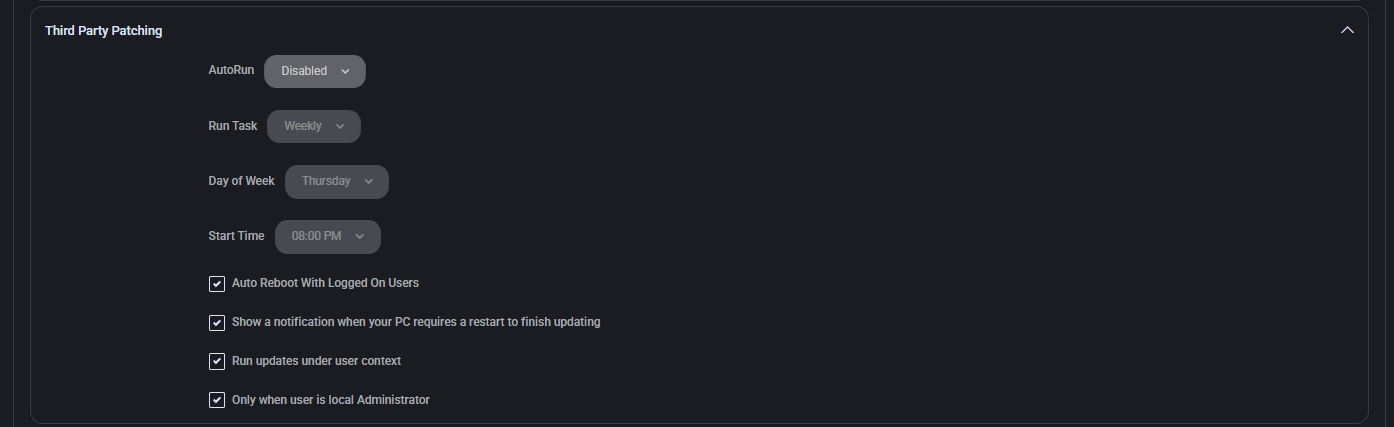
Section titled “Third party patching”This section allows configuration of patch management for third-party applications. These settings determine when and how non-Microsoft software updates are executed, ensuring broader security compliance beyond the Windows ecosystem.
- AutoRun Defines whether the patching process runs automatically. Can be set to Enabled or Disabled.
- Run Task Specifies the recurrence of the patching task. Options include Daily, Weekly, or other intervals.
- Day of Week When Weekly is selected, defines the specific weekday (e.g., Thursday) when the patch task is triggered.
- Start Time Indicates the time of day when the patching task begins (e.g., 08:00 PM).
- Auto Reboot With Logged On Users When enabled, allows the system to reboot automatically after patching, even if users are currently logged in.
- Show a notification when your PC requires a restart to finish updating Displays a user notification if a reboot is needed to complete the third-party patch process.
- Run updates under user context Executes the patching task within the current user’s security context, typically required for interactive or user-specific application updates.
- Only when user is local Administrator Restricts patch execution to scenarios where the current user holds local administrator rights. This is a security precaution to avoid privilege elevation issues.
Intune
Section titled “Intune”This section manages Microsoft Intune enrollment behavior. It determines ownership type and location-based policies for automatic device enrollment into Intune, supporting streamlined management in corporate and hybrid environments.
- Device Ownership Specifies whether the device is considered Corporate or Personal. This setting influences policy enforcement and available management features in Intune.
- Auto-Enroll in Intune (Device Locations) Defines which device locations will automatically trigger enrollment into Intune:
- All locations — All devices, regardless of location, will be enrolled.
- Selected locations — Only devices in designated locations will be enrolled.
- None — Auto-enrollment is disabled for all locations.

Related patch-management review
Section titled “Related patch-management review”See Windows patch management for the customer workflow that connects reported status, failed installations, update policy and post-change verification. Keep agent commands, Intune rings, application updates and restart outcomes distinct.
