Review Veeam Backup Results
Overview
Section titled “Overview”The Veeam Dashboard presents Veeam and Veeam for Microsoft 365 backup reports received by MSPControl. Use it to review results across customers, open the affected job or object, and inspect the recovery evidence reported by the source system.
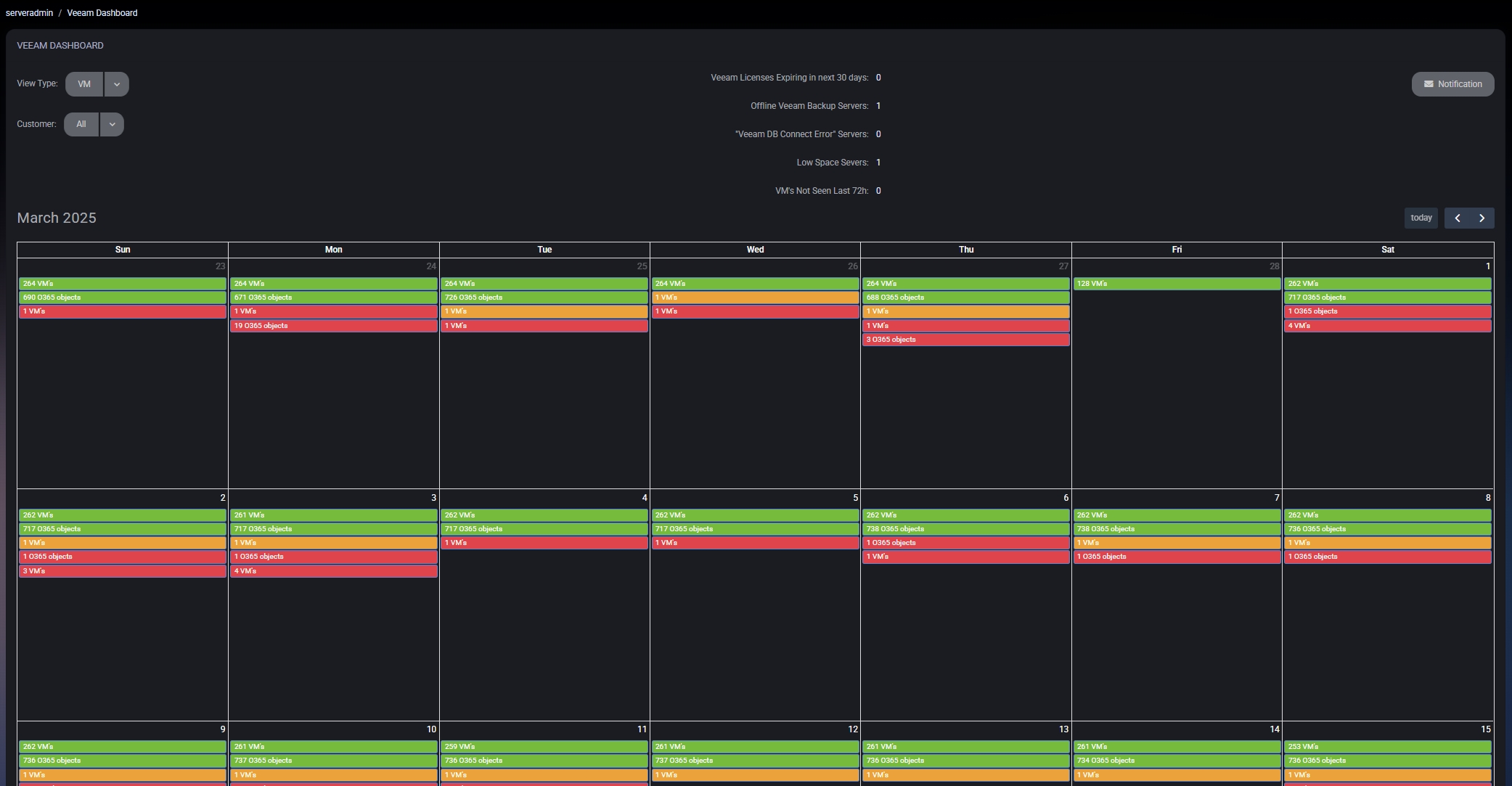
Read the calendar
Section titled “Read the calendar”Use View Type to group reported activity by:
- VM — virtual-machine results.
- Category — policy-derived backup categories.
- Job — individual backup jobs and their run times.
Administrators can select a customer or keep All selected. The calendar uses green for success, yellow for warning, and red for error. Opening an event displays the result set for its date and selected view.
Review health metrics
Section titled “Review health metrics”The dashboard exposes counts and detail lists for:
- Veeam license errors.
- Offline reporting devices.
- Veeam database connection errors.
- Low-space conditions.
- Virtual machines not seen within the configured policy window.
Metric details identify the customer and device. Depending on the metric, the detail also includes the last heartbeat, license expiration, connection message, or low-space reason.
Investigate a result
Section titled “Investigate a result”From a reported Veeam event, MSPControl can retrieve:
- Backup jobs and individual job sessions.
- Backup storage associated with a session.
- Reported object copies and their restore points.
- Full or summarized object history.
- The most recent history item for an object.
Veeam for Microsoft 365 reports include jobs, sessions, protected objects, and object-session history. The current interface also supports editing the MSPControl metadata associated with a reported Veeam for Microsoft 365 object and marking it archived.
Configure notifications
Section titled “Configure notifications”Select Notification to configure an email recipient and choose whether MSPControl sends notifications for success, warning, and error results.
Verify the result
Section titled “Verify the result”- Confirm the expected customer and view type are selected.
- Open a recent calendar event and confirm its object or job detail loads.
- If notifications were changed, reopen Notification and confirm the saved email and result selections.
Related guides
Section titled “Related guides”Related Microsoft 365 backup review
Section titled “Related Microsoft 365 backup review”For the customer review that separates Veeam reporting, native protection monitoring, missing data and recovery validation, see Microsoft 365 backup monitoring. Confirm provider scope, installed version, report freshness and the result of any follow-up.
