Configure Entra ID Security and Reporting
Overview
Section titled “Overview”Use Azure Security for organization-level Entra ID security configuration and MSPControl reporting workflows. The current page exposes controls for:
- security-report scope, recipients, and finding visibility;
- MFA, Security Defaults, system-preferred MFA, and modern authentication;
- legacy-authentication blocking and identity-protection responses;
- Entra ID diagnostic-setting monitoring;
- security baseline values and optional supported remediation;
- default sensitivity-label checks and deployment;
- optional ConnectWise ticket behavior for selected security findings.
Before you begin
Section titled “Before you begin”- Open the customer organization whose security settings you intend to review.
- Confirm that your MSPControl account can view and change Azure Security settings.
- Confirm that the customer tenant has the Microsoft licensing required for the control you intend to enable.
- Preserve at least one tested administrator access path before changing authentication or Conditional Access behavior.
- Record the current values and the reason for each customer-specific exception.
If the tenant application has read-only permissions, MSPControl keeps reporting, policy, and supported integration settings available but disables controls that write to the customer tenant.
Review security reporting
Section titled “Review security reporting”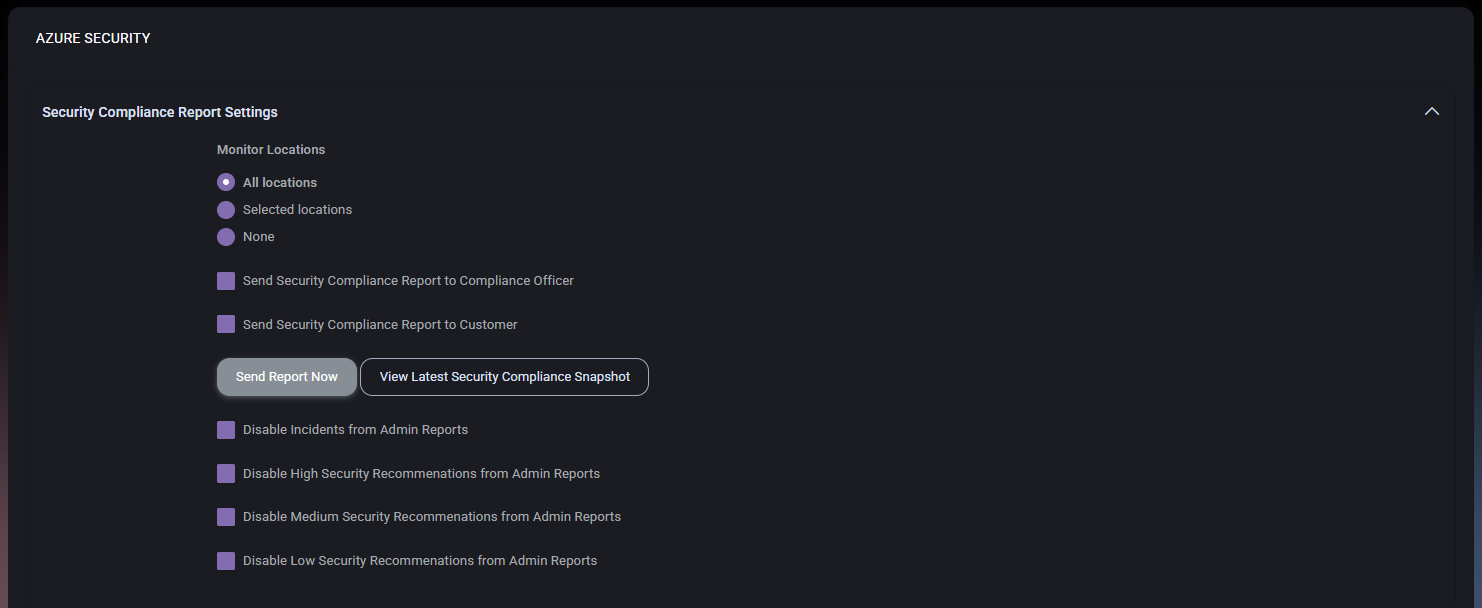
- Open Azure Security for the customer organization.
- Review whether all locations, selected locations, or no locations are included in the report.
- Confirm the compliance-officer and customer-report recipients.
- Review which incidents and recommendation severities are included in administrative reports.
- Use View Latest Security Compliance Snapshot to inspect the most recent stored result.
- Use Send Report Now only after confirming the recipients and current report scope.
The snapshot reflects MSPControl’s configured report inputs at the time it was generated. Investigate the underlying Microsoft service before treating a finding as resolved.
Configure MFA and authentication controls
Section titled “Configure MFA and authentication controls”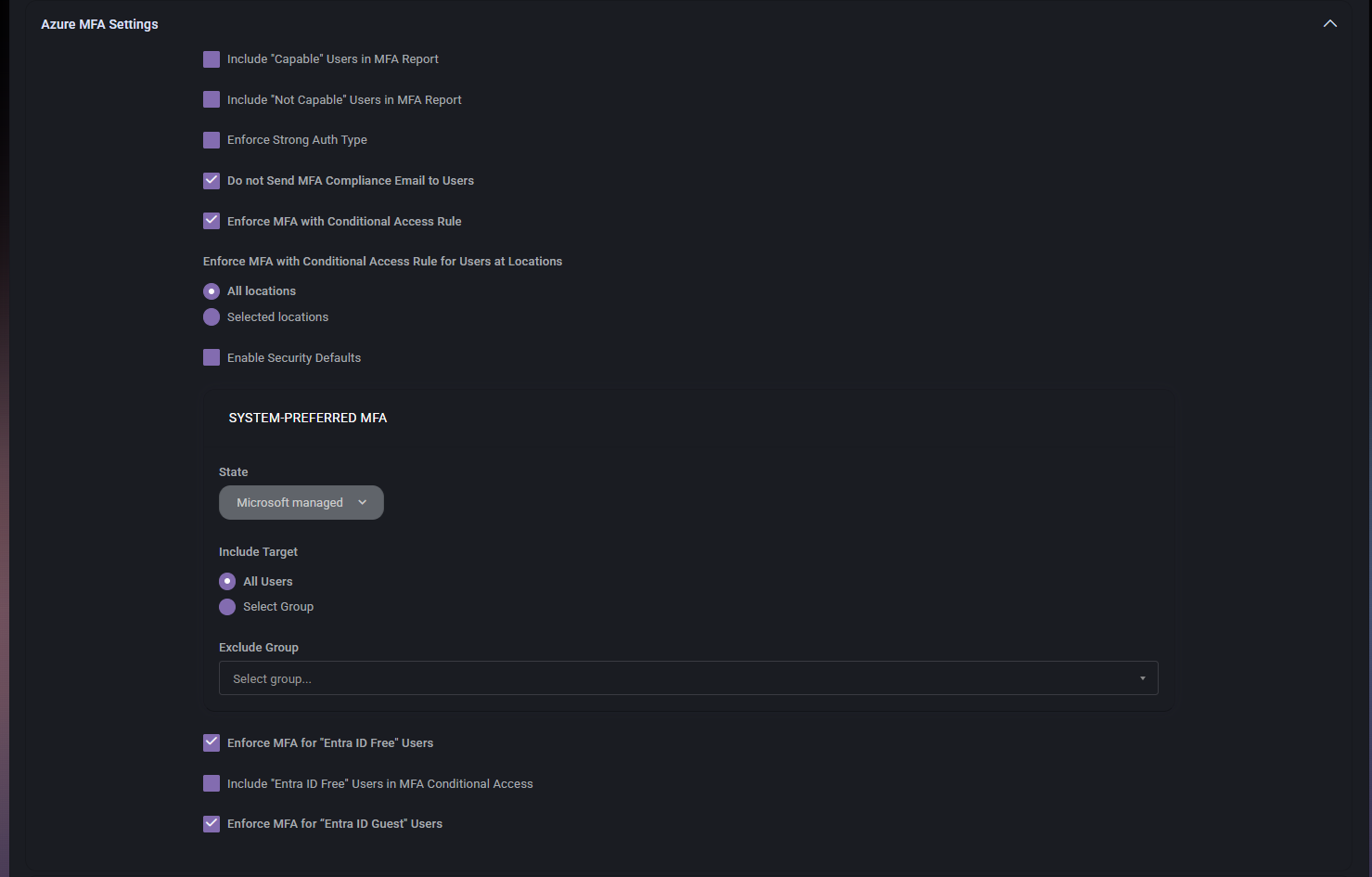
Use the MFA section to control report inclusion, Conditional Access MFA scope, Security Defaults, system-preferred MFA, and supported user-type settings.
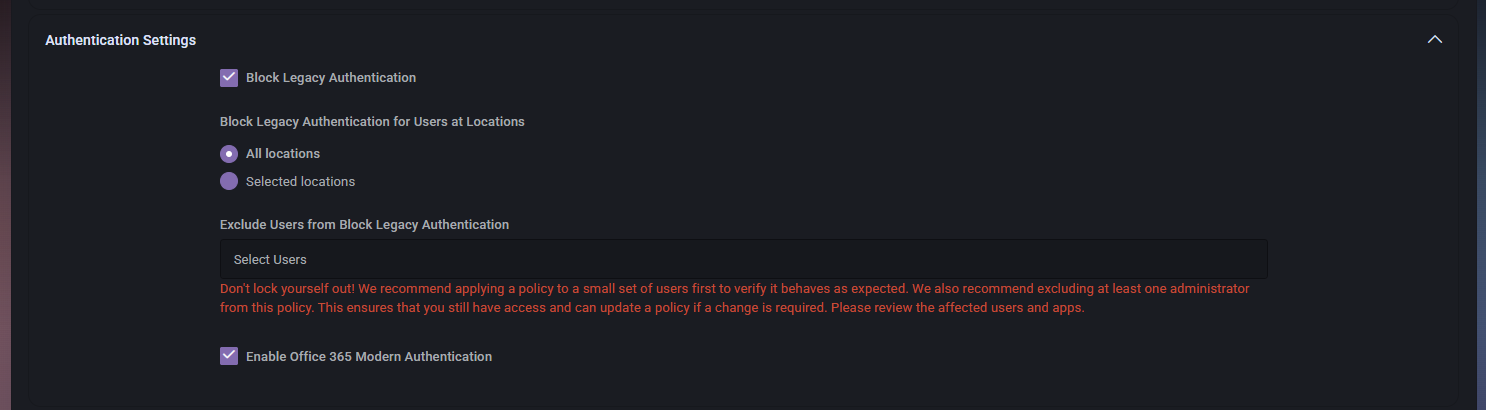
- Review whether Microsoft 365 modern authentication is enabled.
- If legacy authentication must be blocked, select the intended location scope.
- Add only documented user exclusions, including the tested emergency-access account where required by your operating procedure.
- Save the page and review the audit log if MSPControl reports that the MFA or legacy-authentication section could not be applied.
- Test the intended administrator and user sign-in paths before broadening the scope.
Configure operational follow-up
Section titled “Configure operational follow-up”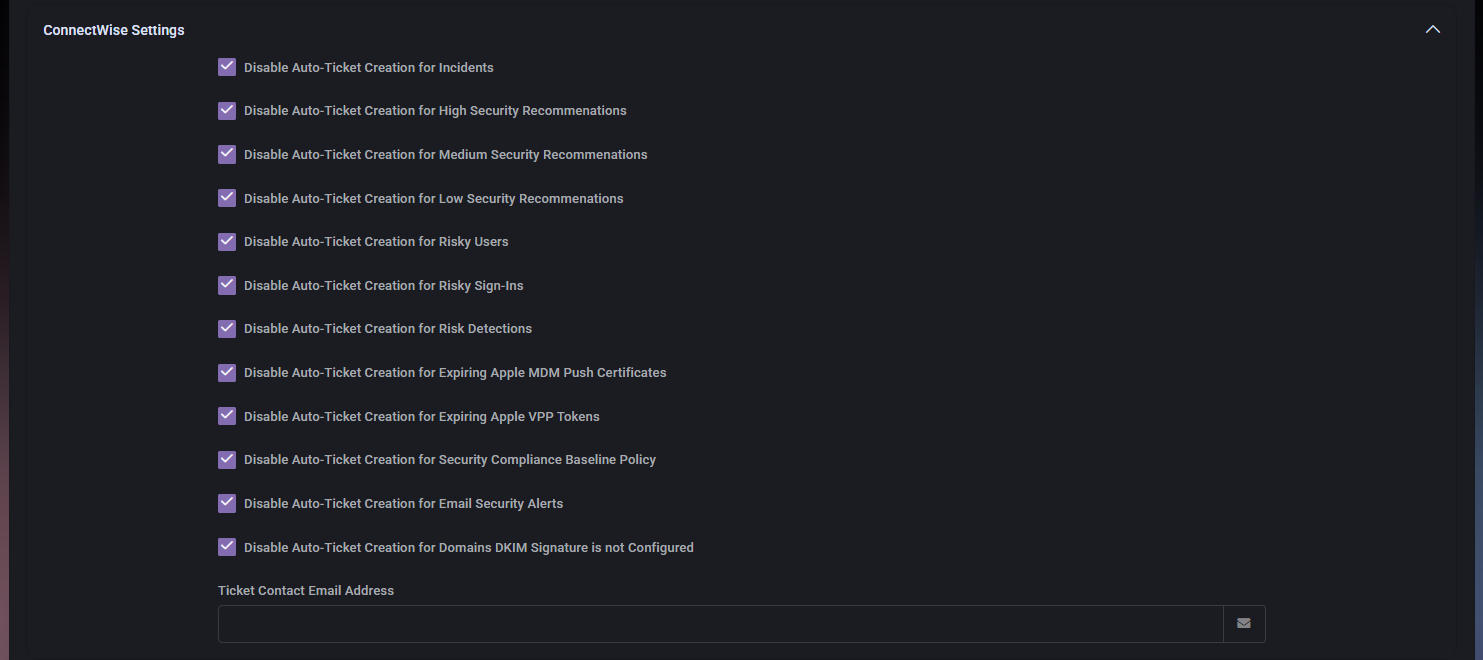
When ConnectWise is configured for the MSP and mapped to the customer, the page exposes controls for ticket creation from incidents, recommendations, risky users, risky sign-ins, risk detections, baseline findings, email-security alerts, and selected certificate or token events.
These switches control MSPControl’s ticketing behavior. They do not enable the Microsoft security signal itself.
For the investigation sequence and the boundaries of the stored Risky Users dashboard, see Microsoft Entra risky users and sign-in review.
Review risk-detection policy overrides
Section titled “Review risk-detection policy overrides”
Use organization-specific overrides only when the customer needs different risk-detection or risky-sign-in handling from the global policy. Record why the exception exists and which users or locations it affects.
The cross-customer Risky Users dashboard can display risky-user records, directory state, risk-detection history, and linked ticket information. Review that evidence before removing a record or changing the customer’s response policy.
Monitor Entra ID diagnostic settings
Section titled “Monitor Entra ID diagnostic settings”
- Enable diagnostic-settings monitoring only after identifying the expected Log Analytics workspace.
- Review the diagnostic settings returned for the customer tenant.
- Create or update a diagnostic setting only when the tenant application has write permission and the target workspace is correct.
- Reopen the page and confirm that the expected setting is visible.
Review the MSPControl security baseline
Section titled “Review the MSPControl security baseline”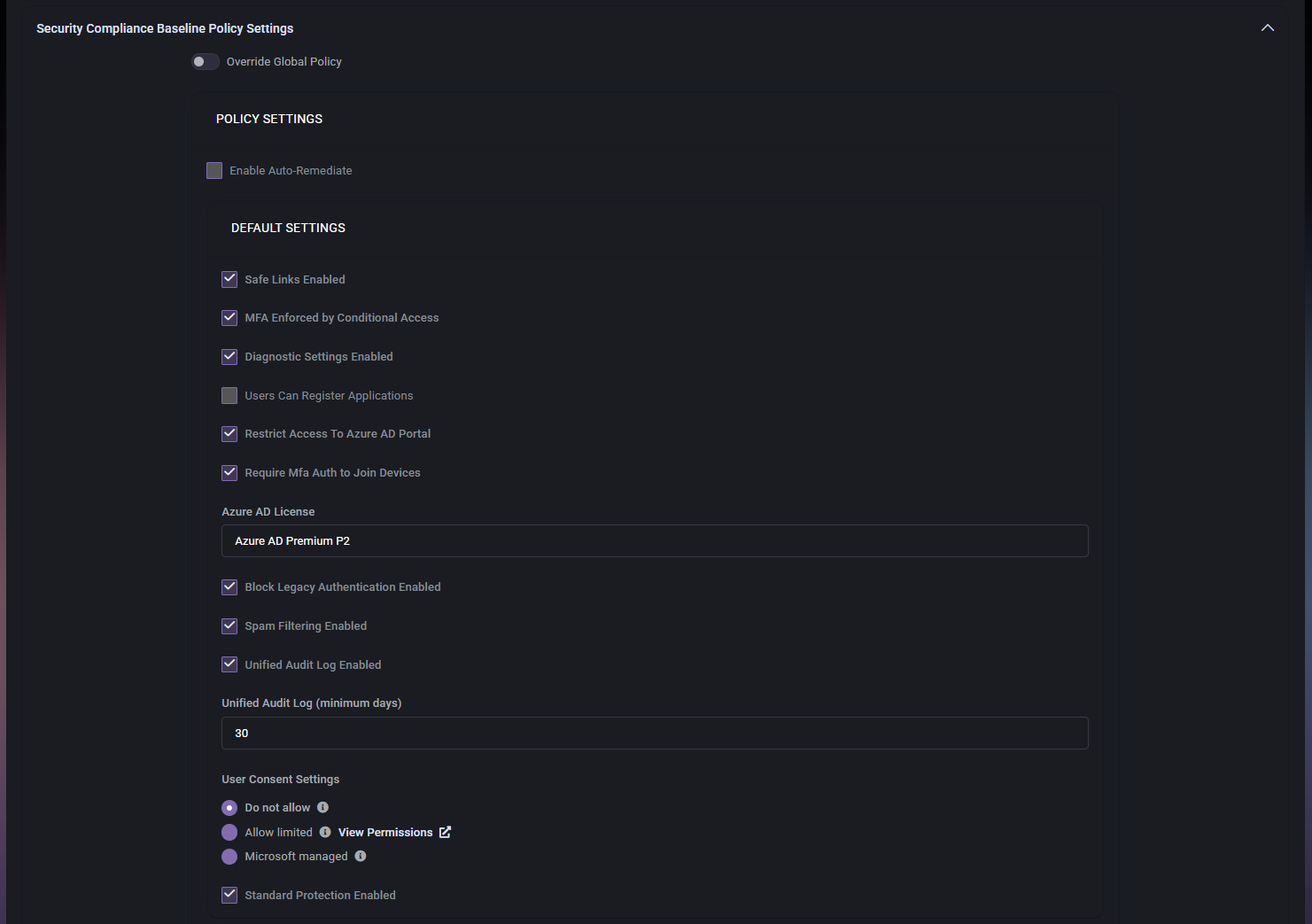
The baseline can track values such as Safe Links, MFA through Conditional Access, diagnostic settings, application registration, Entra portal access, device-join MFA, legacy-authentication blocking, spam filtering, Unified Audit Log retention, consent behavior, and Standard Protection.
Review identity-protection responses
Section titled “Review identity-protection responses”
The current page can configure supported responses for low-risk and medium/high-risk users or sign-ins, including re-requiring MFA, requiring a password change, or blocking access. Scope and exclusions are stored separately for each response.
Apply these settings only after the customer has approved the response model and emergency-access process.
Check or deploy default sensitivity labels
Section titled “Check or deploy default sensitivity labels”The Default Sensitivity Labels section can:
- retrieve the tenant’s current sensitivity labels;
- compare them with the label names expected by MSPControl;
- deploy the configured default labels and policy when the tenant application has write permission.
Review existing tenant labels and naming conflicts before using the deployment action. Recheck the tenant after deployment and investigate any partial result instead of assuming the labels were applied successfully.
Verify the result
Section titled “Verify the result”- Save the organization settings.
- Reopen Azure Security and confirm that the intended values were retained.
- Review the audit log for any section that MSPControl reports as unsuccessful.
- Test authentication changes with the approved pilot users and locations.
- Review the latest report or relevant Microsoft portal data to confirm that the expected signal is available.
- Confirm any ConnectWise ticket behavior only if that integration is enabled for the MSP and customer.
Related tasks
Section titled “Related tasks”