Review and Filter Active Users
Page layout
Section titled “Page layout”The page consists of:
- A primary action row (create/import/send/quota tools).
- A global Actions menu for bulk operations.
- Filtering controls (locations, view filters, search).
- A users table with per-user indicators and quick actions.
Primary buttons
Section titled “Primary buttons”Create new user
Section titled “Create new user”Create New User starts the user creation flow for the Hosted Organization. Use this option when the user should be created directly in the organization scope (for example, a new employee account). The exact fields and follow-up steps depend on your environment configuration and identity provider rules.
Send users list
Section titled “Send users list”Send Users List initiates sending/exporting the current user list via the platform’s supported delivery method (for example, generating and sending a list report). Use it when you need to share the current users inventory with another team, customer contact, or internal administrator.
Import Azure AD users
Section titled “Import Azure AD users”Import Azure AD Users is used to bring Azure AD users into MSPControl’s Hosted Organization scope (or trigger the import workflow if they are not yet visible here). This is the entry point for environments where Azure AD is the source of truth (or where MSPControl synchronizes identities from Azure AD).
Quotas usage
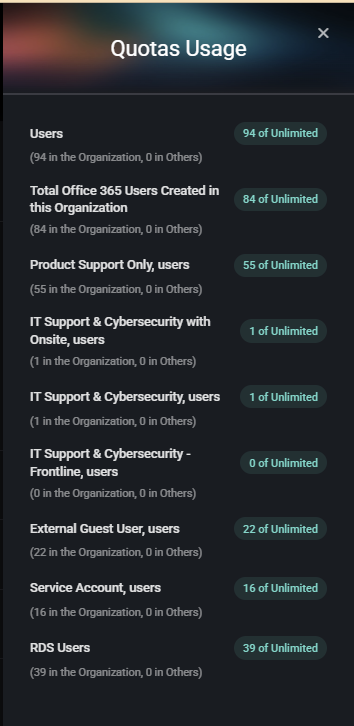
Section titled “Quotas usage”Quotas Usage opens a right-side modal that summarizes the current consumption of user-related quotas for this Hosted Organization (for example, total users, service-level user buckets, and other user types). This view is used for quick limit checks and license/plan enforcement verification.
Quotas usage modal
Section titled “Quotas usage modal”When you click Quotas Usage, a panel opens on the right side of the screen. It lists quota categories with:
- The current count for this Hosted Organization.
- The allowed limit (for example, of Unlimited).
- A breakdown note showing usage distribution (for example, “X in the Organization, Y in Others”).
Quota categories (configurable example)
Section titled “Quota categories (configurable example)”- Users – Total active users currently created in this Hosted Organization.
- Total Office 365 Users Created in this Organization – Total number of users created/managed under the Office 365 scope for this organization.
- Product Support Only, users – Users classified under the Product Support Only service level/type.
- IT Support & Cybersecurity with Onsite, users – Users classified under this service level/type bucket.
- IT Support & Cybersecurity, users – Users classified under this service level/type bucket.
- IT Support & Cybersecurity - Frontline, users – Users classified under this service level/type bucket.
- External Guest User, users – Users classified as external guest users.
- Service Account, users – Users classified as service accounts (non-human or automation identities).
- RDS Users – Users included in the RDS user bucket (used for RDS enablement/entitlements in environments where applicable).
Actions menu
Section titled “Actions menu”The Actions dropdown (top-right of the page) is used for bulk operations on selected users. This menu applies changes across multiple users consistently (for example, security posture updates, licensing, and access enforcement).
Apply and cancel
Section titled “Apply and cancel”- Apply – Executes the selected action for the currently selected user rows.
- Cancel – Closes the actions dialog without applying changes.
Available actions
Section titled “Available actions”The actions list may be scrollable. The following actions are available in this UI:
- Disable – Disables the selected user accounts.
- Enable – Enables the selected user accounts.
- Set Service Level – Assigns a service level classification to selected users (used for quota bucketing and policy behavior).
- Set VIP – Marks selected users as VIP (often used for escalation rules and prioritization workflows).
- Unset VIP – Removes VIP flag from selected users.
- Send password reset By Sms – Initiates a password reset workflow via SMS (if supported/configured).
- Send password reset By Email – Initiates a password reset workflow via email (if supported/configured).
- Sync with Azure AD – Triggers synchronization for selected users with Azure AD (for hybrid/synced environments).
- Unsync with Azure AD – Removes/halts Azure AD synchronization for selected users (where supported by your identity model).
- Revoke All Sessions – Revokes active sessions for selected users (forces re-authentication).
- Remove All Mobile Devices – Removes all mobile device associations for selected users (MDM-style cleanup in supported environments).
- Remove From All Groups – Removes selected users from all groups (use cautiously, as it may remove access and permissions broadly).
- Assign O365 License – Assigns an Office 365 license to selected users.
- Change O365 Licenses – Modifies the Office 365 license assignment for selected users.
- Change O365 Service Plans – Updates Office 365 service plan toggles for selected users (plan-level controls within a license).
- Set Location – Assigns a location value to selected users (used with location-based policies and filtering).
- Enable Personal Folder – Enables a personal folder feature for selected users (feature behavior depends on your hosting/storage configuration).
- Disable Personal Folder – Disables personal folder for selected users.
- Cancel Pending Password Reset Req – Cancels a pending password reset request for selected users (when such a request is active).
- Send Setup Instructions – Sends onboarding/setup instructions to selected users (delivery method depends on configuration).
- Set UPN as Default Domain – Applies UPN default domain logic for selected users (identity-domain behavior depends on your directory configuration).
- Set Risky Users – Flags selected users as risky (used for security workflows and heightened monitoring).
- Unset Risky Users – Removes risky-user flag from selected users.
- Send Verification Request – Sends a verification request to selected users (used to confirm identity/contact readiness depending on workflow).
- Set Manager – Assigns a manager relationship for selected users (organizational metadata for workflows and reporting).
Filters and list controls
Section titled “Filters and list controls”All locations
Section titled “All locations”All Locations is a dropdown filter that scopes the Active Users list by location. Use this when the Hosted Organization has multiple sites/branches and you need to manage users for a specific location only.
View filter
Section titled “View filter”The All dropdown (view selector) controls the current list view. Depending on configuration, different views may represent saved filters, pre-defined user subsets, or scoped lists.
Search
Section titled “Search”The Search field filters the list as you type. Use it to quickly find users by display name, login, or email (depending on your environment’s search indexing rules).
Column visibility
Section titled “Column visibility”Column Visibility allows you to show/hide table columns. Use it to simplify the list during operational work (for example, focusing only on identity columns).
Page size
Section titled “Page size”The page size selector (for example, 25) controls how many users are shown per page.
Users table
Section titled “Users table”The main table lists all active users in the Hosted Organization. Each row includes identity fields, service classification indicators, and quick-access icons for services/features associated with the user.
Core identity columns
Section titled “Core identity columns”- Selection checkbox – Select users for bulk actions.
- Display Name – User’s display name as shown in MSPControl. A status/identity icon is displayed next to the name for quick recognition.
- Login – The login identifier (commonly email-format UPN or mailbox-style identity, depending on configuration).
- PrimaryEmail – The primary email address for the user. This column may also show classification badges (examples seen in the UI include Product Support Only, Service Account, and External Guest User).
Service and feature icons
Section titled “Service and feature icons”On the right side of each row, MSPControl shows small icons representing services/features associated with the user. These icons are designed for fast visibility and expose additional details via hover tooltips.
- Microsoft 365 / licensing icon – Hovering shows assigned license names and plans (for example, Microsoft 365 E5, Teams, Planner, Project, and other SKU/service plan names).
- OneDrive icon – Hovering shows OneDrive usage (for example, “used X MB of Y GB, Z%”).
- RDS icon – Indicates RDS-related status/association for the user (tooltip shows RDS).
- Delete (trash) – Deletes the user (where permitted). Use cautiously due to identity and licensing impact.
Tip: Tooltips are the primary way to view full details for compact icons (especially licensing and storage usage) without opening a user details screen.
