Sites, Applications, and Devices
Trusted sites
Section titled “Trusted sites”This section allows you to configure zone-based logon behavior and define a list of trusted websites for devices managed via MSPControl Autopilot. These settings ensure that your managed machines correctly authenticate with internal resources and cloud services based on their zone classification.
Internet zone settings
Section titled “Internet zone settings”Use the dropdown menus to control how devices authenticate in different Internet Explorer security zones:
- Logon (Intranet Zone): Set authentication method for local network resources.
- Logon (Trusted Zone): Define how logins are handled for manually specified trusted sites.
- Logon (Internet Zone): Manage how standard internet sites should be authenticated.
- Logon (Restricted Zone): Define login behavior for potentially unsafe or limited-access sites.
Trusted site list
Section titled “Trusted site list”Add URLs that should be treated as trusted by the browser and OS-level authentication mechanisms. Each entry can be assigned a zone (e.g., Intranet) and a descriptive comment for administrative clarity. The table displays configured trusted sites along with their assigned zones and optional comments. You can add new entries or edit existing ones using the form below.
Managed applications
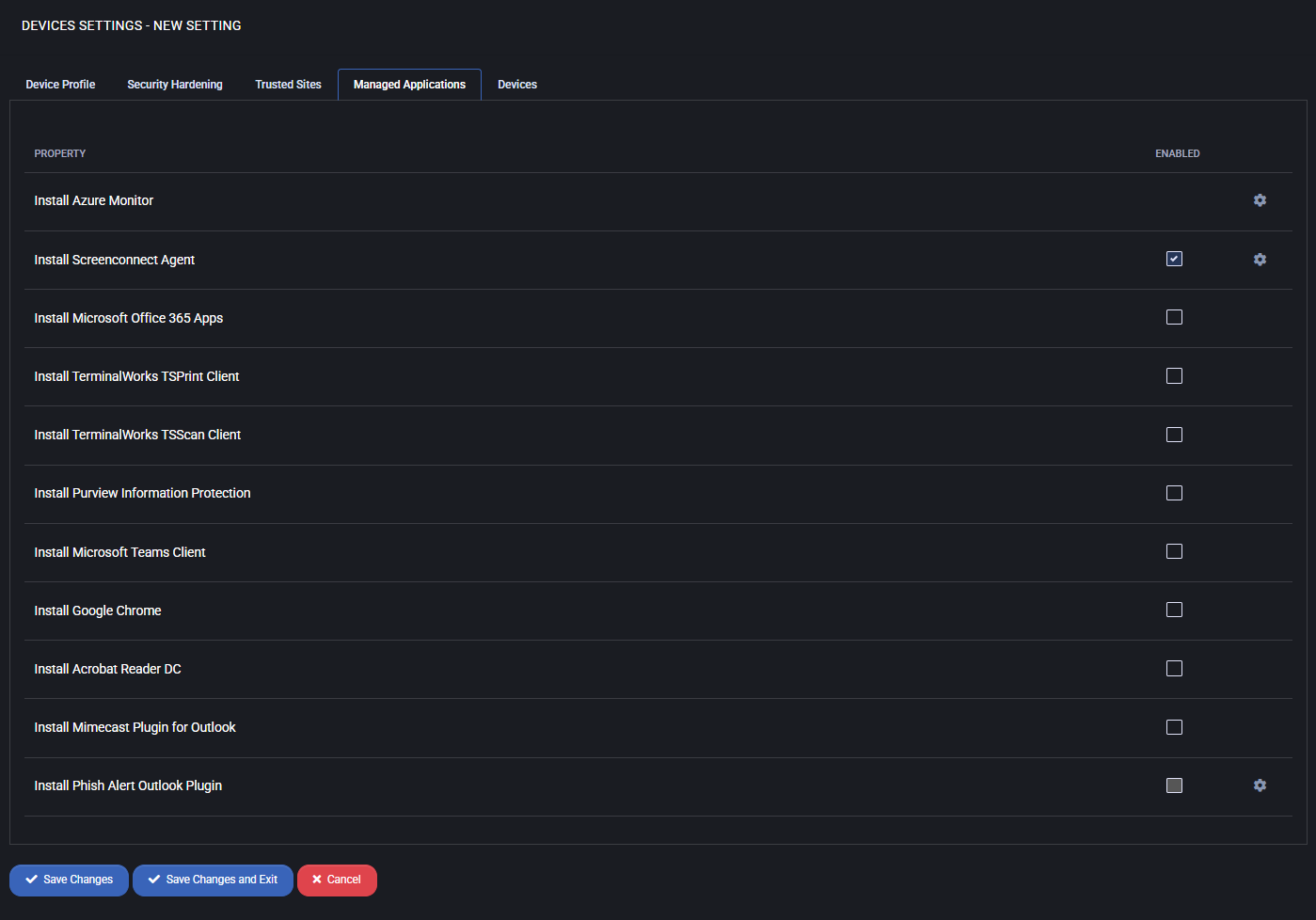
Section titled “Managed applications”This section allows you to define which applications should be automatically installed on devices managed via MSPControl Autopilot. These options ensure that critical software is consistently deployed across your organization’s infrastructure, improving security, productivity, and standardization.
- Install Azure Monitor: Enables installation of Microsoft Azure Monitor agent to collect performance and diagnostic data.
- Install Screenconnect Agent: Deploys the remote access agent for support and administration.
- Install Microsoft Office 365 Apps: Automates deployment of Microsoft 365 productivity suite.
- Install TerminalWorks TSPrint Client: Installs TSPrint for remote desktop printing functionality.
- Install TerminalWorks TSScan Client: Installs TSScan for remote desktop scanning capabilities.
- Install Purview Information Protection: Adds Microsoft Purview tools for data protection and compliance.
- Install Microsoft Teams Client: Installs Microsoft Teams for communication and collaboration.
- Install Google Chrome: Deploys Google Chrome as the primary or secondary web browser.
- Install Acrobat Reader DC: Installs Adobe Reader for viewing PDF documents.
- Install Mimecast Plugin for Outlook: Adds email security and archiving plugin for Outlook users.
- Install Phish Alert Outlook Plugin: Installs the KnowBe4 plugin allowing users to report suspicious emails directly from Outlook.
Devices
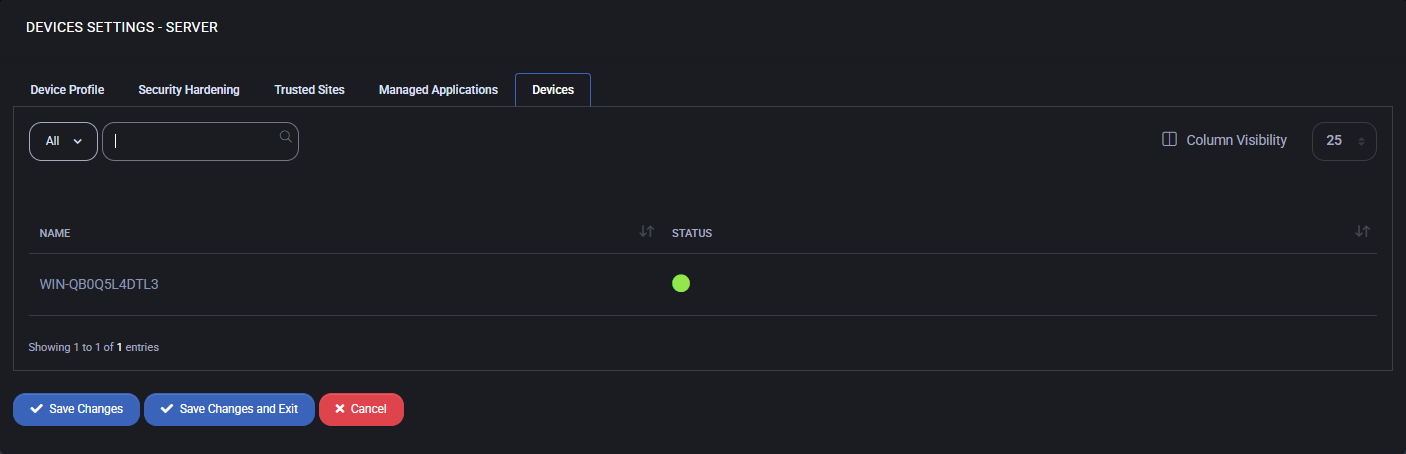
Section titled “Devices”This tab displays the list of endpoints currently associated with the selected Device Settings template. These are physical or virtual machines running the MSPControl Autopilot agent and actively using the configuration profile. The list includes the device name and its connection status. When creating a new template, this tab will be empty. Once the profile is assigned and applied to devices, they will appear here for tracking and management purposes.
Best practices
Section titled “Best practices”- Plan your configuration hierarchy: Use parent-child templates to enforce consistent baseline settings while allowing targeted overrides for specific device types (e.g. Workstations vs Servers).
- Start from a minimal baseline: Begin with essential settings only and expand gradually. Over-configuring from the start can lead to conflicts or unintended behavior.
- Use descriptive template names: Clearly name each Device Settings template to reflect its purpose or assigned department, making management easier as your device fleet grows.
- Leverage Security Hardening: Enable configuration changes that align with cybersecurity standards (e.g. CIS Benchmarks, NIST) to enhance endpoint protection with minimal overhead.
- Standardize Trusted Sites and Zones: Configure authentication policies and allowed intranet URLs centrally to reduce user prompts and avoid misconfigurations.
- Automate Application Deployment: Pre-select critical apps under the Managed Applications tab to ensure devices are provisioned consistently with required tools and security plugins.
- Monitor device status: Regularly check the Devices tab to verify whether your templates are correctly applied and agents are online. Investigate missing or offline devices promptly.
- Document exceptions: If certain machines require deviation from the standard template (e.g. different security rules or trusted sites), document the rationale and create a cloned template to isolate the change.
- Test before production rollout: Assign new or modified templates to a small test group of devices first. Validate results before wide deployment to avoid service disruptions.
- Review and update periodically: As software evolves and new threats emerge, revisit your hardening rules, application list, and policies at least quarterly.
