Configure and Audit Microsoft 365 Security
Overview
Section titled “Overview”For the collection workflow, report filters and interpretation checks, see Microsoft 365 audit log search and reports. Use this page for the organization notification settings; enabling notifications does not enable Microsoft auditing.
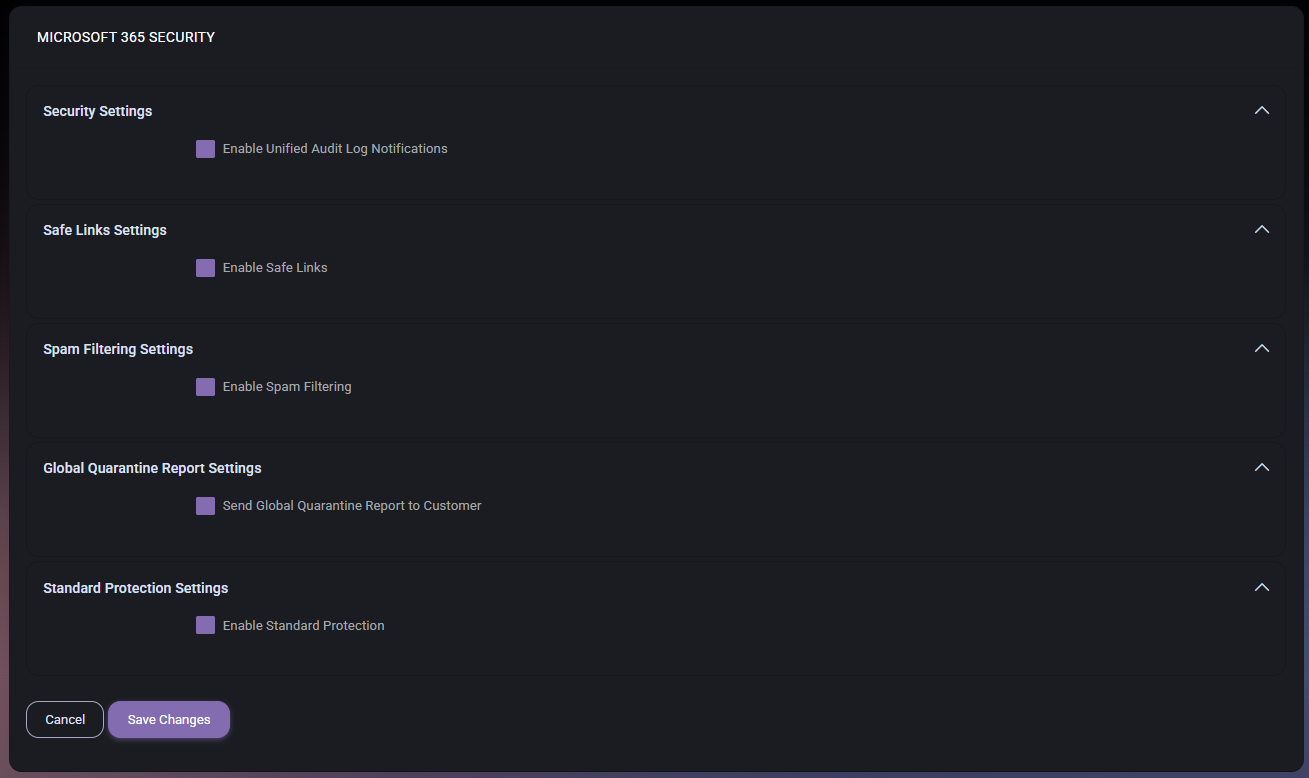
Use Microsoft 365 Security to review and configure organization-level security settings from one MSPControl screen. The current product exposes controls for:
- Unified Audit Log report notifications;
- Safe Links domains and URLs that must not be rewritten;
- anti-malware, anti-phishing, and anti-spam policies;
- global quarantine report delivery;
- Standard Protection users, domains, and exclusions.
Before you begin
Section titled “Before you begin”- Open the customer organization whose Microsoft 365 settings you want to review.
- Confirm that your account can view and change Microsoft 365 Security settings.
- Confirm the organization has the Microsoft licensing required for the protection feature you intend to configure. MSPControl performs product checks for Safe Links and Standard Protection before applying those settings.
- Record the current values before changing production protection policies.
Review the current Microsoft 365 security configuration
Section titled “Review the current Microsoft 365 security configuration”- Open the customer organization in MSPControl.
- Open Microsoft 365 Security.
- Review each section before changing it:
- Security Settings for Unified Audit Log report notifications;
- Safe Links Settings for protected domains and URL rewrite exclusions;
- Spam Filtering Settings for anti-malware, anti-phishing, and anti-spam configuration;
- Global Quarantine Report Settings for report delivery;
- Standard Protection Settings for protected users, protected domains, and exclusions.
- Note whether Override Global Policy is enabled for spam filtering. When it is disabled, MSPControl uses the applicable global policy values instead of an organization-specific override.
Configure Unified Audit Log report notifications
Section titled “Configure Unified Audit Log report notifications”- In Security Settings, select Enable Unified Audit Log Notifications.
- Enter the email address that should receive the report notification.
- Continue reviewing the other sections before saving the page.
The setting controls MSPControl’s Unified Audit Log reporting workflow. It does not enable the Microsoft 365 audit service itself.
Configure Safe Links
Section titled “Configure Safe Links”- In Safe Links Settings, select Enable Safe Links.
- Add the domains that the policy should protect.
- Add any URLs that must remain in the Do Not Rewrite URLs in Email list.
- Review the entries for spelling and scope before saving.
Configure spam filtering
Section titled “Configure spam filtering”- In Spam Filtering Settings, select Enable Spam Filtering.
- Enable Override Global Policy only when this organization needs settings that differ from the global policy.
- Review the anti-malware, anti-phishing, and anti-spam policy values shown on the page.
- Continue to the remaining sections before saving.
Configure quarantine reports
Section titled “Configure quarantine reports”- In Global Quarantine Report Settings, select Send Global Quarantine Report to Customer.
- Enter the email address that should receive the report.
- Verify that the address belongs to the intended customer or administrator.
Configure Standard Protection
Section titled “Configure Standard Protection”- If MSPControl reports that Standard Protection is not initialized, review and enable the preset policy in the Microsoft portal linked by the warning before proceeding.
- In Standard Protection Settings, select Enable Standard Protection and review the targeted users and domains for impersonation protection. These targets are not the policy’s recipient assignment; check the Microsoft recipient scope separately.
- Add excluded senders or domains only when the exception is approved.
- Review every target and exclusion before saving.
Save and verify the result
Section titled “Save and verify the result”- Select Save Changes.
- Wait for MSPControl to finish its configuration checks and attempt the applicable policy changes. Review task errors; a successful field save alone is not proof of protection.
- Reopen Microsoft 365 Security for the same organization.
- Confirm that each enabled setting, email address, target, and exclusion matches the intended configuration.
- If a protection section reports that it is not configured, confirm the organization’s licensing, permissions and values before using its Repair action or retrying the save.
- Verify the effective policy and recipient scope in Microsoft, including policy precedence and approved exceptions.
Related tasks
Section titled “Related tasks”