Mailbox Rules and Microsoft Teams
Global mailbox rules
Section titled “Global mailbox rules”The Global Mailbox Rules section allows administrators to define rules that are applied to all user mailboxes within the system. These rules can automate actions such as moving, forwarding, deleting, or categorizing messages based on specific conditions and exceptions. They help enforce consistent behavior across hosted tenants and support operational or compliance-related workflows.
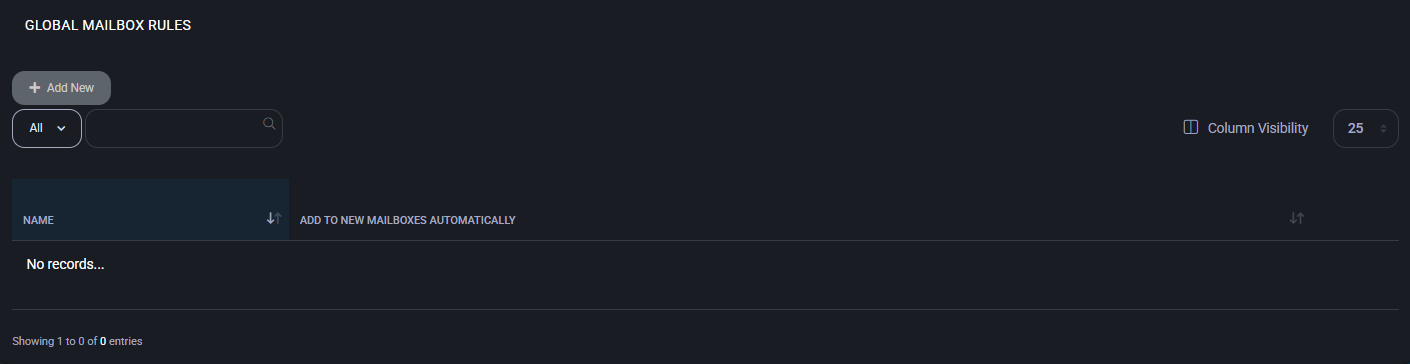
Global mailbox rules table
Section titled “Global mailbox rules table”This table lists all existing global rules configured in the system.
- Name: The rule’s name for identification and management purposes.
- Add to New Mailboxes Automatically: Indicates whether the rule is auto-applied to new mailboxes.
- Action: Provides options to edit or delete the rule.
Create or edit global mailbox rule
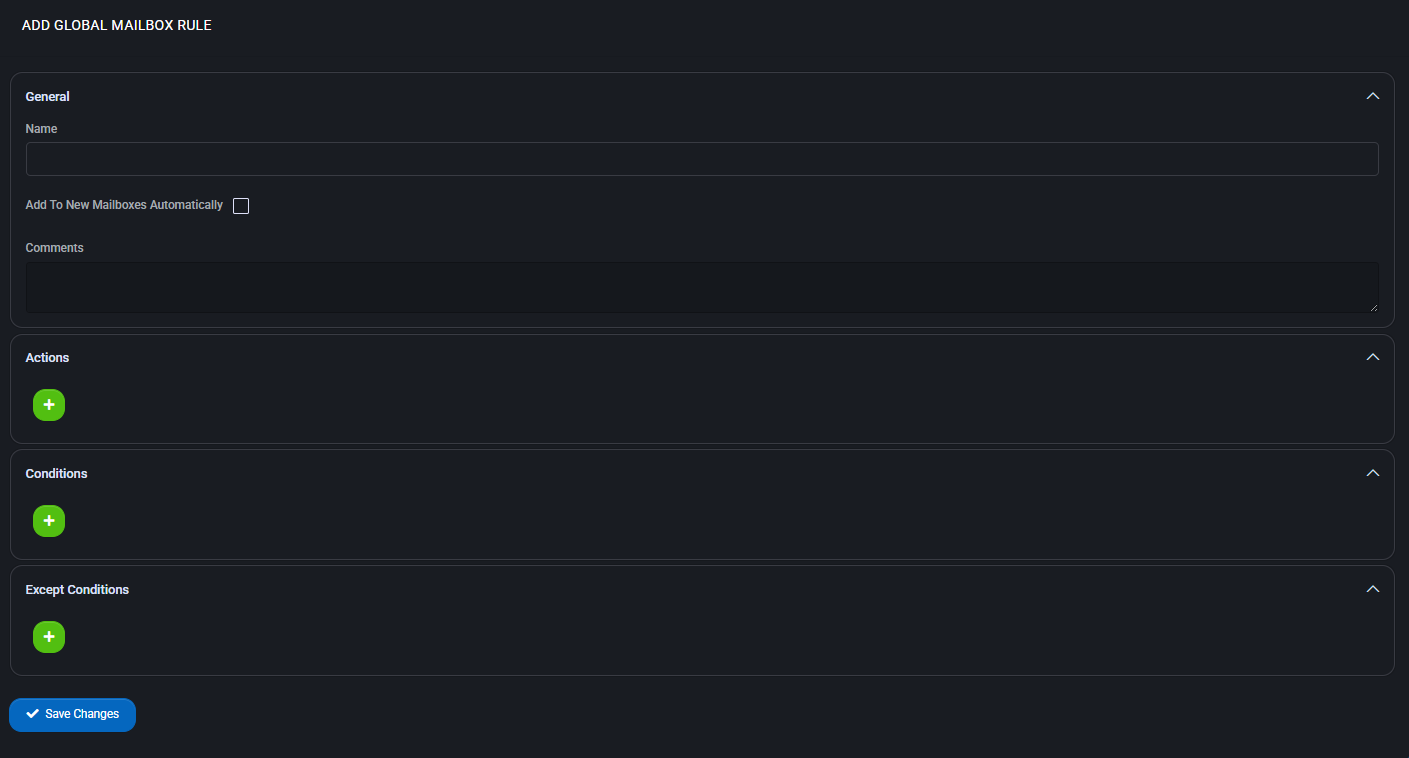
Section titled “Create or edit global mailbox rule”Clicking Add New or editing an existing rule opens a multi-section form:
General
Section titled “General”- Name: The display name for the rule.
- Add to New Mailboxes Automatically: If enabled, this rule will apply to all future mailboxes.
- Comments: Optional field for internal notes or description.
Actions
Section titled “Actions”Add one or more actions that define what to do when the rule conditions are met. Available actions include:
- Apply Category
- Apply System Category
- Copy to Folder
- Delete Message / Delete System Category
- Forward To / Forward as Attachment To
- Mark as Read / Mark Importance
- Move to Folder / Pin Message
- Redirect To
- Stop Processing Rules
Conditions
Section titled “Conditions”Define the triggers for the rule using one or more conditions. Supported conditions include:
- Subject, Body, or Header Contains Words
- From / To / CC / BCC addresses and variations
- Received or Sent dates
- Message type, sensitivity, importance
- Attachment presence, classification, or size
Except conditions
Section titled “Except conditions”These exceptions allow the rule to skip certain messages even if they match the conditions. Available options mirror those in the Conditions section.
Best practices
Section titled “Best practices”- Use clear and descriptive names for rules to simplify future auditing and maintenance.
- Apply rules automatically to new mailboxes for consistent policy enforcement.
- Use multiple conditions to narrow the scope and avoid misclassification or over-processing.
- Combine “Stop Processing Rules” with high-priority rules to prevent unintended execution of lower-priority ones.
- Thoroughly test rules before wide deployment, especially those that delete or forward messages.
Microsoft Teams userplan policy
Section titled “Microsoft Teams userplan policy”The Microsoft Teams Userplan Policy section allows administrators to configure meeting behavior for Microsoft Teams users across hosted tenants. Each user plan determines which features are available during meetings, such as screen sharing, chat, audio/video settings, participant controls, and scheduling permissions. User plans help enforce consistent collaboration rules across an organization, enabling tailored policies per user group while supporting tenant-wide defaults.
User plans table
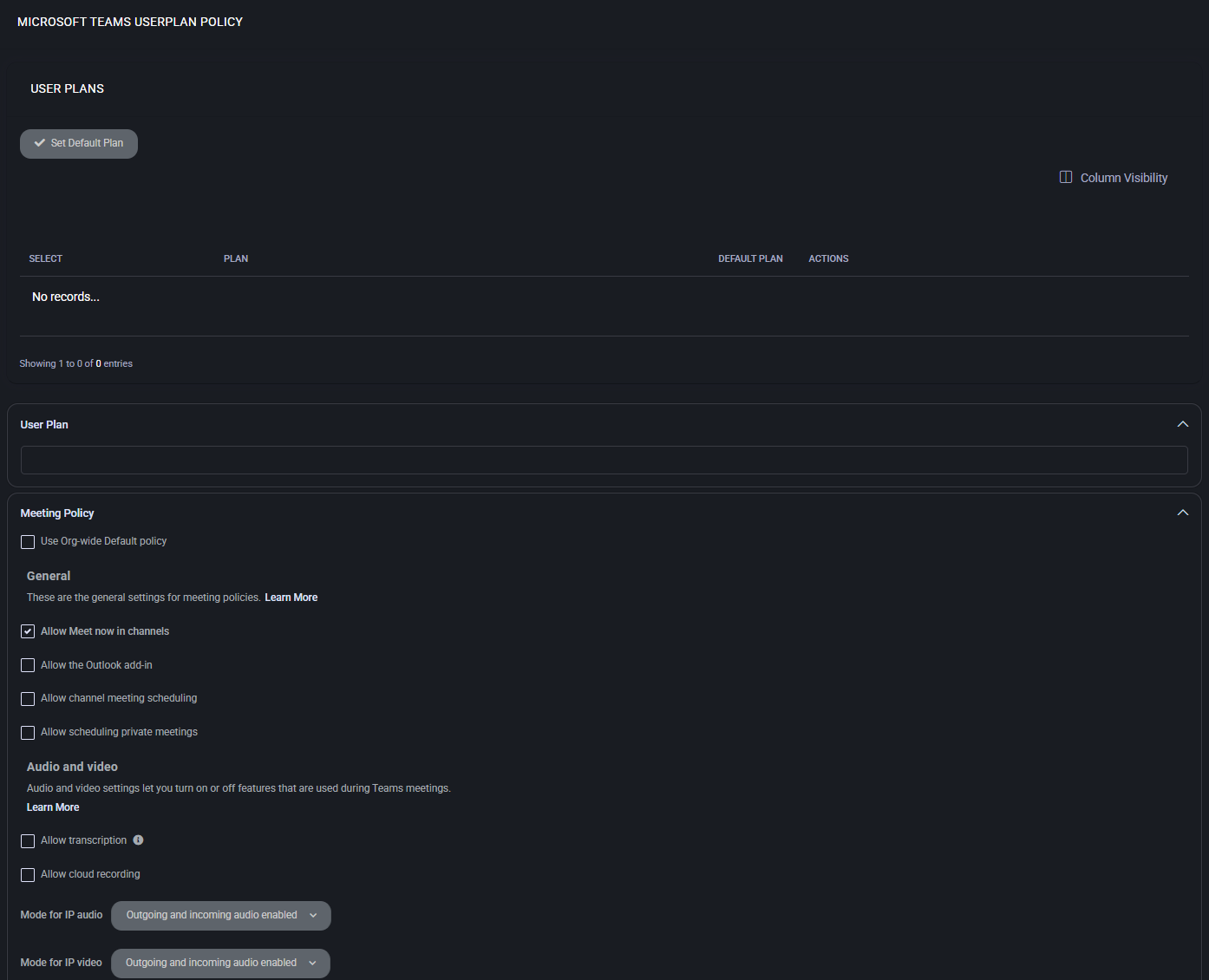
Section titled “User plans table”This table lists all Microsoft Teams user plans configured in the system. Each plan defines specific Teams meeting policies for different users or user groups.
- Set Default Plan: Marks a selected plan as the default policy applied to all users unless overridden manually.
- Plan List: Displays the available plans along with their assigned status and actions.
- Actions: Use the corresponding action buttons to edit or remove plans.
Meeting policy – audio and video
Section titled “Meeting policy – audio and video”These options control the availability of audio and video features in Microsoft Teams meetings.
- Allow IP video: Enables or disables the ability for users to transmit video during meetings.
- Allow NDI streaming: Allows the use of NDI® (Network Device Interface) technology for broadcasting Teams meetings. Useful for advanced streaming setups.
- Media bit rate: Sets the maximum media bitrate in kilobits per second (Kbps) for audio/video streams. Default is
5000.
Meeting policy – content sharing
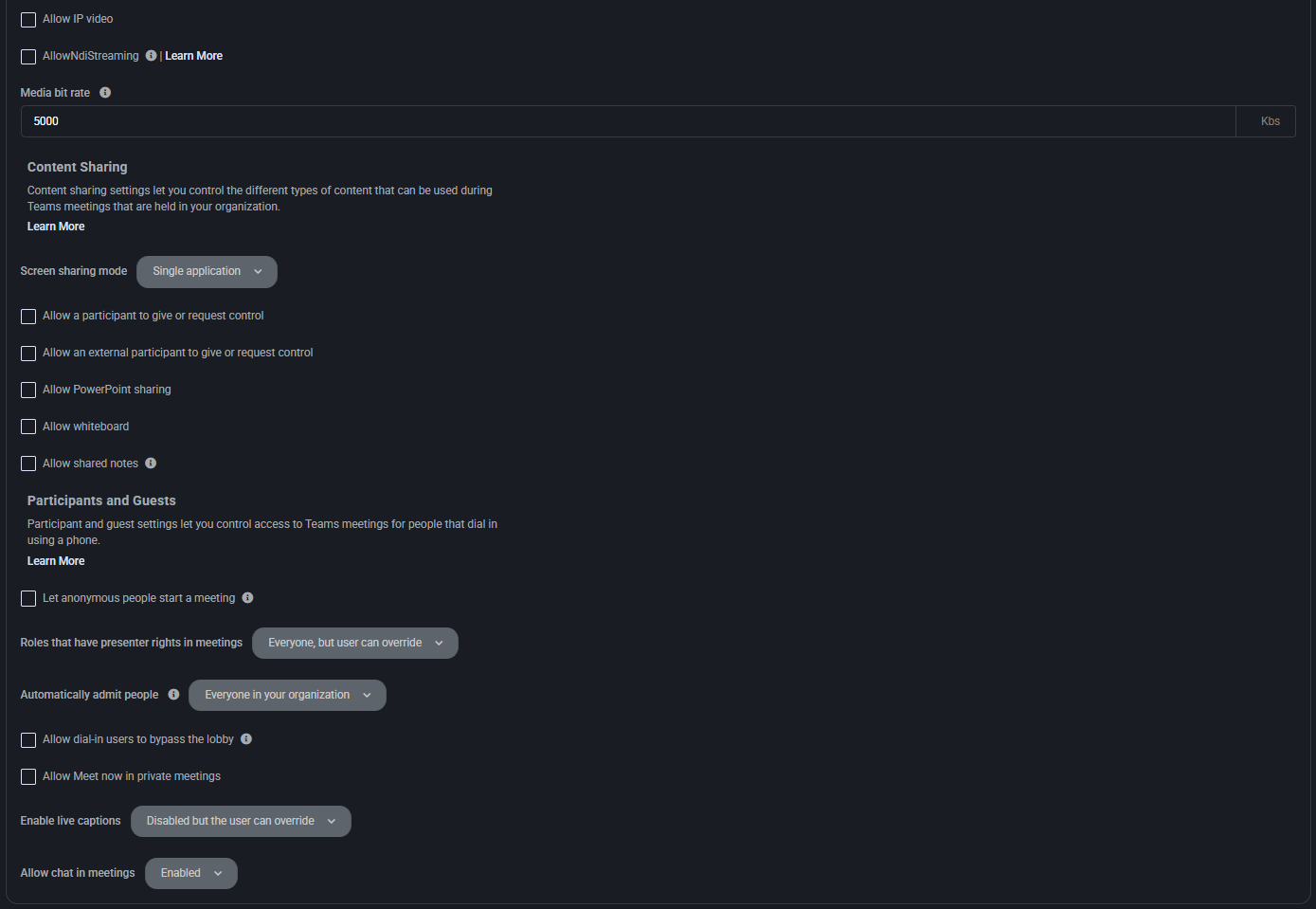
Section titled “Meeting policy – content sharing”Defines what types of content users can share during Teams meetings.
- Screen sharing mode: Sets the screen sharing permission. Options include:
Single application: Share only a selected application window.Entire screen: Allows sharing the whole desktop.
- Allow a participant to give or request control: Enables shared control between participants during screen sharing.
- Allow an external participant to give or request control: Same as above but for users outside the organization.
- Allow PowerPoint sharing: Allows sharing PowerPoint presentations natively.
- Allow whiteboard: Enables access to Microsoft Whiteboard during meetings.
- Allow shared notes: Enables the use of shared OneNote notes during meetings.
Meeting policy – participants and guests
Section titled “Meeting policy – participants and guests”Controls how external users, guests, and anonymous participants can join and interact during meetings.
- Let anonymous people start a meeting: Allows users without accounts to initiate a meeting (if enabled).
- Roles that have presenter rights in meetings: Defines who has presenter privileges:
Everyone, but user can override: Default option allowing all attendees to be presenters, but users can change this in meeting settings.
- Automatically admit people: Defines who bypasses the lobby automatically. Options include:
Everyone in your organization: Only internal users skip the lobby.
- Allow dial-in users to bypass the lobby: Determines whether PSTN (phone-based) users can join directly without waiting in the lobby.
- Allow Meet now in private meetings: Enables users to start ad-hoc (Meet now) meetings in private contexts.
Meeting policy – accessibility and chat
Section titled “Meeting policy – accessibility and chat”- Enable live captions: Enables automatic transcription of speech during meetings.
Disabled but the user can override: Captions are disabled by default, but end users can enable them manually.
- Allow chat in meetings: Controls chat functionality availability during meetings.
Enabled: Chat is available to all participants.
Messaging policy
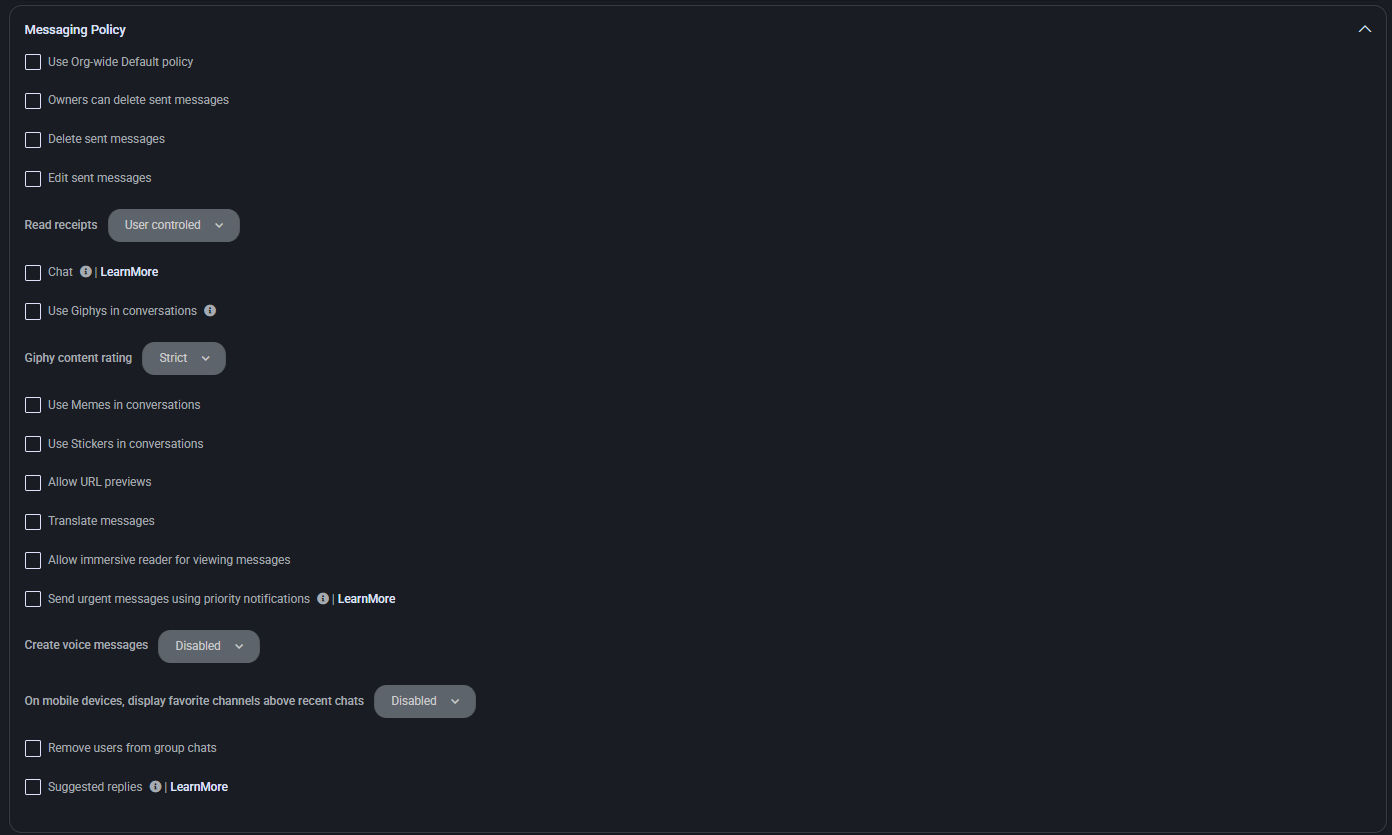
Section titled “Messaging policy”This section controls chat and messaging permissions for Teams users, including editing, deletion, media, and accessibility features.
- Use Org-wide Default policy: Inherits global messaging settings if enabled.
- Owners can delete sent messages: Allows team owners to delete any user message in a channel or chat.
- Delete sent messages: Enables users to delete their own sent messages.
- Edit sent messages: Enables users to modify their previously sent messages.
- Read receipts: Defines whether users can see if messages have been read; can be user-controlled or enforced.
- Chat: Toggles access to one-on-one and group chats in Teams.
- Use Giphys in conversations: Enables the use of GIFs via the Giphy integration in chat.
- Giphy content rating: Restricts Giphy content to Strict, Moderate, or Allow all content levels.
- Use Memes in conversations: Allows users to send memes via the built-in meme tool.
- Use Stickers in conversations: Enables sticker usage in chat messages.
- Allow URL previews: Displays clickable previews for links shared in chat.
- Translate messages: Allows users to translate messages into their preferred language.
- Allow immersive reader for viewing messages: Enables accessibility via Microsoft Immersive Reader.
- Send urgent messages using priority notifications: Lets users mark messages as urgent for repeated delivery alerts.
- Create voice messages: Allows users to send voice messages via Teams mobile or desktop client.
- On mobile devices, display favorite channels above recent chats: Prioritizes pinned channels over recent messages.
- Remove users from group chats: Enables the option to remove participants from ongoing group chats.
- Suggested replies: Displays AI-powered quick reply options below received messages.
Live events policy
Section titled “Live events policy”This section configures permissions and capabilities for hosting live events in Microsoft Teams.
- Use Org-wide Default policy: Inherits global live event policy settings if enabled.
- Allow scheduling: Grants users the ability to schedule live events within Teams.
- Allow transcription for attendees: Enables real-time transcription for participants viewing the live event.
- Who can join scheduled live events: Defines audience access level — options include:
- Everyone in the organization
- Specific users or groups
- Public (if allowed)
- Who can record an event: Determines whether recording is mandatory, optional, or disabled entirely. Options include:
- Always record
- Organizer only
- Never record

Call park policy
Section titled “Call park policy”This section defines settings related to the call park feature, which allows users to place a call on hold and retrieve it from another device.
- Use Org-wide Default policy: Applies the organization-wide default call park policy to this user plan.
- Allow call park: Enables the ability to park calls and retrieve them using a pickup code.

Calling policy
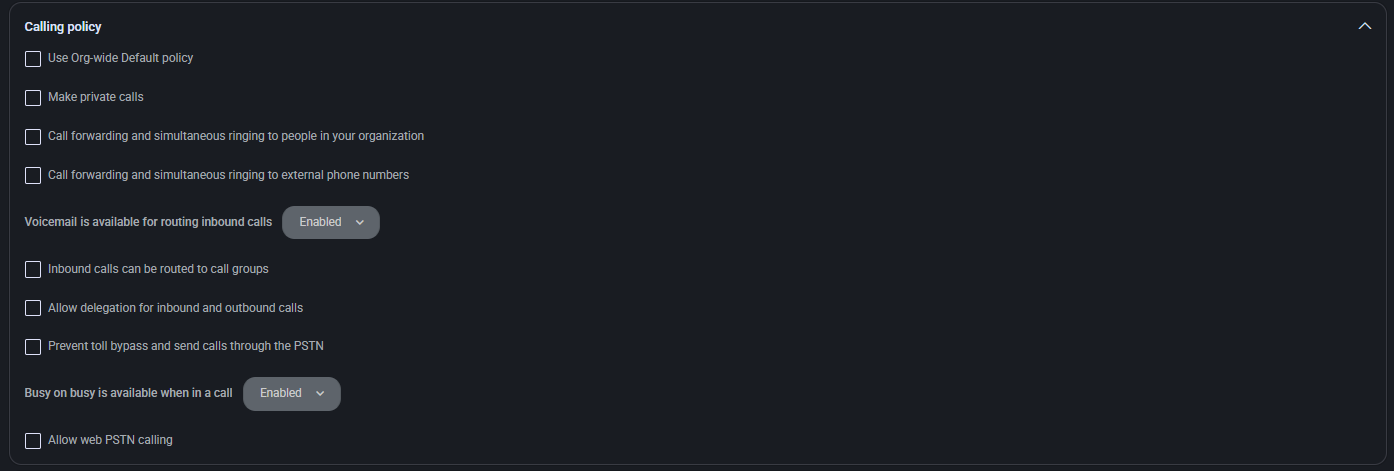
Section titled “Calling policy”Configure calling behavior and access permissions for Teams voice capabilities.
- Use Org-wide Default policy: Inherit calling settings from the organization’s global policy.
- Make private calls: Allow users to make calls that do not appear in call history.
- Call forwarding and simultaneous ringing to people in your organization: Permit users to forward calls or ring additional internal contacts.
- Call forwarding and simultaneous ringing to external phone numbers: Permit call redirection to outside phone numbers.
- Voicemail is available for routing inbound calls: Toggle voicemail availability as a destination option for inbound call routing.
- Inbound calls can be routed to call groups: Allow routing of incoming calls to predefined groups of users.
- Allow delegation for inbound and outbound calls: Enable users to make and receive calls on behalf of others.
- Prevent toll bypass and send calls through the PSTN: Forces all outbound calls to go through PSTN, disallowing internal network bypass.
- Busy on busy is available when in a call: Configure if new incoming calls are rejected while the user is already in another call.
- Allow web PSTN calling: Enable PSTN calls directly from web-based Teams clients.
Caller ID policy
Section titled “Caller ID policy”This section manages the configuration of how caller identity is displayed when placing outbound calls through Teams.
- Use Org-wide Default policy: Applies the organization’s default caller ID settings to this user plan.
- Block incoming caller ID: Hides the caller ID on incoming calls to this user.
- Override the caller ID policy: Allows this plan to define a caller ID behavior different from the global setting.
- Replace the caller ID with: Choose whether to use a service number or another identity for outbound caller ID.
- Replace the caller ID with this service number: Specify the exact service number to show as the outbound caller ID.
Teams policy
Section titled “Teams policy”This section controls access to advanced Teams functionality, particularly private channel management.
- Use Org-wide Default policy: Inherits settings from the global Teams configuration.
- Create private channels: Allows users to create private channels within Teams, enabling segmented communication and restricted visibility.

Emergency calling policy
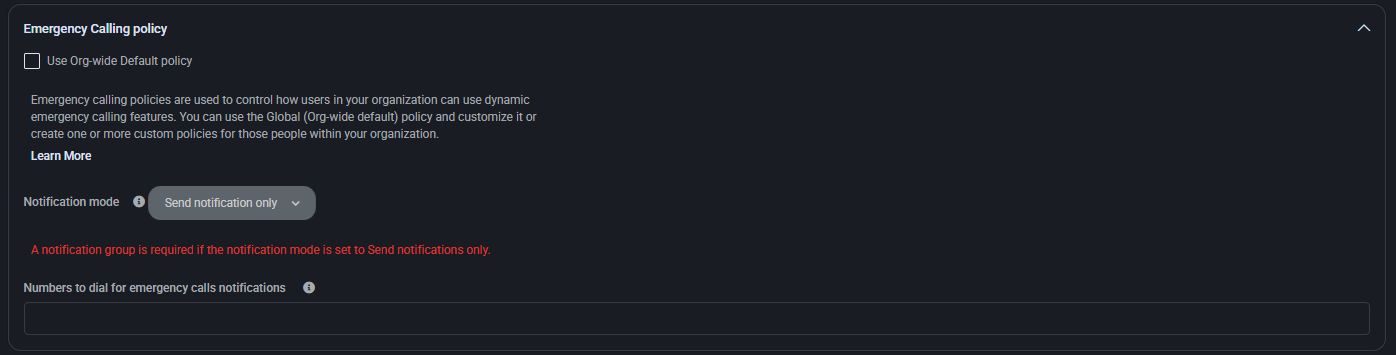
Section titled “Emergency calling policy”This section controls how users can access emergency calling features in Microsoft Teams. These policies allow administrators to configure notifications when emergency numbers are dialed and customize the scope of who receives these alerts.
- Use Org-wide Default policy: Inherits emergency call settings from the global default policy.
- Notification mode: Determines how the system handles emergency call alerts. Options include:
- Send notification only: Triggers alerts without routing the call directly.
- Numbers to dial for emergency calls notifications: Specifies which numbers will be alerted when an emergency number is dialed.
Note: If notification mode is set to Send notification only, a notification group must be configured to receive alerts.
Update policy
Section titled “Update policy”This section allows administrators to configure Teams update delivery and visibility of new features for users assigned to the plan.
- Use Org-wide Default policy: Applies the general Teams update settings across the organization.
- Show preview features: Enables early access to Microsoft Teams features before they are officially released, useful for testing and internal evaluation.

Dial plan
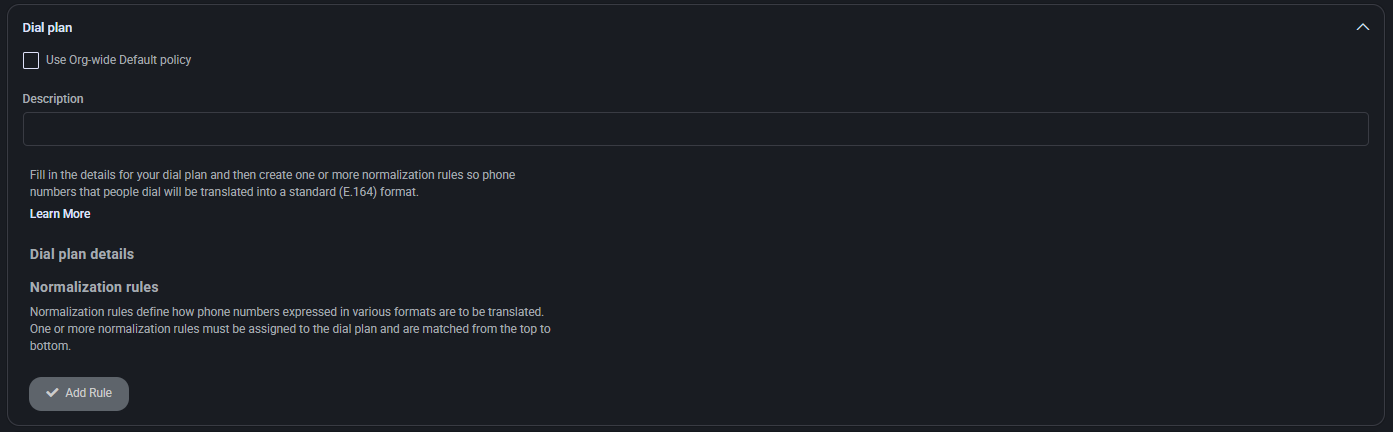
Section titled “Dial plan”This section allows configuration of dial plans to normalize phone number formats into a standard (E.164) format used across the organization.
- Use Org-wide Default policy: Inherit settings from the organization’s global dial plan.
- Description: Free-text field for internal notes or plan identification.
Dial plan details
Section titled “Dial plan details”Specify how dialed numbers should be translated using normalization rules.
Normalization rules
Section titled “Normalization rules”Defines rules for transforming input phone numbers into standard formats. These rules are applied in sequence from top to bottom. Each rule must be explicitly assigned to the dial plan.
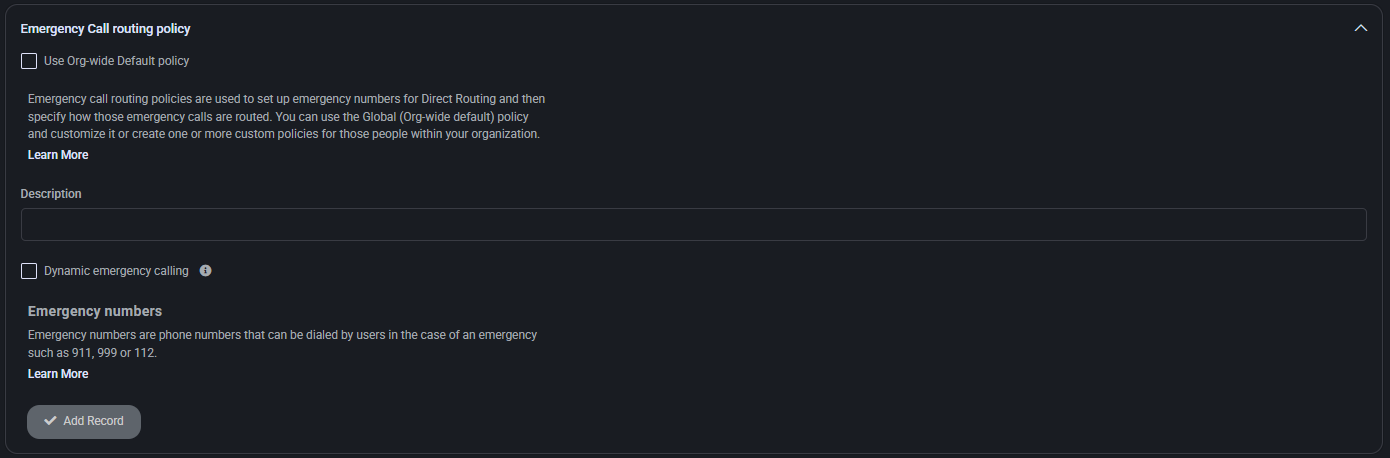
Emergency call routing policy
Section titled “Emergency call routing policy”This section allows you to define how emergency calls are routed within the organization when using Direct Routing.
- Use Org-wide Default policy: Inherit emergency routing rules from global configuration.
- Description: Internal notes field for documentation or tracking purposes.
- Dynamic emergency calling: Enables dynamic location-based routing for emergency services.
Emergency numbers
Section titled “Emergency numbers”Defines emergency contact numbers like 911, 999, or 112. These can be routed differently for each region or policy.
Voice routing policy
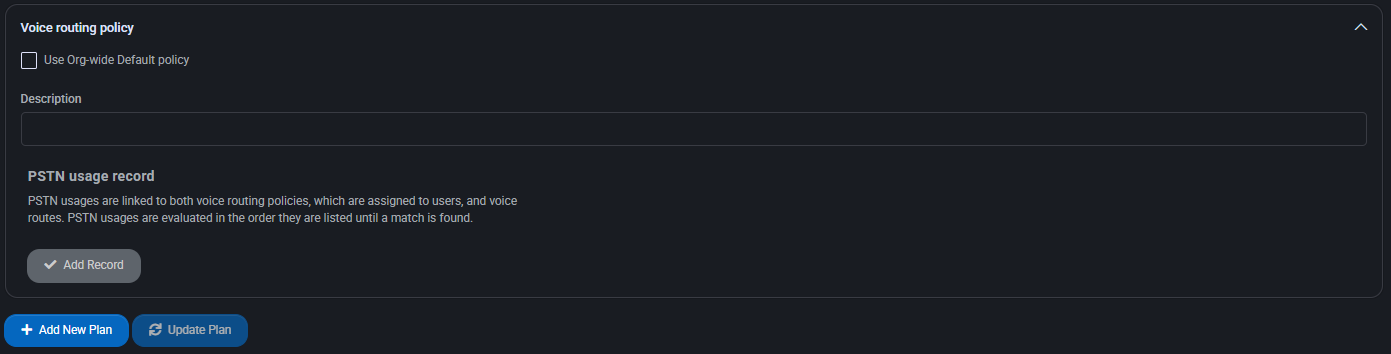
Section titled “Voice routing policy”This policy determines how outbound calls are routed through the PSTN based on rules and usage priorities.
- Use Org-wide Default policy: Inherit settings from the organization’s default voice routing policy.
- Description: Free-form field for providing context or purpose of the plan.
PSTN usage record
Section titled “PSTN usage record”Lists usage patterns and rules for routing calls. Usage records are evaluated in order until a match is found and used to determine routing behavior.
Best practices
Section titled “Best practices”- Use Org-wide Default policy settings only if consistent global rules apply — customize locally when needed for specific user groups.
- For dial plans, clearly document all normalization rules and test translations for common input formats to avoid call failures.
- Ensure emergency call routing policies comply with local regulations and include all relevant emergency numbers for each region.
- Regularly audit PSTN usage records to ensure efficient routing and avoid unnecessary toll charges or call routing loops.
- For voice routing policies, use descriptive labels and keep usage priorities clearly ordered to support easy troubleshooting and configuration scaling.
