Service Levels
Service levels
Section titled “Service levels”The Service Levels section defines predefined tiers or categories of service applied to customers or users within the MSPControl system. These levels can reflect the scope of IT support provided, feature access, or billing structure. The section also includes optional integration with ConnectWise via contact type mapping.
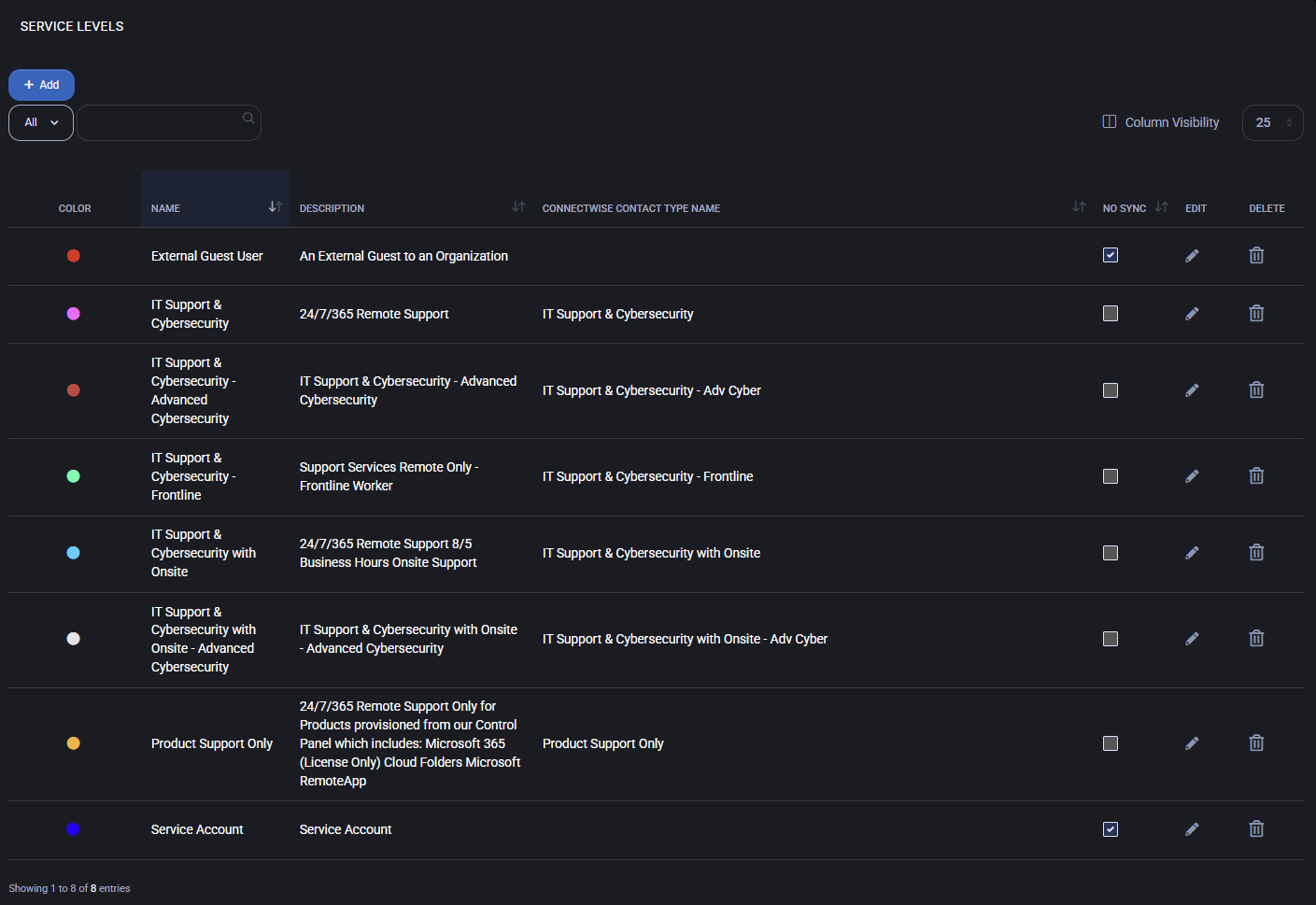
Service level list
Section titled “Service level list”This table displays all existing service levels in the system:
- Name: Internal name of the service level (e.g., “External Guest User”, “IT Support & Cybersecurity”).
- Description: Free-text field describing what the level offers (e.g., “24/7/365 Remote Support”).
- Color: Each level can be visually tagged with a color for quick identification.
- ConnectWise Contact Type Name: Optional field for syncing this level with ConnectWise contact types.
- No Sync: When enabled, disables synchronization with external systems like ConnectWise for that level.
- Edit/Delete: Icons to modify or remove the corresponding service level.
You can sort the list by clicking on column headers (Name, Description, etc.) and control visible columns using the “Column Visibility” menu in the top right corner.
Add or edit service level
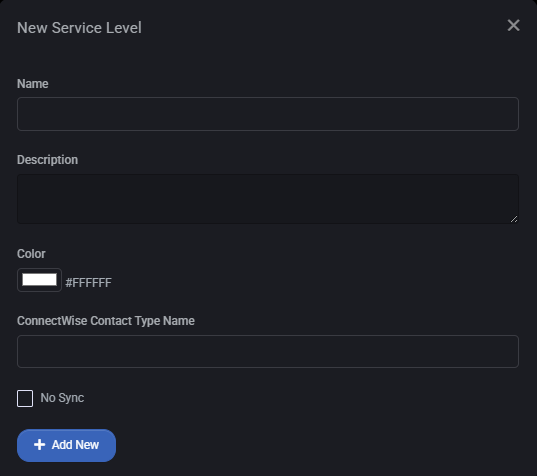
Section titled “Add or edit service level”Click + Add to create a new service level. The configuration panel includes the following fields:
- Name – The display name for the service level.
- Description – Description of what the level offers or represents.
- Color – Select a color code to visually represent this level in the UI.
- ConnectWise Contact Type Name – Optional mapping to a ConnectWise contact type.
- No Sync – Checkbox to prevent synchronization with external systems.
Click Add New to save the service level.
Best practices
Section titled “Best practices”- Use color coding consistently to visually group similar service types.
- Clearly describe each level’s support scope (e.g., remote vs onsite, basic vs advanced cybersecurity).
- If using ConnectWise integration, ensure the contact type name matches the external system exactly.
- Use “No Sync” for levels that are internal only or not relevant for external ticketing/workflows.
