Communications and Customer Signup
Mailchimp policy
Section titled “Mailchimp policy”The Mailchimp Policy page configures the connection between MSPControl and Mailchimp, enabling integration with mailing lists for customer communication, marketing, or system-generated notifications.
Mailchimp settings
Section titled “Mailchimp settings”- API Key: Secure access token that authorizes MSPControl to communicate with the Mailchimp platform. This key is stored securely and not visible.
Members list configuration
Section titled “Members list configuration”Up to three different audience lists can be configured to allow customer segmentation or different messaging flows. Each entry contains:
- Use List: Enables or disables synchronization with the specified list.
- List ID: Unique identifier for the Mailchimp list to sync with (retrieved from Mailchimp UI).
- List Name: Descriptive label for identifying the list within MSPControl.
Usage notes
Section titled “Usage notes”- Only enabled lists are synced with MSPControl users or tenants.
- Administrators can target specific Mailchimp lists for onboarding emails, promotions, or client updates.
Best practices
Section titled “Best practices”- Use a separate Mailchimp list for each client segment or communication flow.
- Keep your API key secure and avoid sharing it across environments.
- Ensure the List ID and List Name match exactly with your Mailchimp dashboard.
- Periodically review which lists are active to avoid syncing outdated data.
Check in policy
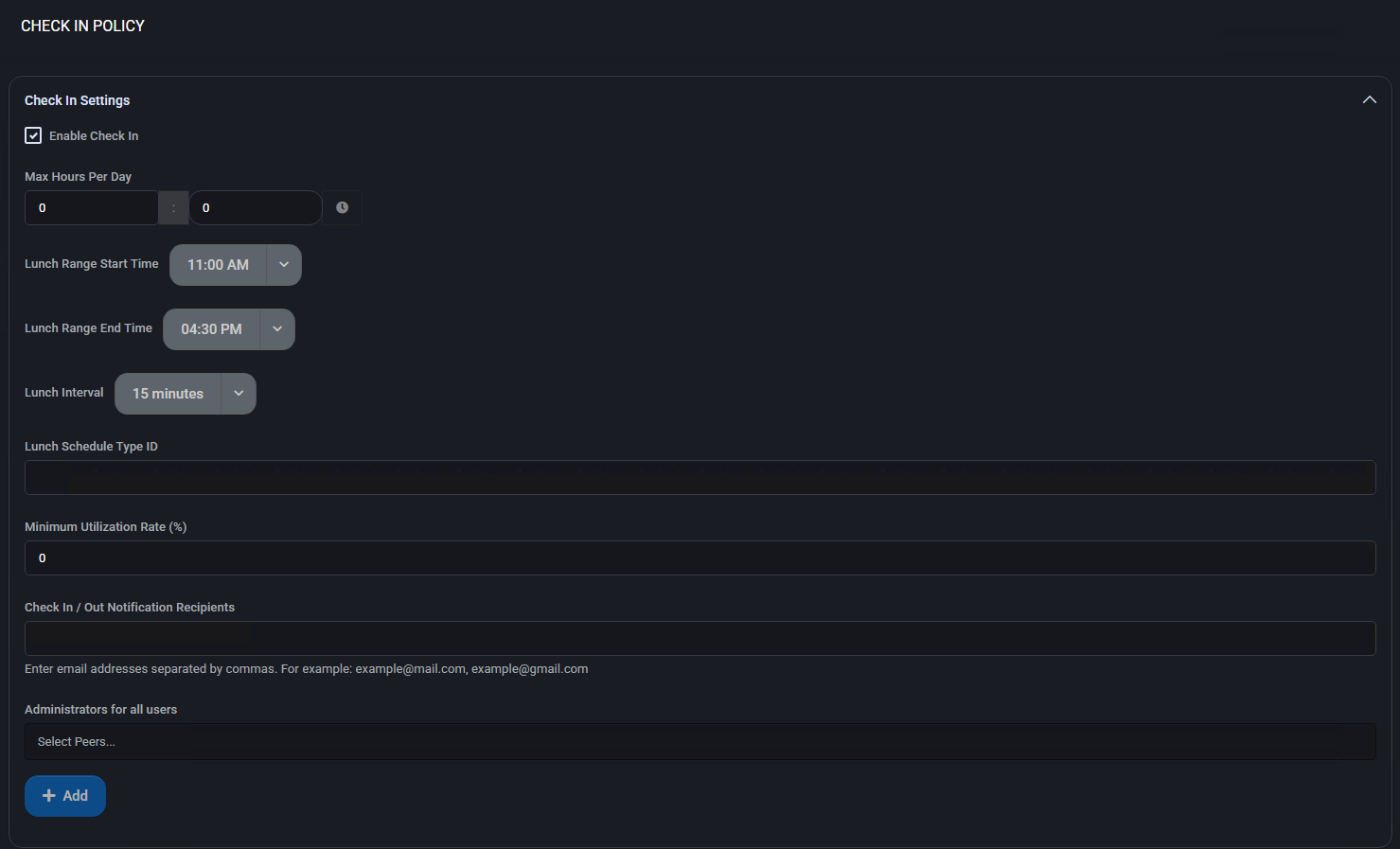
Section titled “Check in policy”The Check In Policy page defines work hour tracking policies, lunch scheduling, utilization benchmarks, and notification roles for check-in events across the MSPControl platform.

Check in settings
Section titled “Check in settings”- Enable Check In: Activates the entire check-in tracking system for the current organization.
- Max Hours Per Day: Defines the daily cap on recorded working hours.
Lunch scheduling
Section titled “Lunch scheduling”- Lunch Range Start Time / End Time: Timeframe within which lunch breaks can be taken.
- Lunch Interval: Duration allocated for a lunch break (e.g., 15 minutes).
- Lunch Schedule Type ID: Identifier used to associate this check-in policy with a predefined lunch schedule.
Utilization and notifications
Section titled “Utilization and notifications”- Minimum Utilization Rate (%): Target minimum percentage of scheduled hours that should be worked.
- Check In / Out Notification Recipients: Email addresses (comma-separated) to receive notifications on check-in activity.
Administrative scope
Section titled “Administrative scope”- Administrators for all users: Peer accounts selected to manage and view all check-in records across users.
- Check-in Authorizers: Designated approvers responsible for validating or overseeing check-in compliance.
Best practices
Section titled “Best practices”- Define realistic daily caps for total recorded hours to prevent misuse or overreporting.
- Ensure lunch windows do not overlap with scheduled work constraints or automated rules.
- Assign responsible administrators and authorizers for policy enforcement.
- Use notification recipients to keep stakeholders informed about attendance and time tracking compliance.
Customer automatic signup policy
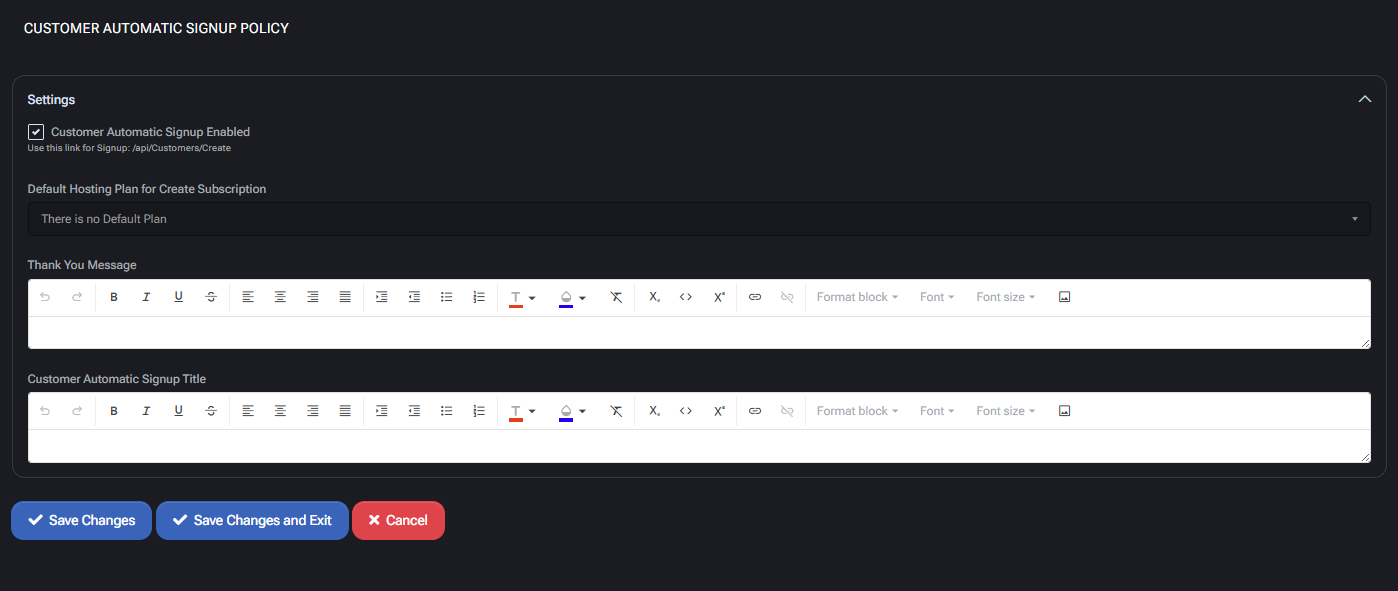
Section titled “Customer automatic signup policy”The Customer Automatic Signup Policy enables streamlined registration for new clients through the MSPControl API. When activated, the system automatically creates a customer record and optionally associates a default hosting plan. This reduces manual onboarding and allows custom messaging during the signup process.
Settings
Section titled “Settings”- Customer Automatic Signup Enabled: Toggles the availability of the signup endpoint (
/api/Customers/Create).
Default hosting plan
Section titled “Default hosting plan”- Default Hosting Plan for Create Subscription: Specifies which hosting plan to assign to new customers upon signup. If no plan is selected, none will be provisioned automatically.
Signup form messaging
Section titled “Signup form messaging”- Thank You Message: HTML-enabled field for the confirmation message shown after successful signup.
- Customer Automatic Signup Title: HTML field to define the title/header displayed on the signup page.
Best practices
Section titled “Best practices”- Keep HTML content in confirmation and title fields minimal and mobile-friendly.
- Test your API integration thoroughly before directing customers to it.
- Link an appropriate default hosting plan only if you want to provision services automatically.
- Monitor API usage to detect abuse or misconfigurations in public signup forms.
Chat beacon policy
Section titled “Chat beacon policy”The Chat Beacon Policy integrates real-time messaging via ChatBeacon into the MSPControl interface. It allows administrators to configure visibility, survey settings, and identity variables used in the chat widget.
Chat beacon settings
Section titled “Chat beacon settings”- Enable Chat Beacon: Activates the ChatBeacon integration across MSPControl.
- Integration Script Tag: JavaScript snippet required to load the chat client. Provided by ChatBeacon admin interface.
- Skip Pre-chat Survey: Skips initial survey questions before a session begins.
- Skip Post Chat Survey: Skips final feedback survey after a session ends.
Chat beacon site variables
Section titled “Chat beacon site variables”These variables are used to pass user details to ChatBeacon for agent context. Add them in the ChatBeacon Admin Console:
- Username:
accountUsername - Email:
accountEmail - Full Name:
accountFullName - Phone:
accountPhone
To use: Go to ChatBeacon Admin Console → Click Domain Name → Site Variables → Add your key (e.g., account).
Best practices
Section titled “Best practices”- Ensure the script tag is copied exactly from your ChatBeacon instance.
- Only skip surveys if you’re gathering feedback via another method.
- Keep variable names consistent with the MSPControl account schema.
- Test chat widget behavior on both client and admin portals after setup.
Chat beacon policy – WebDav portal
Section titled “Chat beacon policy – WebDav portal”The Chat Beacon Policy – WebDav Portal enables embedded ChatBeacon support on the WebDav interface in MSPControl. It allows communication via a JavaScript widget and includes survey and variable mapping options for authenticated user sessions.
Chat beacon settings
Section titled “Chat beacon settings”- Enable Chat Beacon: Enables ChatBeacon widget on the WebDav interface.
- Integration Script Tag: JavaScript code that embeds the chat functionality on the portal. Provided by ChatBeacon Admin.
- Skip Pre-Chat Survey for Authenticated Guests: Suppresses the pre-chat form if the user is already authenticated.
- Skip Post Chat Survey: Disables the post-chat feedback prompt.
Chat beacon site variables
Section titled “Chat beacon site variables”These variables personalize and authenticate the chat experience based on MSPControl account information. Must be registered in the ChatBeacon Admin Console under the matching site domain.
- Login Name:
accountUsername - Display Name:
accountFullName - Account Name:
accountEmail
Best practices
Section titled “Best practices”- Use dedicated script tags per portal (WebDav, main UI, Core Portal) to isolate behavior.
- Disable surveys selectively to streamline user flow while maintaining data collection when needed.
- Confirm ChatBeacon variables are mapped correctly in both MSPControl and the ChatBeacon Admin Console.
- Test across authenticated and guest sessions to ensure behavior matches expectations.
