Certificates and Notes
Certificates
Section titled “Certificates”The Certificates tab allows you to securely store and manage digital certificates that are associated with a specific asset. This is typically used for SSL/TLS certificates, device certificates, or any other certificate material required for authentication, encryption, or secure communications related to the asset.
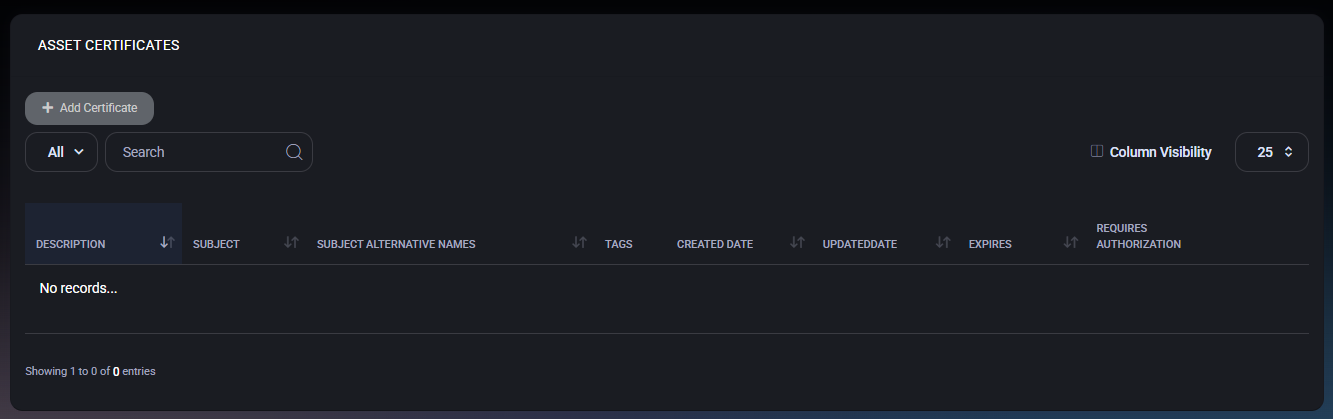
Certificates list
Section titled “Certificates list”The main view displays all certificates linked to the asset in a structured table. If no certificates are present, the list will appear empty.
- Description – A human-readable description of the certificate (for example, its purpose or where it is used).
- Subject – The certificate subject, usually representing the entity the certificate was issued to.
- Subject Alternative Names – Additional DNS names or identities included in the certificate.
- Tags – User, location, device, or asset tags associated with the certificate.
- Created Date – The date the certificate was added to MSPControl.
- Updated Date – The last time the certificate record was modified.
- Expires – The certificate expiration date, useful for proactive renewal planning.
- Requires Authorization – Indicates whether special authorization is required to access this certificate.
Add certificate
Section titled “Add certificate”To attach a new certificate to the asset, click Add Certificate. This opens the certificate creation dialog.
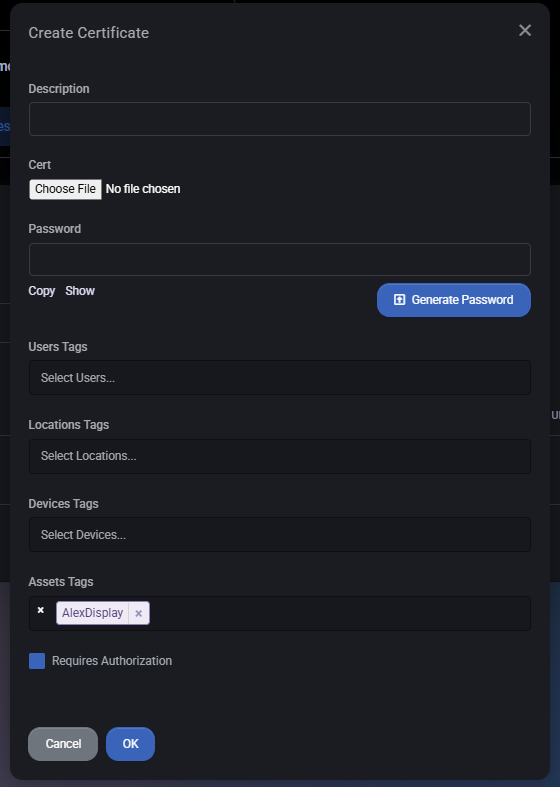
- Description – A short description explaining what the certificate is used for (for example: “SSL certificate for monitor management interface”).
- Cert – Upload the certificate file. This is typically a
.pfx,.p12, or other supported certificate format containing the certificate and private key. - Password – If the certificate file is protected, provide the password here. The password can be entered manually or generated using the Generate Password button.
- User Tags – Associate the certificate with specific users. This helps control visibility and access.
- Location Tags – Link the certificate to one or more locations for organizational and filtering purposes.
- Device Tags – Bind the certificate to specific devices that use or depend on it.
- Asset Tags – Associate the certificate with one or more assets. By default, the current asset is selected.
- Requires Authorization – When enabled, access to this certificate requires additional authorization, adding an extra layer of security for sensitive certificates.
Security considerations
Section titled “Security considerations”- Always protect certificate files with strong passwords, especially if they contain private keys.
- Use Requires Authorization for certificates that grant elevated access or secure critical services.
- Regularly review the Expires column to avoid service disruptions caused by expired certificates.
- Use tags consistently to control access and simplify audits.
The Notes tab allows administrators and authorized users to store free-form textual information related to a specific asset. Notes are commonly used to document maintenance history, ownership details, configuration remarks, handover instructions, or any other contextual information that does not fit into structured asset fields.
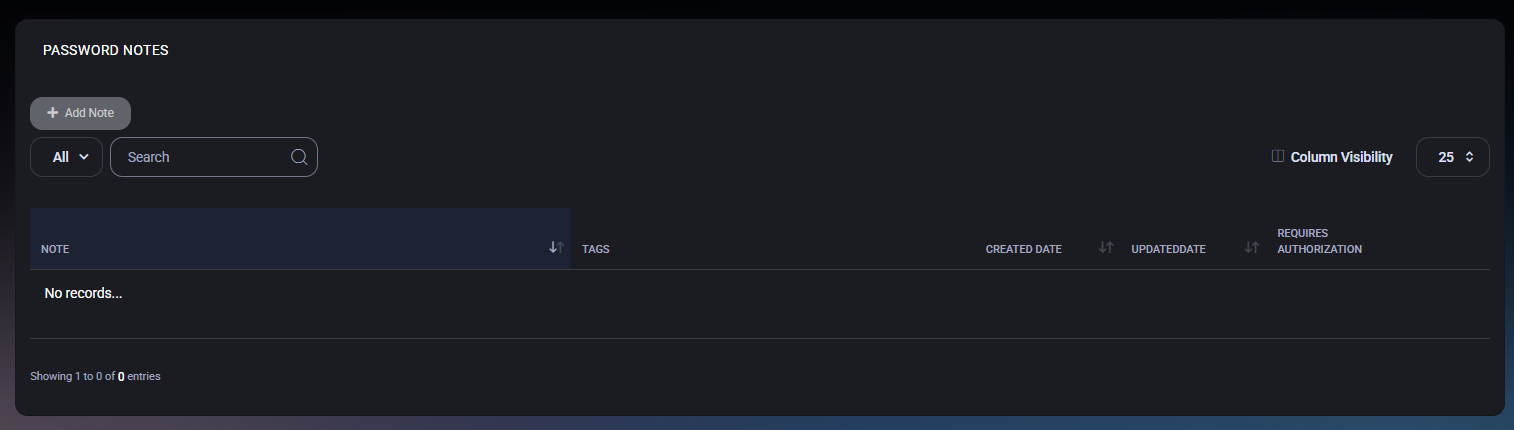
Notes list
Section titled “Notes list”The main view displays a list of all notes associated with the asset. If no notes exist, the table will show an empty state.
- Note – A preview of the note content.
- Tags – User, location, device, or asset tags assigned to the note.
- Created Date – Date when the note was created.
- Updated Date – Date of the last modification.
- Requires Authorization – Indicates whether additional authorization is required to view or modify the note.
Create note
Section titled “Create note”Click Add Note to create a new note for the asset. This opens the Create Note dialog.
Note editor
Section titled “Note editor”The note content is entered using a rich text editor that supports formatting and structured content. Available editor features include:
- Bold, italic, underline, and strikethrough
- Text alignment and lists
- Font size and formatting blocks
- Links and basic text styling
Tagging
Section titled “Tagging”Notes can be associated with multiple contextual tags to improve visibility and access control:
- User Tags – Link the note to specific users.
- Location Tags – Associate the note with physical or logical locations.
- Device Tags – Reference related devices.
- Asset Tags – Link the note to one or more assets (including the current asset).
Authorization
Section titled “Authorization”The Requires Authorization option enforces additional access control for the note. When enabled, only users with sufficient privileges can view or modify the note content.
Actions
Section titled “Actions”- OK – Saves the note and associates it with the asset.
- Cancel – Closes the dialog without saving changes.
Best practices
Section titled “Best practices”- Use notes to capture information that may be useful for audits, troubleshooting, or asset lifecycle tracking.
- Apply tags consistently to improve filtering and contextual access.
- Enable Requires Authorization for sensitive operational or security-related notes.
- Keep notes concise and structured to maintain long-term readability.
