Relationships and Logs
Predecessors
Section titled “Predecessors”The Predecessors tab provides a simple history view of assets that were linked as predecessors to the current asset. This is typically used to maintain an audit trail for replacements, upgrades, or lifecycle changes (for example, when one physical device replaced another).
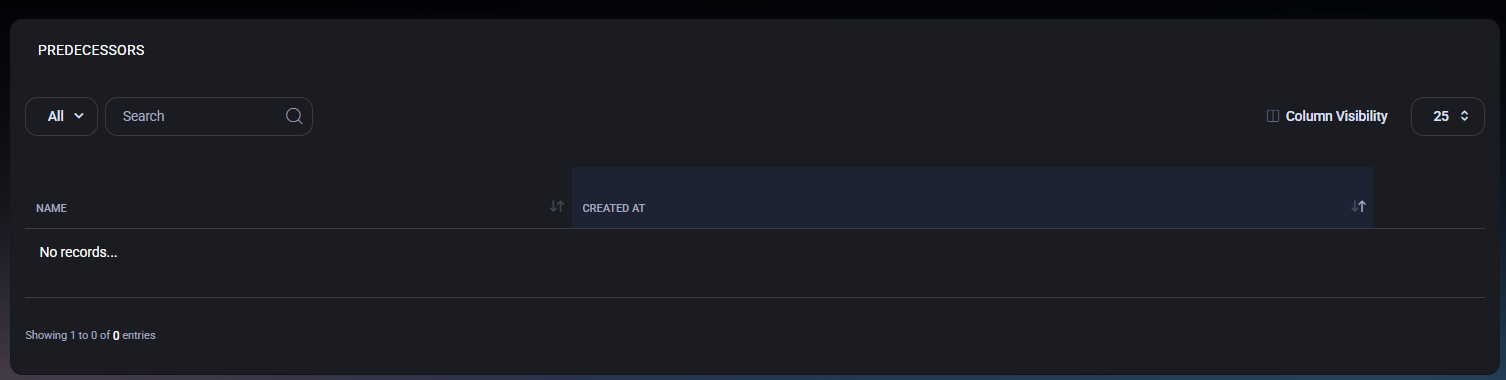
Predecessors list
Section titled “Predecessors list”This tab displays a table of predecessor records associated with the asset. If no predecessor relationships exist, the page will show an empty state. The list includes the following columns:
- Name – The name of the predecessor asset.
- Created At – The date and time when the predecessor relationship was recorded.
Search and filtering
Section titled “Search and filtering”- Filter – The dropdown (for example: All) allows switching between available views if configured in the environment.
- Search – Quickly find a predecessor by typing part of its name.
Column visibility
Section titled “Column visibility”Use Column Visibility to show or hide columns in the list depending on operational needs.
The Logs tab provides a read-only view of recorded asset events, such as supported creation, update, scan and tag operations. It is useful for reviewing an asset’s history, but it does not establish coverage of every action or external system.
Logs list
Section titled “Logs list”This section displays a chronological list of log entries related to the asset. Each entry represents a single action or event. The table includes the following columns:
- User Name – The user account that performed the action. Displayed in the format username / full name.
- Comment – A detailed description of the action that occurred. This may include:
- Asset creation events with initial property values
- Updates to asset fields (for example: disposition notes or tags)
- Asset tag scans
- Manual or automated system actions
- Modified Date – The exact date and time when the action was recorded.
Filtering and search
Section titled “Filtering and search”- Filter – The dropdown (for example: All) allows switching between available log views if configured.
- Search – Enables quick searching through log comments and user names.
Column visibility
Section titled “Column visibility”Use Column Visibility to show or hide columns in the logs table, depending on auditing or reporting needs.
Audit and compliance notes
Section titled “Audit and compliance notes”The Logs tab is informational and does not provide an editing control. A read-only view is not a guarantee of immutable storage or retention. Review the recorded events alongside other required evidence for troubleshooting, history and compliance work.
IT documentation and asset workflow
Section titled “IT documentation and asset workflow”Use IT documentation and assets to connect maintained asset records, operational notes and access context into a technician handoff. Review the relevant storage prerequisites and permissions, and verify record freshness before acting.
