Location, Risk, and Recommendations
Location
Section titled “Location”This tab provides a geolocation view of the device using Microsoft Azure and TomTom map services.
- Time Filter: Selectable range for location data (e.g., 24 Hours).
- Map View: Interactive map showing last known coordinates of the device.
- Controls: Includes zoom, layer toggles, and view adjustment tools.
Remote access history
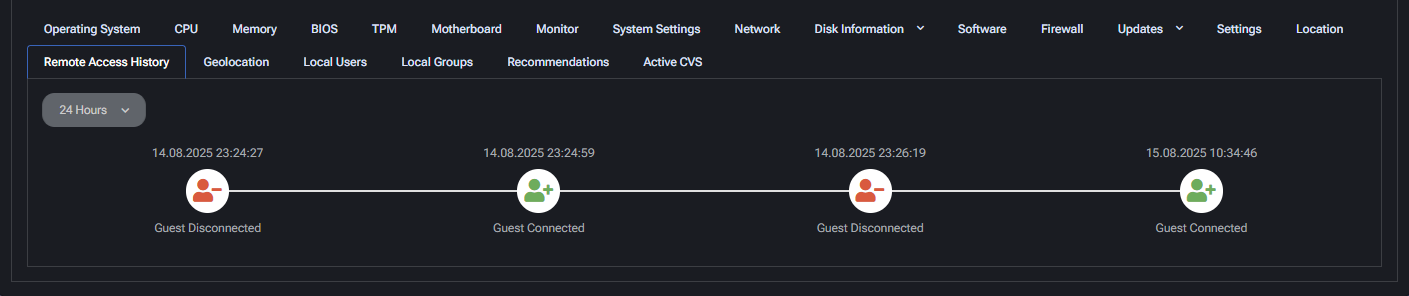
Section titled “Remote access history”Displays a chronological timeline of remote sessions for the device.
- Timestamp: Exact time of connection/disconnection events.
- Status: Whether a guest was connected or disconnected.
- Role: Indicates the connecting user type (e.g., Guest).
This tab helps in auditing and tracing external access attempts.
Geolocation
Section titled “Geolocation”This tab provides geolocation data based on the device’s public IP address. The information helps identify the network origin and location of the endpoint.
- Country / Region / City: Displays the geolocated position based on IP. Useful for verifying remote device origin.
- Latitude / Longitude: Geographic coordinates of the detected IP address.
- Postal Code: Often unavailable due to IP-level granularity.
- Time Zone Offset: Useful for understanding local time context of the device.
Internet Service Provider
- Name: ISP assigned to the IP (e.g., Telefónica de España).
Autonomous System
- ASN: Autonomous System Number used for IP routing.
- Name / Route / Domain: Detailed technical routing info about the IP block.
- Type: Network type (e.g., Cable/DSL/ISP).
Connection Type: General description of how the device is connected (e.g., broadband). Domains associated with the IP: Shows resolved domains, if any.
Local users
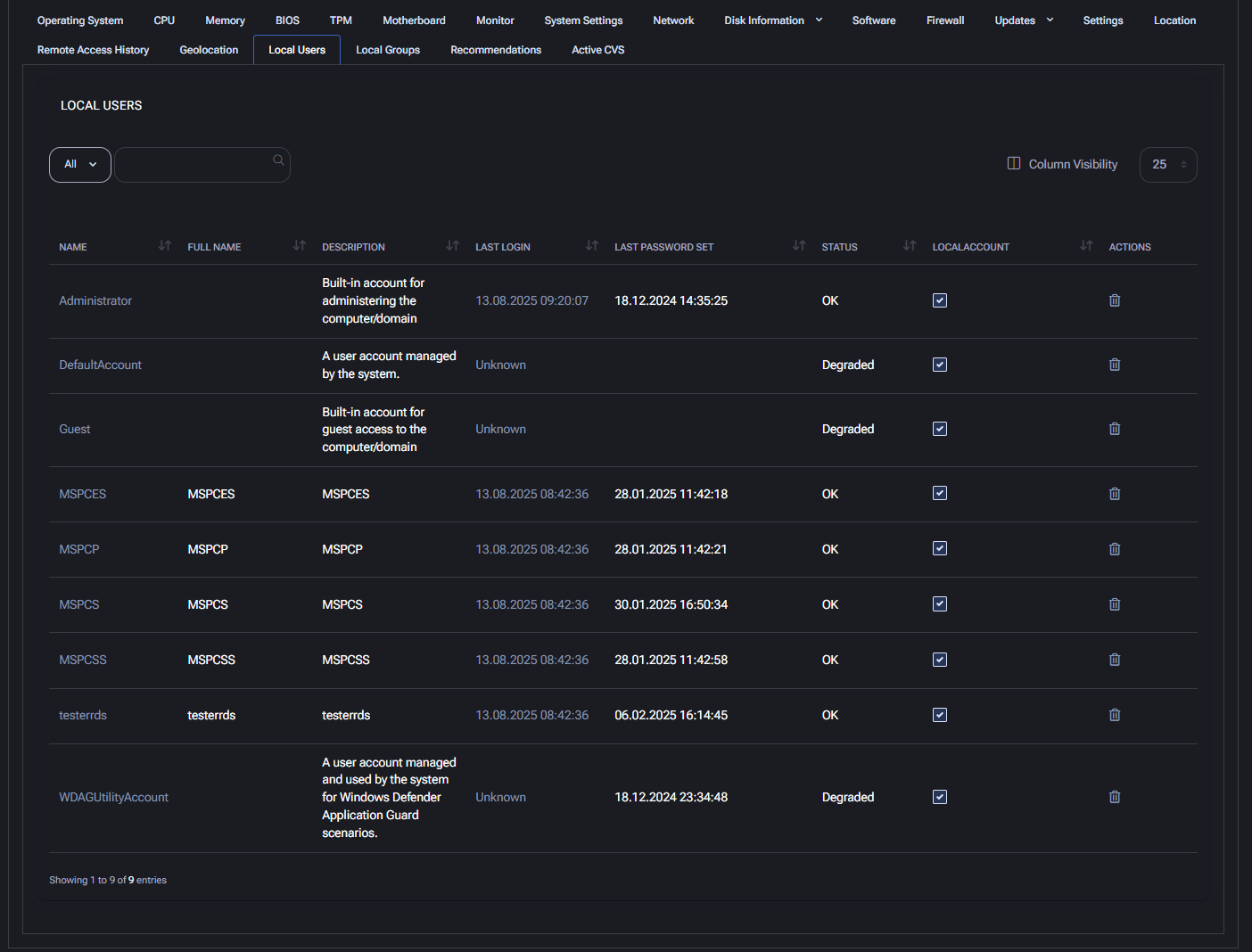
Section titled “Local users”This section lists all local user accounts on the device, their status, and login data. It is vital for auditing and user access management.
- Name: System username.
- Full Name: Display or user-friendly name, if set.
- Description: Purpose or type of user account (e.g., built-in accounts, test users).
- Last Login: Date and time of last user session.
- Last Password Set: When the password was last updated.
- Status: Account health (OK / Degraded).
- Local Account: Indicates if the account is local.
- Actions: Allows deletion or management of user entries.
Local groups
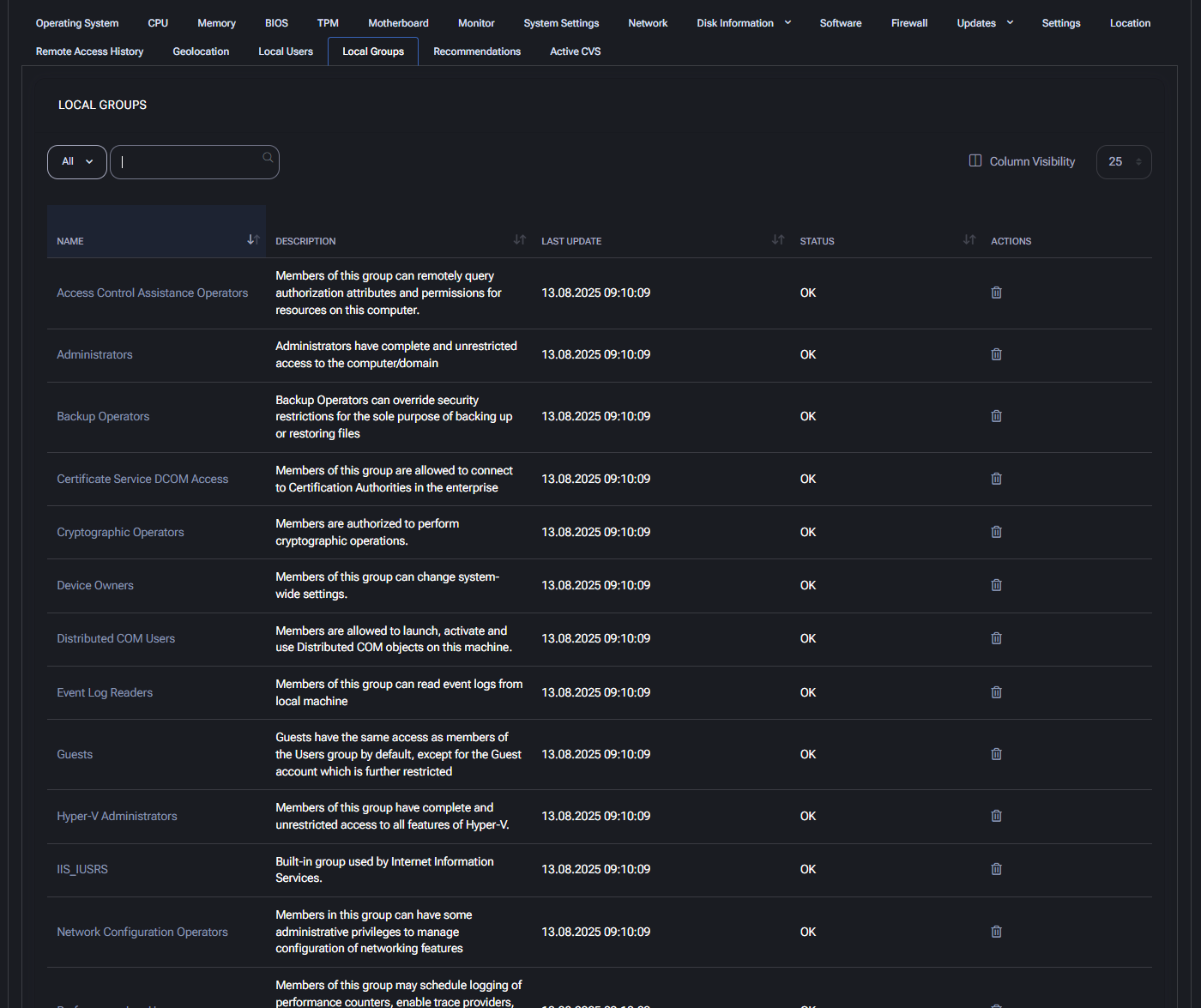
Section titled “Local groups”This tab displays all local security groups on the device and their associated permissions. It is useful for auditing access rights and ensuring proper role segmentation.
- Name: The name of the local group (e.g., Administrators, Backup Operators, Hyper-V Administrators).
- Description: Explains the purpose and privileges of each group. For example, “Members of this group can change system-wide settings.”
- Last Update: Shows the timestamp when the group data was last refreshed or synced (e.g., 13.08.2025 09:10:09).
- Status: Indicates the health of the group configuration, typically marked as OK.
- Actions: An icon is available to remove or manage the group.
Recommendations
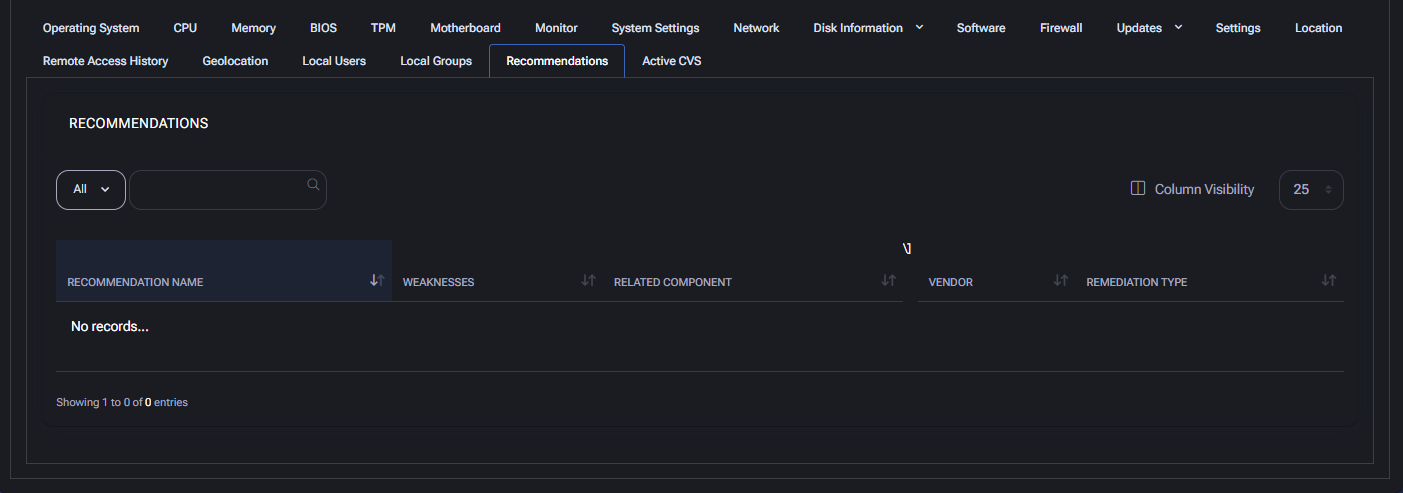
Section titled “Recommendations”This section provides suggested improvements for device configuration, security posture, or performance optimization. It is automatically populated based on system analysis and external data sources. In this case, the grid shows No records, meaning there are currently no recommendations available for this device.
Active cves
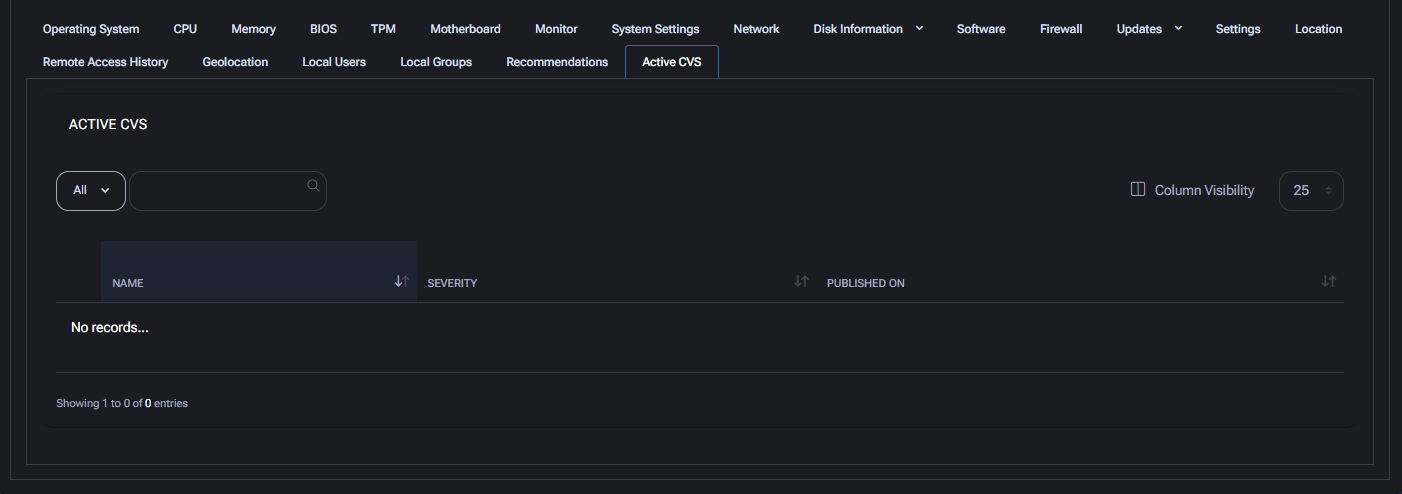
Section titled “Active cves”This tab lists Common Vulnerabilities and Exposures (CVEs) actively detected on the device, based on installed software, system configuration, or recent vulnerability disclosures. Currently, the section displays No records, indicating that no known CVEs are affecting this device at the moment.
- Name: CVE identifier (e.g., CVE-2025-14567).
- Severity: Risk classification (e.g., Critical, High, Medium).
- Published On: Disclosure date of the vulnerability.
Best practices
Section titled “Best practices”To effectively monitor and manage endpoint devices using the General tab, follow these best practices across all sections:
- Regular Health Reviews: Periodically check tabs such as CPU, Memory, Disk Information, and Updates to assess hardware performance and system reliability.
- Track Configuration Changes: Monitor BIOS, TPM, Motherboard, and System Settings for signs of unauthorized modifications or anomalies.
- Audit Access & Identity: Use Local Users and Local Groups to verify user privileges, detect unused or suspicious accounts, and maintain least-privilege access.
- Ensure Software Compliance: Review installed software under the Software tab and cross-check with organizational policies to detect unwanted or outdated programs.
- Investigate Network Issues: Analyze the Network tab to diagnose adapter-level problems, verify connection status, and confirm expected IP configurations.
- Geolocate Devices: Check the Geolocation tab to detect off-site access or physical location mismatches, which may indicate security concerns.
- Patch Proactively: Use the Updates tab to verify update history, confirm installation status, and reduce attack surfaces through timely patching.
- Prioritize Remediation: Rely on the Recommendations and Active CVEs tabs to guide remediation efforts based on actionable intelligence and known threats.
- Establish Baselines: Export data from each section regularly to establish device baselines and detect behavioral drift over time.
- Enable Alerts: Set up alerting rules for critical parameters (e.g., CPU usage, low memory, missing updates) to enable proactive incident response.
