
Running Tasks
Overview
Section titled “Overview”Configure and use Running Tasks from the MSPControl administrator portal.
Running Tasks
Section titled “Running Tasks”The Running Tasks section in MSPControl displays all currently active or in-progress scheduled tasks, allowing administrators to monitor their status and, when necessary, stop or restart them. This is especially useful for troubleshooting long-running or stuck processes.
Overview
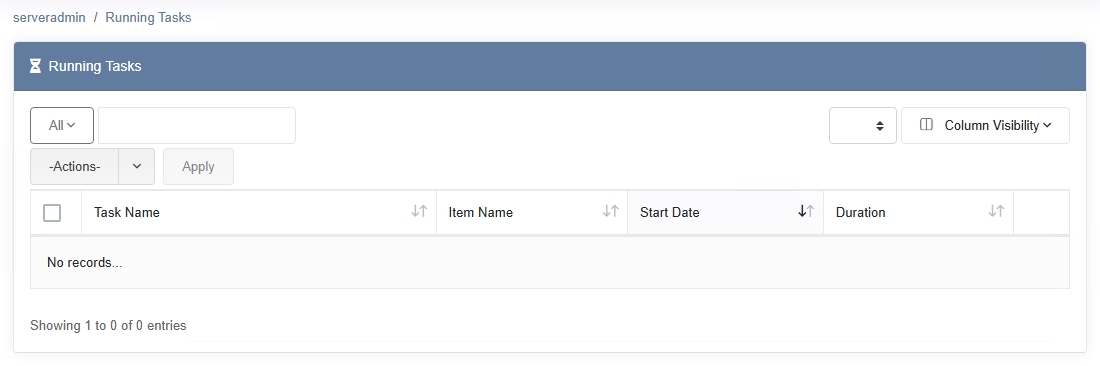
Section titled “Overview”When you open the Running Tasks page, you’ll see a table listing all tasks that are actively processing. Each entry typically shows:
- Task Name – The descriptive label of the running task.
- Item Name – A sub-label or additional context for the task (e.g., target object).
- Start Date – The date and time the task began running.
- Duration – How long the task has been running so far.
Actions
Section titled “Actions”Administrators can manage a running task by selecting it (via the checkbox or row) and then choosing one of the following options from the -Actions- drop-down menu:
- Restart – Stops the current task instance (if needed) and immediately attempts to start it again. This is useful when a task is stuck or if you want to force it to run from scratch.
- Stop – Terminates the currently running task. Once stopped, it won’t resume unless you restart it or wait for its next scheduled run (if it’s a recurring task).
Troubleshooting Tips
Section titled “Troubleshooting Tips”- Long-Running Tasks – If a task runs longer than expected, consider stopping and restarting it. Check the Max Execution Time set in the Scheduled Task properties.
- No Running Tasks Listed – If the table is empty, it means no tasks are currently in progress.
- Check Logs – For tasks that fail or behave unexpectedly, consult the Audit Log or task-specific logs to identify errors or misconfigurations.
Best Practices
Section titled “Best Practices”- Use Caution When Stopping Tasks – Stopping a task in the middle of execution may leave partial changes (e.g., incomplete file transfers). Review your environment before halting critical tasks.
- Restarting Tasks – A restart is most helpful when you suspect a task has hung or encountered a transient error. Verify that no major conflicts or dependencies will be disrupted by forcing an immediate restart.
- Monitor Duration – Keep an eye on how long tasks typically take. If a task frequently exceeds its usual run time, investigate performance issues or potential misconfigurations.