
Devices
Overview
Section titled “Overview”Use the Devices area to find, filter, and manage connected Windows endpoints.
Devices – Remote Monitoring & Management (RMM)
Section titled “Devices – Remote Monitoring & Management (RMM)”The Devices page in MSPControl displays a complete list of all workstations and servers that have the MSPControl Autopilot agent installed. This suite of features supports comprehensive device monitoring, remote actions, and proactive management, ensuring your IT environment is secure, compliant, and fully optimized for performance. Once the Autopilot agent is successfully installed on a Windows machine, the device will automatically appear in this list under the Devices section of the left menu (Organizations > Devices > Devices).
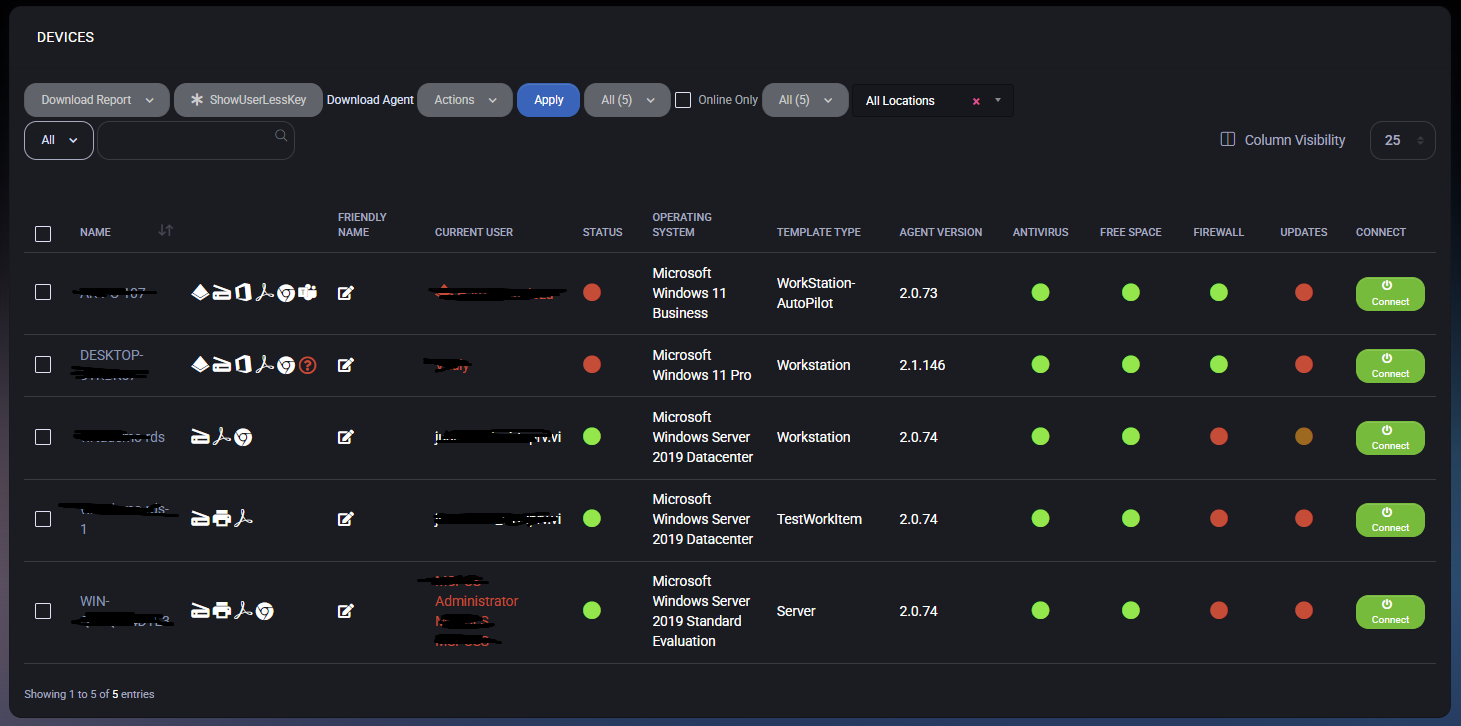
Device Table Overview
Section titled “Device Table Overview”The main Devices page displays a table of all Autopilot-managed Windows machines. Each row typically includes:
- UserName / Name The user account associated with the device (e.g., “George Khoury”) plus a device name (e.g., “OTFX06”). Clicking the user name filters for all that customer’s devices; clicking the device name opens its details.
- Friendly Name A custom label (e.g., “stockbuild,” “AWSConnect”) for quick identification.
- Current User The Windows user currently logged in (or last known user).
- Status Online or Offline, with a tooltip showing the last check-in time if offline.
- Operating System Edition and version of Windows (e.g., Windows 10 Pro, Windows 11, Windows Server 2019).
- Template Type A specific configuration template (e.g., “Workstation,” “Property,” “Enterprise”).
- Agent Version The Autopilot agent version installed on the device.
- Antivirus Whether AV is installed and up to date (green for good, red for missing or disabled).
- Firewall Indicates if the Windows Firewall is enabled or disabled.
- Updates Whether the device has missing Windows updates (green for fully updated, orange/red for pending updates).
- Connect A button to initiate a remote session (RDP, remote console) if supported.
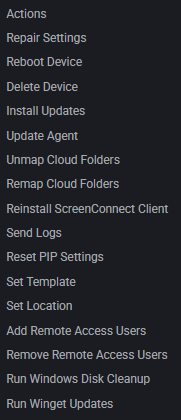
Actions Dropdown
Section titled “Actions Dropdown”The Actions dropdown provides a set of remote management operations that can be executed directly from the Devices page:
- Repair Settings Reapplies key configuration settings on the device.
- Reboot Device Restarts the machine remotely.
- Delete Device Removes the device from MSPControl (does not uninstall the agent).
- Install Updates Triggers installation of available Windows updates on the selected device.
- Update Agent Installs the latest version of the MSPControl agent.
- Unmap Cloud Folders / Remap Cloud Folders Manage folder mapping for cloud drives.
- Reinstall ScreenConnect Client Reinstalls the remote control client (used for Connect feature).
- Send Logs Forces log transmission to the server for diagnostics.
- Reset PIP Settings Resets “Privacy Improvement Program” or internal diagnostic configuration.
- Set Template / Set Location Allows re-assigning the template or device location from the UI.
- Add / Remove Remote Access Users Manage user permissions for remote access.
- Run Windows Disk Cleanup Initiates cleanup of temp/cache/log files.
- Run Winget Updates Uses Windows Package Manager to update software packages silently.
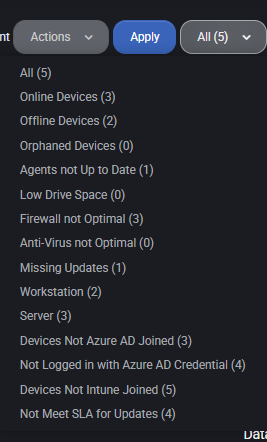
Device Filtering
Section titled “Device Filtering”You can filter devices using multiple dropdowns and toggles:
- Status Filters Online, Offline, Orphaned Devices, Low Drive Space, Firewall Not Optimal, etc.
- Agent Health Filters Agents not up to date, Missing Updates, Not Meet SLA for Updates, etc.
- Azure & Intune Filters Devices Not Microsoft Entra ID (Azure AD) Joined, Not Intune Joined, Not Logged in with Azure Credential.
- Category Filters Server, Workstation.
In addition to these filters, you can use the top-right dropdowns to filter by:
- Agent Version
- Operating System
- External IP (IPv4 / IPv6)
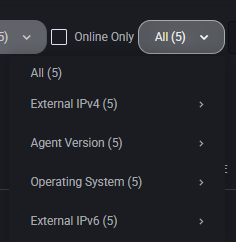
Filtering by Location is also available using the black dropdown just above the table on the right side.
Download Report
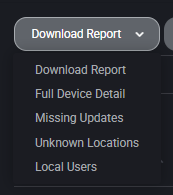
Section titled “Download Report”Use the Download Report dropdown to export device information in .xlsx format. Available options:
- Download Report Full summary table (standard view).
- Full Device Detail Exports an extensive file with 100+ data points per device, including hardware/software details, BIOS, TPM, compliance, location, network, OS build, licensing, and more.
- Missing Updates Report of all updates missing on managed devices, including update title, description, type, last deployment date, etc.
- Unknown Locations Devices whose geolocation info could not be resolved.
- Local Users Shows local accounts on each device, including group membership, password policy, last login, status, etc.
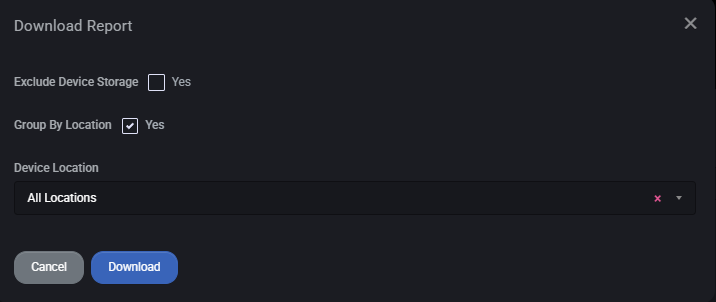
When clicking Download Report, and choosing the Full Device Detail a modal allows choosing:
- Exclude Device Storage Omits disk usage info.
- Group By Location Organizes rows by geolocation.
- Device Location Filter report by a specific customer location.
Best Practices
Section titled “Best Practices”- Keep the Autopilot agent updated across all machines to ensure accurate data and remote functionality.
- Use filters to proactively monitor compliance, firewall, and update status across all devices.
- Schedule weekly downloads of the “Missing Updates” report to stay ahead of vulnerabilities.
- Use the “Set Template” and “Set Location” functions to maintain organized environments and reporting clarity.