
Azure Backups Dashboard
Overview
Section titled “Overview”Review Azure backup status and related information from MSPControl.
Azure Backups Dashboard
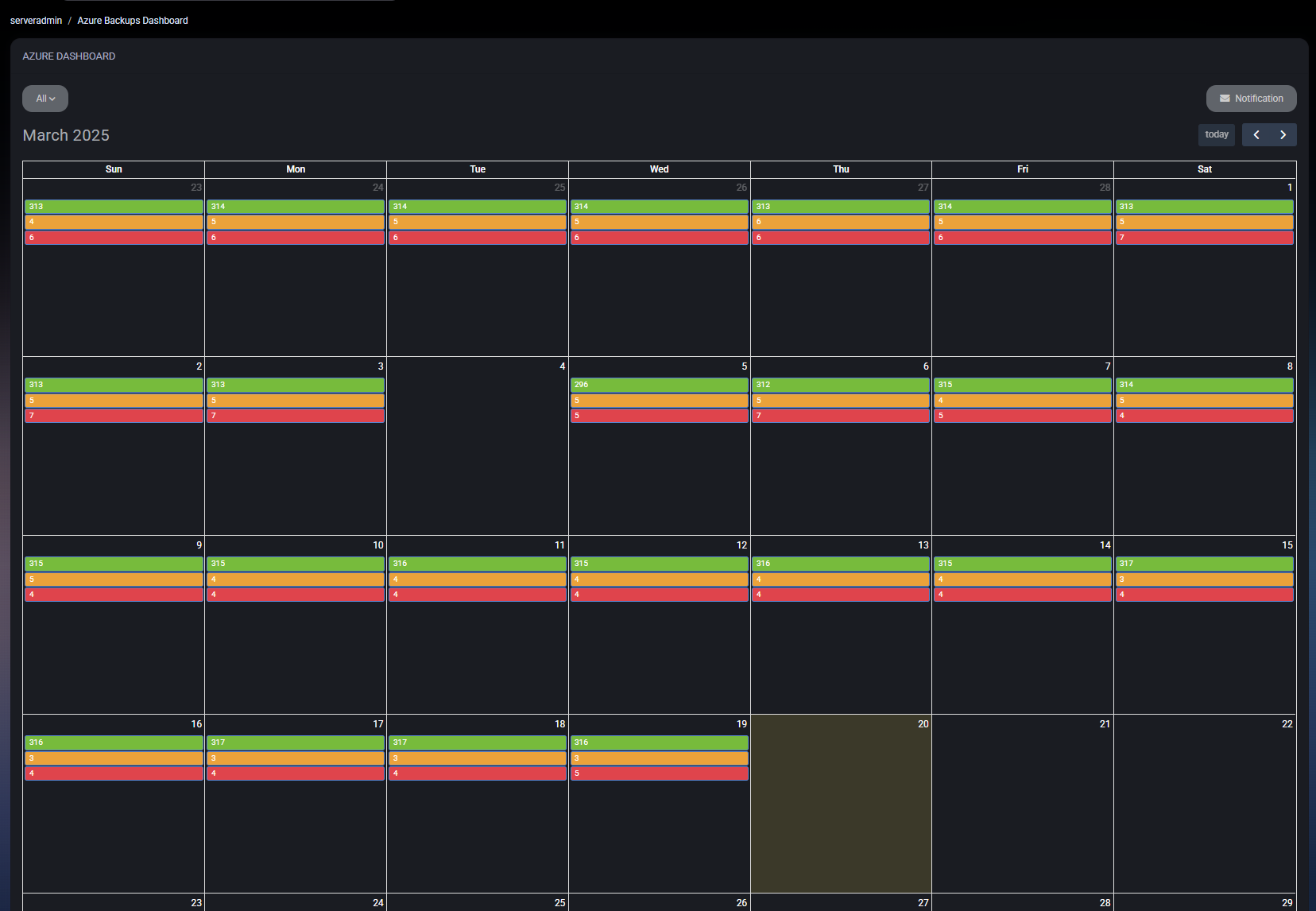
Section titled “Azure Backups Dashboard”The Azure Backups Dashboard in MSPControl provides a calendar-based overview of your Azure Backup jobs. It displays daily color-coded statuses to quickly show which backups succeeded, failed, or issued warnings, and allows you to drill down for detailed information on each protected item.
Calendar View
Section titled “Calendar View”Similar to other MSPControl backup dashboards, the Azure Backups Dashboard shows a monthly calendar where each day is color-coded to represent the overall status of Azure Backup jobs:
- Green – Successful backups.
- Red – Failed backups.
- Yellow/Orange – Warnings or partial successes.
This visual layout helps you spot trends or recurring issues quickly (e.g., frequent warnings on certain days).
Filtering and Date Range
Section titled “Filtering and Date Range”At the top of the dashboard, you can:
- Select a Date Range – Use the From and To fields to specify which dates to display, then click Apply or use the Next/Back buttons.
- Filter by Customer – If you manage multiple organizations, you can narrow the dashboard to a single customer’s backups.
- Choose a Status – Focus on only Success, Failed, or other statuses, depending on what you need to troubleshoot.
Daily Backup Details
Section titled “Daily Backup Details”Clicking on any colored entry in the calendar takes you to a more detailed page or section that lists:
- Protected Items – The Azure resources (e.g., VMs, blob storage, SQL databases) that are backed up.
- Status – Whether each item’s backup is Success, Failed, or Warning.
- Last Backup / Next Backup – Shows when the most recent backup occurred and when the next one is scheduled.
- Recovery Point Count – The number of valid recovery points stored for that item.
- Actions – Options to view logs, restore points, or troubleshoot failures.
This granular breakdown helps you identify exactly which Azure resources are protected, the success/failure rates, and any that may need additional attention or configuration.
Notifications
Section titled “Notifications”A Notification button or icon may appear on the dashboard, letting you configure email or in-app alerts if backups fail or produce warnings. This ensures prompt awareness of any critical issues with your Azure backups.
Best Practices
Section titled “Best Practices”- Review the Calendar Daily – A quick glance at the color-coded days helps confirm backups ran successfully. Investigate red or yellow entries immediately.
- Use Filtering to Focus – If you manage multiple customers or only want to see failures, apply the relevant filters (e.g., Customer, Status) to streamline troubleshooting.
- Check Protected Items – Ensure that all critical Azure resources (VMs, databases, blob storage) are listed under Protected Items. Missing resources may not be backed up.
- Stay Alert with Notifications – Enable notifications for failed or warning states so you can quickly address backup issues and maintain reliable data protection.