
Install MSPControl Autopilot
Overview
Section titled “Overview”Install the MSPControl Autopilot agent on a Windows device and connect it to the platform.
Autopilot Installation
Section titled “Autopilot Installation”This guide explains how to install the MSPControl Autopilot agent on a Windows or Windows Server machine. Autopilot is a lightweight Windows service that enables remote management of system settings, updates, and security configurations. It is required for MSPControl to monitor and control on-premises servers and endpoints. You can download Autopilot at the Downloads Center.
Step 1: Launch the Setup Wizard
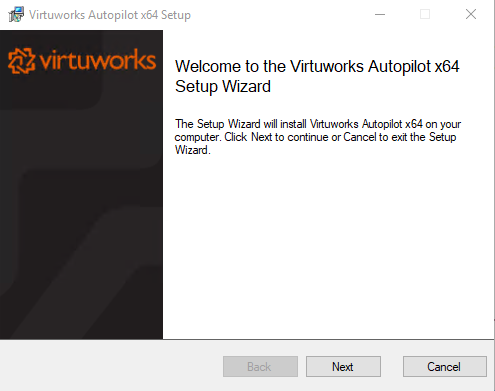
Section titled “Step 1: Launch the Setup Wizard”Download the Autopilot x64 installer from your MSPControl panel or provided link. Run the setup executable. On the welcome screen, click Next to begin installation.
Step 2: Accept License Agreement
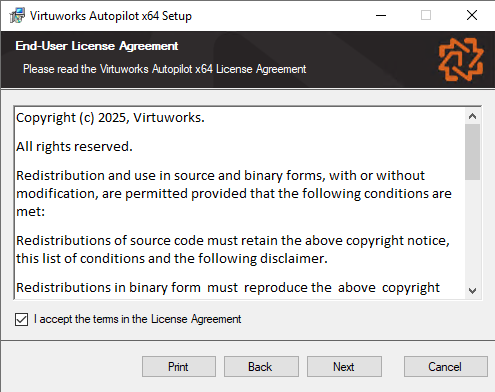
Section titled “Step 2: Accept License Agreement”Read the End-User License Agreement and accept the terms by checking the box. Click Next to proceed.
Step 3: Select Installation Folder
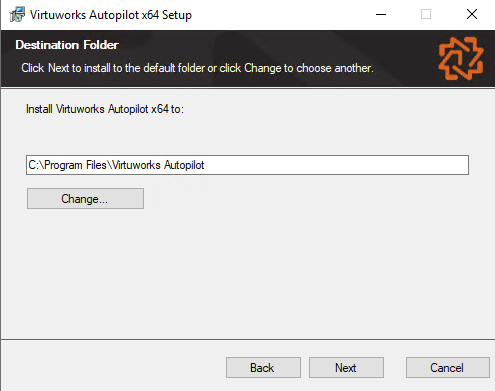
Section titled “Step 3: Select Installation Folder”Choose the installation path for the Autopilot agent. By default, it installs to C:\Program Files\Virtuworks Autopilot. You can change the location if needed, then click Next.
Step 4: Enter MSPControl Credentials
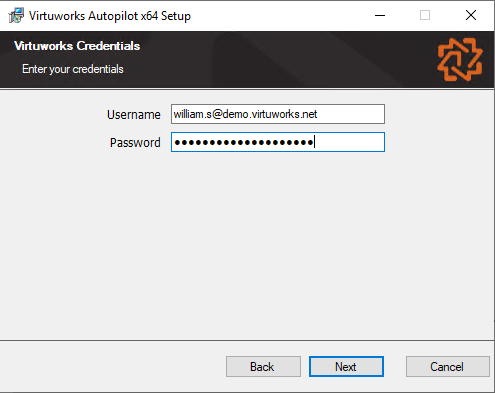
Section titled “Step 4: Enter MSPControl Credentials”Provide the username and password of the AD user associated with the Hosted Organization in MSPControl. These credentials are used to authenticate the agent with the platform. Click Next.
Step 5: Wait for Installation
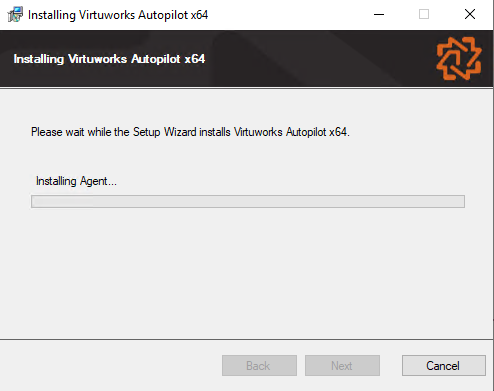
Section titled “Step 5: Wait for Installation”The Setup Wizard will now install the agent. This may take a few seconds. Please wait until the installation completes.
Step 6: Finish Setup
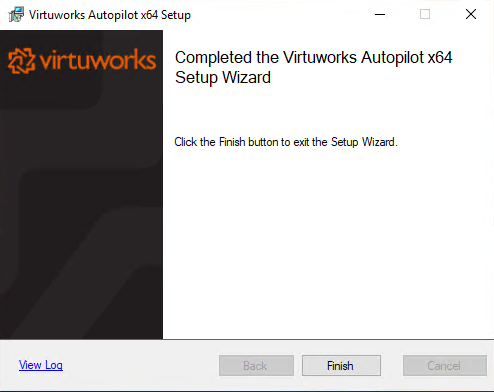
Section titled “Step 6: Finish Setup”Once the installation is complete, click Finish to exit the Setup Wizard. The Autopilot agent will now run in the background and establish a connection to the MSPControl platform. After a few moments, the device will appear automatically in the Devices section of the MSPControl Portal under Organizations > Devices. From there, administrators can view system info, assign policies, and monitor agent activity.
Best Practices
Section titled “Best Practices”- Ensure the firewall allows outbound traffic on required ports for MSPControl communication.
- Install Autopilot under an account with local administrator rights.
- Verify connectivity from the machine to your MSPControl server after installation.